Valitse organisaatio
Quip-Collapsable Sections
Julkaisupäivä: Apr 22, 2025
Kuvaus
Collapse and expand document content beneath headings in Quip.
Ratkaisu
Collapsed Sections: What They Are and How to Use Them
Whether you're working on the web, desktop, or mobile, content under headings can be collapsed or expanded for easier navigation.
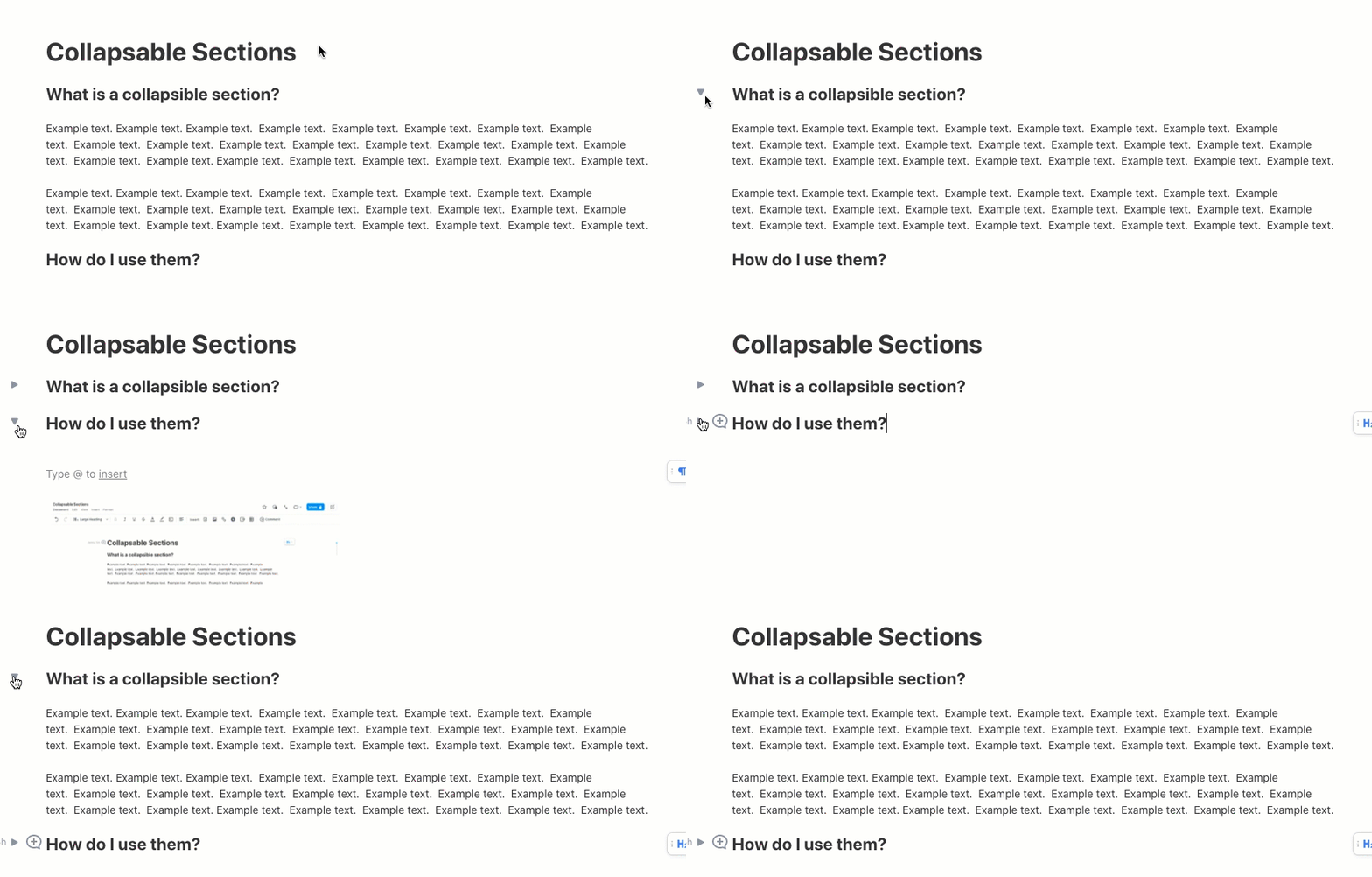
To collapse a section:
-
Select the word or sentence you want to use as a heading, then choose a heading style (Heading 1 to Heading 4) from the toolbar. Note: Only content under headings can be collapsed—not regular paragraphs.
-
Hover to the left of the heading and click ▼ to collapse the section.
To expand it again, hover to the left of the collapsed section and click ▶.
When the section heading has an in-line comment, the triangular collapse/expand icons are located to the left of the comment bubble.
Collapsable Lists
To collapse or expand sub-content of lists, hover to the left of the bullet point and select ▶ or ▼. Alternatively, select the menu to the right side of the text and select options under Collapse/Expand to quickly expand or collapse all of the sub-list content in a section.
Collapsable Sections & Lists: Why Use Them?
- Summaries vs. Details: Readers can choose to go deeper on a topic or stay at a high-level.
- Navigability: Long documents can be shortened, becoming easier to navigate.
- Focus: Collapsible sections can help users focus on one piece of content at a time.
- Performance: When large sections are collapsed, large documents can load faster.
Use Cases:
- FAQ - Quickly skim questions and expand the content that matters most
- Content review - review specific sections of the document
- Running agendas and notes - great way to preserve for archival purposes
- Code blocks - now much easier to navigate
- Task Management - focus on a single task at a time
FAQ & Considerations
- Can I expand or collapse all sections at once in my document?
- Yes. Click View on top of the toolbar and select Keep Outline Expanded. Alternately, click the floating menu to the right of the section and click Collapse/Expand.
- If I collapse sections in the document, will my colleague who’s also shared on the document see the same collapsed sections?
- No. Collapses are local, meaning no one else shared on the document sees which sections you’ve collapsed or expanded. You have full control.
- Is there anything that cannot be collapsed?
- Yes. Sections in columns and the title of the document
- Will content under a collapsed section be included in Find & Replace?
- Yes, the content will show and the collapsed section will expand
- Can I print collapsed content?
- Yes. By default printing will include collapsed content. To change this, go to Print Options under Document and uncheck Print Collapsed Content.
Questions/Feedback?
Reach out to our support team and log a case. Learn how to do that here.
Knowledge-artikkelin numero
000390475
Ratkaisiko tämä artikkeli ongelmasi?
Anna palautetta, jotta voimme kehittyä!
