Velg en organisasjon
Synchronized Group Folders in Quip
Publiseringsdato: Aug 18, 2026
Beskrivelse
A Synchronized Group Folder in Quip is a shared folder whose membership is automatically kept in sync with a Quip group. When members are added or removed from the group, the folder membership updates automatically — without requiring a Quip administrator to manually manage folder sharing. This article explains how Synchronized Group Folders differ from standard shared folders, how to create one, and how group membership changes affect folder access.
Løsning
This article explains how to set up and manage synchronized Group Folders in Quip, so that centrally managed employee groups automatically get access to all content in a folder and its subfolders.
This article covers the following on synchronized Group Folders:
- Requirements
- Getting Started
- Enable Synchronized Group Folders (Admin)
- Synchronization Defaults
- Synchronize Folders (Admin)
- Synchronize Folders (Everyone)
- Folder Membership
- Considerations
Requirements
- Before User Groups are available in the Quip interface, User Groups need to be created using the SCIM API. Detailed documentation about SCIM API calls can be found here.
SCIM API calls include:
- Users - Admins can create and provision users using the SCIM API.
- Groups - Admins can create user groups using the SCIM API. These user groups will be shown to end users when folders are synchronized.
- Group Folders - Alternatively, admins can create a group folder using the SCIM API. With the API setup, the top-level group folder will be created and group members added. This is the API equivalent of creating a group folder within the Quip Admin Console.
Getting Started
After User Groups have been created using the SCIM API, navigate to the Quip Admin Console (available to administrators only).
To view User Groups associated with your Quip site, select Group Folders in the left-hand side panel. Click on the drop down menu and select User Groups. Here you can view the following details of the User Groups associated with the Quip site: number of members, creation date, last updated date, and number of associated group folders.
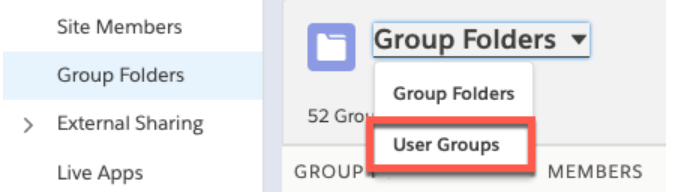
To view details of a specific user group, click on the user group highlighted in blue.
Enable Synchronized Group Folders (Admin)
In the Quip Admin Console, select Settings in the left-hand side panel. Click Accounts & Access. Under Synchronized Group Folders at the bottom of the page, the following settings are available:
- Change Settings: Enable synchronized folders for everyone (all site members), admins only, or disable.
- Add: Set customer messages to appear in the group search modal. This is used to direct users to a specific company help page in the case a group is not found.
Synchronization Defaults
- There is no limit on folder size.
- Synchronize up to a certain folder size.
- Only available for admins via admin console.
Synchronize Folders (Admin)
If there are existing Group Folders, group membership can be set via the Quip Admin Console.
- Navigate to Group Folders in the left hand side panel, find the targeted Group Folder, and click the drop down menu associated with the folder's row (far right-hand side of row). Select Manage Synchronized Groups. Search and select Group to synchronize, click Next, and Confirm membership changes as needed.
Synchronize Folders (Everyone)
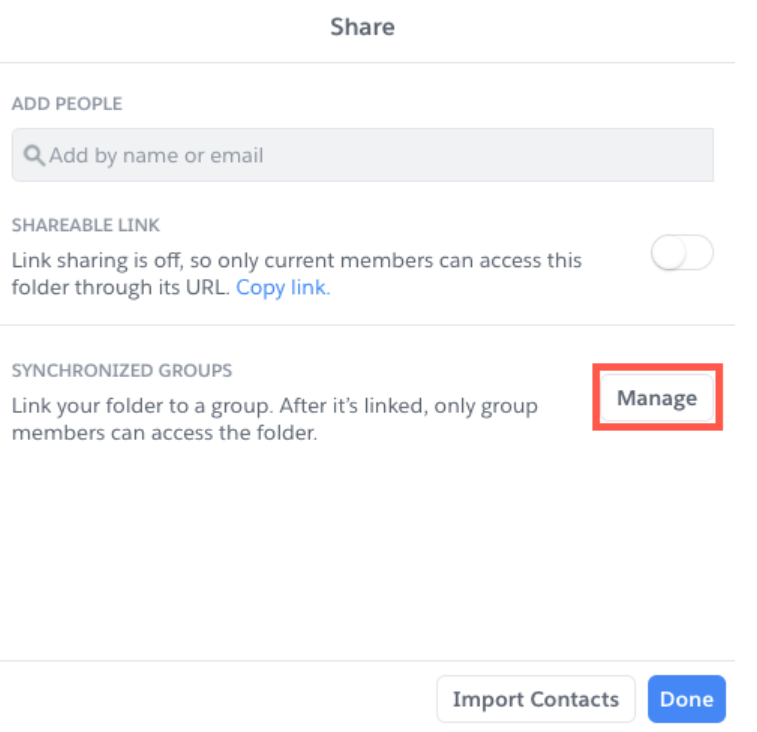
Click on the icon of the paper and pencil at the top right-hand corner and select New Folder. In the folder, click Share at the top right. Select Manage under Synchronized Groups to be able to search and select groups to synchronize.
Folder Membership
- When synchronizing folders, users can synchronize to multiple groups, but will be unable to add additional individual members. Membership can only be controlled by the admin from the group itself.
- Additional groups can be added to folders by clicking Manage. Users can unlink a folder from a synchronized group and view all members associated with the folder.
- Subfolders and documents will inherit the folder membership of the synchronized parent folder.
Considerations
- Using the
PATCH` operation with SCIM v2.0 is not supported for the `/Groups` resource.
In SCIM v2.0, `PATCH /2/Users`, paths with expressions are not supported. e.g. no `path: email[value sw foo]`. Any folder can be connected to a third-party synced group folder, but that folder will become a top level folder and no longer be nested. Additional people can be added to subfolders and documents within the group folder, but membership cannot be altered at the group folder level. In the event that a group folder is unsynced, group membership will be unchanged from the point in time at which the group folder is unsynced. At that point, it will behave like any other group folder.
Knowledge-artikkelnummer
000390839
Hjalp denne artikkelen med å løse problemet ditt?
La oss få vite det slik at vi kan forbedre!