Выбрать организацию
How to Renew an Expiring Certificate in MuleSoft Composer
Дата публикации: Apr 2, 2026
Описание
For security reasons, Salesforce Certificates expire within 12 months of your purchase and require you to follow the steps below to renew.
The customer will receive an email in their inbox reminding you to renew your MuleSoft Composer certificate 10 months after purchase, and 60 and 30 days before the certificate expires.
The reminder email will be titled, 'SFDC Expiring Certificate Notification.' An example email is shown below, where the MuleSoft Composer certificate is designated.

Решение
When the MuleSoft Composer certificate is about to expire, please select one of the following options:
Option 1:
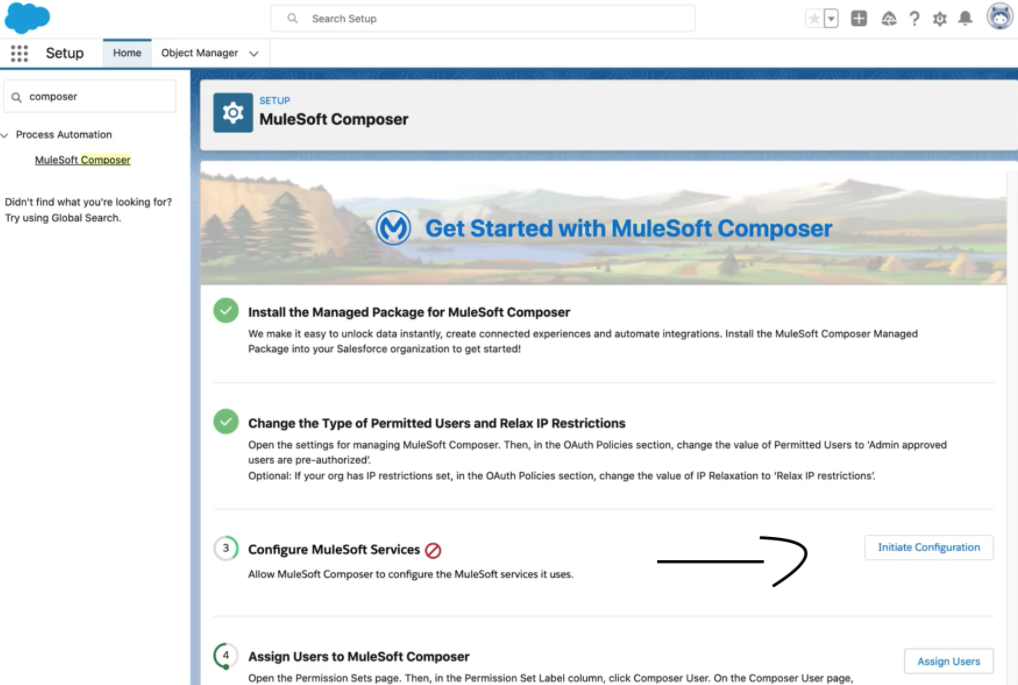
1) In Salesforce, go to Setup → Process Automation → MuleSoft Composer
2) Configure MuleSoft Services → press the Initiate Configuration button
3) Performing this action will generate a new Salesforce Certificate
Option 2:
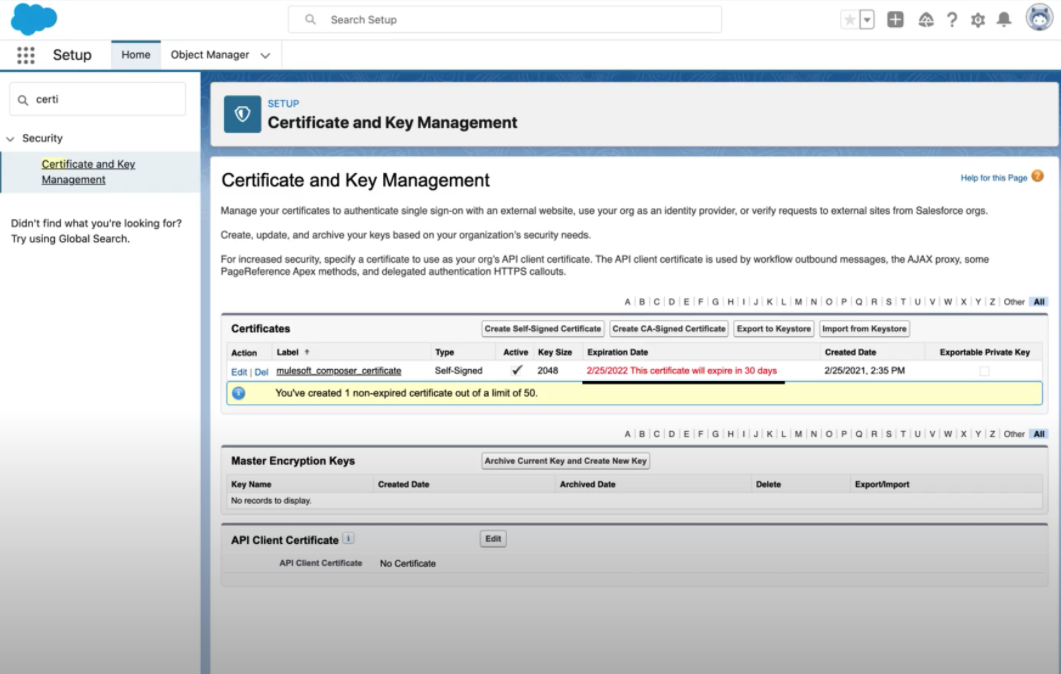
1) In Salesforce, go to Setup → Security → Certificate and Key Management
2) You can see that the existing certificate - "mulesoft_composer_certificate" might be expiring soon.
Note: Self-signed certificates with key size 2048 are valid for 1 year only.
Since these are self-signed certificates, we can delete them and re-create to extend the active period. But before we can delete, ensure that a new certificate is created and replaced in the referred Named Credential.
3) Create a new self-signed certificate with any name and key size as 2048.
4) Update the name credential with the newly created certificate.
5) Delete the old certificate that is about to expire.
6) Since the MuleSoft Composer Package will look for the exact match, update the name of the newly created certificate to - "mulesoft_composer_certificate". (This cannot be done in the beginning as the system will not allow duplicate names). The name change will automatically reflect in the named credential.
NOTE: The permission required to perform "Initiate Configuration" to renew an expired certificate is Salesforce Admin with System Administrator profile. For more info, please check the doc here.
Note:
During certificate renewal, please ensure that Option 2 is completed first. Once this step is finished, the “Initiate Configuration” button will become available. It is required to click this button to reset the configuration—otherwise, the setup may result in errors.
Please note that the current steps in this article primarily reflect the initial setup flow. For certificate renewals, the above sequence must be followed.
If after following these steps you still experience issues, please open a new Salesforce Support case for the MuleSoft Composer product.
Номер статьи базы знаний
000390883
Эта статья решила вашу проблему?
Оставьте свой отзыв, чтобы мы могли стать лучше!
