Vælg en organisation
Screen Flow Lookup Field Value Is Cleared When a Validation Error Fires on Form Submission
Udgivelsesdato: May 15, 2026
Beskrivelse
In Salesforce Screen Flows, when a Lookup component is placed on a screen element and a validation error fires upon form submission (for example, a required text field is left empty), the value previously selected in the Lookup field is wiped out after the validation fires.
This happens because Salesforce Lightning runtime screen components do not automatically persist user-entered values when the screen re-renders due to a validation error. Unless a component's output value is explicitly stored in a flow variable, the value is lost on re-render.
Løsning
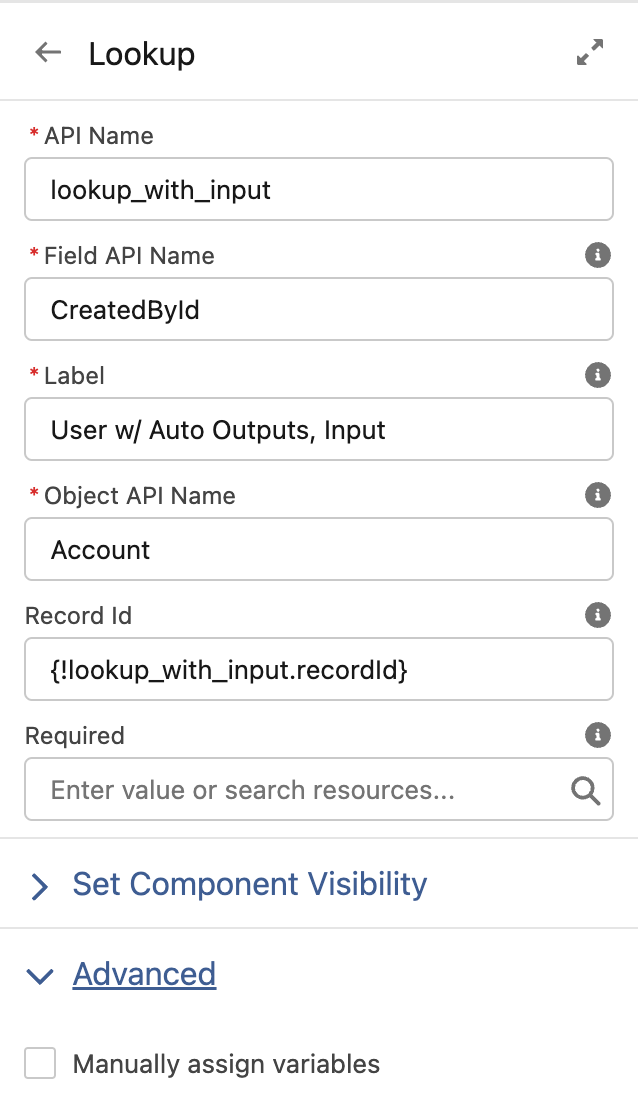
o preserve the Lookup field value across validation events, set the Record ID input of the Lookup component to store its own output value — specifically, use the component's auto-output variable such as {!myLookup.recordId} (using the format ApiName.recordId).
This configuration tells the flow to store the selected record ID back into the component's input on each render, so that when a validation fires and the screen re-renders, the previously selected value is restored.
Steps to configure:
- Open the Screen Flow in Flow Builder.
- Click on the Lookup component on the screen element.
- In the component's input properties, find the Record ID input field.
- Set the value to the component's own auto-output record ID variable (for example,
{!LookupComponentApiName.recordId}). - Save and activate the flow.
Note: By default, Lightning runtime screen components have no memory between screen navigations. If a user enters a value, navigates to another screen, and returns to the component's screen, the user-entered value is lost. To enable a flow to retain an attribute value, explicitly set the attribute — the flow then stores the value automatically. If you store values manually, use the attribute's output value and store it in a variable.
Yderligere ressourcer
Vidensartikelnummer
000391007
Løste denne artikel dit problem?
Giv os besked, så vi kan forbedre os!
