Välj en organisation
Accessing Data JSON for OmniScripts Outside the Designer
Publiceringsdatum: Mar 18, 2026
Beskrivning
OmniScript data JSON can be viewed in Preview mode within the OmniScript Designer. However, once the OmniScript is activated and executed outside the Designer, the data JSON is not directly visible.
Lösning
Below are the steps to view the OmniScript data JSON outside the designer -
-
Add a Data Mapper Transform element to the OmniScript immediately after the step where the data JSON needs to be captured.
-
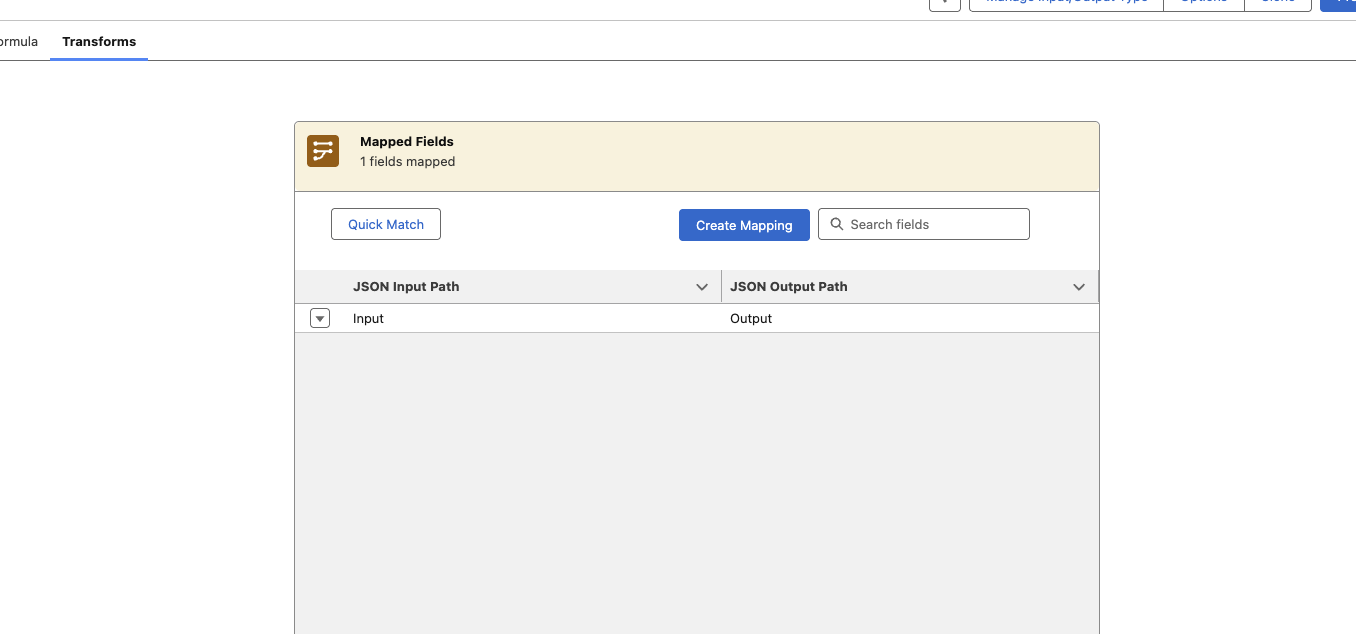
Configure the JSON Input Path and JSON Output Path in the Data Mapper Transform.
Example:
JSON Input Path: Input
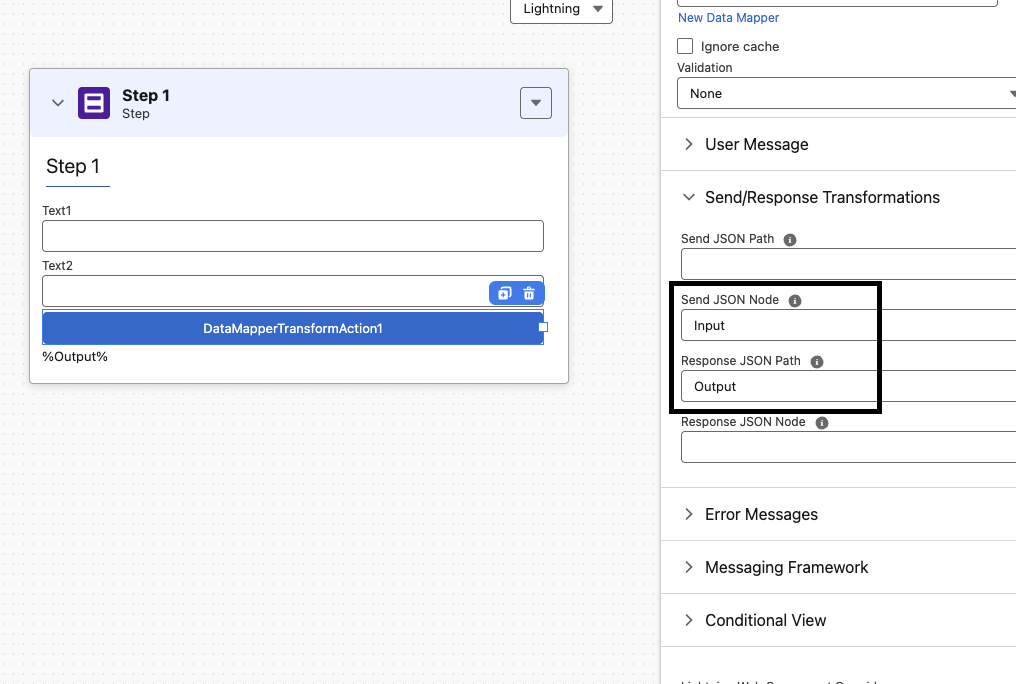
JSON Output Path: Output - In the Data Mapper Transform action properties within OmniScript, set the Send JSON Node to Input. This sends the current OmniScript data JSON under the Input node.
Set the Response JSON Path to Output, which stores the Data Mapper response in the OmniScript data JSON under the Output node.
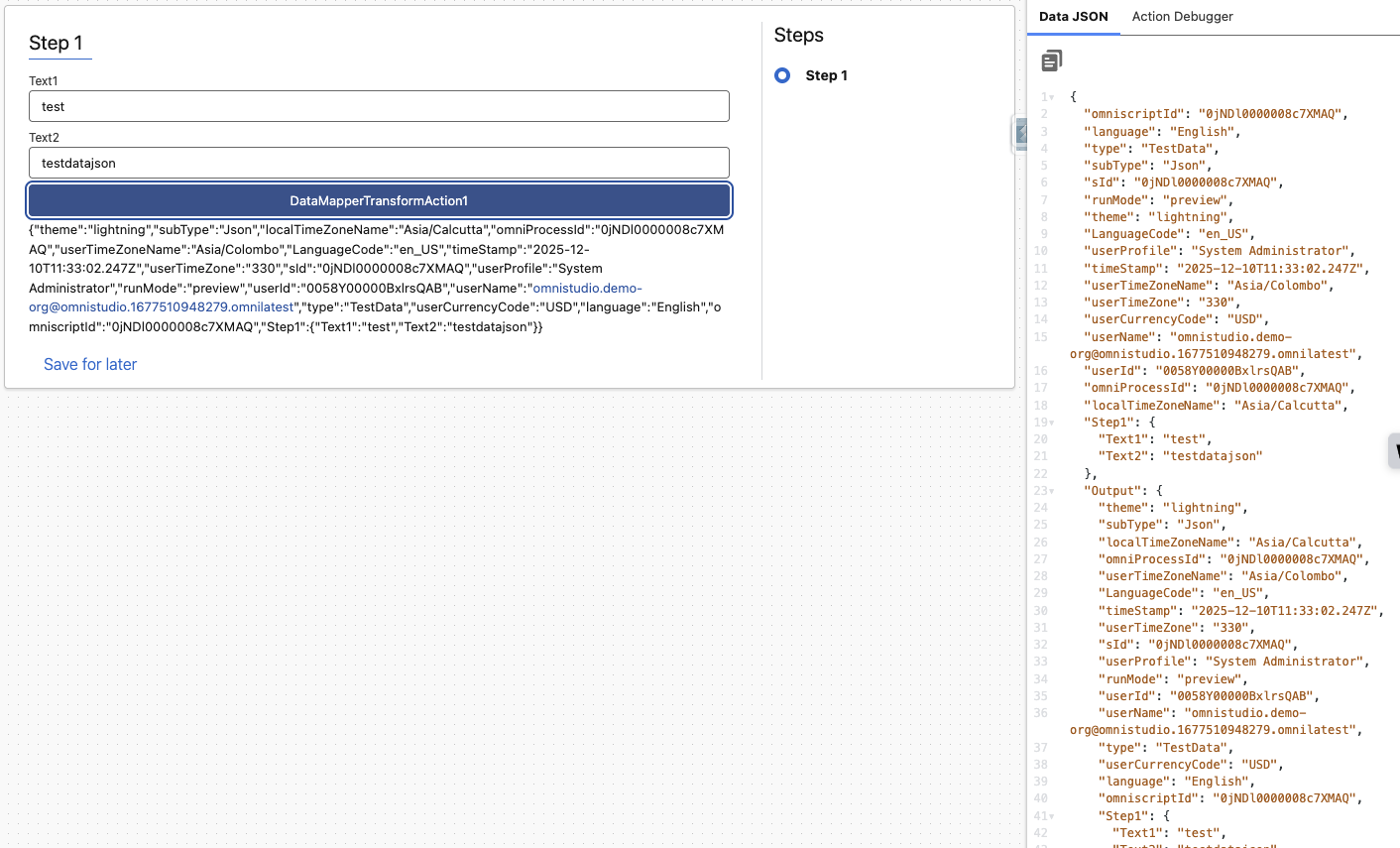
- In the next step, add a Text Area element and reference the %Output% node as a merge field. When the Data Mapper Transform executes, the JSON up to that point will appear in this Text Area.
- If displaying the JSON in the UI is not required, execute the OmniScript and capture the response using the browser’s Tools (Inspect → Network tab).
- Locate the Data Mapper Transform request in the Network logs and verify the payload, which contains the serialized OmniScript JSON.
Knowledge-artikelnummer
000391069
Löste denna artikel ditt problem?
Berätta för oss vad vi kan förbättra!
