Välj en organisation
Unable to register or pair device for 2FA MFA
Publiceringsdatum: Aug 6, 2024
Lösning
Q: You are trying to set up 2FA / MFA for Account Manager, but there is no option prompting you to register the device.
Environment: Account Manager > Organization > 2FA Settings
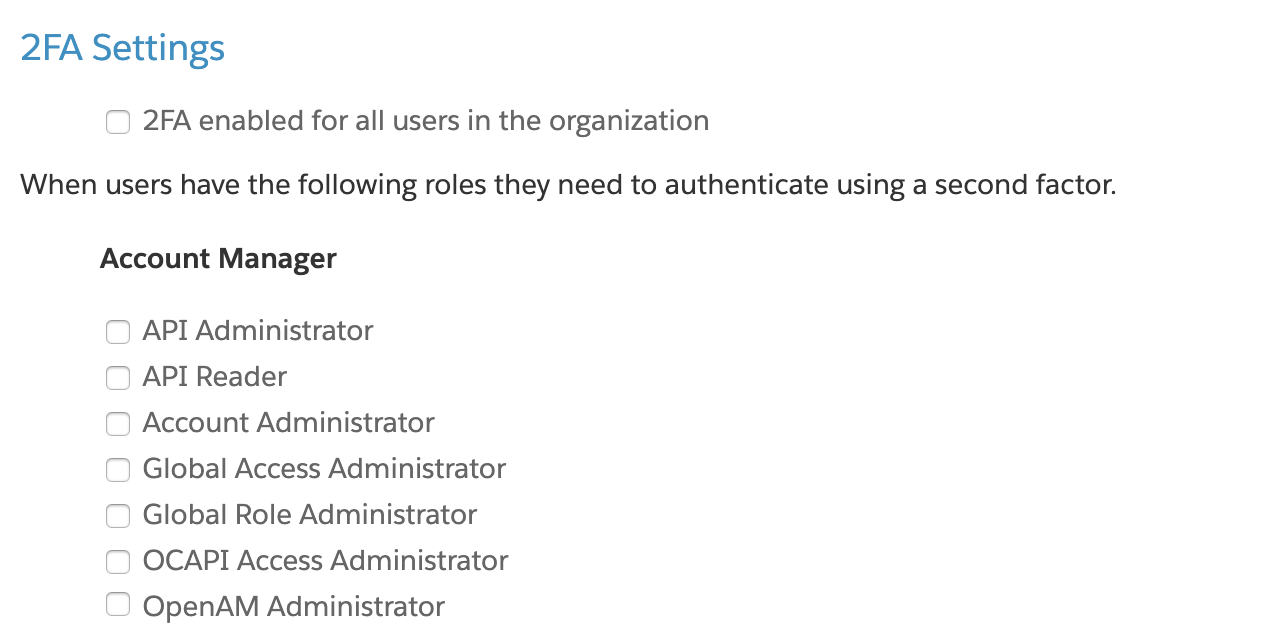
A: Navigate to Account Manager and go to Organization Settings. Scroll down to 2FA Settings and review the roles for which you would like 2FA enabled.
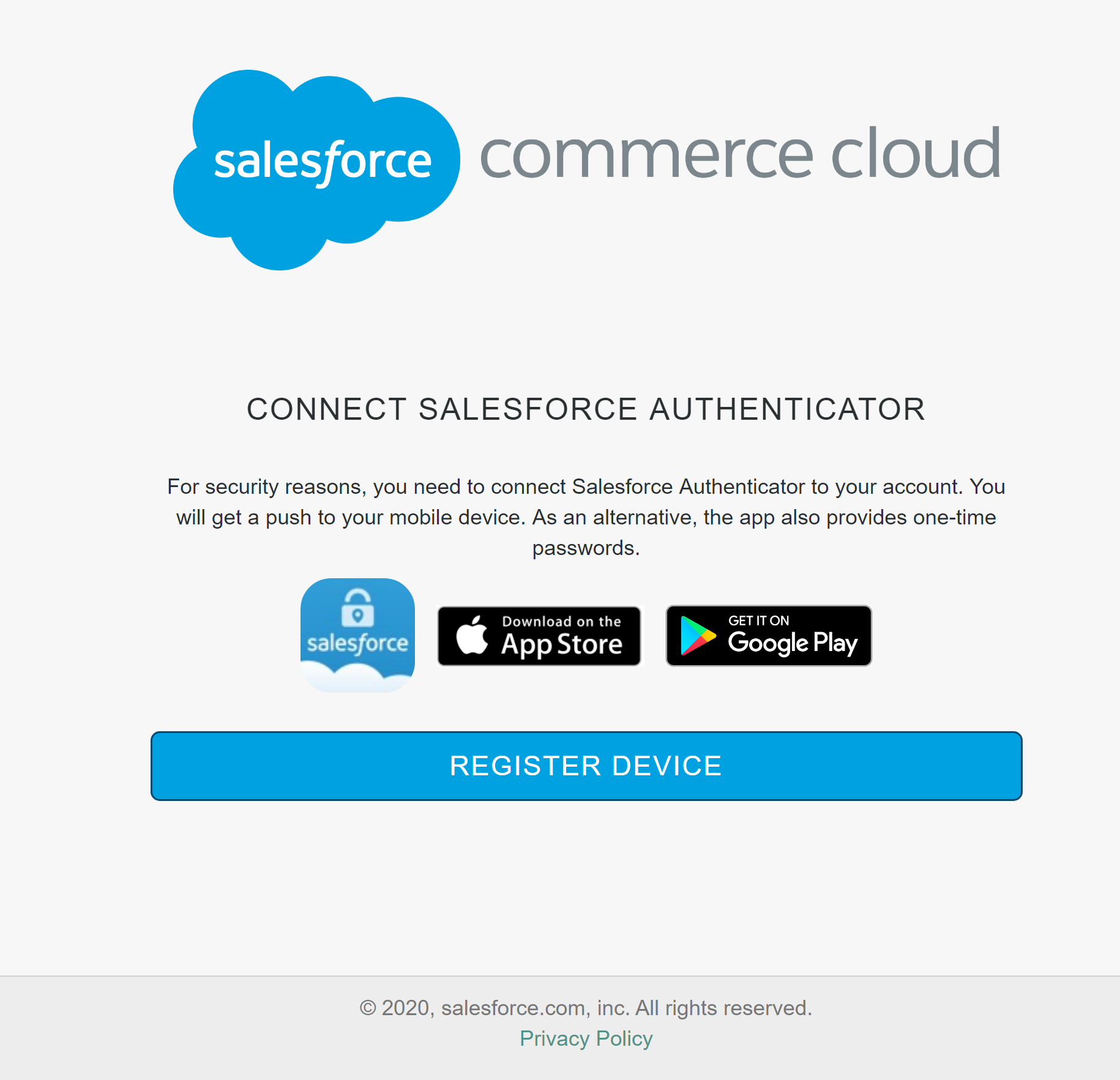
Once a user has one of the roles checked off, they will be required to register and pair a device for 2FA (MFA) the next time they log in. The screen they should receive should look something like the following screenshot:
See also:
Use 2FA on All Privileged Accounts
Knowledge-artikelnummer
000391462
Löste denna artikel ditt problem?
Berätta för oss vad vi kan förbättra!
