조직 선택
Provide Einstein Configurator Access for B2C Commerce
게시 일자: Oct 31, 2024
상세 설명
It is necessary for users to be added to Einstein Configurator as Site Admins in order to add new users since the setup needs to be done in the actual Configurator tool.
솔루션
When a new site is deployed to Einstein, please contact Commerce Cloud Support to provide a list of email addresses of the people who require access as a Site Admin for the new site on Einstein Configurator.
Note: Current Site Admins can add new users to the Einstein Configurator tool without needing to contact Commerce Cloud Support.
Please follow the steps below to add a new user:
- Ensure that the user you wish to add has an active account on Account Manager.
- Open Configurator.
- Select Admin Tab > User Management.
- In the search field, enter the email address of the user to add. If no search results are found, select "New."
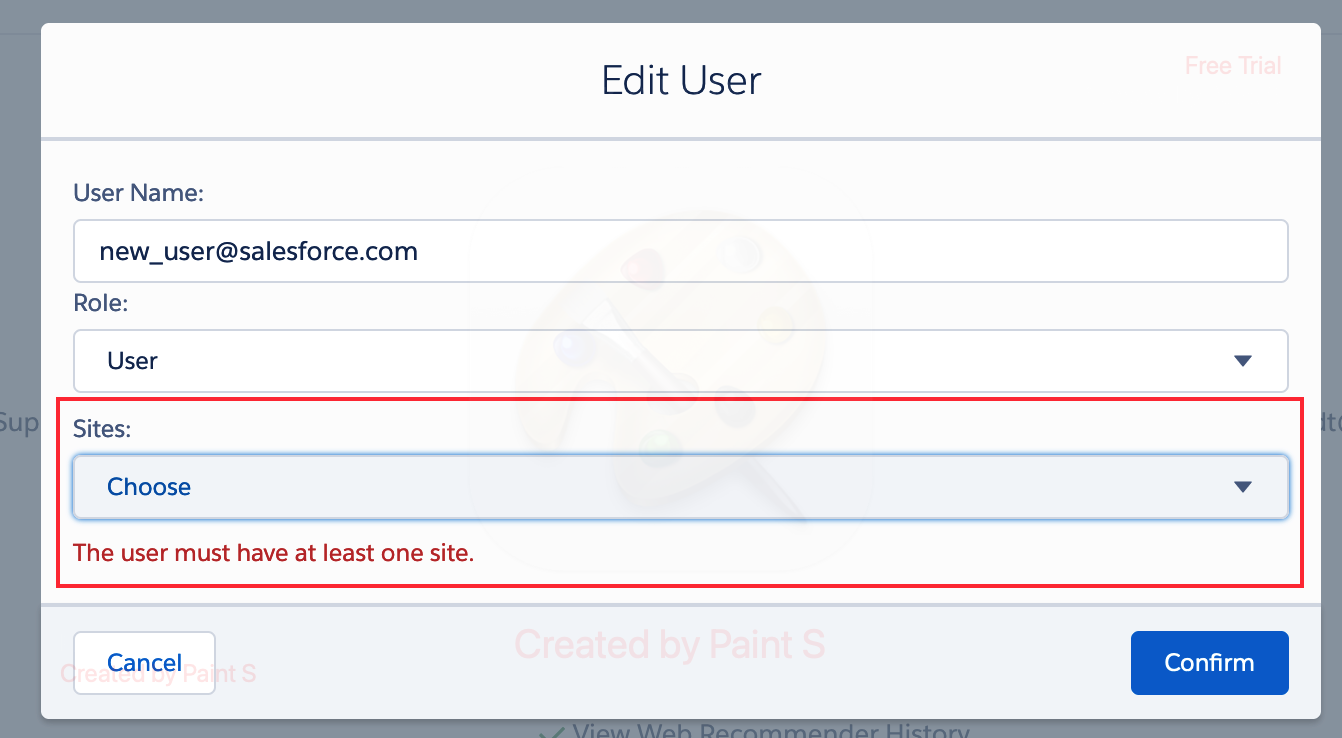
- Enter the User name, Role, and Sites for which access is needed.
- Once you click "Confirm," another window will open that shows the new user's information & assigned role, sites assigned, actions available as a Site Admin, and the user that set up the access.
Please note that the Configurator Tool is not available until after your site is successfully deployed with the Commerce Cloud Einstein engine.
If you are not yet deployed with Einstein, you may contact your Site Administrator and request that they deploy Einstein using the following guide: Activate Einstein predictive intelligence
Additional Information:
While adding a new user who already has access to another Orgs Einstein, you may encounter the following error message: The email address being added in the Configurator already exists. Please search for the user in the search box. If you're unable to find the user when searching, please contact Support to have the user added to your specified site
A user in CQuotient must have a unique 'User Name' value. If an attempt is made to add two users with the same 'User Name', the previous error message will be displayed. However, it is possible to assign multiple sites from different organizations to the same profile, using the Sites menu.
Knowledge 기사 번호
000391624
이 기사를 통해 문제를 해결했습니까?
개선을 위한 의견을 보내주세요.
