Seleziona un'organizzazione
How to Provide B2C Commerce Control Center Access to Authorized Partners
Data pubblicazione: Dec 4, 2025
Descrizione
B2C Commerce Control Center Access for authorized partners is provided by the organizations that the partners work with within Account Manager. Partner users who were assigned to multiple organizations within Account Manager will only have access by default to the control center of their primary organization as defined in Account Manager. As you can see this poses a problem when partner users support multiple customers. In this article, we will discuss the possible solution for this problem through user and role mapping management feature available in the Control Center.
Risoluzione
The solution below is written through following partner / customer construct.
Partners
* PartnerUser 1 (responsible for ALL instances for Customer A1 and A3)
* PartnerUser 2 (responsible for only PIG instances for Customer A2)
* PartnerUser 3 (responsible for one SIG instance for Customer A3)
Customers
Customer A1
Customer A2
Customer A3
Required permission set within Account Manager is Control Center Administrator to perform these actions. Only Control Center Administrator can add new roles / users to Control Center.
Setup Customer A1
- Best approach for this customer would be to setup a specific role to which all instances of that customer and required permissions are assigned. Complete the mapping of PartnerUser 1 to this role.
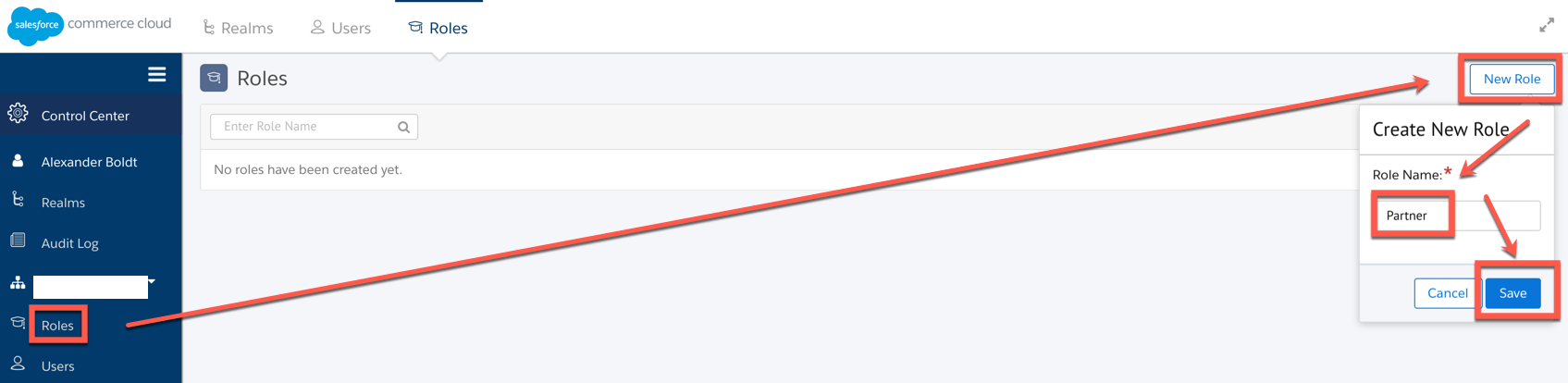
- In Control Center go to Roles, select New Role, provide Partner Name and click Save
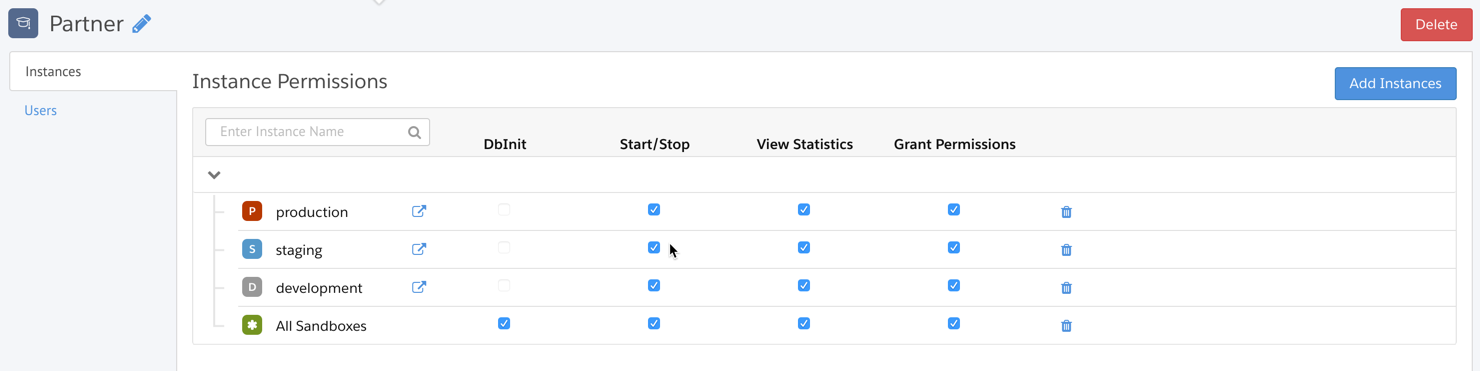
- On the new created Role choose the instance to which this role should have access and grant them the needed rights:
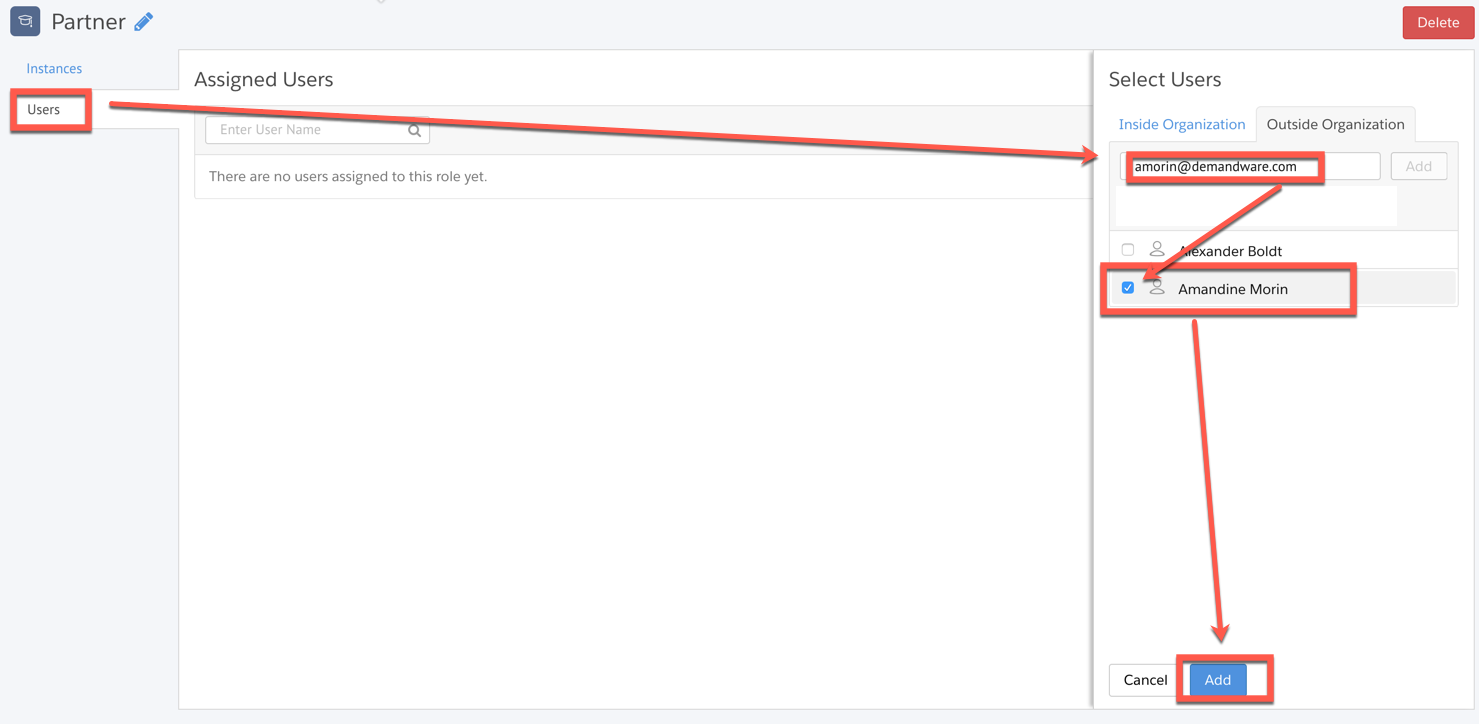
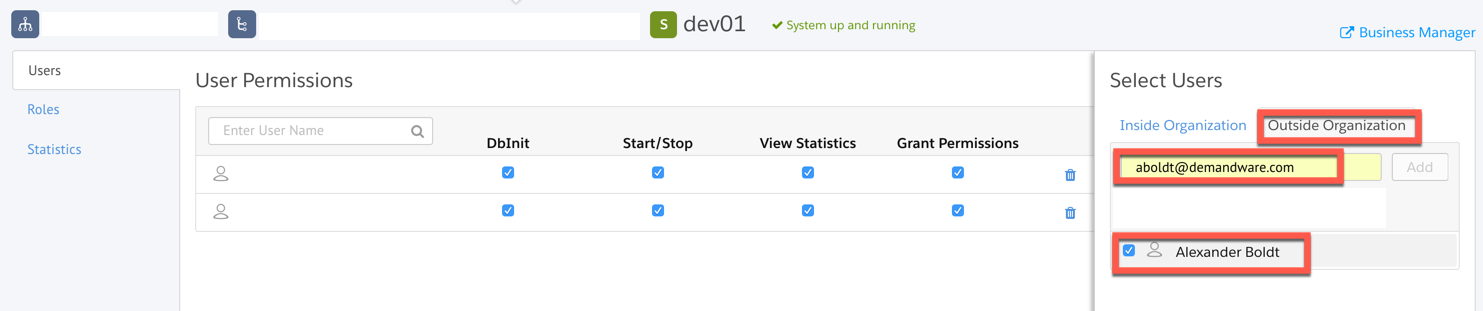
- In the next step you will assign this role to PartnerUser 1. Click on User Tab / search for User with email address, select the right person and click add to complete the user defined role mapping.
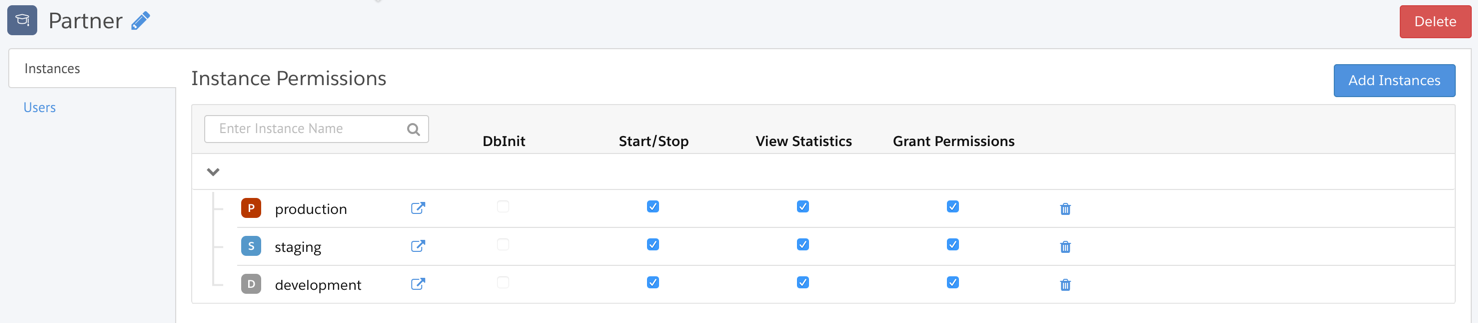
- PartnerUser 1 is now assigned to a role within Customer A1 for defined access on defined instances.
- In case you have multiple partners working on one Customer you can easily distinguish on specific roles.
Above steps can be repeated on Customer A3 to enable PartnerUser 1 mapping of access/instances on Customer A3.
To provide specific rights for Partner User 2 on Customer A2 you would just select the PIG instances in the role management.
To give PartnerUser 3 specific rights just for one instance we would recommend explicit provisioning of permissions for this specific instance instead of creating a separate role for this PartnerUser 3 and SIG instance since it is just one-on-one mapping instead of one-to-many mapping.
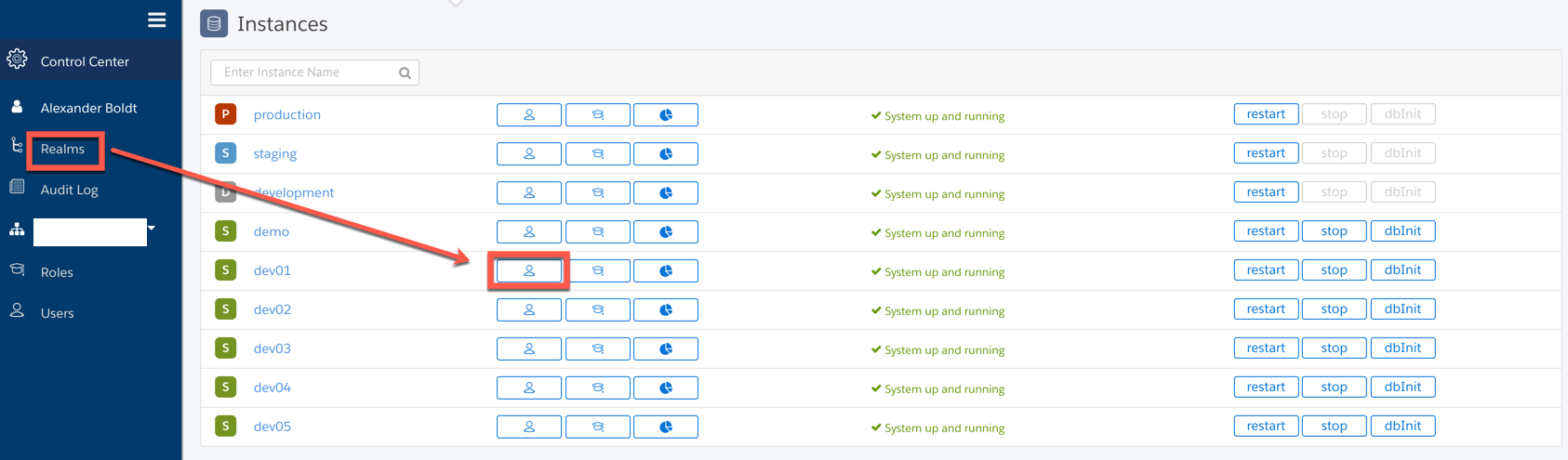
- Select 'Realms' and the realms for which you want to setup the user
- Add an user from Outside Organization and assign proper permissions for the Instance and User

Additional Info : More information about ControlCenter is available in our Documentation Portal:
https://documentation.b2c.commercecloud.salesforce.com/DOC1/topic/com.demandware.dochelp/content/b2c_commerce/topics/control_center/b2c_cc.html
If you want to find users with specific role assigned in Control Center, perform the following steps:
1. Select an organization.
1. Select an organization.
2. Navigate to the Roles tab and select the role.
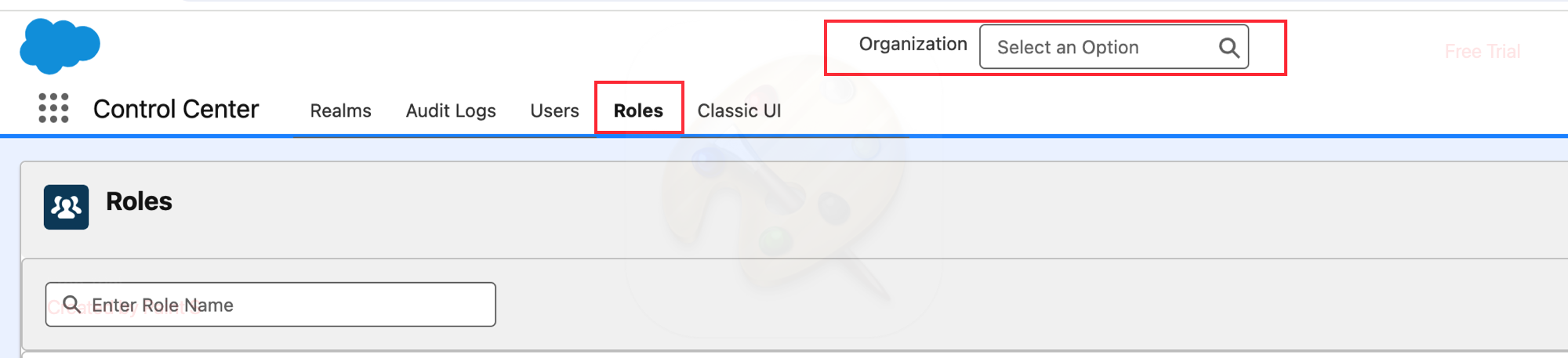
3. Click the Users tab which lists all users of the specified organization with that specific role.

Numero articolo Knowledge
000391666
Questo articolo ha risolto il problema?
Facci sapere, così possiamo migliorare!
