Выбрать организацию
How to Obtain the Session ID (dwsid) for a B2C Commerce storefront
Дата публикации: Dec 12, 2024
Описание
Решение
To obtain the dwsid in Chrome:
1. Navigate to the site/page where the issue is occurring
2. <Right Click> and select Inspect
3. Select the Application Tab
4. Expand the Cookies section
5. Scroll down to the "dwsid"
6. To copy and paste <double click> on the "dwsid" line, then <right click> and select Copy
2. <Right Click> and select Inspect
3. Select the Application Tab
4. Expand the Cookies section
5. Scroll down to the "dwsid"
6. To copy and paste <double click> on the "dwsid" line, then <right click> and select Copy
To obtain the dwsid in Firefox:
1. Navigate to the site/page where the issue is occurring
2. <Right Click> and select Inspect Element
3. Click on Network tab (you may need to click Reload to get information to show)
4. Click on a File
5. Click on Cookies on right hand side of the screen
6. Scroll down to "dwsid", click on it, and <right click> to Copy
2. <Right Click> and select Inspect Element
3. Click on Network tab (you may need to click Reload to get information to show)
4. Click on a File
5. Click on Cookies on right hand side of the screen
6. Scroll down to "dwsid", click on it, and <right click> to Copy
The first 10 characters of the dwsid obtained above can then be used to search Log Center or entries relating to the browser session for that dwsid.
See More:
If you want to get the session ID for the storefront on an iPhone device, you can connect the iPhone and Mac/Safari browser by using the web inspector tool.
For how to get this for iPhone / Mac devices, please see How to Use Web Inspector to Debug iOS device.
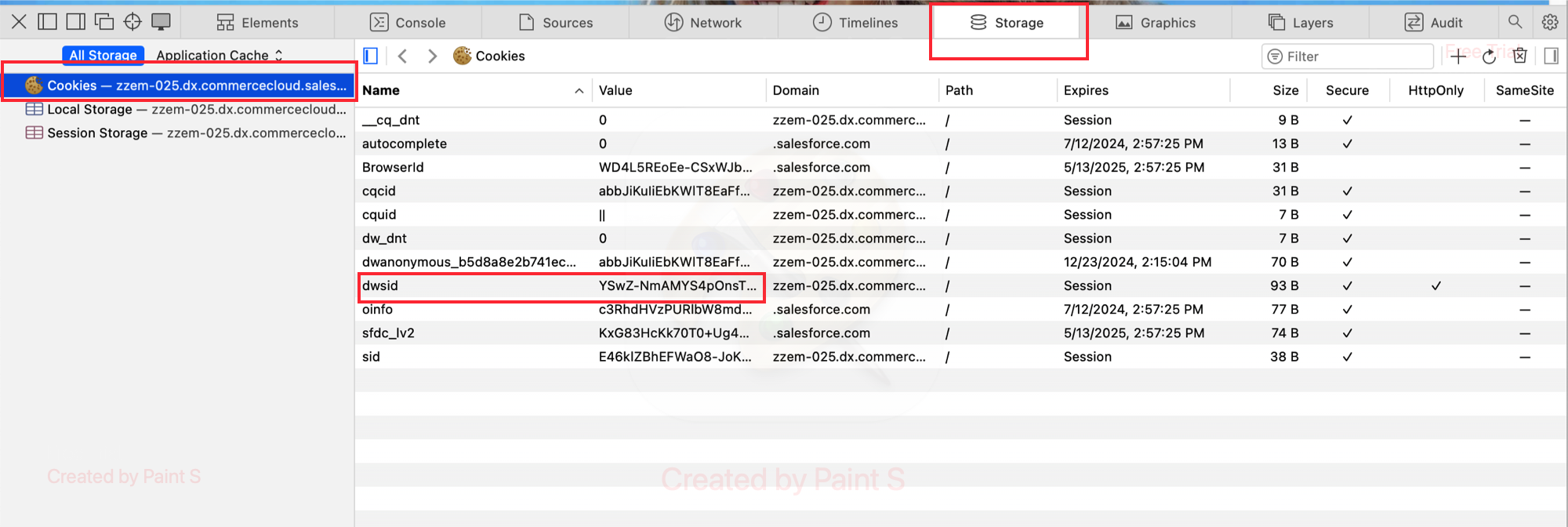
Once connected, you can use the browser Safari on Mac to replicate the mobile storefront and get the dwsid in browser developer console as shown in the following image:
For how to get this for iPhone / Mac devices, please see How to Use Web Inspector to Debug iOS device.
Once connected, you can use the browser Safari on Mac to replicate the mobile storefront and get the dwsid in browser developer console as shown in the following image:
Note:
- Procedure is not available for other browsers/devices.
- The previous tools are not developed by Salesforce. For assistance, please contact the respective producer.
Номер статьи базы знаний
000391699
Эта статья решила вашу проблему?
Оставьте свой отзыв, чтобы мы могли стать лучше!
