Seleccionar una organización
Sample Calculated Attributes in Salesforce Maps Territory Planning
Fecha de publicación: Aug 18, 2026
Descripción
Salesforce Maps Territory Planning lets you build Calculated Attributes to combine, weight, and analyze unit-level data directly on the map. This article walks through several common formula patterns you can use as a starting point for your own Calculated Attributes.
Solución
This article answers the question: what are some common formula patterns for building Calculated Attributes in Salesforce Maps Territory Planning? The examples below show how to combine fields, weight values, flag segments, and calculate workdays using the Attributes panel and Unit Formula.
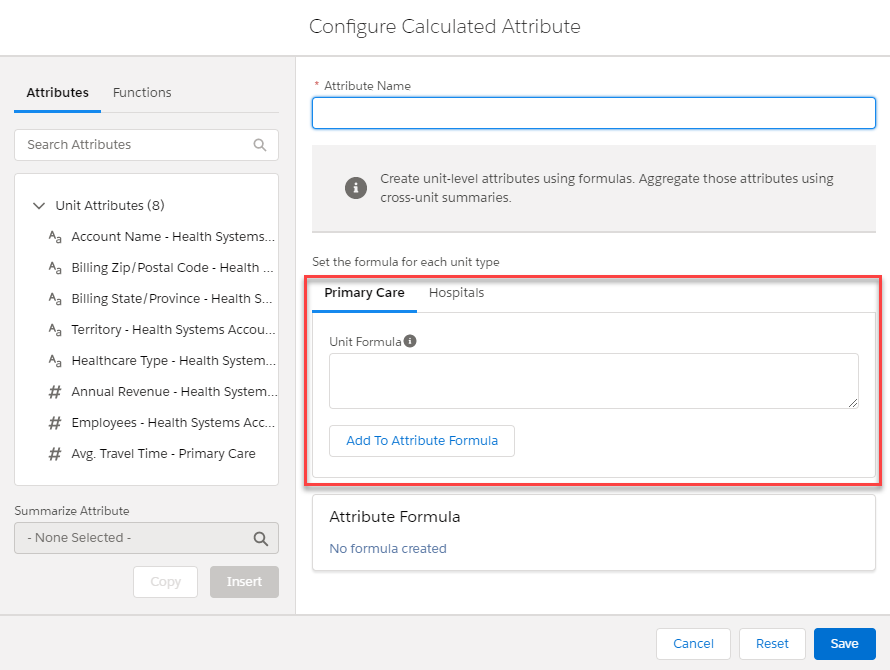
You can use these examples by leveraging the Attributes panel to add your specific attributes to the Unit Formula to build out new Calculated Attributes. Use Add to Attribute Formula and Save to finalize your Calculated Attributes.
Counting Units
Show the number of units for the specified unit type.
1
Combining Two Fields
Calculate total sales by adding product level sales together.
[Sales Product A] + [Sales Product B]
This formula adds the values of two fields to produce a single combined sales total.
Combining and Weighting Fields
Combine and weight fields to prioritize sales from one product over another.
[Sales Product A] * .7 + [Sales Product B] * .3
This formula gives Product A 70% weight and Product B 30% weight, so it counts more toward the total when one product line is a higher priority.
Segmentation Flags
Show the number of accounts that match text criteria in the legend.
IF([Account Type]="Prospect", 1, 0)
This formula returns 1 for accounts flagged as "Prospect" and 0 otherwise, so you can count or highlight just that segment on the map.
Rescaling Values
Convert raw numbers to ratios that can be added together. The method of scaling, normalization, or standardization depends on your use case and data.
[Annual Revenue] / [SUM:Annual Revenue] + [Employees] / [SUM:Employees]
This formula converts revenue and employee counts into comparable ratios of the total, then adds them together into one combined score.
Work Days
Use visit frequency, visit duration, and travel time estimates to calculate workdays per territory.
(([Visit Frequency]*(([Travel Time Estimate]/60)+[Visit Duration]))/60)/8
This formula estimates the total number of 8-hour workdays needed per territory, based on how often visits happen, how long each visit takes, and travel time between stops.
Recursos adicionales
- Create a Data Set in Salesforce Maps Territory Planning
- Understand and Troubleshoot Unit Assignment in Salesforce Maps Territory Planning
- Reassignment in Salesforce Maps Territory Planning
- Create an Alignment in Salesforce Maps Territory Planning
- Publish to Sales Territories in Salesforce Maps Territory Planning
Número del artículo de conocimiento
000391932
¿Resolvió este artículo su problema?
¡Háganos saber cómo podemos mejorar!
