Välj en organisation
How do you send email to external addresses using flow?
Publiceringsdatum: Jun 8, 2026
Beskrivning
Sending Email to External Addresses Using Salesforce Flow
This article explains two methods for sending emails from Salesforce Flow to external email addresses — addresses not associated with a Salesforce User or Contact record:
- Using an Email Alert — Best when sending from a specific Salesforce record using an email template.
- Using the Send Email Action in Flow Builder — Best when you do not have an existing email template or need to send email independently of a specific record.
Lösning
There are two ways to include an external email address in a flow:
The first method we will explore is using an email alert. This method works best if you are sending the email from a specific record in Salesforce and wish to use an email template.
Using an Email Alert:
1. First, under Setup, go to Process Automation Workflow Actions Email Alerts.
2. Click the New Email Alert button to create a new email alert.
3. Specify the object the email alert will be sent from, and make sure to select a primary recipient and provide an email template to use.

4. In the Additional Emails section, this is where external email addresses can be entered. Up to five email addresses can be entered, each separated by a comma.
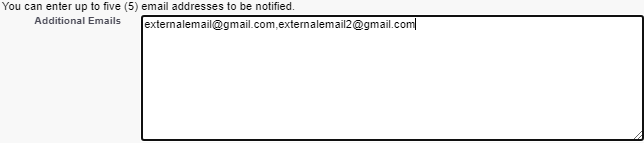
5. Note: If you only want to send the email to an external address without having to specify another recipient, consider creating a custom email field on your object and populating it through a default value. This field can then be selected as the recipient type.

6. Next, let’s send this email alert from a flow. If using a record-triggered flow, make sure this flow is optimized for Actions and Related Records.
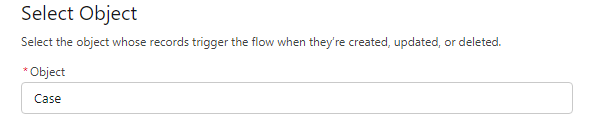
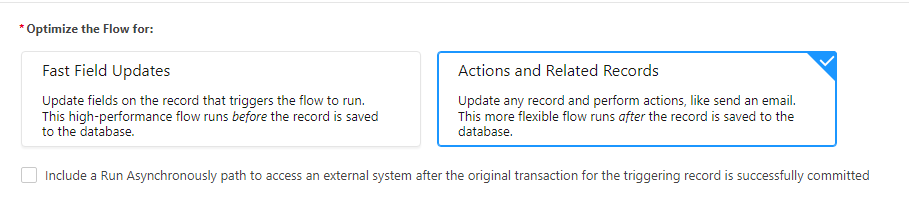
7. Click the Add Element icon to add a new action to your flow, and select Send Email Alert.
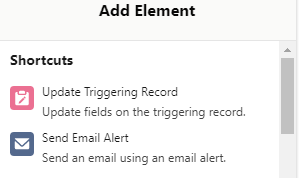
8. Select the email alert you just created and provide a name for your action. Then, make sure to pass in the appropriate record id so that the email alert is sent from the correct record.
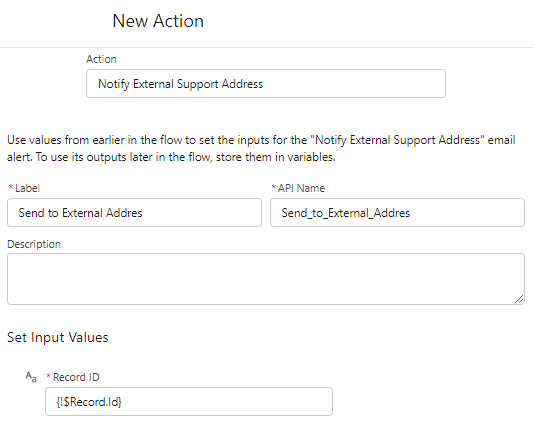
Using the send Email Action:
Alternatively, an email can be sent to an external address by using the Send Email flow action. This method is useful if you don’t have an email alert/email template already defined, or if you don’t necessarily need to send an email in relation to a specific record.
1. From within a flow, click the Add Element icon and select Action.
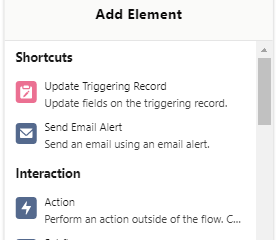
2. Next, search for and select the Send Email action.
3. Then, provide a label and description for your send email action.
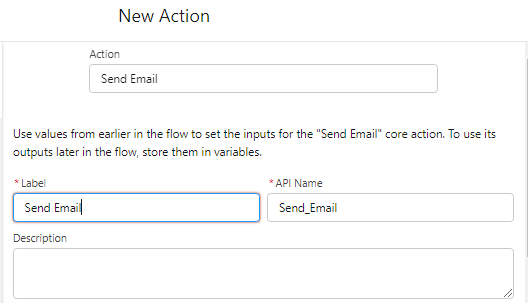
4. The next step is to set the input values. First, specify what the body of the email should be. While you can manually type in a text value, it’s recommended to use a text template so that you can reference values from within your flow and include rich text styling.
5. For the email subject, this can be manually typed in or referenced in a variable.
6. There are two options for indicating which email(s) should be notified. The first is to use a collection variable. The section option is to type in the emails, separated by commas. Note: A maximum limit of 5 email addresses can be included in total.
7. If using a text template with rich text formatting, make sure to set the Rich-Text-Formatted Body property to true.
8. Finally, if desired, specify the address the email should be sent from, otherwise the email will be sent in the context of the flow user.
Note: Either of these two approaches will allow you to notify recipients that do not reside within Salesforce.
_____________________________________________________________________________________
Written By: Mikey Brown | Salesforce Answers Leader
Mike Brown is a Senior Solution Architect and Trailblazer Mentor. He is passionate about sharing his knowledge and helping others sharpen and grow their Salesforce skills.
Submissions reflect only the opinions of the user who made available the Submission and not the opinions of Salesforce, regardless of whether the user is affiliated with Salesforce, and may contain or constitute products, services, information, data, content and other materials made available by or on behalf of third parties ("Third Party Materials). Salesforce neither controls nor endorses, nor is Salesforce responsible for, any Third Party Materials, including their accuracy, validity, timeliness, completeness, reliability, integrity, quality, legality, usefulness or safety, or any applicable intellectual property rights. Any Submissions made available through any message board or forum in response to posted questions, or that otherwise purports to answer any questions, including any questions about Salesforce or Programs, are made available for your general knowledge only and should never be relied upon as answers to your specific questions (even if an answer is marked as a “best” answer or with any similar qualifications). You should always contact Salesforce support for answers to your specific questions. Salesforce has no control over Submissions, and is not responsible for any use or misuse (including any distribution) by any third party of Submissions.
If you have questions, tap into the wisdom of our entire Trailblazer Community here: https://trailhead.salesforce.com/trailblazer-community/feed
Knowledge-artikelnummer
000392564
Löste denna artikel ditt problem?
Berätta för oss vad vi kan förbättra!
