Välj en organisation
Update Salesforce Sales Opportunity as Urgent if Past Expiration Date
Publiceringsdatum: Aug 21, 2026
Beskrivning
A customer is seeing many open opportunities being created and not closing on time. To ensure an opportunity gets closed on time, they define an expiration date, which is a few days prior to the close date. This is to encourage the sales team to close the opportunity prior to the expiration date, thereby having a high win rate. Now, a customer would like to define an opportunity as urgent when it's past its expiration date and still open.
For instance, an opportunity has an urgent picklist field with values "Yes" and "No". The customer would like to mark open opportunities as urgent (with picklist field value as Yes) via an automation technique if the opportunity is past the expiration date.
Lösning
To set the context, let's assume that the customer's Salesforce instance already has the below fields created:
- Opportunity Expiration Date -> Date field capturing Opportunity expiration.
- Urgent Opportunity -> A picklist field of Value "Yes" and "No". Please note that default value for the Picklist Is "No".
- Potential Urgent Opportunity (Potential_urgent__c) -> A formula field which checks If Opportunity Is Open and opportunity has crossed expiration date. Formula would look like:
AND ( OR(NOT(IsClosed), NOT(IsWon)),
(TODAY()  >  Opportunity_Expiration_Date__c))
Here we are checking if the opportunity is not closed or won and if it has crossed the expiration date.
With the above fields created, let's now look at the approach to updating the "Urgent Opportunity" picklist from "No" to "Yes".
We will be using a Scheduled flow which would run on a daily basis to update the Opportunity picklist field from "No" to "Yes". The reason we go with scheduled flow is that it will help to query all opportunities that have crossed their expiration even if they did not get updated on that day. Hence, to cover this outlier situation, a scheduled flow is being considered.
Scheduled Flow Design
The design of the Scheduled Flow is as below:
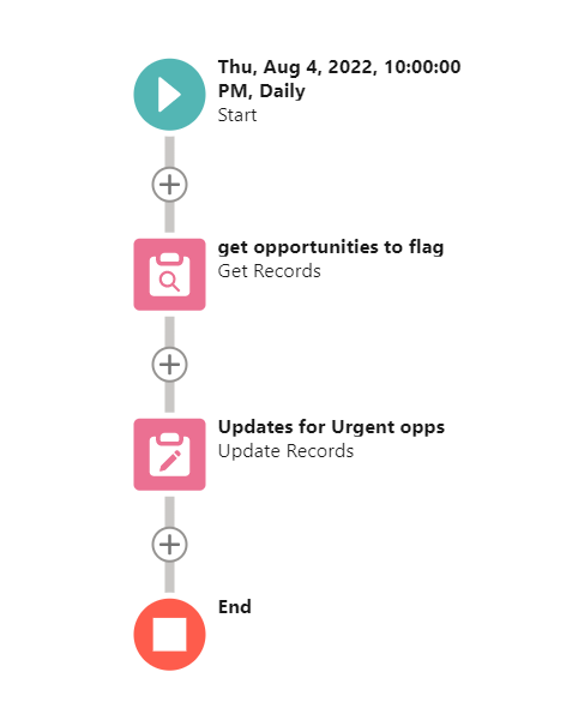
Let's look at each element now.
Start Element
- Start element -> We pick Opportunity object here and define the criteria to pick Open opportunities and check if they are expired based on value of the formula field. We can also, consider the formula in the criteria itself. For simplicity, a formula field is created to check potential of Urgent opportunities and the formula field is included in the criteria
- Get Record Element: Here we would query the records and pass them to the record collection variable as per the screenshot below:
- Update Records Element: Here we would be updating the “Urgent Opportunity” picklist value to Yes for the records collected in the collection.
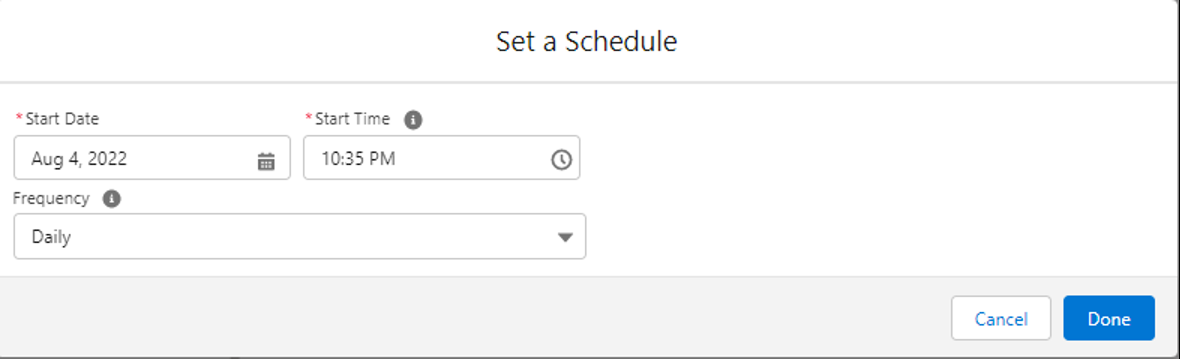
- Scheduling: The last piece is the Opportunity scheduling which we would define to run on a daily basis. Please note that the timing here refers to the Org's Timezone.
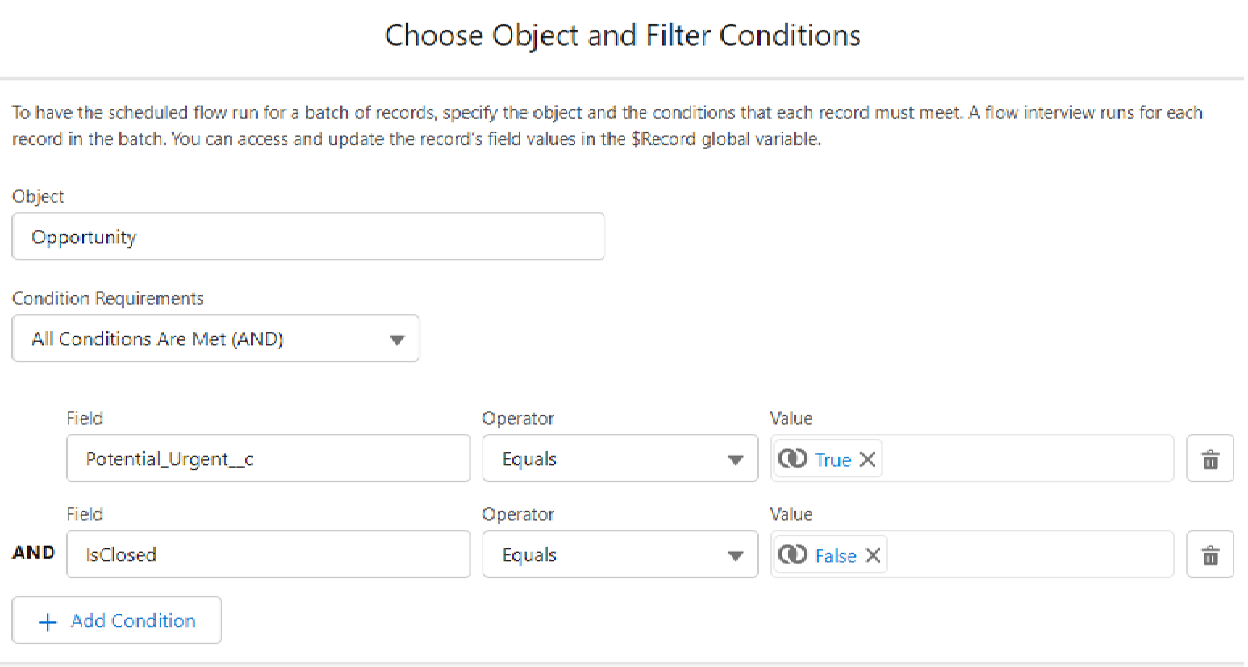
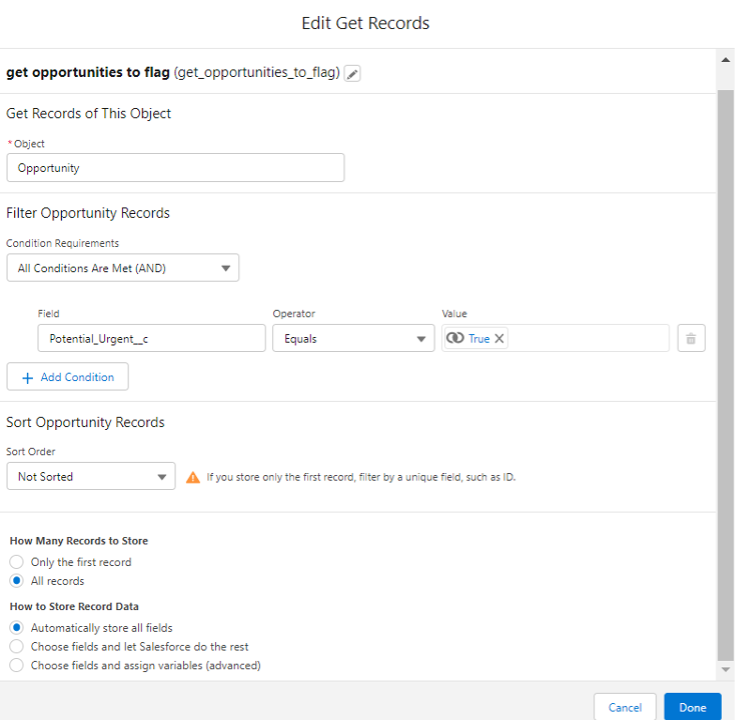
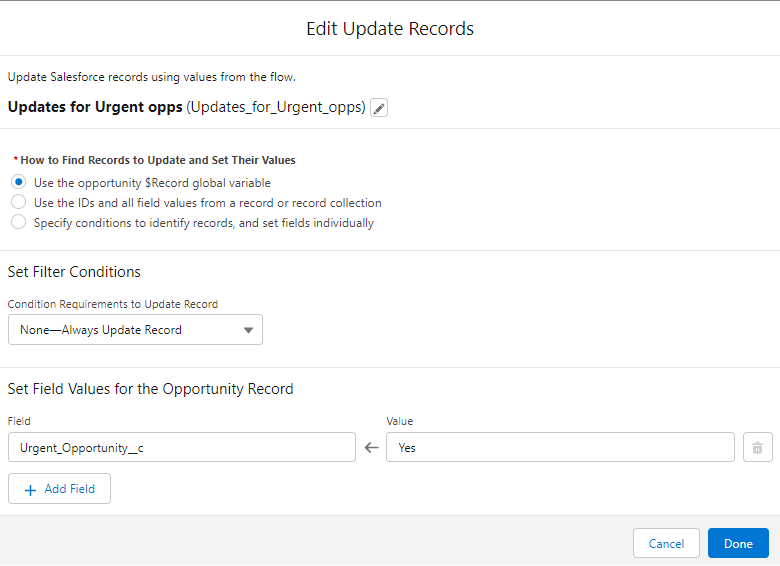
Note: With the above solution, you were able to successfully flag urgent opportunities. We can also consider sending an email alert to the opportunity owner to act on such opportunities accordingly.
_________________________________________________________________________________________
Written By: Manoj Nambirajan | Salesforce MVP
Manoj is a Salesforce Enterprise Architect at Dell Technologies with more than 15 years of experience in the Salesforce ecosystem. Manoj has exceptional leadership abilities and a flair for solving issues quickly. Accredited as Salesforce MVP, Manoj has 17 Salesforce certifications and is among the Top 10 Answers leader in the Trailblazer Community.
Submission reflects only the opinion of the user who made available the Submission and not the opinions of Salesforce, regardless of whether the user is affiliated with Salesforce, and may contain of constitute products, services, information, data, content and other materials made available by or on behalf of third parties ("Third Party Materials). Salesforce neither controls nor endorse, nor is Salesforce responsible for, any Third Party Materials, including their accuracy, validity, timeliness, completeness, reliability, integrity, quality legality, usefulness or safety, or any applicable intellectual property rights. Any Submission made available through any message board or forum in response to posted questions, or that otherwise purports to answer any questions, including any questions about Salesforce or Programs, are made available for your general knowledge only and should never relied upon s answer to your specific questions (even if an answer is marked as a "best answer or with any similar qualifications). You should always contact Salesforce support for answers to your specific questions. Salesforce has no control over Submissions, and is not responsible for any use or misuse (including any distribution) by any third party of Submissions.
If you have questions, tap into the wisdom of our entire Trailblazer Community here: https://trailhead.salesforce.com/trailblazer- community/feed
Ytterligare resurser
Knowledge-artikelnummer
000392577
Löste denna artikel ditt problem?
Berätta för oss vad vi kan förbättra!
