Seleccionar una organización
How to Calculate the Percentage of a Text Field Value in a Salesforce Summary Report
Fecha de publicación: Aug 18, 2026
Descripción
When a field stores values as text instead of a numeric data type, Salesforce Reports can't automatically calculate percentages on it. This article explains how to use Row-Level and Summary Formula columns in a report to calculate the percentage of records matching a specific text value — for example, the percentage of Contacts who speak English.
Solución
This solution explains how to calculate what percentage of records match a specific text value using Row-Level and Summary Formula columns in a Salesforce report, since standard Salesforce Reports can't natively calculate percentages on text-type fields.
Let's assume the Contact object has a custom "Text" data type field called Languages__c, where different languages are added as text values. Here's how to calculate the percentage of English speakers:
Create the Report and Set Filters
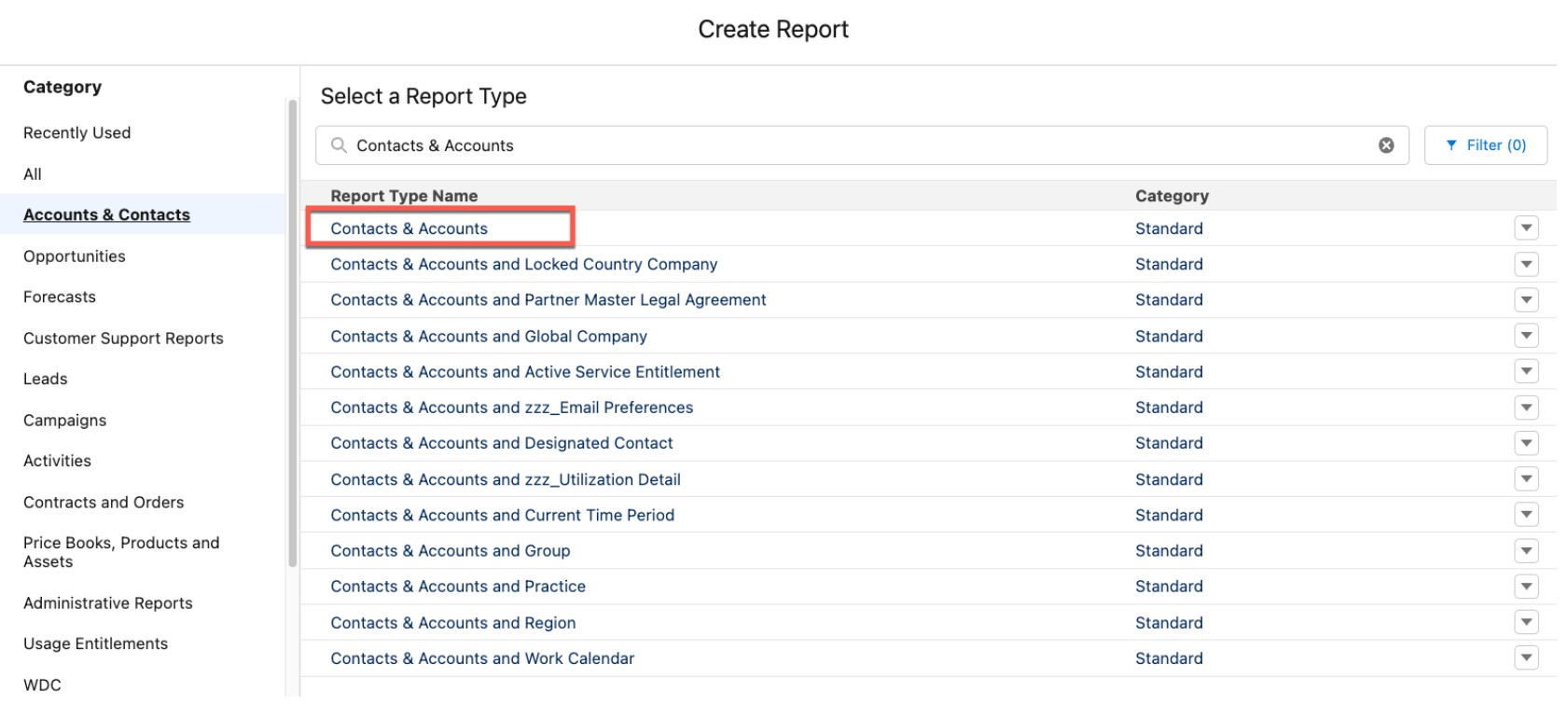
Step 1: Create a new report and select Contacts & Accounts as the Report Type.
Step 2: From the Filters pane, update the filters to decide which Contacts and Accounts should be displayed on the report. Specify the range of Created Dates, etc., based on your use case.
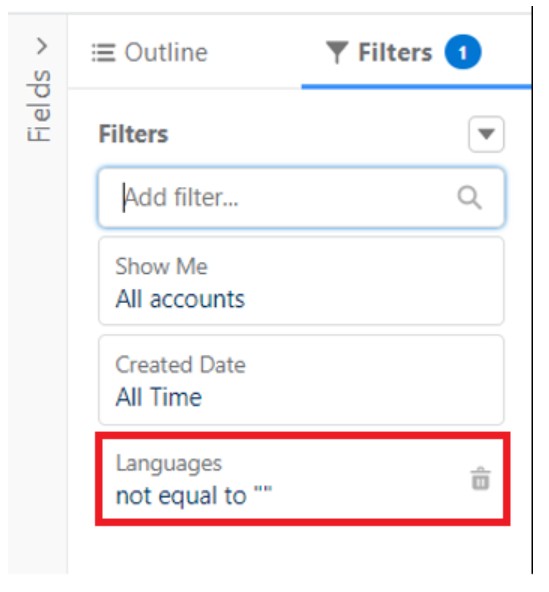
Step 3: To exclude null values of the Languages__c field from the report, create a filter so this field is "not equal to" NULL.
Add the Row-Level Formula
Step 4: From the Outline pane, add the necessary fields to the Columns section, including First Name, Last Name, Account Name, etc., as needed.
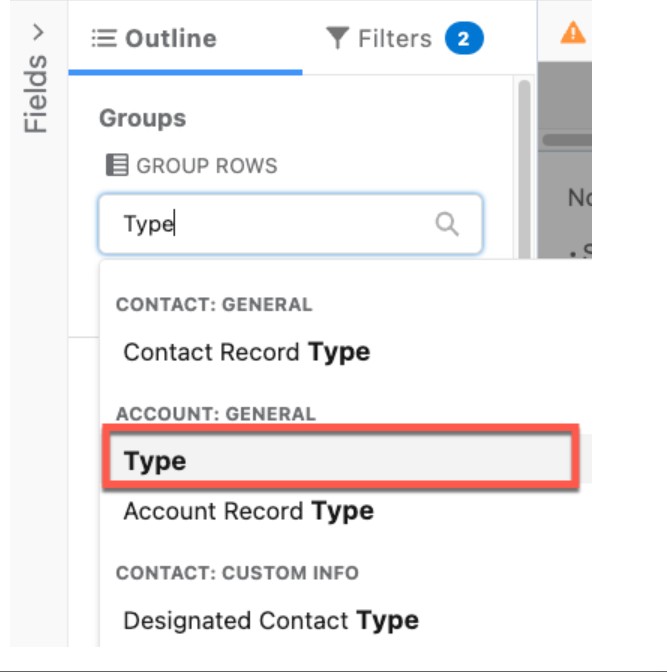
Step 5: From the Groups section of the Outline pane, add the Type field under Group Rows by searching for the Type field.
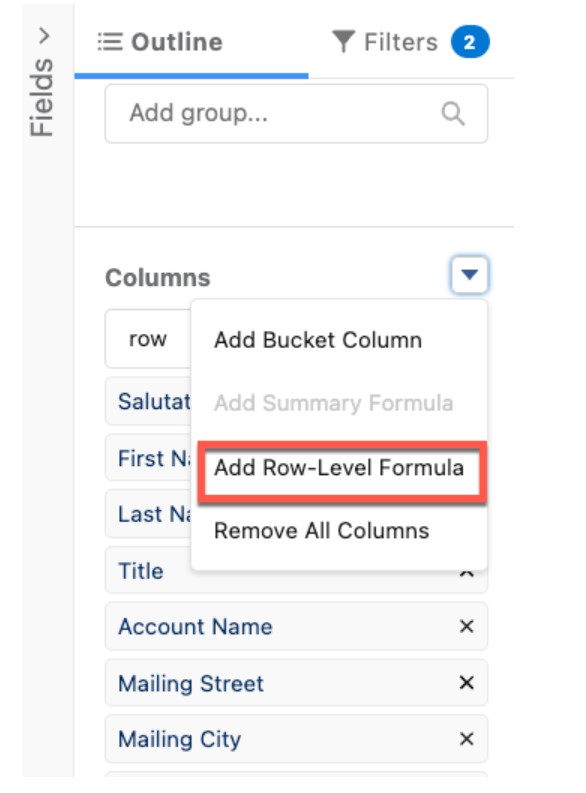
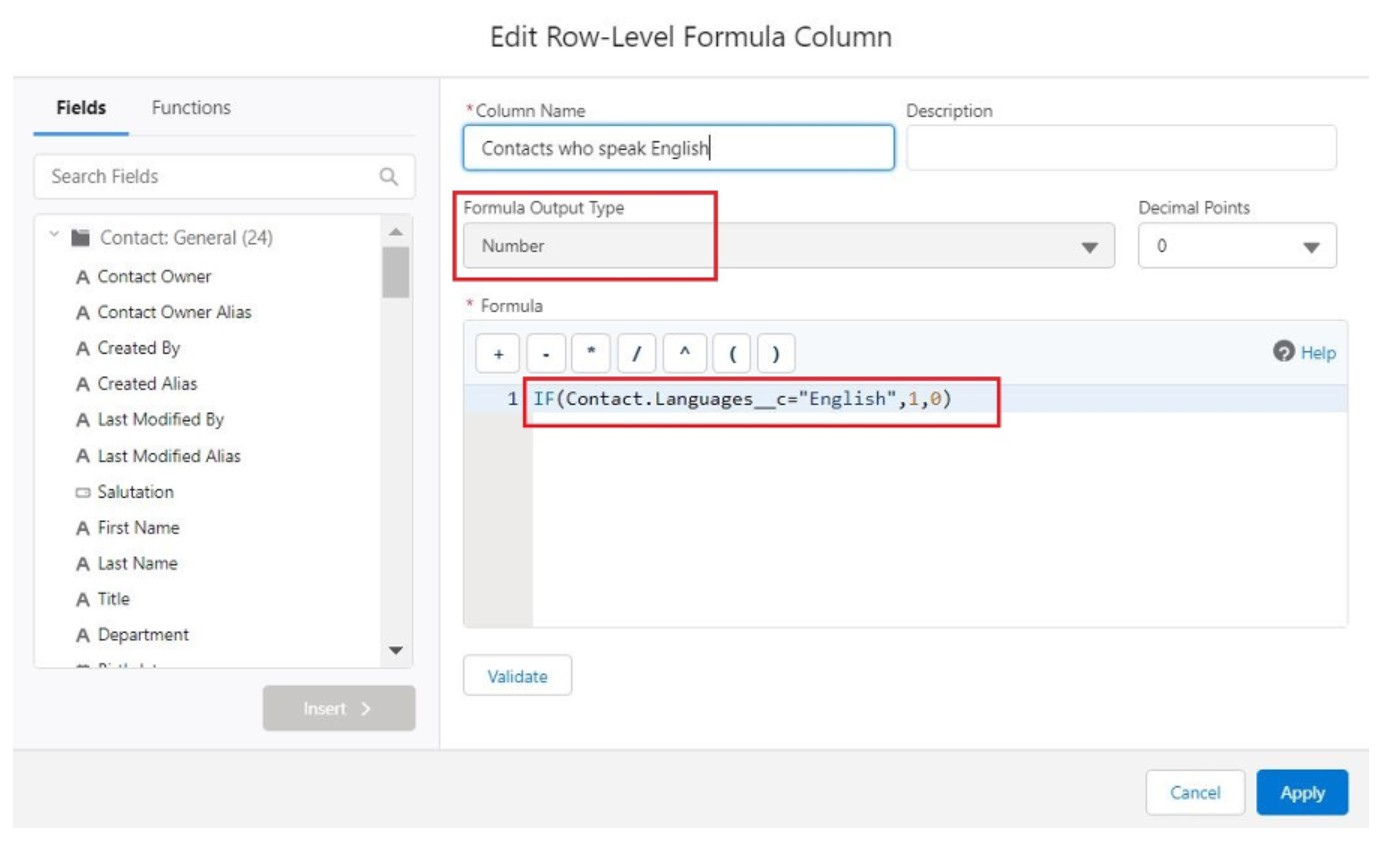
Step 6: Under the Columns section, create a Row-Level Formula column by clicking Add Row-Level Formula.
Step 7: Provide the Column Name and Description, set Formula Output Type to Number, Decimal Points to 0, and enter the following formula:
IF(Contact.Languages__c="English",1,0)
This formula returns 1 for each Contact whose Languages field equals "English," and 0 for every other Contact — giving you a per-row flag you can total.
Add the Summary Formula
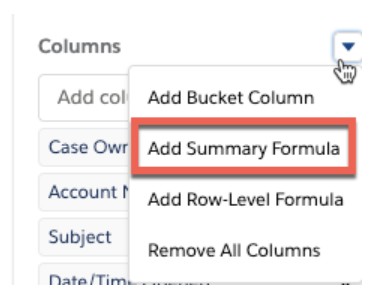
Step 8: Under the Columns section, create a Summary Formula column by clicking Add Summary Formula.
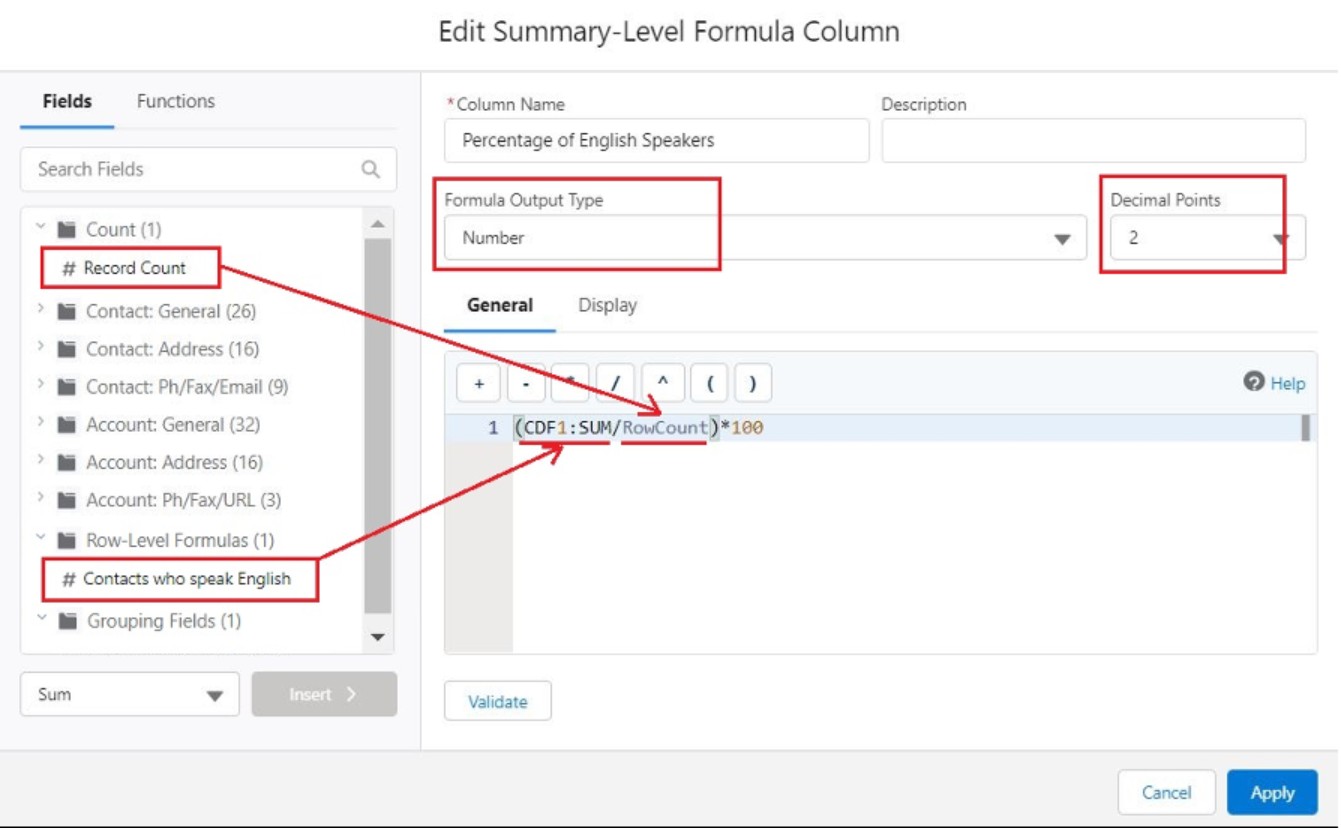
Step 9: Provide the Column Name and Description, set Formula Output Type to Number, Decimal Points to 2, and enter the following formula:
(Contacts who speak English/Count)*100
This formula divides the count of Contacts who speak English by the total Contact count, then multiplies by 100 to produce a percentage.
Run the Report and View Results
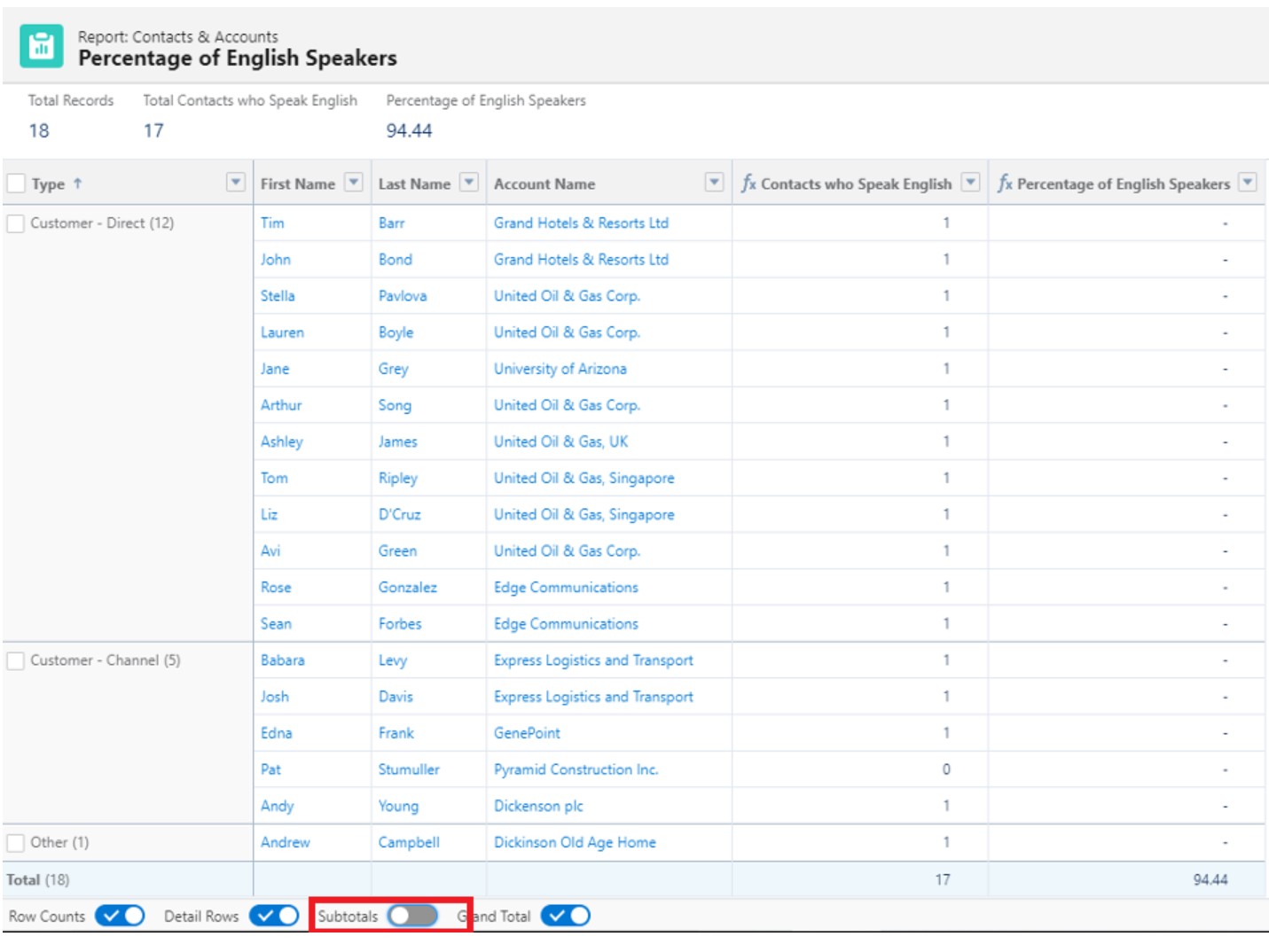
Step 10: Name the report and click Save & Run.
Step 11: Toggle on the Subtotals button at the bottom of the report to view the percentage of English speakers broken down by Account Type. Toggle it off to see the overall percentage instead.
Recursos adicionales
Número del artículo de conocimiento
000392581
¿Resolvió este artículo su problema?
¡Háganos saber cómo podemos mejorar!
