조직 선택
Einstein Conversation Insights API Setup for Recording Providers
게시 일자: Jun 21, 2026
상세 설명
Einstein Conversation Insights (ECI) is a Salesforce feature that analyzes sales and service call recordings to surface insights. ECI integrates with recording providers to import call metadata and audio files.
Supported out-of-the-box recording providers include Sales Dialer, Zoom Meetings (for video meetings), and Amazon Connect (with Salesforce Voice, formerly Service Cloud Voice). For Dialpad, RingCentral, Aircall, and Amazon Connect integrations, refer to the Voice Connector AppExchange listing and the Integrate Voice Connectors with Einstein Conversation Insights documentation. Zoom Phone is not supported out of the box.
For other recording providers, this article describes how to build a custom API integration. This process allows Salesforce admins to register new "Recording Providers" that can be enabled or disabled for ECI.
ECI is available in: Performance and Unlimited Editions, and as an add-on in Enterprise Edition.
Note: End-to-end support for building a custom integration is not currently available from Salesforce Support, and support for every recording provider is not guaranteed.
솔루션
Admin Setup
The list of recording providers are available based on the packages the admins install or any OAuth-authorized external actions that admins execute.
Create a Call Coaching Media Provider Record
To set up a new recording provider, we want each partner to create a new record to represent themselves in a new CallCoachingMediaProvider object.
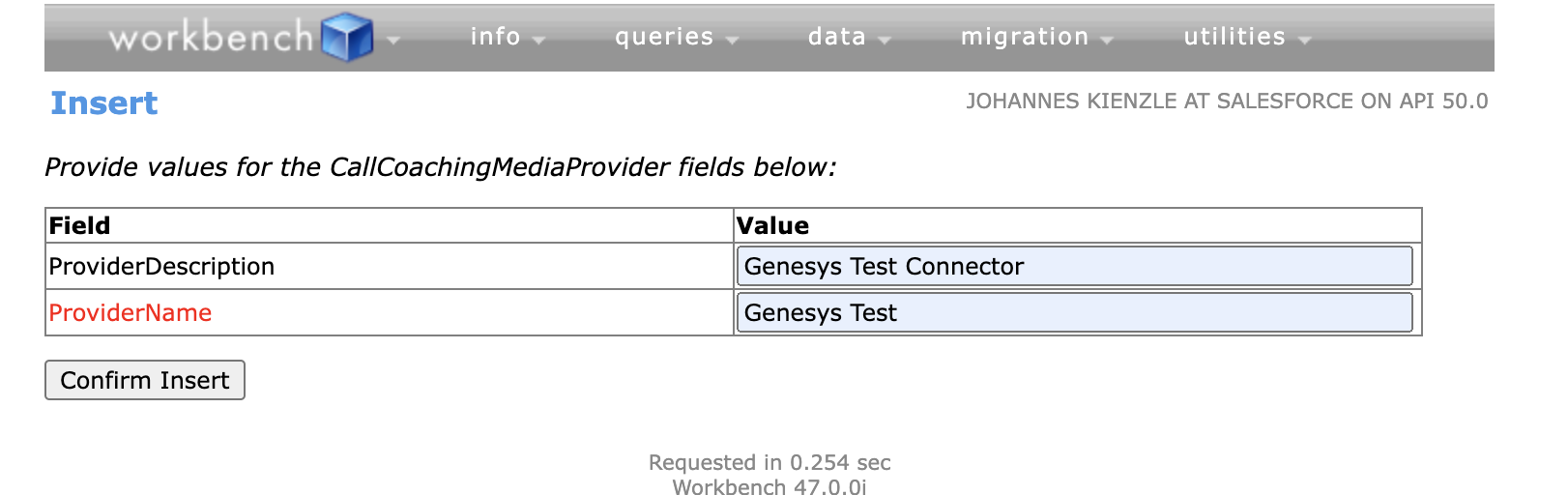
Create one from the MD API or, more easily, from workbench (or your API client of choice):
CallCoachingMediaProvider
Fields
|
Field Name |
Field Type |
Value |
|
ProviderName |
String |
CISCO |
|
ProviderDescription |
String |
Description of Vendor |
|
IsActive |
Boolean |
False |
The record should be populated with the name and description. The boolean will be set to false by default as the admin is expected to explicitly enable any connectors upon initial setup. The vision is that in the long term, this object will expand to include values such as provider capability (audio files, video files, SMS messages, etc.) and admin configuration on what should be imported into the organization. It’s up to the partner to determine how and when they want to create this new record.
Activate the Call Coaching Media Provider
Next, navigate to the ECI setup and enable the CallCoachingMediaProvider you created.
Its "Active" property should now be true, which you can verify in Workbench as well.
Assign Relevant Permissions to the Test User
Now assign your test user the right permission set for ECI, such as "Conversation Insights for Sales" or "Conversation Insights Included."
You can now create VoiceCalls from the REST API as detailed below.
Upload Call Metadata and Recordings
AUTHENTICATION
Access to both APIs require that:
- Org must have Einstein Conversation Insights.
- Integration User must have the Conversation Insights Integration User permset (comes with ECI and HVS licenses)
- The person making the call must have ECI permissions.
CREATE VOICECALL
URL {connect-base-url}/voicecalls
Method POST
Input Fields (payload)
The API only supports input parameters from the request body, params are not supported. The API takes in an array of calls under the key “calls”. Each call JSON can have the following fields:
|
FieldName |
Type |
Required |
Additional |
Value |
Usage |
|
startDateTime |
DateTime |
1 |
yyyy-MM-ddTHH:mm:ss.SSS |
Time of call start | |
|
endDateTime |
DateTime |
1 |
yyyy-MM-ddTHH:mm:ss.SSS |
Time of call end | |
|
fromPhoneNumber |
Integer |
1 |
Phone Number which initiated the call, | ||
|
toPhoneNumber |
Integer |
1 |
Phone Number which received the call, | ||
|
callType |
String |
1 |
Inbound/Outbound |
Type of call inbound/outbound | |
| userId | String | 0 | At least one is required | 005xxxxxxxxxxxxxxx | Salesforce User Id Who made or received call* |
| userEmail | String | At least one is required | xxxx@domain.com | To match with userId* | |
| recordId | String | (001/003/00Q)xxxxxxxxxxxx | Salesforce Record Id (Account/Contact/Leads) | ||
| externalId | String | 1 | Id from External Call System, stored in VendorCallKey in VoiceCall BPO | ||
| recordingDuration | Integer | 1 | Recording duration in seconds | ||
| numberChannels | Integer | Default: 1 audio channel | |||
| userChannel | Integer | Starts from 0 | Recording will not be processed unassigned / no default, first channel is 0. For dual channel recordings, map the customer audio channel to channel 0 (left channel), and map the agent audio channel to channel 1 (right channel) | ||
| recordingFormat | String | 1 | mp3/wav/flac | ||
| activityId | String | 00Txxxxxxxxxxxx | LogACall Id of task logged. | ||
| mediaProviderId | String | 1 | 0hnxxxxxxxxxxxx | Id of the CallCoachingMediaProvider record |
Notes:
● Either userId or userEmail must be included to identify the Salesforce user this call belongs to
● Make sure userId matches your user and mediaProviderId matches the CCMP you created earlier
Sample JSON input
{
"calls":[
{
"toPhoneNumber":"+16315122409",
"fromPhoneNumber":"+15105024190",
"userId":"005R0000000XTJD",
"startDateTime":"2019-11-06T19:41:56.000Z",
"endDateTime":"2019-11-06T19:41:56.000Z",
"callType":"Outbound",
"recordingDuration":"300",
"externalId":"CAXXXXXYYYYY1",
"recordingFormat":"mp3",
"activityId":"00Txxxxxxxxxxxx",
"recordId":"001xxxxxxxxxxxx",
"mediaProviderId":"0hnxxxxxxxxxxxx",
},
{
"toPhoneNumber":"+16315122409",
"fromPhoneNumber":"+15105024190",
"userId":"005R0000000XTJD",
"startDateTime":"2020-11-06T19:41:56.000Z",
"endDateTime":"2020-11-06T19:41:56.000Z",
"callType":"Inbound",
"recordingDuration":"30",
"externalId":"CAXXXXXYYYYY2",
"recordingFormat":"mp3",
"activityId":"00Txxxxxxxxxxxx",
"recordId":"001xxxxxxxxxxxx",
"mediaProviderId":"0hnxxxxxxxxxxxx",
},
... (more calls, up to 200 in one request) ...
]
}
Output Fields (200)
-
externalId
-
voiceCallId
-
uploadUrl : {connect-base-url}/voicecalls/{id}/audio_upload
-
isSuccess
-
errorMsg
Output Fields (400/500)
1. errorCode
2. message
Response
200
-
Successfully validated new call metadata and inserted valid call metadata
-
Invalid data may result in isSuccess=false and errorMsg != null for individual calls
-
Start time > End Time
-
Missing required field
-
Missing userId and/or userEmail doesn’t match active Salesforce user id
-
CallType and RecordingFormat doesn’t match expected values
-
UserChannel not within range of NumberChannels
-
Invalid RecordId
-
Salesforce user doesn't have feature permission
-
400
-
User does not have the right Conversation Insights Integration User permset
-
Bad JSON format
500
- Internal Server Error
Next you can upload a recording associated with this VoiceCall. For convenience, use PostMan or curl and make a POST with content form-data to https://{your_org_domain}/services/data/v50.0/voicecalls/audio_upload
Note: “your_org_domain” is the org’s Salesforce URL you’d normally call any API at.
Voice recording files are limited to 64 MB. Files above 64 MB are not processed.
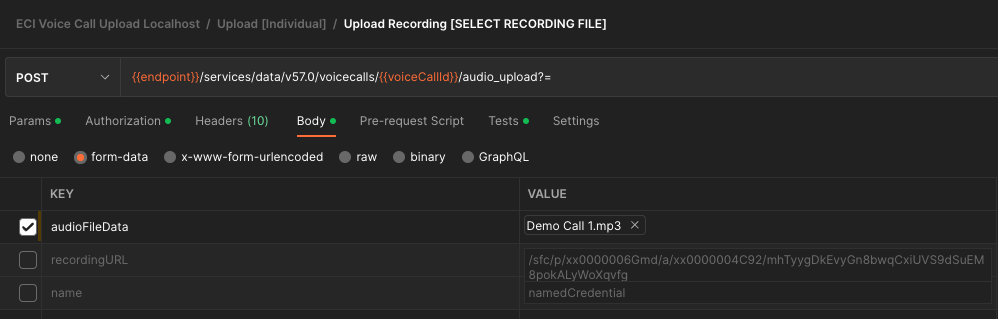
The call should be in the audioFileData field.
Postman example:
Or curl: curl —location —request POST ‘https://{your_org_domain}/services/data/v50.0/voicecalls/0LQB00000001BqU/audio_upload' \
--header 'Authorization: Bearer ....' \
--form 'audioFileData=@sample_sales_call.mp3'
Note that you'll have to set up a connected app for auth to get an OAuth token to make API calls.
Using Named Credentials and Recording URL for Fetching the Recording from Provider
If the customer/vendor wants salesforce to download the recording by providing the download URL with access permissions instead of providing a raw binary file,
- Create an auth provider on the salesforce ORG
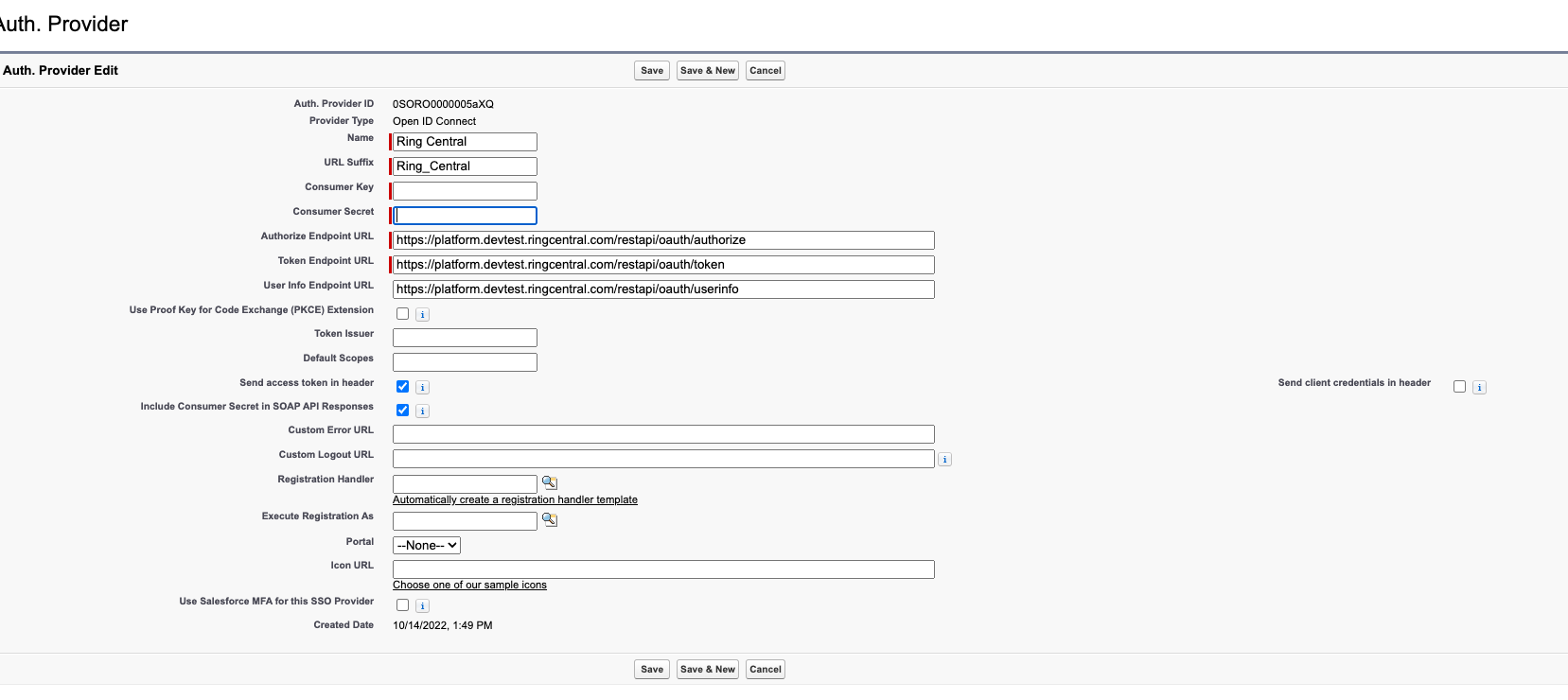
https://help.salesforce.com/s/articleView?id=sf.safety_cloud_auth_provider_creds.htm&type=5
- Setup Named Credentials on your salesforce ORG
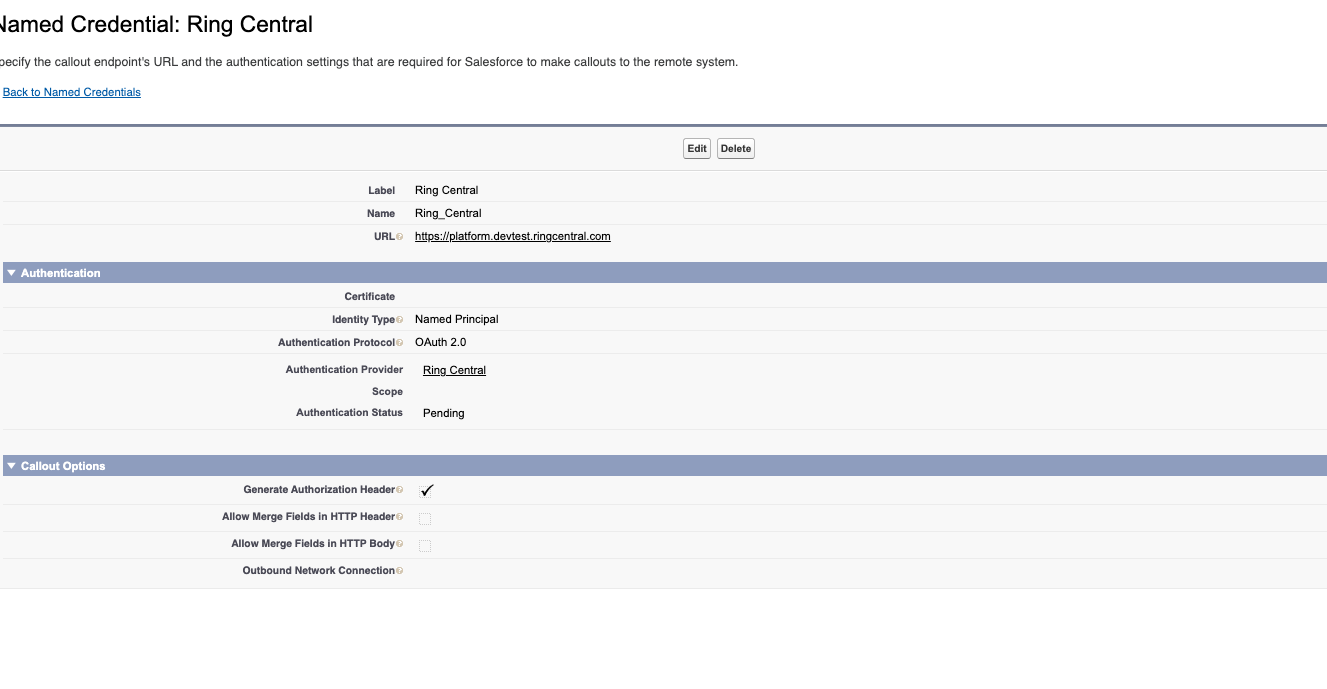
https://developer.salesforce.com/docs/atlas.en-us.apexcode.meta/apexcode/apex_callouts_named_credentials.htm
Salesforce will be managing keeping the access credentials current and active. We usually prefer the principal OAUTH method. There is no coding required, just follow the steps on the UI.
Once the Named Credentials are setup, use the same endpoint to upload the recording file information
https://{your_org_domain}/services/data/v50.0/voicecalls/0LQB00000001BqU/audio_upload
Note: “your_org_domain” is the org’s Salesforce URL you’d normally call any API at.
You would need the following information:
- The recording URL
- Name of the named credential
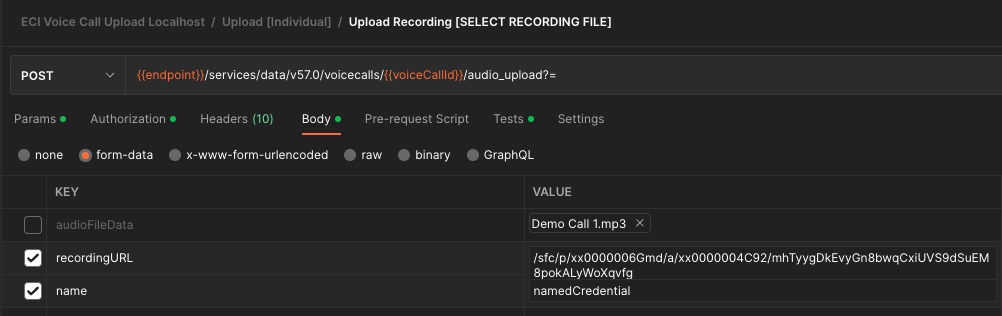
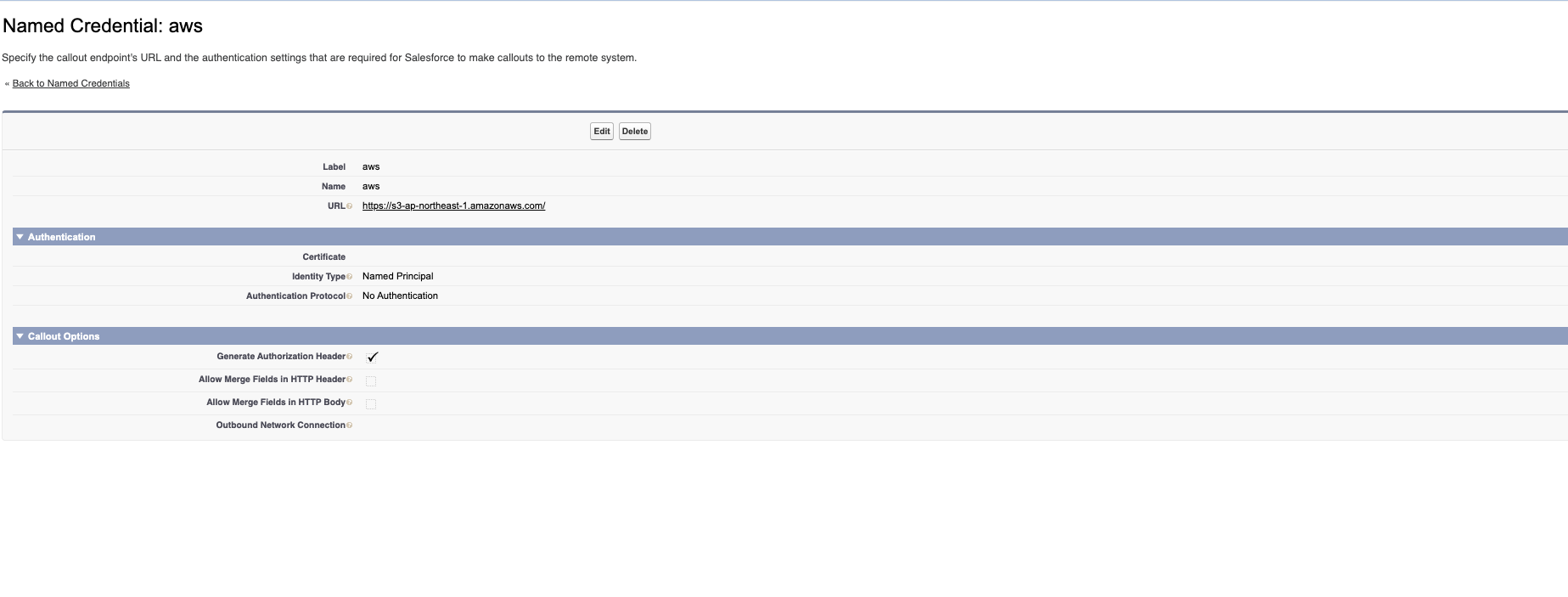
The download URL ie for the recording file to be downloaded is calculated with the URL filed in the named credential combined with the recordingURL in the above payload.
In the case you have recording files in S3 that need no authentication, this can be supported as well. Here is an example setup for that use case,
UPLOAD RECORDING
URL {connect-base-url}/voicecalls/{id}/audio_upload
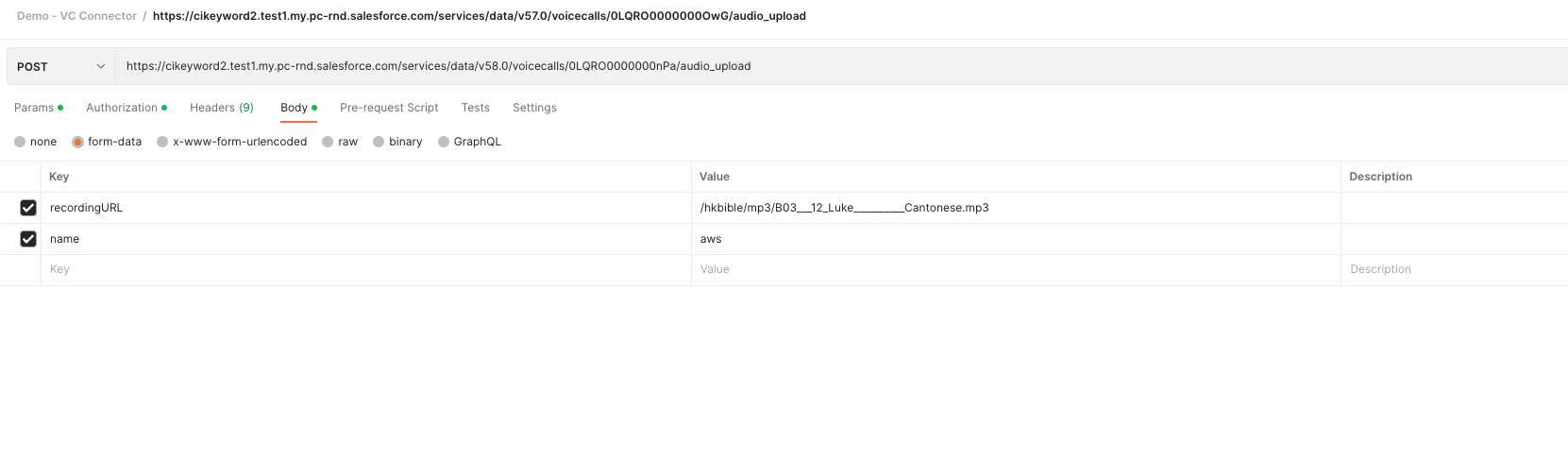
Method POST
{id} equals the VoiceCall id that recording should be associated with.
Input Fields (payload)
API only supports payload in request body. Audio recording file must be under key of “audioFileData”
Output Fields(204)
No content/output fields in successful upload response.
Output Fields (400/500)
1. errorCode
2. message
Response
204
- Successfully uploading audio file
400
-
Invalid VoiceCallId
-
Missing audio file
- User does not have the right Conversation Insights Integration User permset
500
-
Internal Server Error
Optimizing REST API Requests
An org may have multiple telephony users that are not part of the Einstein Conversation Insights experience and without any insight into how the orgs’ feature is configured, a partner would not know exactly which calls to push. We would like to optimize that experience by enabling partners to know the org status of the feature, specifically (1) whether or not the admin has enabled them to upload and (2) the active users that calls should be uploaded for.
This will improve the API integration as partners will have knowledge of the org’s current CallCoaching setup state and therefore can control what REST API requests should be sent.
Pull - New REST API
CALLCOACHING STATUS
URL {connect-base-url}/callcoaching/{CallCoachingMediaProviderId}
Method GET
Output Fields (200)
-
enabled: true/false
-
users: [ {userId: id, userEmail: email}, {userId: id2, userEmail, email2}, ...]
Output Fields (400/500)
1. errorCode
2. message
We are adding a new REST API that partners should query to get the current state of Einstein Conversation Insights for the org.
It will return false if the admin has disabled uploads for the partner’s Data Connector in the setup screen or if the admin has disabled the Einstein Conversation Insights feature entirely. No users will be included in the response. If a partner receives this response, then no calls should be uploaded to Salesforce.
It will return true if the admin has enabled the Einstein Conversation Insights feature and enabled uploads for the partner’s Data Connector in the setup screen. It will also include a JSON array of active CallCoaching users. This array contains tuples that contain the userId and userEmail of each user. The partner should use this data to determine which user calls to upload.
We have also updated the CREATE VOICECALL and UPLOAD RECORDING REST APIs to also start rejecting requests of partners that are disabled and/or users that are not active CallCoaching users.
Sample Implementation #1 - Full Experience
-
CTI updates the CTI app on AppExchange to create the CallCoachingMediaProvider record on install. This effectively registers CTI with the Einstein Conversation Insights feature.
-
CTI also implements and initializes the EMP Connector to subscribe to the CallCoachConfigModEvent on their side for this org, using the same integration user as the credentials. The EMP Connector begins to listen for events.
-
When the admin enables Einstein Conversation Insights and CTI, Salesforce will publish the CallCoachConfigModEvent and CTI will receive the event. When the event is received, CTI will then call the CallCoaching REST API to retrieve the status and determine whether (1) CTI is enabled to upload and (2) which active userIds to upload calls for. This data should be persisted on CTI’s side somewhere.
-
Once CTI is enabled for CallCoaching, then CTI can call the VoiceCalls API to upload call metadata for the active users and the VoiceCallsAudioUpload API to upload the flac files.
-
Since CTI is persisting the active userIds, CTI should only upload calls for those users.
-
Since CTI is using platform events to keep the state of active users up to date on their side, CTI can choose to upload calls on their own schedule.
-
VoiceCalls API supports bulk VoiceCalls, so it’s recommended that CTI upload the call metadata on a periodic basis to conserve API calls to Salesforce.
-
-
When CTI receives another CallCoachConfigModEvent, CTI should again call the CallCoaching REST API to get an update on the status and see if any new userIds were added or removed from CallCoaching. This new status should be persisted on CTI’s side and used on call uploads going forward.
Pros
-
CTI will always know which users are Einstein Conversation Insights users, almost immediately after the admin adds them to Einstein Conversation Insights. This will enable CTI to upload calls for those new users asap, giving a better end user experience.
- No need to poll constantly for Einstein Conversation Insights status to determine whether users are added/removed from Einstein Conversation Insights or whether the feature has been disabled.
Cons
-
The full experience means more work from CTI to support.
Sample Implementation #2 - Simpler
-
CTI updates the CTI app on AppExchange to create the CallCoachingMediaProvider record on install. This effectively registers CTI with the Einstein Conversation Insights feature.
-
CTI creates a periodic cron job to upload calls, such as every hour. The job should have the following flow:
a. Make REST API request to CallCoaching status API to determine if CTI is enabled to upload calls and which users to upload for
i. If CTI is disabled, don’t upload calls
b. If CTI is enabled, then filter all calls on CTI side by the active userIds returned in the CallCoaching status response and use the VoiceCalls API to bulk upload the call metadata
c. For each successful voicecall uploaded, upload the corresponding flac file using the VoiceCalls AudioUpload API. One flac file per API request.
Pros
- Simpler implementation
Cons
-
Since this implementation won’t get real-time updates on when users are added to CallCoaching, there will be a delay on when those new users’ calls will be analyzed for insights by Salesforce since CTI won’t upload them until the next cron job.
추가 자원
Knowledge 기사 번호
000392584
이 기사를 통해 문제를 해결했습니까?
개선을 위한 의견을 보내주세요.
