Select An Org
Create and Update List Views
Publish Date: Apr 2, 2026
Description
In Salesforce, you can create a custom list view for any object to filter and display records that meet specific criteria. This is useful when the default views don't show the data you need, or when a previously created list view was accidentally deleted.
Resolution
To create or restore a list view, begin by clicking the tab of the specific object.
Note: To have the option to create or clone a list view, the option for the 'Display as' icon must be set to either Table or Kanban and never to Split View.
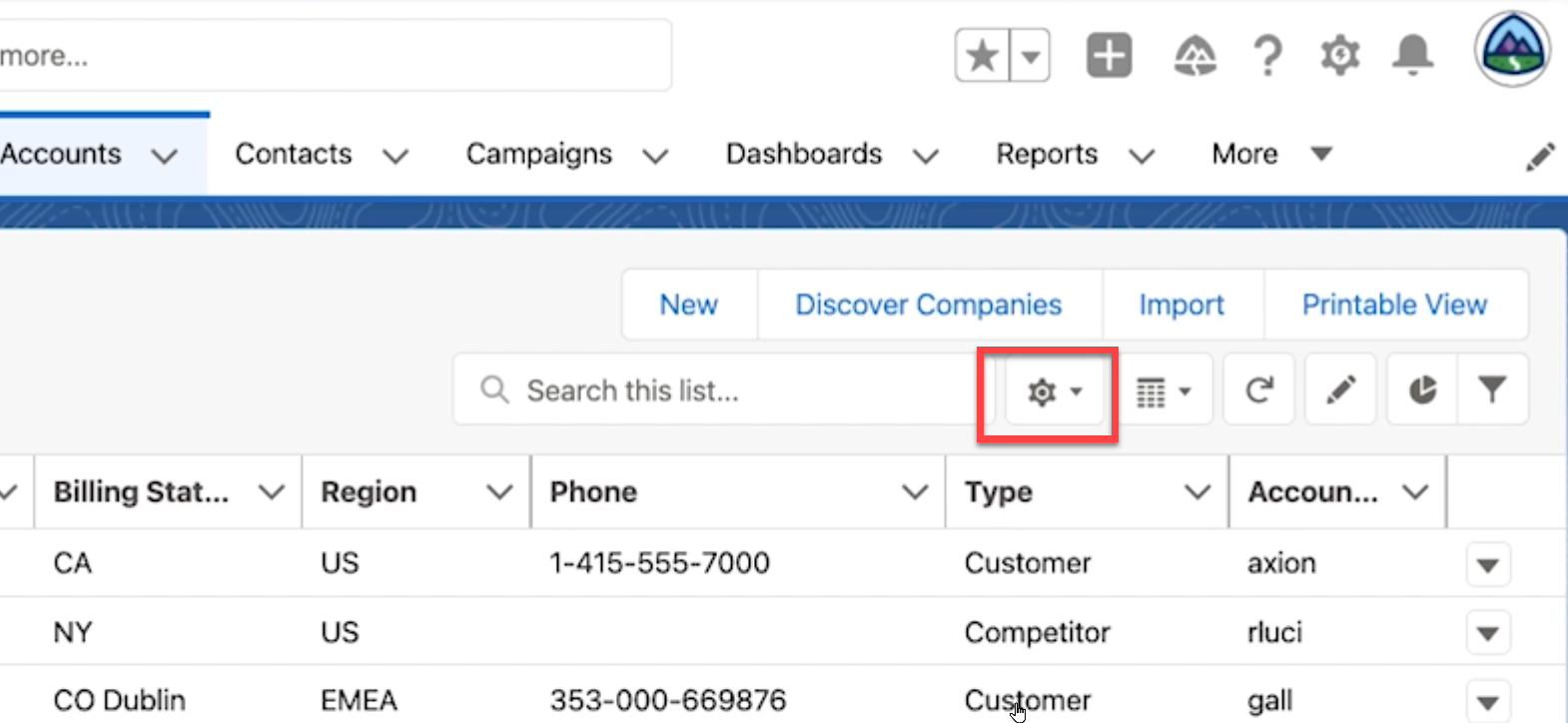
- Click the gear drop-down to the right of "Search this list"
- Click New
- Give the new list view a name
- Under "Who sees this list view?" choose if it is private to you, or if everyone has permission to see it
- Click Save
When you are brought to your new list view, the Filters area will open up by default. Here you can update the filter to only show your records or all records. You can also add additional filters based on the Standard and Custom fields that you have within that object by clicking Add Filter. If the filter is already showing the information you want you can click the X to close the filter window.
Note: You can access the filters of a list view at any time by clicking the funnel icon in the upper right. You can add filters to any list view, with the exception of Recently Viewed.
Additional Resources
Create or Clone a List View in Lightning Experience
Use List Views
Create & Customize List Views
Knowledge Article Number
000392853
Did this article solve your issue?
Let us know so we can improve!
