Velg en organisasjon
Re-assign cases back to the queue using flow
Publiseringsdato: Jun 23, 2026
Beskrivelse
Sometimes, you want to re-assign a case back to the queue that owned it at the time of case creation after a user closes the case.
Example scenario:
- Queue name: US Support Queue
- Tom is a member of the US Support Queue
- Tom accepts the case, making himself the owner
- When the case is closed, you want to automatically re-assign it back to the US Support Queue
Løsning
To re-assign a case back to its original queue when it is closed, you need to first capture the original queue ID in a custom field, then use a second flow to re-assign ownership on closure.
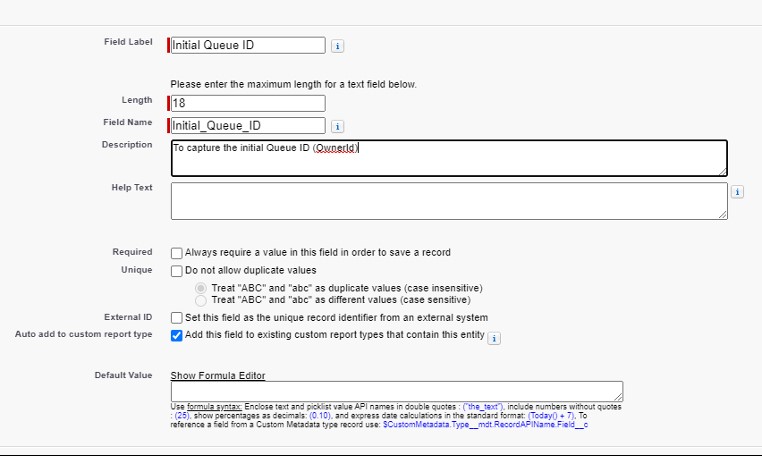
Step 1: Create a Custom Text Field to Store the Original Queue ID
Create a new Text custom field on the Case object (for example, Initial_Queue_ID__c). This field stores the ID of the queue that owned the case before a user accepted it. You do not need to add this field to the page layout.
Step 2: Create Flow 1 – Capture the Queue ID When Ownership Changes
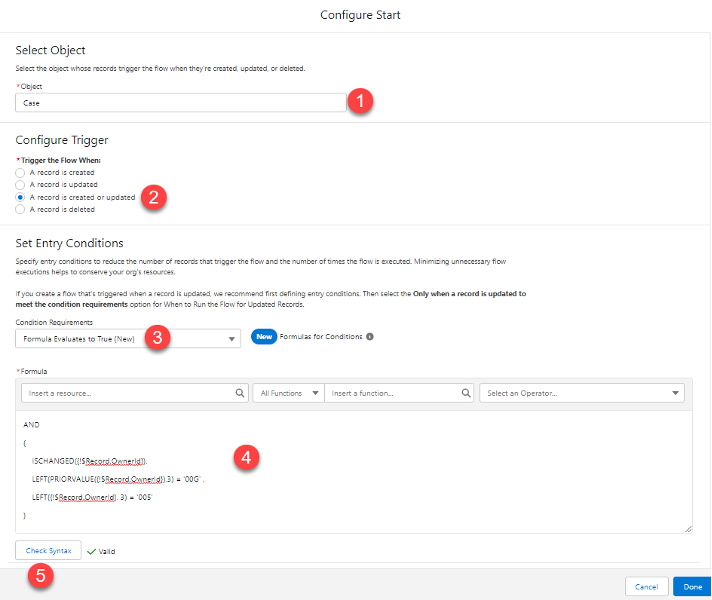
Create a Record-Triggered Flow on the Case object to capture the original queue ID whenever case ownership changes from a queue to a user.
Configure the flow as follows:
- Object: Case
- Trigger: A record is created or updated
- Condition Requirements: Formula Evaluates to True
- Formula: The condition should evaluate to true when the Owner ID has changed (ISCHANGED function), the previous owner ID starts with "00G" (which is the prefix for Queue IDs), and the new owner ID starts with "005" (which is the prefix for User IDs).
AND
(
	ISCHANGED({!$Record.OwnerId}),
	LEFT(PRIORVALUE({!$Record.OwnerId}),3) = '00G' ,
	LEFT({!$Record.OwnerId}, 3) = '005'
)
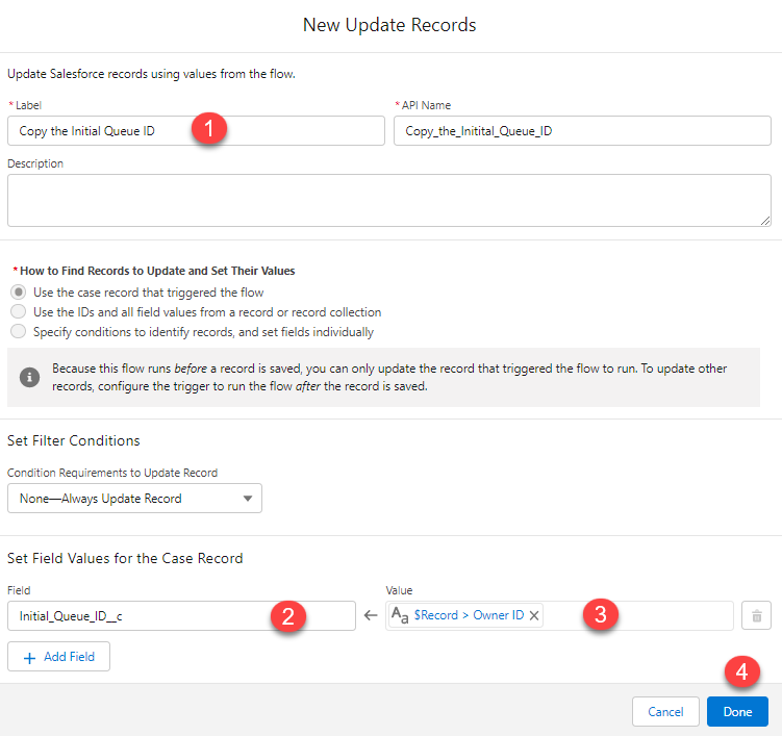
- Optimization: Fast Field Updates
- Action: Update Triggering Record — set the
Initial_Queue_ID__cfield to the previous value of OwnerId (the queue ID) - Save and activate this flow.
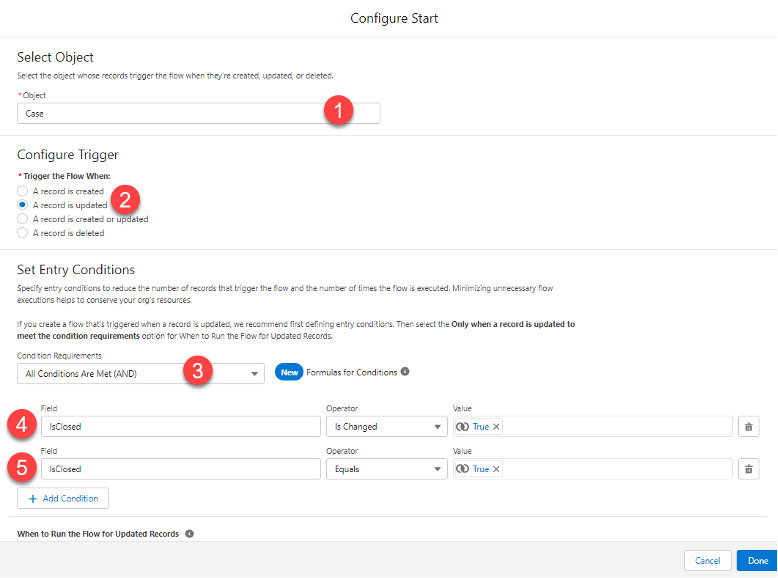
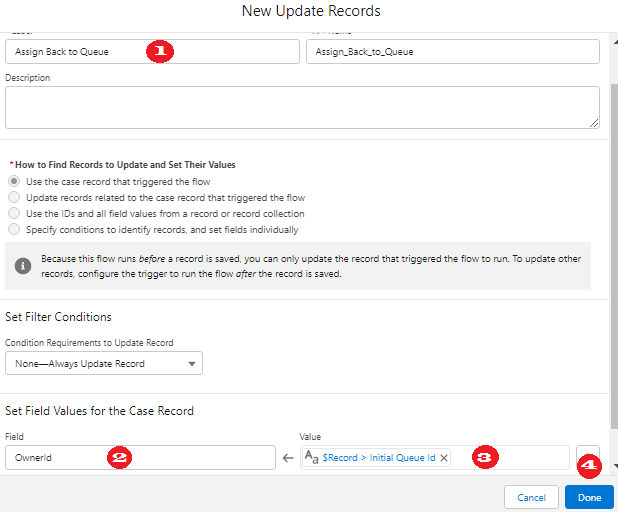
- Object: Case
- Trigger: A record is created or updated
- Condition Requirements: Trigger when Status changes to "Closed"
- Optimization: Fast Field Updates
- Action: Update Triggering Record — set the
OwnerIdfield to the value ofInitial_Queue_ID__c(the stored queue ID)
______________________________________________________________
Written By: Usman Ali | Salesforce Answers Leader
Usman Ali is a Salesforce Architect at Dubai Holding Asset Management. He brings more than 10+ years of Salesforce ecosystem experience to the table, with several nominations for good measures. He enjoys being challenged and engaged with projects and team that requires him to work outside of his comfort and knowledge set. He takes pride in helping other trailblazers in the Trailblazer Community and is the group leader of Developer Group, Dubai, UAE.
Submissions reflect only the opinions of the user who made available the Submission and not the opinions of Salesforce, regardless of whether the user is affiliated with Salesforce, and may contain or constitute products, services, information, data, content and other materials made available by or on behalf of third parties ("Third Party Materials). Salesforce neither controls nor endorses, nor is Salesforce responsible for, any Third Party Materials, including their accuracy, validity, timeliness, completeness, reliability, integrity, quality, legality, usefulness or safety, or any applicable intellectual property rights. Any Submissions made available through any message board or forum in response to posted questions, or that otherwise purports to answer any questions, including any questions about Salesforce or Programs, are made available for your general knowledge only and should never be relied upon as answers to your specific questions (even if an answer is marked as a “best” answer or with any similar qualifications). You should always contact Salesforce support for answers to your specific questions. Salesforce has no control over Submissions, and is not responsible for any use or misuse (including any distribution) by any third party of Submissions.
If you have questions, tap into the wisdom of our entire Trailblazer Community here: https://trailhead.salesforce.com/trailblazer- community/feed
Knowledge-artikkelnummer
000393216
Hjalp denne artikkelen med å løse problemet ditt?
La oss få vite det slik at vi kan forbedre!
