Valitse organisaatio
Recover, Restore, and Track Document Changes in Quip
Julkaisupäivä: Sep 23, 2025
Kuvaus
Ratkaisu
To recover a deleted document or spreadsheet:
- Go to Folders and locate Trash
- Select on the document you wish to recover & choose Recover
If a document was deleted by someone other than yourself, go to the subfolder in your Trash folder called Deleted by Others. There you will see documents you had access to, deleted by someone else who also had access.
Content will live in the folder Trash and subfolder Deleted by Others for 30 days. After 30 days, the content will be deleted.
Restore Document to Previous Version
Use Document History to restore the document content to a previous version.
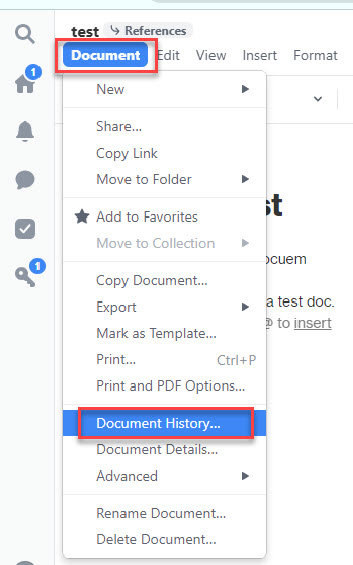
To access Document History, click the Document drop-down menu at the top left and select Document History. Select a timestamp and restore the document to a previous version or manually copy and paste content from an older version into the current version of the document.
Track Document Changes
All document edits are tracked in the conversation pane at the right-hand side of the document.
Changes are tracked differently:
- Text that has been deleted is highlighted in red with a line through the text.
- If a block of text contains both deletions and insertions, the inserted text is highlighted in green and underlined.
- If a block of text contains only insertions, the inserted text is underlined in green.
- When large sections of text have been removed, the text is grayed out.
Considerations
The following document changes are not tracked:
- Edits to live apps. The type of live app is indicated in the Document History, but specific edits in the live app are not.
FAQ
Can document restore be undone?
Yes. When an old version of a document is restored, a new version of the document is being created. There is no history erased. The version that existed before restoration will become the second-most-recent version and can be reverted as needed.
Can changes to a document be approved?
No. The product is built to encourage collaboration, creating a space where everyone is on the same page, with access to the most up-to-date version!
Questions/Feedback?
Reach out to our support team and log a case. Learn how to do that here.
Knowledge-artikkelin numero
000393272
Ratkaisiko tämä artikkeli ongelmasi?
Anna palautetta, jotta voimme kehittyä!
