Velg en organisasjon
Direct Messaging within Salesforce Anywhere (including Quip)
Publiseringsdato: Dec 20, 2024
Beskrivelse
Chat rooms and comments are great for getting all kinds of work done. However, there are times that conversations need to be private, direct messages are made for those situations.
Creating a direct message
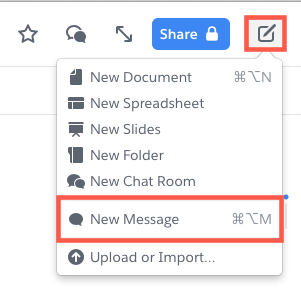
You can create a direct message by clicking the Compose button and then New Message on the top right-hand corner of the screen.
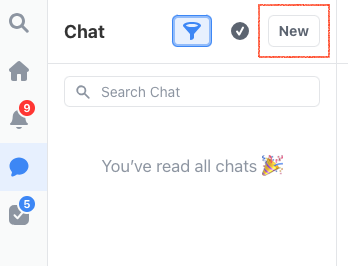
You can also create a direct message located in Chat on the navigation pane, then click the New button.
Once you click New, a chat box will appear that will require you to type in the recipient(s) name.
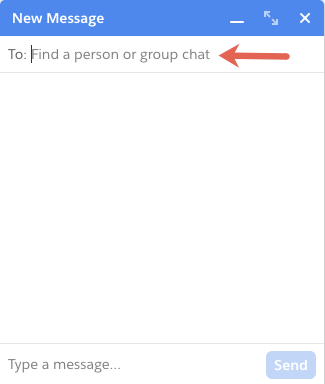
When you type in your recipient(s) and your message, click Send. Once you have sent your message the person will be notified accordingly.
To use the controls at the top of the tab, you can (from left to right):
- Collapse (the underscore button) the chat tab to only view the name of the person you’re chatting with, and in addition to collapsing the chat you have more room to do your work. (To uncollapse the tab, click on it again.)
- Expand (Two arrows button) to chat with a full screen
- Close (X button) to remove the chat
Your chat sidebar
On the left side of your screen, there is a sidebar displayed that gives you access to different features including the chats you are participating in.
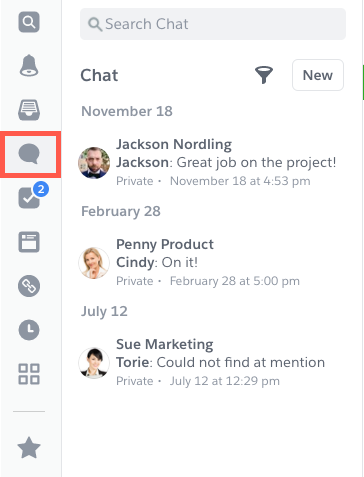
By clicking the Message icon, a ribbon of your chat history will appear on the right including a preview of the last message that was sent.
If you have unread chats, the chat bubble will be badged with the number of unread messages. Unread messages from those who you are chatting with will be marked with a blue dot.
If you would like to see chats with unread messages, click on the Filter button on the chat tab and you will be auto-directed to chats that have not been opened.
Chat notifications
In addition to showing unread chats in your chat sidebar, there are also times chat updates will show up in your Notifications. With the following chat actions it will badge the notification bell:
- Someone has started a conversation with you.
- Someone @mention you through the conversation.
- Someone liked your message(s) through the chat
- When someone reads the very first message that you’ve sent
Note: Messages that do not include an @ mention will not be notified in the bell notifications. Instead, a notification will appear in the Chat section of the sidebar.
If you have the desktop notifications enabled, or if you use the mobile app, you will be notified through channels of any new direct messages you receive.
Customize chat notifications
If necessary, you can also adjust the notifications to meet your needs. With that you have the following options:
- Change the notification settings
- To change the settings through the direct message the chat must be a fully expanded window. You can do that by clicking the Expansion arrows through the chat pane.
- Then click the Chat button and hover your cursor on Advanced. A set of options will appear on the right, then select “Notification Settings.” When you have clicked that, your chat options will appear and you can select the options of how you' prefer to receive chat notifications.
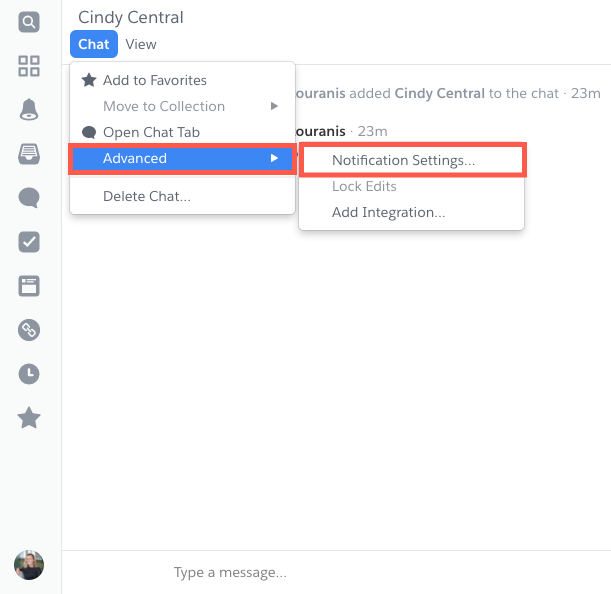
- Mute the conversation
- From the Chat menu, select Delete Conversation. After you have selected that, your chat will not automatically be deleted, although you will be given the option to simply mute it, which stops the overflow of notifications coming your way and removes it from your Updates feed.
Deleting a conversation
In addition to muting chats, you have the option to delete chats (entirely) that are not active. Here’s how to do it:
- From the Chat menu, hover your cursor over the inactive chat you would like to delete and right-click the chat.
- Once you have right-clicked the chat, click on Delete Chat in the options down below.
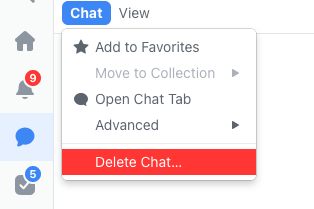
When you click Delete Chat, a box will appear on your screen that will allow you to select either of the delete options from the ensuing dialog:
- Leave Chat: To remove yourself from the chat
- Delete Chat: To remove all members within the chat and move the chat into your Trash
You have learned everything you need to know about Chat! Go ahead and spark a conversation with someone!
Knowledge-artikkelnummer
000393277
Hjalp denne artikkelen med å løse problemet ditt?
La oss få vite det slik at vi kan forbedre!
