조직 선택
B2C Commerce: Test Automation with Multi-Factor Authentication
게시 일자: Dec 19, 2024
상세 설명
As per the article Salesforce Multi-Factor Authentication FAQ, the multi-factor authentication (MFA) requirement is now in effect for all Salesforce products, and MFA is a permanent part of the B2C Commerce Account Manager login experience (see the Multi-Factor Authentication (MFA) Enforcement Roadmap). To log in with MFA, a user needs to provide a username, password, and an additional verification method, such as the Salesforce Authenticator app, a WebAuthn-compliant security key, or a third-party TOTP authentication app.
When MFA is enabled, there's an impact on automated tests that use the Account Manager UI for logins. For example, a very common use case is automated user interface testing using tools such as Selenium. Such tests need to be adapted to perform the additional MFA verification step.
솔루션
Time-Based One-Time Passwords (TOTP)
The recommended way to perform MFA in automated tests is to use time-based one-time passwords (TOTP). TOTP is a an alternative to using push notifications via an authenticator app like Salesforce Authenticator. Push notifications can't be handled easily by automated tests. With TOTP, a user reads a 6 or 8 digit code from an authenticator app (like Salesforce Authenticator) and enters it into the corresponding input field during login. Each TOTP can only be used once.
The TOTP generation and verification requires a secret key that is shared between the server (Account Manager) and the client (authenticator app). The secret is usually shared with a QR code that needs to be scanned in the authenticator app, but it can be entered manually as well. This method can be leveraged to forward the shared secret to the test suite, which can then compute a valid TOTP and perform multi-factor authentication.
To use TOTP in automated tests:
- Enable TOTP in the organization settings.
- Prepare Test Users to Use MFA. Every test user needs to be set up to use the correct MFA verification method. This setup can be done independent of the actual test execution and only needs to be done once. After a test user is configured to use MFA, it can be used for multiple, independent executions of the test suite.
- Log In a User with MFA. After the test users have been set up, they can be used for login during the execution of the test suite. The additional MFA verification step requires adjustments to the tests that are described in Logging In a Test User with MFA, below.
Enable TOTP in the Organization Settings
To allow time-based one-time password generators, they must be enabled in the organization settings of Account Manager. This can be done by checking TOTP Authenticator Apps in the MFA Verification Method Settings section.
Preparing a Test User to Use MFA
Before TOTP-based multi-factor authentication can be used in automated tests, the test users have to be set up. The setup can be done manually via a browser, but it can also be performed programmatically by the test suite itself.
The following steps can be applied to both new and existing test users. Bt we recommend that the test user doesn't have any other MFA pairing in Account Manager.
- Log in the test user.
- When the user is prompted to add a verification method, select One-Time Password Generator.
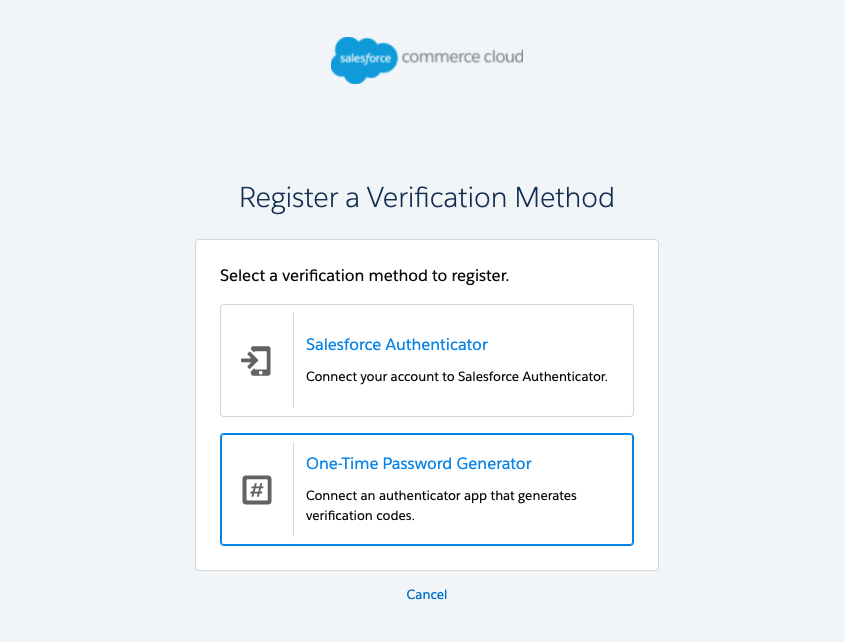
- When the QR code is displayed, select the I Can't Scan the QR Code link at the bottom of the page.
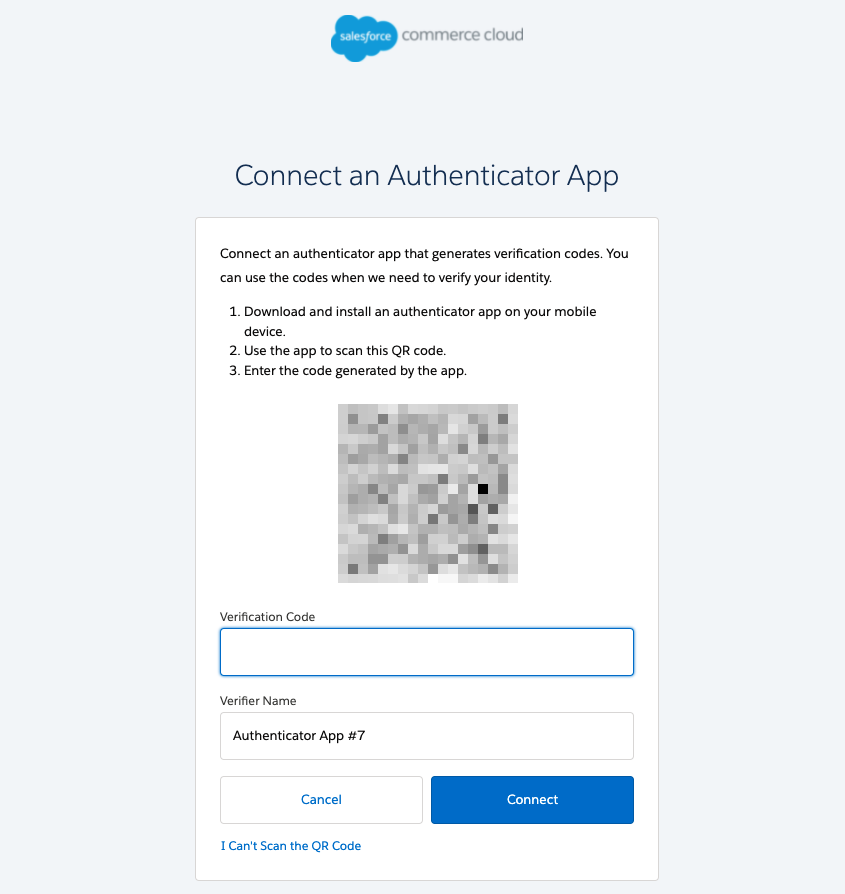
- The secret key is presented. That key will be used by the test suite to compute the one-time passwords. You have to remember the secret key in your test suite. If a test user is used for multiple, independent executions of the test suite, the secret key has to be persisted.
Important: The TOTP secret for a user should be treated with the same sensitivity as the user's password and should not be stored unencrypted. We recommend using a secret storage solution that is appropriate for your use case.
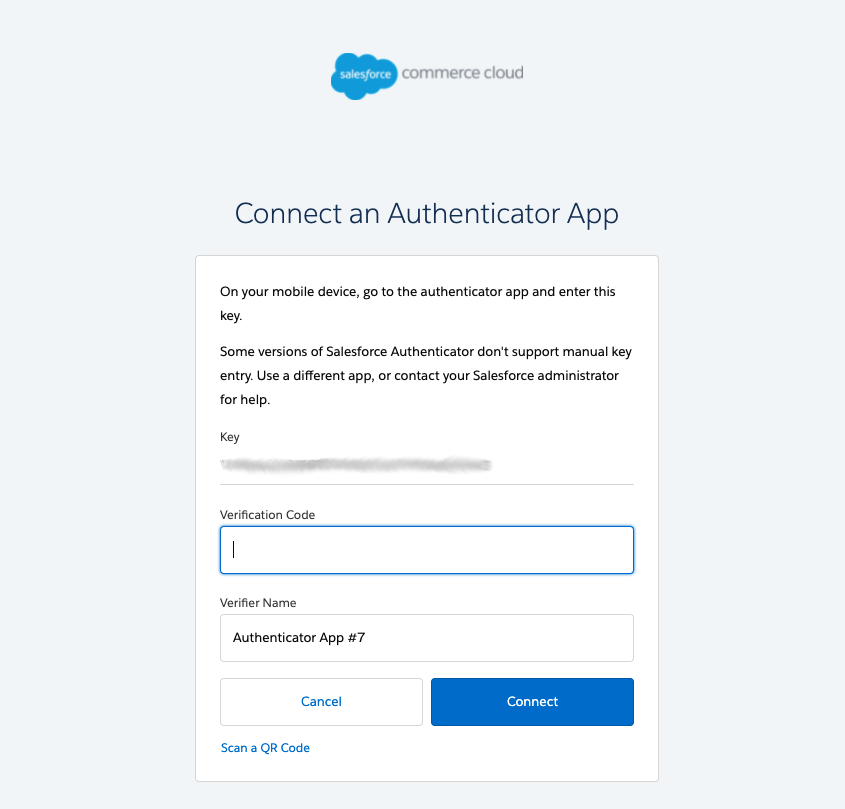
- Compute the one-time password, as described in Computing the One-Time Password.
- Enter the one-time password from Step 5 in the 'Verification Code' field to complete the registration.
Note: After this initial setup, another one-time password needs to be entered to log in the test user. Since every TOTP can be used only once, the code that's used during the registration can't be used again. You may have to wait up to 30 seconds until the next code is generated.
Logging In a Test User with MFA
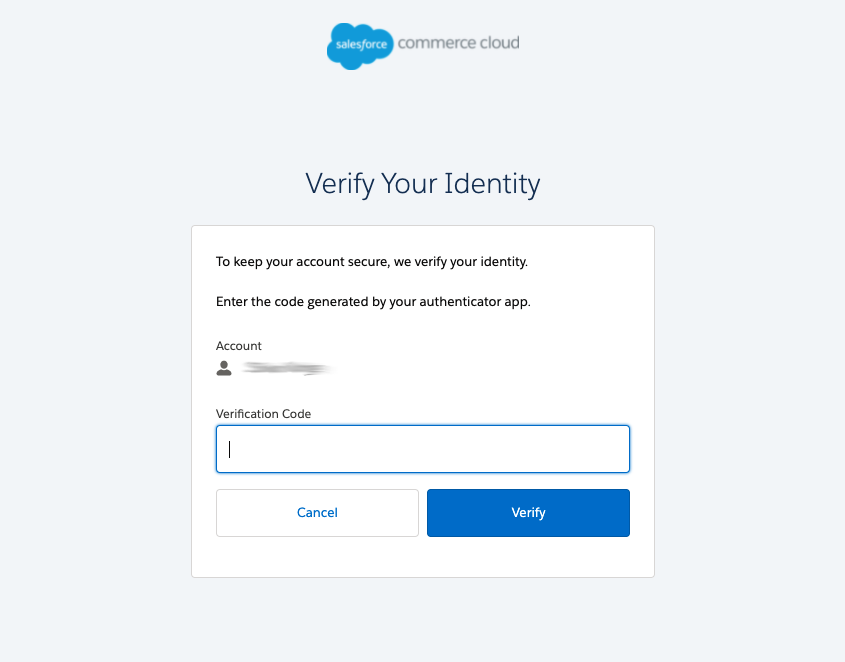
After the user setup is complete, use the secret key to compute the one-time password during test execution. During login, an additional MFA step is added after the password validation. In that step, the one-time password is required.
In general, your test will have the following sequence for login:
- Go to the Account Manager login page.
- Enter the email address and select LOG IN.
- Enter the password and select LOG IN.
- Compute the one-time password, as described in the Computing the One-Time Password section.
- Enter the one-time password from Step 4 in the 'Verification Code' field and select Verify.
Computing the One-Time Password
There are a number of third-party TOTP libraries that can be used to compute the time-based one-time password in your test suite. For example: https://github.com/samdjstevens/java-totp or https://github.com/taimos/totp for Java. Select a library based on your programming language, the library's license, and other requirements that may apply. The library you choose needs to be included in your test suite. The actual implementation to compute the TOTP depends on the library you select.
Here are two examples to demonstrate how the TOTP could be computed.
import java.time.Instant;

import org.apache.commons.codec.binary.Base32;
import org.apache.commons.codec.binary.Hex;

import de.taimos.totp.TOTP;
import dev.samstevens.totp.code.DefaultCodeGenerator;
import dev.samstevens.totp.exceptions.CodeGenerationException;

public class TOTPGenerator {
    public void generateTotp() {
        String key = "1V6JEWHUQQBS2FY2VOUUVVE6N35TQ2GL";    // this is the secret key that's presented during the test user setup
        System.out.println("Taimos: " + taimos(key));
        System.out.println("java-totp: " + javaTotp(key));
    }

    // using https://github.com/taimos/totp
    private String taimos(String key) {
        // the key needs to be Base32 encoded
        final Base32 base32 = new Base32();
        final byte[] bytes = base32.decode(key);
        final String hexKey = Hex.encodeHexString(bytes);
        return TOTP.getOTP(hexKey);
    }

    // using https://github.com/samdjstevens/java-totp
    private String javaTotp(String key) {
        DefaultCodeGenerator generator = new DefaultCodeGenerator();
        try {
            // no encoding of the key necessary
            return generator.generate(key, Math.floorDiv(Instant.now().getEpochSecond(), 30L));
        } catch (CodeGenerationException e) {
            throw new RuntimeException(e);
        }
    }
}
The following parameters may be needed to compute the one-time password correctly:
- HMAC function: SHA1
- Number of digits: 6
- Time period (seconds): 30
The TOTP generation algorithm can also be implemented without using third-party libraries. The algorithm is outlined in RFC 6238.
Knowledge 기사 번호
000393412
이 기사를 통해 문제를 해결했습니까?
개선을 위한 의견을 보내주세요.
