조직 선택
Capture the record visitor details using Screen Flow
게시 일자: Apr 3, 2026
상세 설명
Do you want to record the data for the visitors who visit the Salesforce record pages? This article shows how to capture visitor data for Salesforce records using Screen Flow in Salesforce Platform
솔루션
Step 1: Create a custom object Record Visitor with the following fields:
- Object Name (text)
- Record Id (text)
- User (Lookup to User object)
Step 2: Create a Screen Flow and name it as: Hidden Screen for Visitor Count
Step 3: Create a new input variable recordId
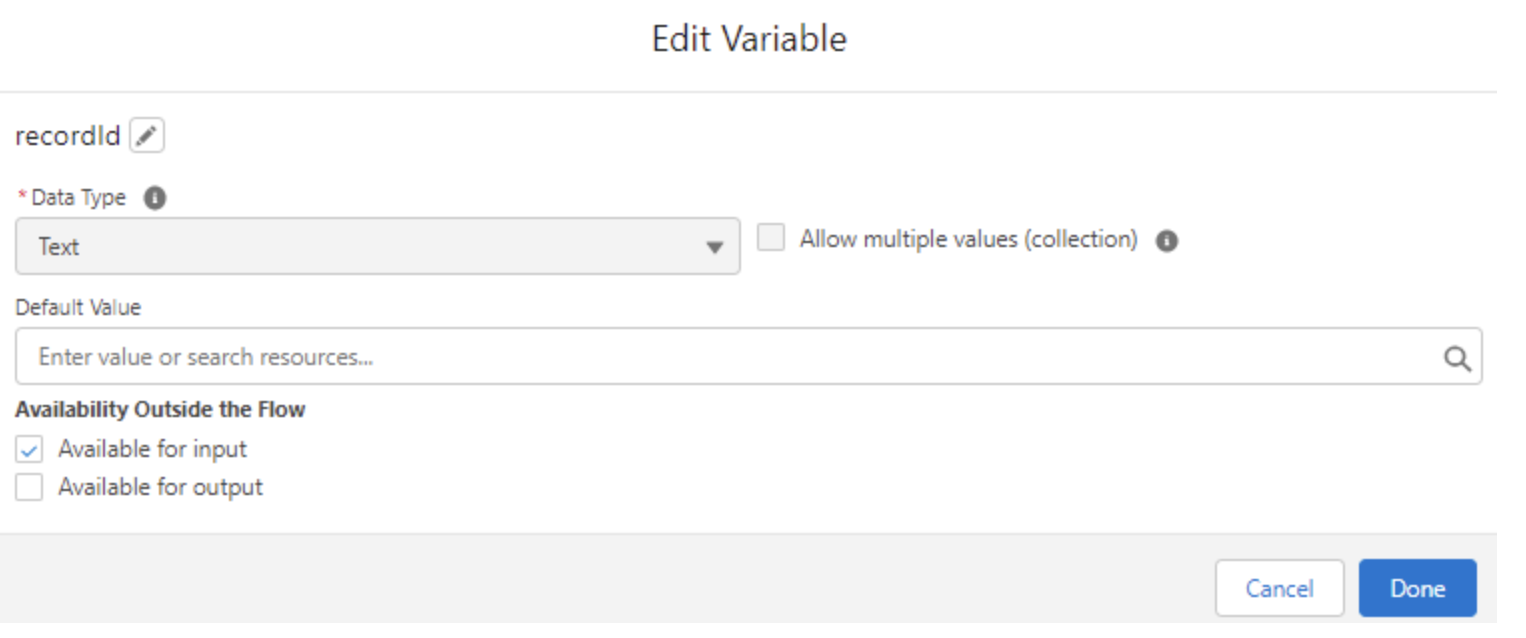
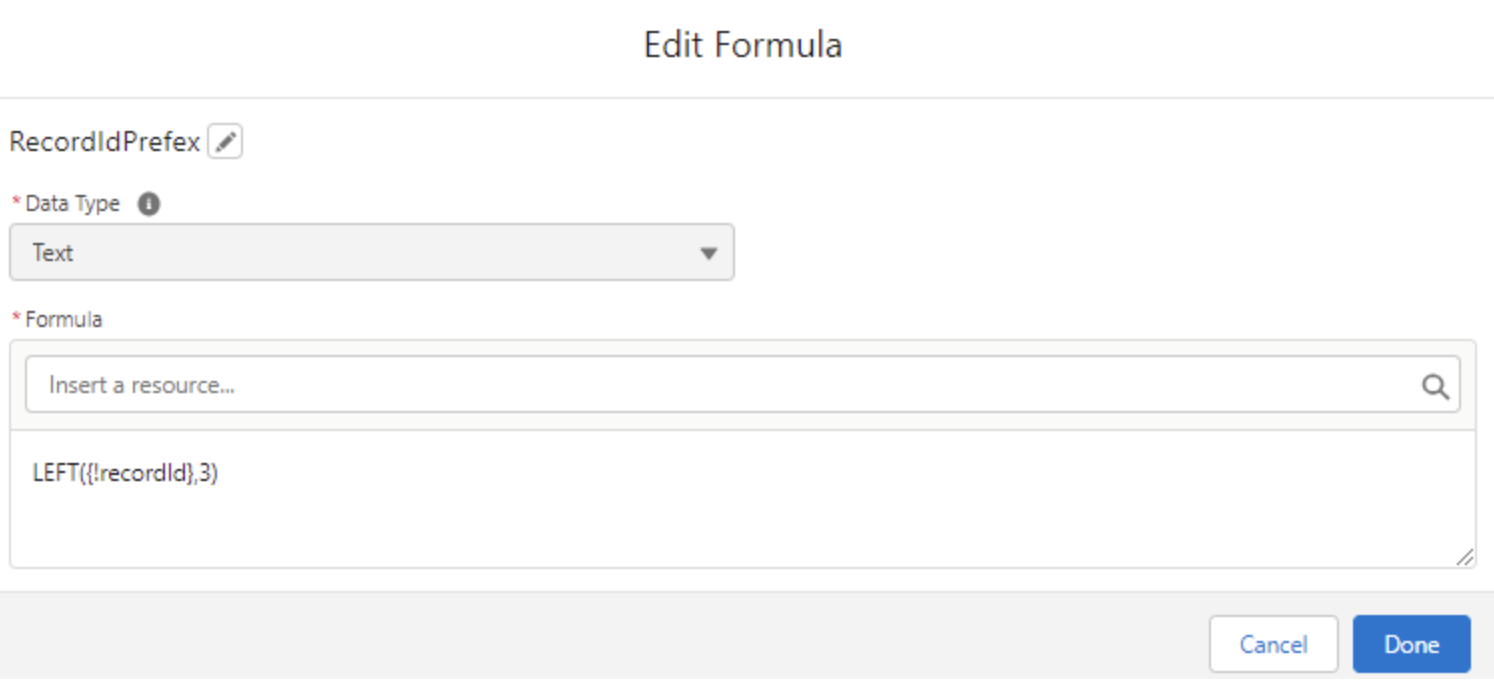
Step 4: Create a formula variable to get the record Id prefix using the record id
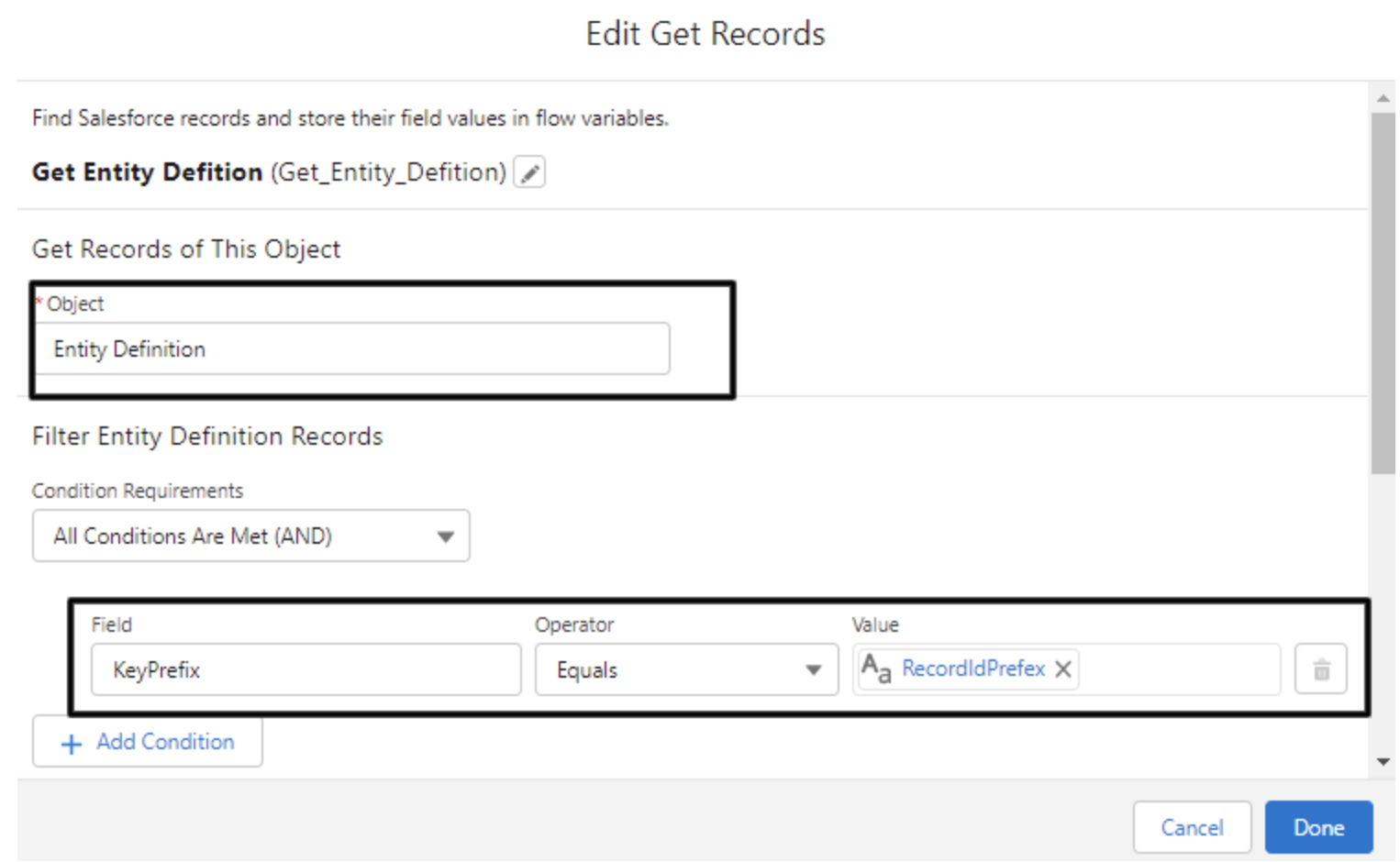
Step 5: Add a Get element to get the Entity Definition record using the prefix formula. We are using this just to get to the object name.
- We can also pass the object name in the variable along with recordId variable while adding the flow to the lightning record page
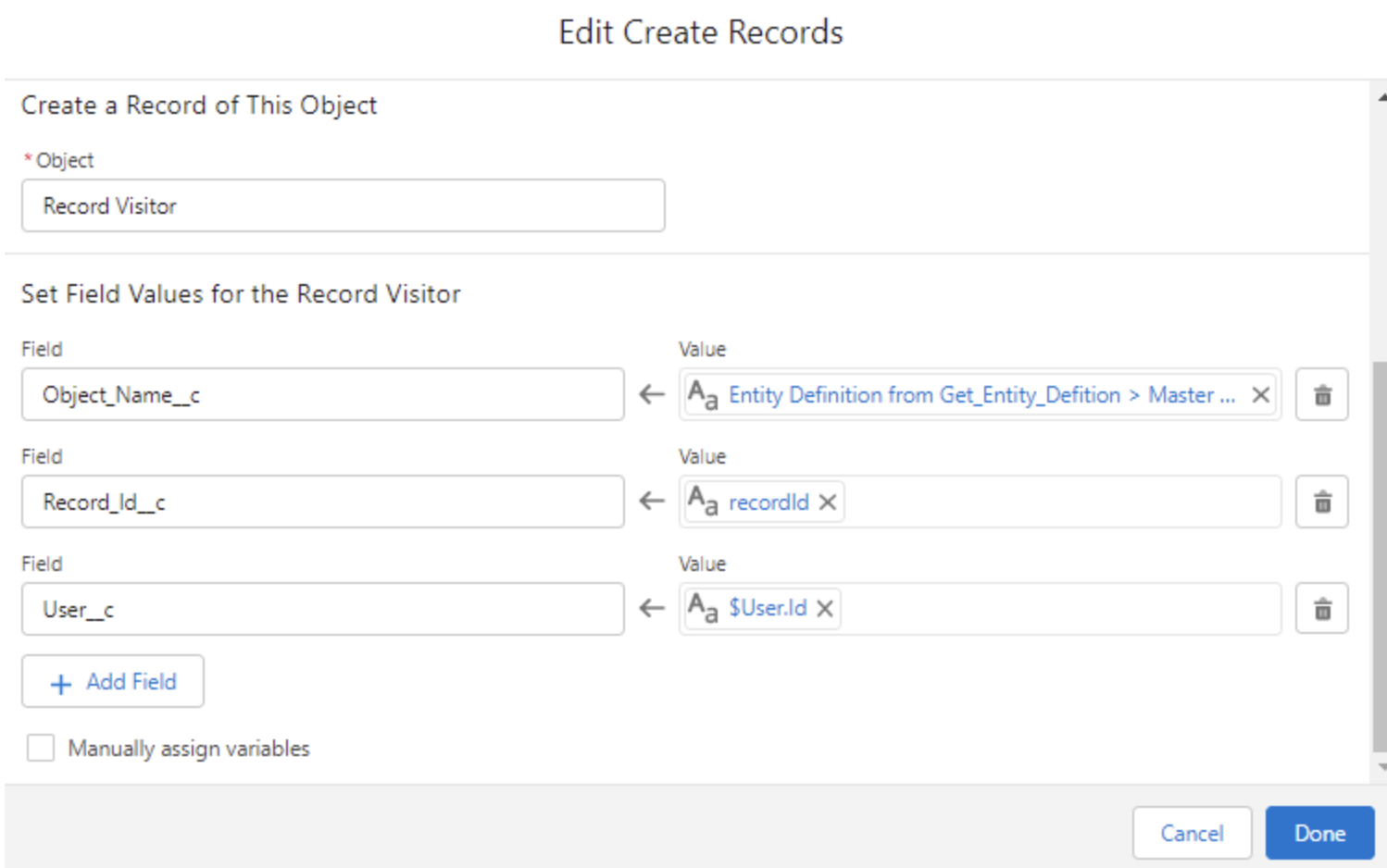
Step 6: Create a Record Visitor record by setting the User Id, Record Id, and the Object Name
Step 7: Add a blank screen at the end and you’re done. Activate the flow
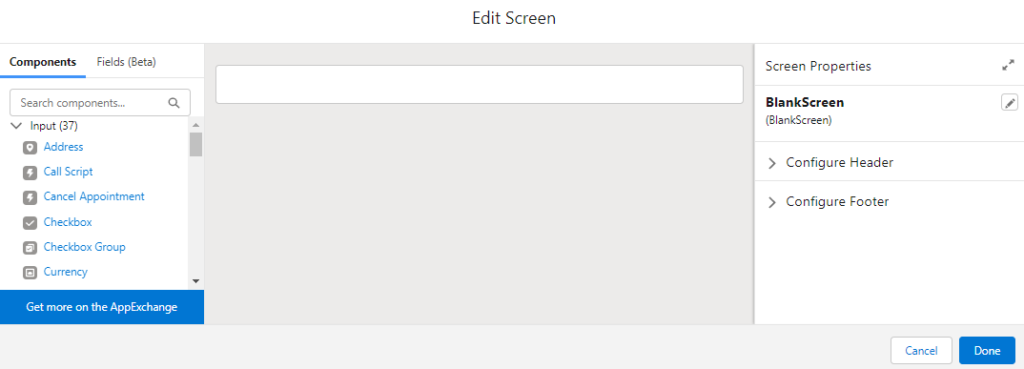
Note: Here is how the completed flow looks like now
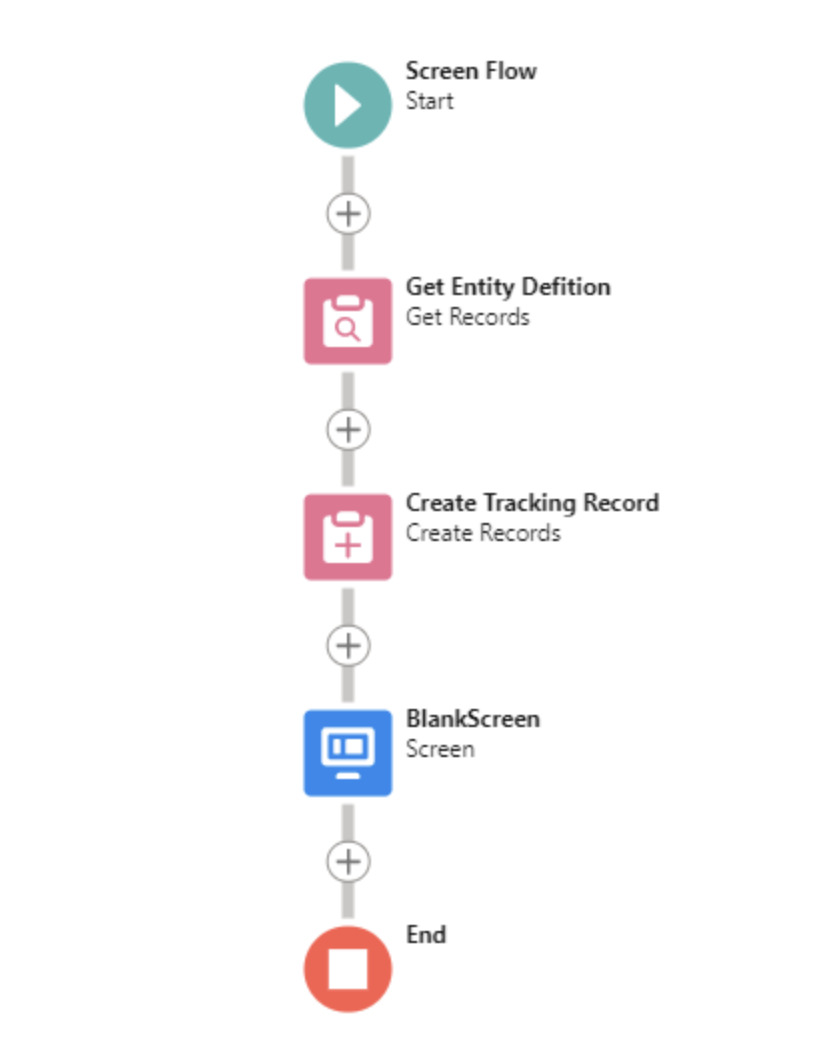
Step 7: Add a blank screen at the end and you’re done. Activate the flow
Note: Here is how the completed flow looks like now
Step 8: Add the screen flow on the lightning record detail page for the object you want to start tracking
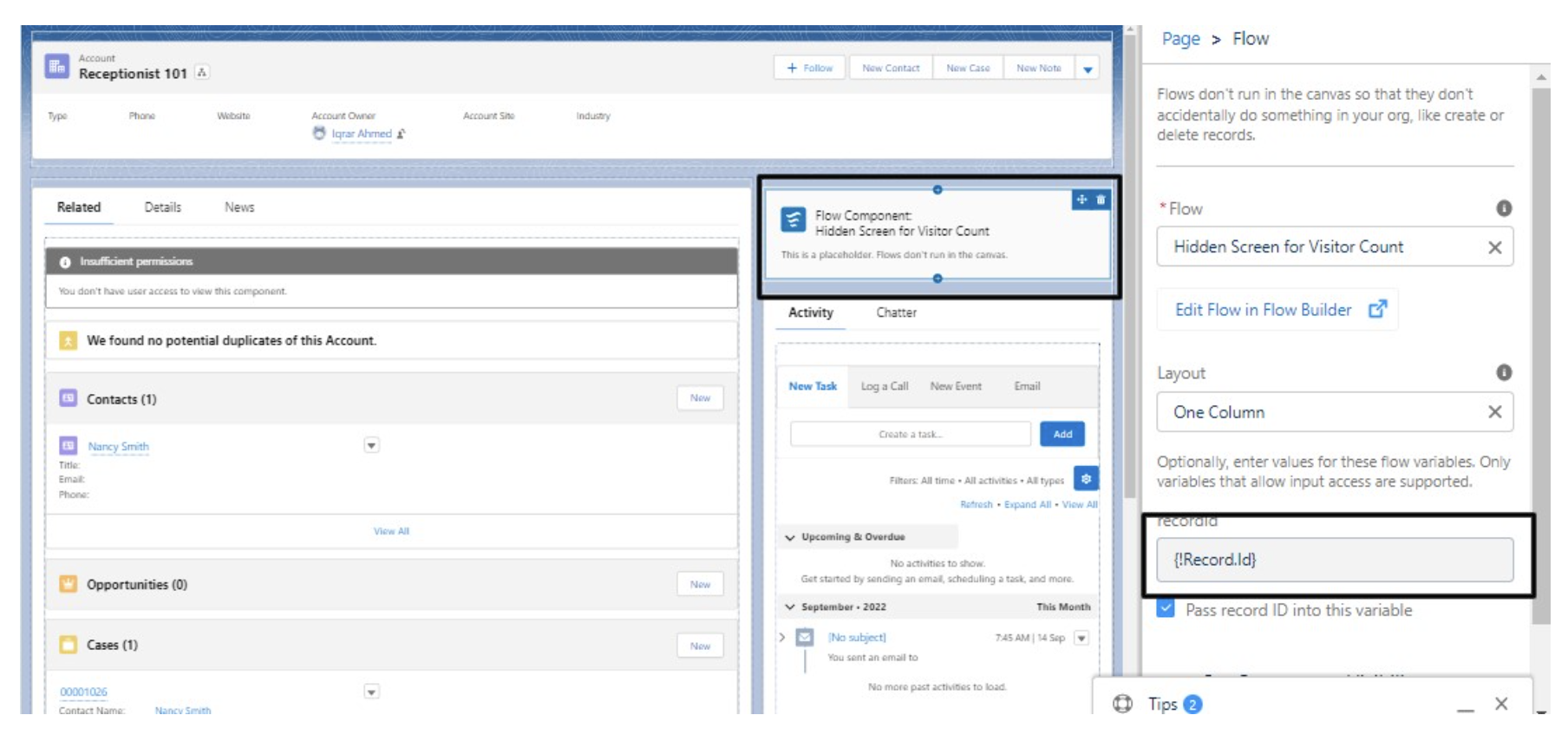
Note: Please see the following for what the ghost screen looks like
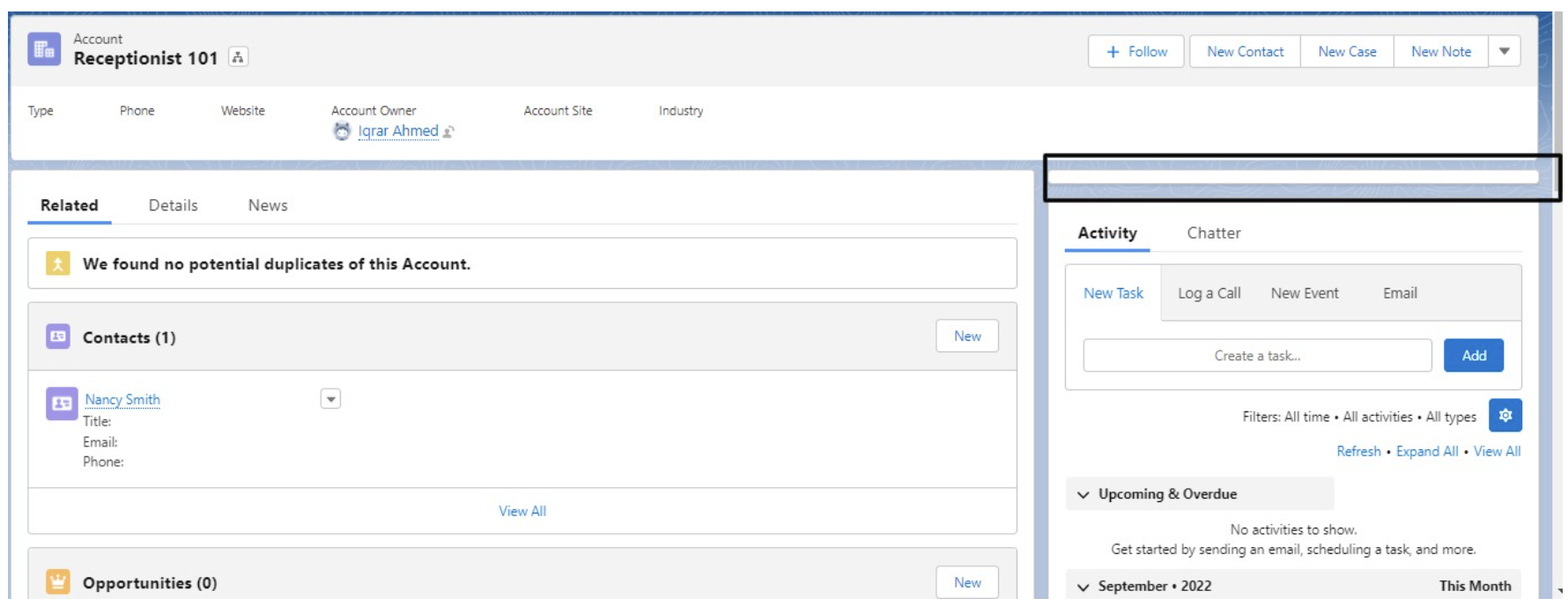
You'll see all tracking records in the custom object, but if you want to see it on the record level then you can create an LWC component to show it on the record level
Knowledge 기사 번호
000393631
이 기사를 통해 문제를 해결했습니까?
개선을 위한 의견을 보내주세요.
