Vælg en organisation
Open email message record with one click from custom report
Udgivelsesdato: Apr 2, 2026
Beskrivelse
Løsning
Step 1: From Setup, enter Report Types in the Quick Find box, then select Report Types. If the Custom Report Type welcome page opens, click Continue. Click New Custom Report Type. Select the primary object for your custom report type. In our case, we will select Report on Email Activity
Step 2: Choose the following object relationships: Email Messages (A) > with or without related records from Contacts (B) 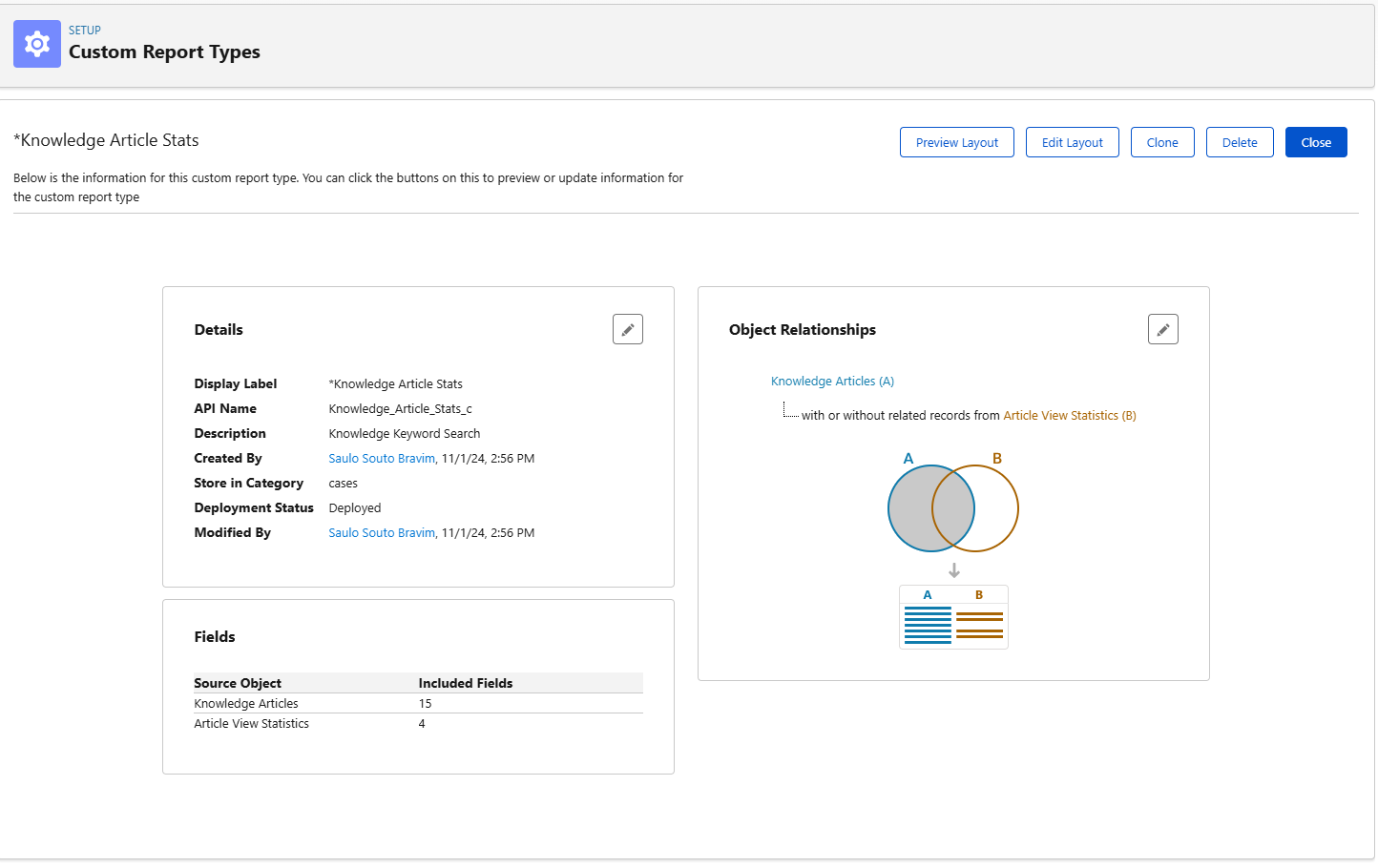
Step 3: From the Outline panel, add the Email Message ID field to the Columns section
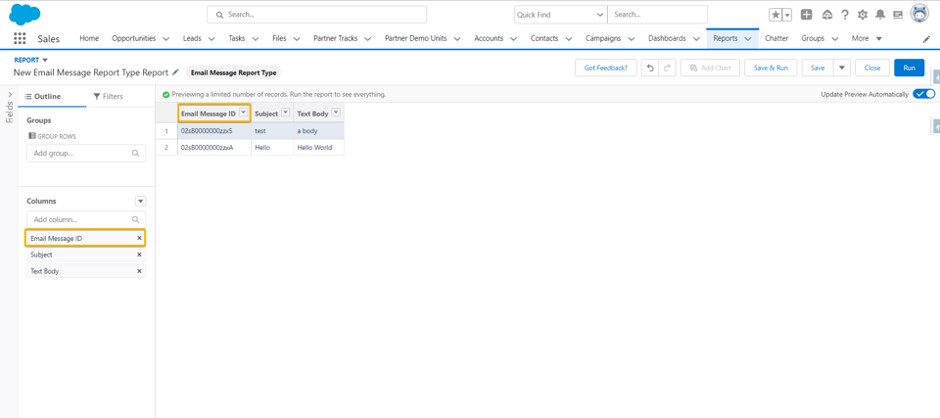
Step 4: Create a custom formula field (Type = "Text") for your new Hyperlink Formula Field. We chose to name our custom field Link to View Email and input the formula below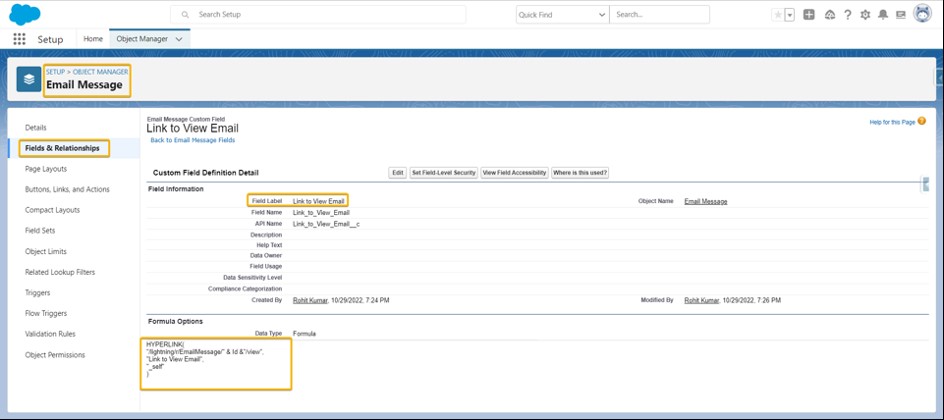
Sample Formula Below:

HYPERLINK( "/lightning/r/EmailMessage/" & Id &"/view",
"Link to View Email",
"_self")
Step 5: Save your report. Add a column Link Email ID to the report, then Save & Run. Use the hyperlinked field to quickly access any Email Message records in the report 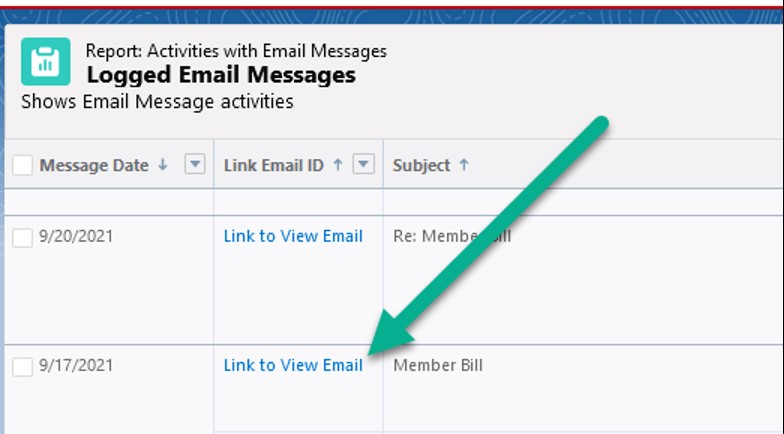
Step 6: Once you click on the Link to View Email button, complete details about the Email Message record will be displayed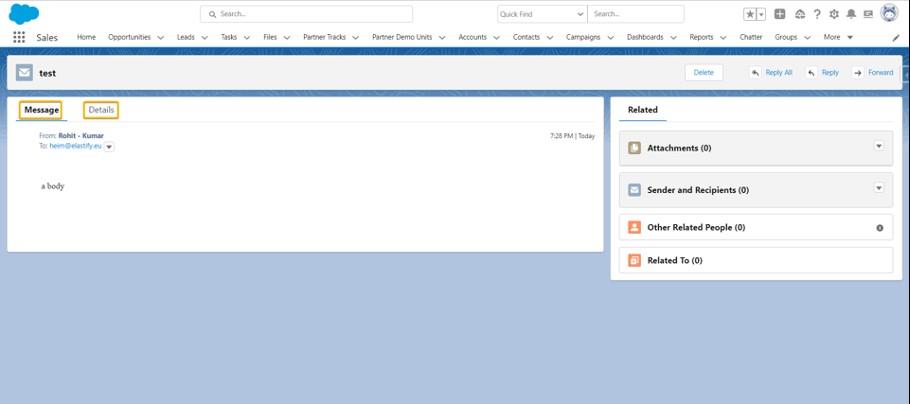
You're done!
Yderligere ressourcer
See also:
Report on Email Activity
Obtain Salesforce Record ID
Tips for Working with Hyperlink Formula Fields
Vidensartikelnummer
000393811
Løste denne artikel dit problem?
Giv os besked, så vi kan forbedre os!
