조직 선택
Bypass Salesforce Flow for a Specific User or Profile
게시 일자: Aug 25, 2025
상세 설명
솔루션
- Creating a custom permission
- Assign custom permission to the system administrator profile
- Clone existing flow
- Modify decision element criteria
________________________________
Creating a Custom Permission
By using custom permissions, you can grant users access to custom apps. In Salesforce, you can use custom permissions to check which users can access certain functionality. Custom permissions let you define access checks that can be assigned to users via permission sets or profiles – similar to how you assign user permissions and other access settings. You can even use custom permission to bypass the validation rule for certain users or profiles. Let us create custom permission to bypass flowsTo get started:
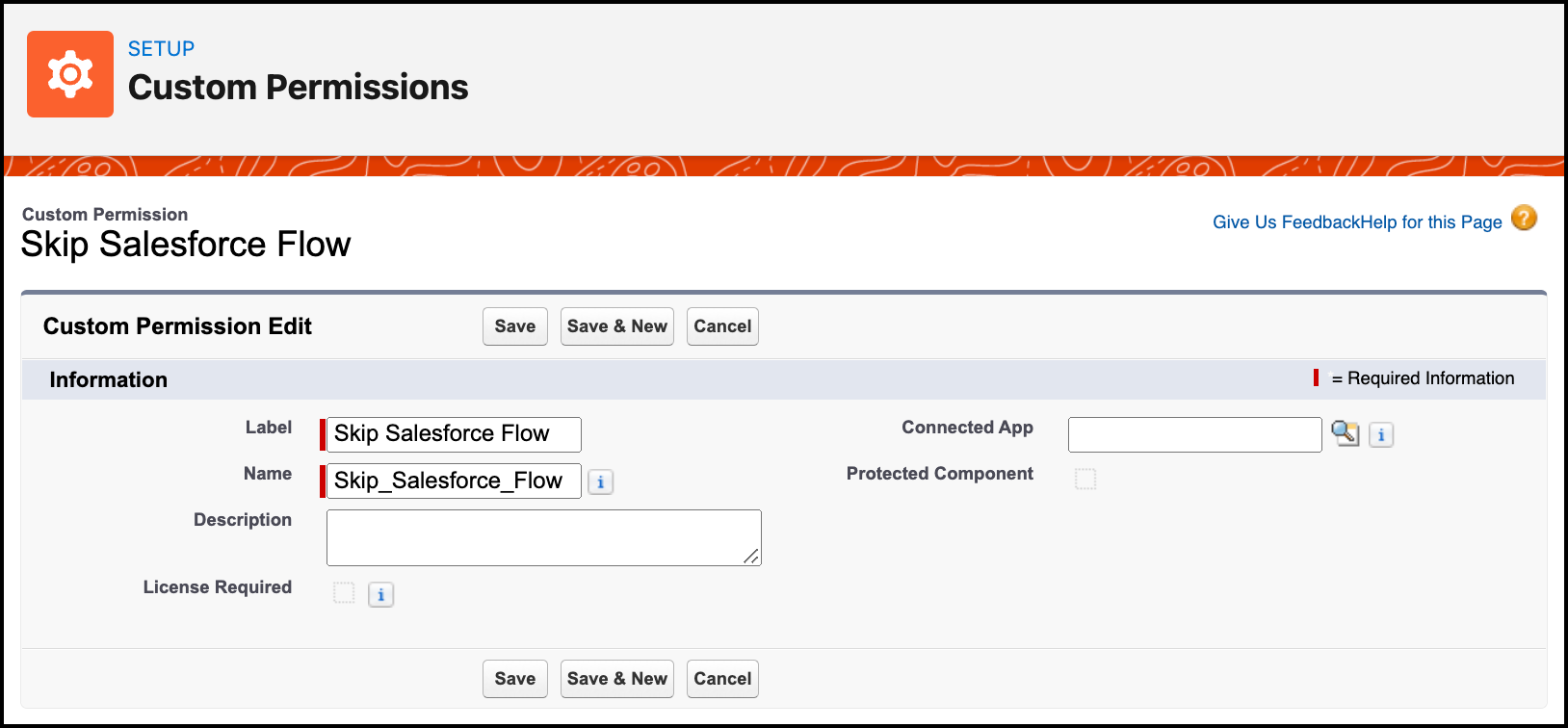
Step 1: Click Setup
Step 2: In the Quick Find box, type Custom Permissions
Step 3: Click on the New button
Step 4: Enter Label the Name will auto-populate
Step 5: Click Save
Assign Custom Permission to the System Administrator Profile
Step 1: Click Setup
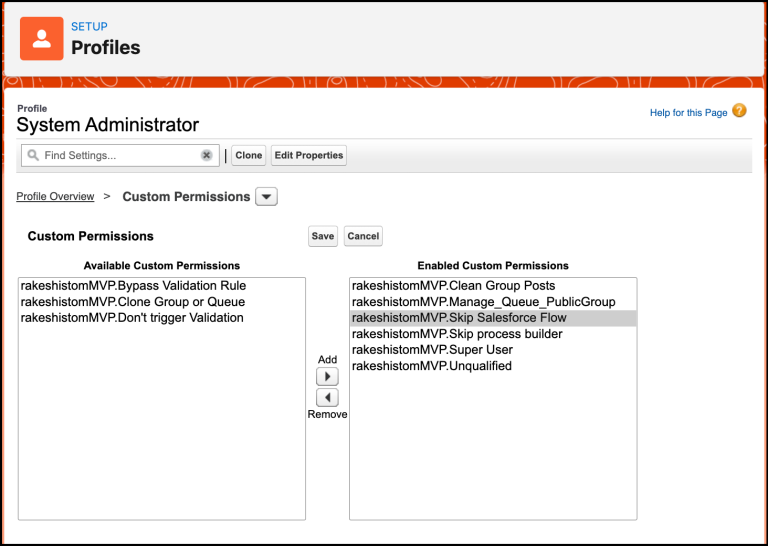
Step 2: In the Quick Find box, type Profiles
Step 3: Open the System Administrator profile
Step 4: Then navigate to Apps | Custom Permission and click on the Edit button
Step 5: Now, assign the Skip Salesforce Flow custom permission to the profile
Step 6: Click Save
Clone Existing Flow
Step 1: Click Setup
Step 2: In the Quick Find box, type Flows
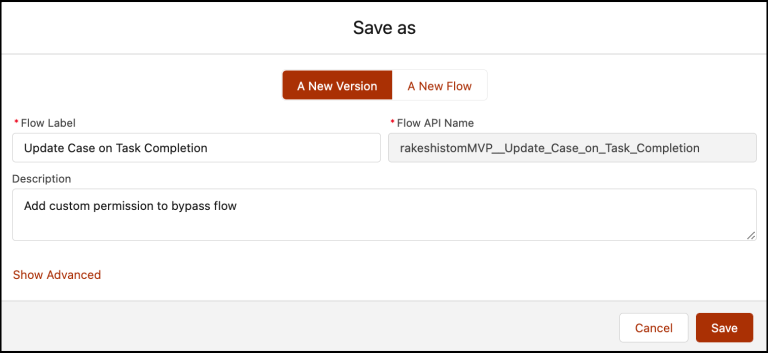
Step 3: Select Flows then click on the Flow Name that will be modified. In this case Update Case on Task Completion
Step 4: Click on the Save As button at the top right of the Flow Builder
Step 5: Click Save
Modify Decision Element Criteria
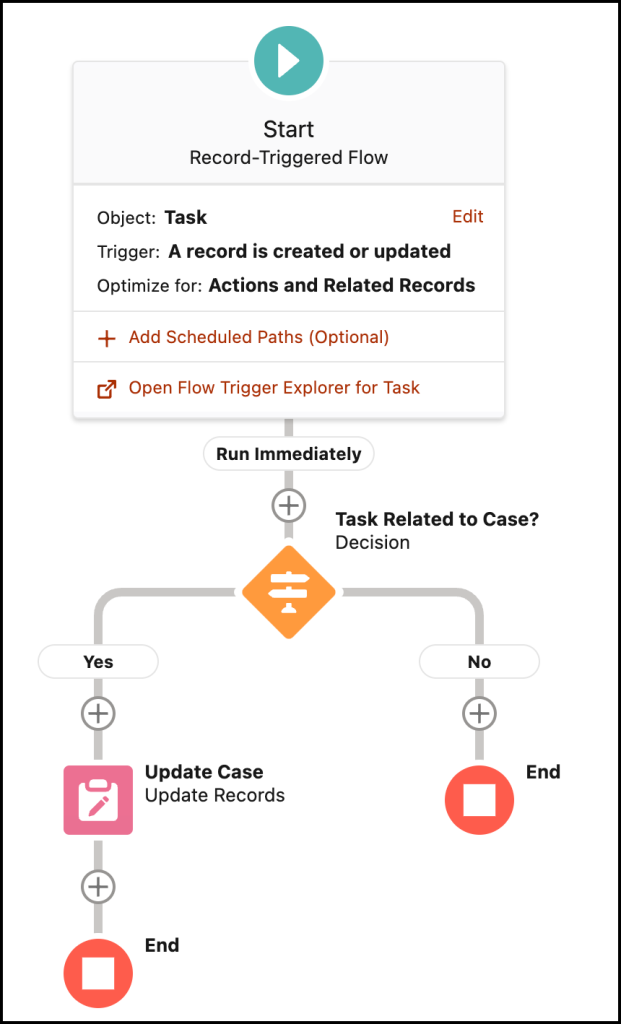
Now you can modify the record-triggered as per the business requirement. We will add one condition to our flow to check whether the user has access to Skip salesforce flow custom permission or notStep 1: On Flow Designer, modify the Task Related to Case Decision element
Step 2: Add another criterion to check custom permission. Now click on the System Variable dialog, It will open a popup where you have to select Permission and then select custom permission Skip Salesforce flow
- Click Add Condition
- Row5:
- Resource: {!$Permission.Skip_Salesforce_Flow}
- Operator: Is Null
- Value: {!$GlobalConstant.True}
- Click Save
Almost there! Once everything looks good, click the Activate button
________________________________
Written By: Rakesh Gupta | Salesforce MVP
Rakesh is Senior Solution Architect, Salesforce MVP, and Author. With a background in computer science, Rakesh is passionate about solution design and process automation.
Submissions reflect only the opinions of the user who made available the Submission and not the opinions of Salesforce, regardless of whether the user is affiliated with Salesforce, and may contain or constitute products, services, information, data, content and other materials made available by or on behalf of third parties ("Third Party Materials). Salesforce neither controls nor endorses, nor is Salesforce responsible for, any Third Party Materials, including their accuracy, validity, timeliness, completeness, reliability, integrity, quality, legality, usefulness or safety, or any applicable intellectual property rights. Any Submissions made available through any message board or forum in response to posted questions, or that otherwise purports to answer any questions, including any questions about Salesforce or Programs, are made available for your general knowledge only and should never be relied upon as answers to your specific questions (even if an answer is marked as a “best” answer or with any similar qualifications). You should always contact Salesforce support for answers to your specific questions. Salesforce has no control over Submissions, and is not responsible for any use or misuse (including any distribution) by any third party of Submissions.
If you have questions, tap into the wisdom of our entire Trailblazer Community here: https://trailhead.salesforce.com/trailblazer-community/feed
Knowledge 기사 번호
000393835
이 기사를 통해 문제를 해결했습니까?
개선을 위한 의견을 보내주세요.
