Выбрать организацию
How to update Case Status Based on Email Messages on Cases
Дата публикации: May 18, 2026
Описание
Some businesses processes require only changing the status when emails are received if the existing status is something like Pending Customer Reply
Решение
Create a flow to handle this automatically.
This article explains how to create a Salesforce Flow on the EmailMessage object to automatically update Case status when emails are sent or received. The flow uses an entry condition logic block, an Email Direction decision element, and Update Records steps to set the appropriate status values.
The below instructions will fit the needs of common Salesforce orgs, you may need to add some case statuses or deviate from the exact instructions to accommodate your organization’s needs. Additional case status updates can be made and additional case status decision outcomes can be added to fit your needs. Remember to always build and test in a sandbox before moving the flow into a production org.
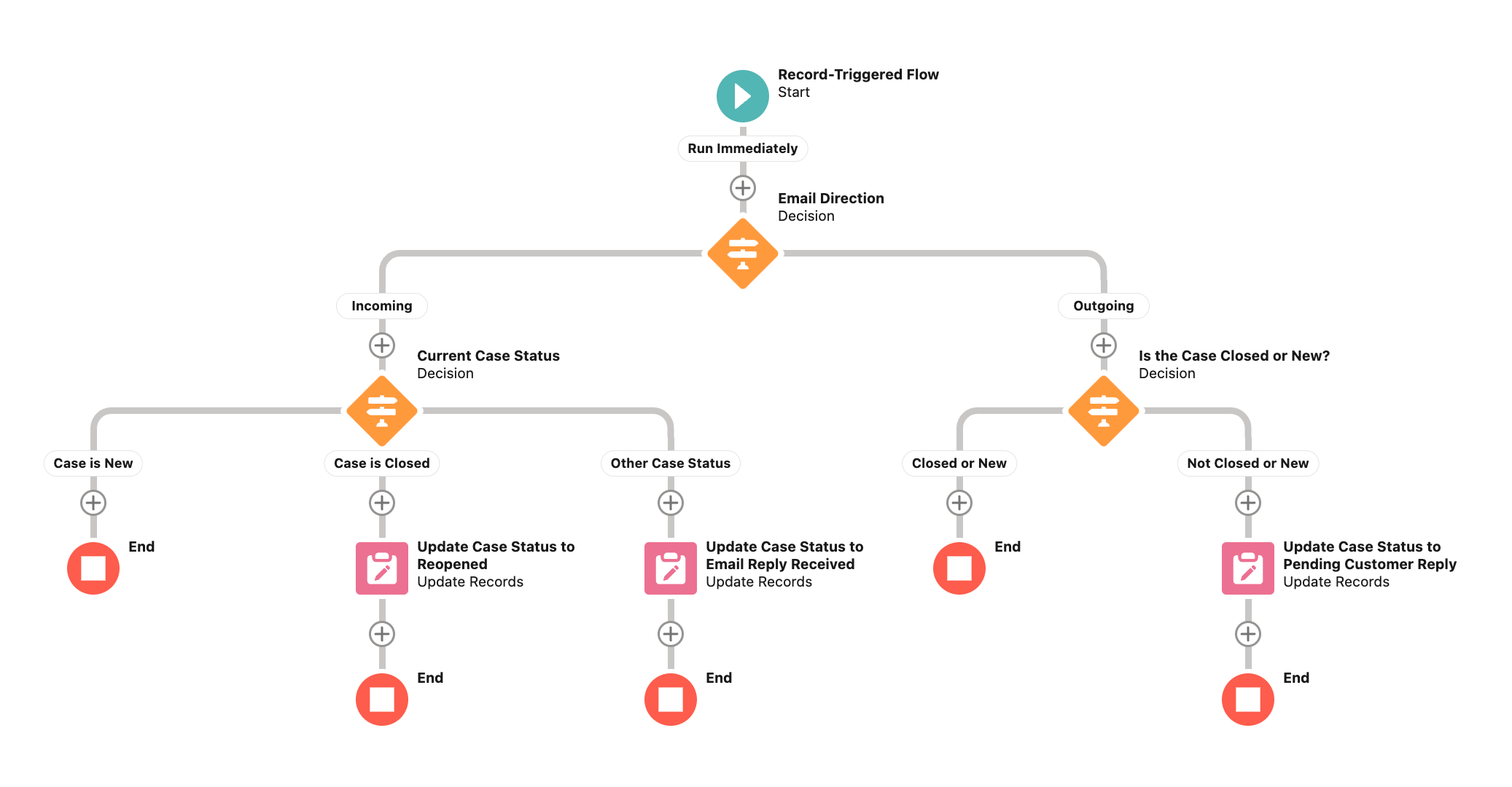
Step 1: Create a Record-Triggered Flow on the EmailMessage Object
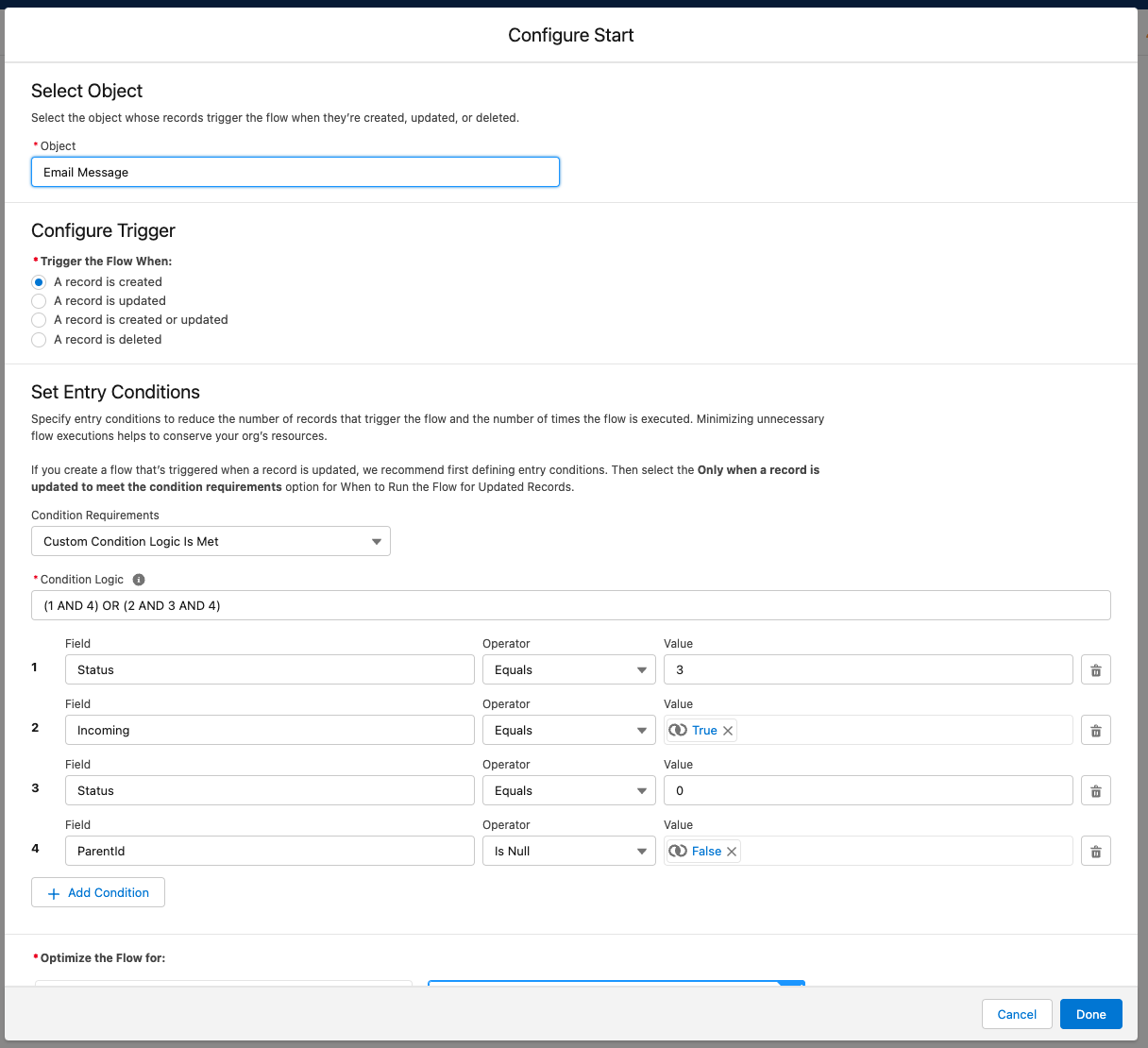
Create a new record-triggered flow. Set the object to EmailMessage and set it to trigger when a record is created. The flow will apply to both incoming (Email-to-Case) and outgoing (sent from case) email messages.
Step 2: Set the Entry Conditions
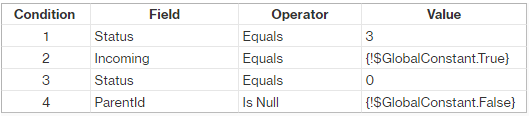
The entry conditions control which email message records trigger the flow. Use the following condition logic to capture both incoming and outgoing email scenarios:
Condition Logic: (1 AND 4) OR (2 AND 3 AND 4)
This means: Condition 1 AND 4 covers incoming emails; Conditions 2, 3, AND 4 cover outgoing emails. Configure the four conditions in the flow builder:
- Condition 1: EmailMessage.Incoming = True
- Condition 2: EmailMessage.Status = 3 (Sent)
- Condition 3: (your outgoing criteria)
- Condition 4: EmailMessage.ParentId is not null (ensures the email is linked to a Case)
Note: For outgoing emails, the entry condition "Status = 3" may not trigger automatically for outgoing EmailMessage records. When the same record is debugged manually, the flow executes correctly. This is a known platform behavior.
(1 AND 4) OR (2 AND 3 AND 4)
Step 3: Create the Email Direction Decision Element
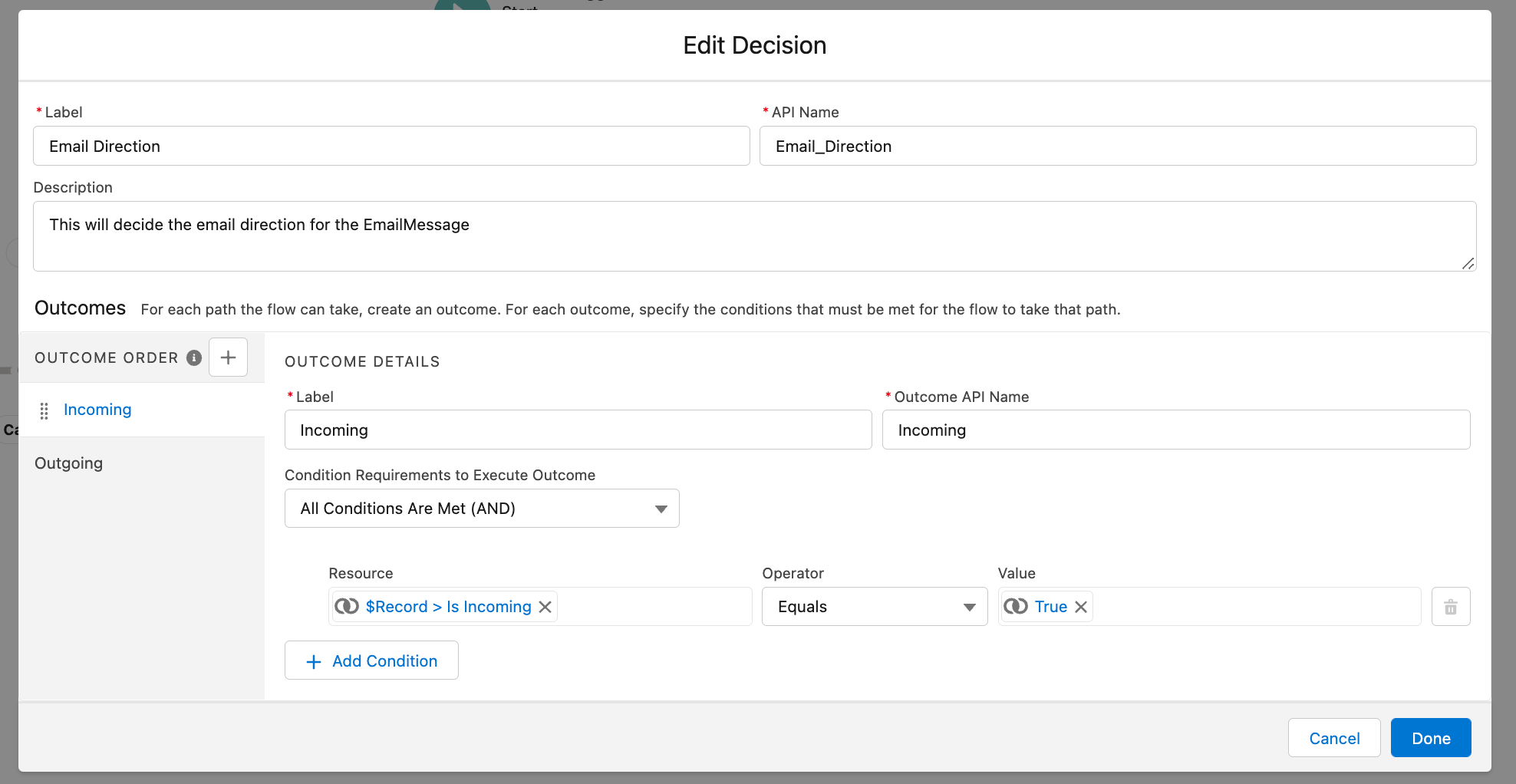
Add a Decision element named "Email Direction." This element determines whether the email is incoming (received by Salesforce) or outgoing (sent from Salesforce).
- Create an outcome named Incoming: set the condition to check EmailMessage.Incoming = True. Ensure you reference EmailMessage.Incoming (the record that triggered the flow), NOT a flow variable named Email_Direction. Using Email_Direction.Incoming incorrectly references a resource rather than the EmailMessage field.
- Rename the default outcome to Outgoing.
Incoming

Step 4: Handle Incoming Email Statuses
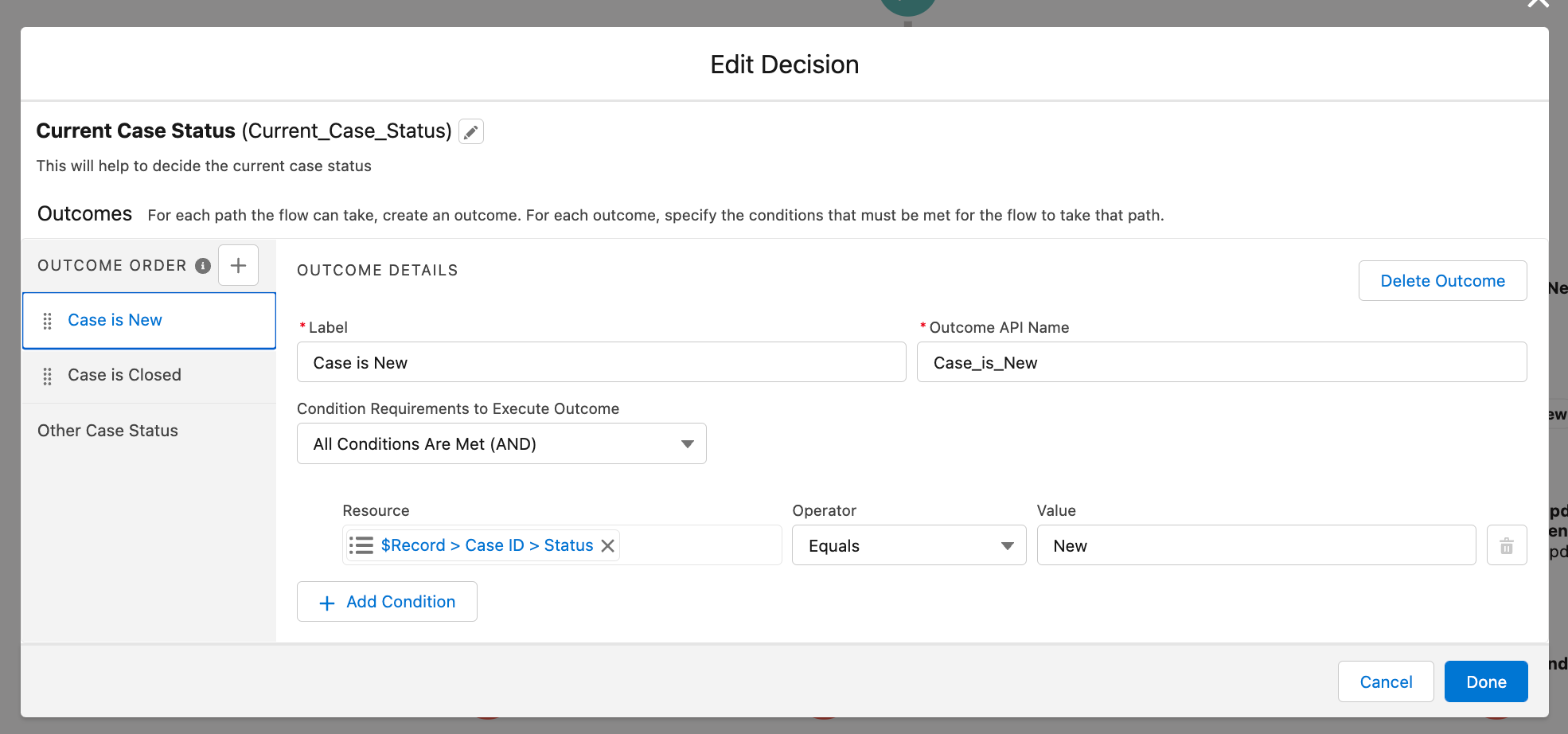
On the Incoming path, add a second Decision element named "Current Case Status" with three outcomes:
- Case is New: Case.Status = New
- Case is Closed: Case.Status = Closed
- Other Case Status (default)
For each outcome, add an Update Records element to update the Case record using the flow variable {!$Record.ParentId}:
- If Case is Closed: set Status = Reopened
- If Other Case Status (not New, not Closed): set Status = Email Reply Received
Case is New
Case is Closed
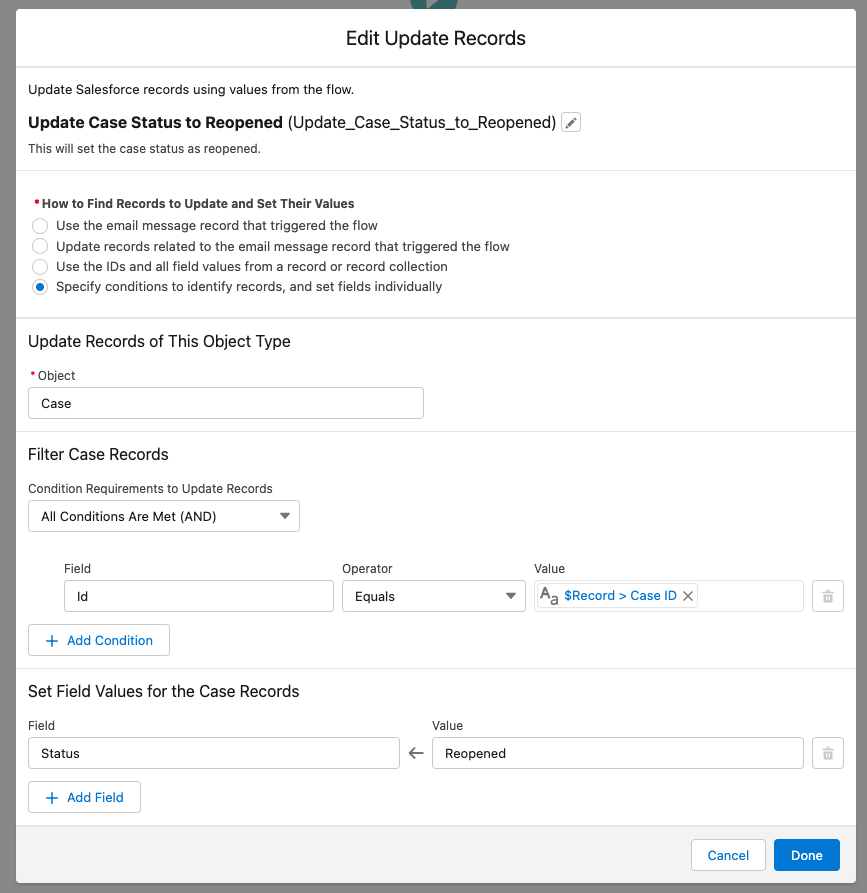
Update closed cases to reopened


Create an update records to update the case with the Id that matches the flow variable {!$Record.ParentId} with Reopened.
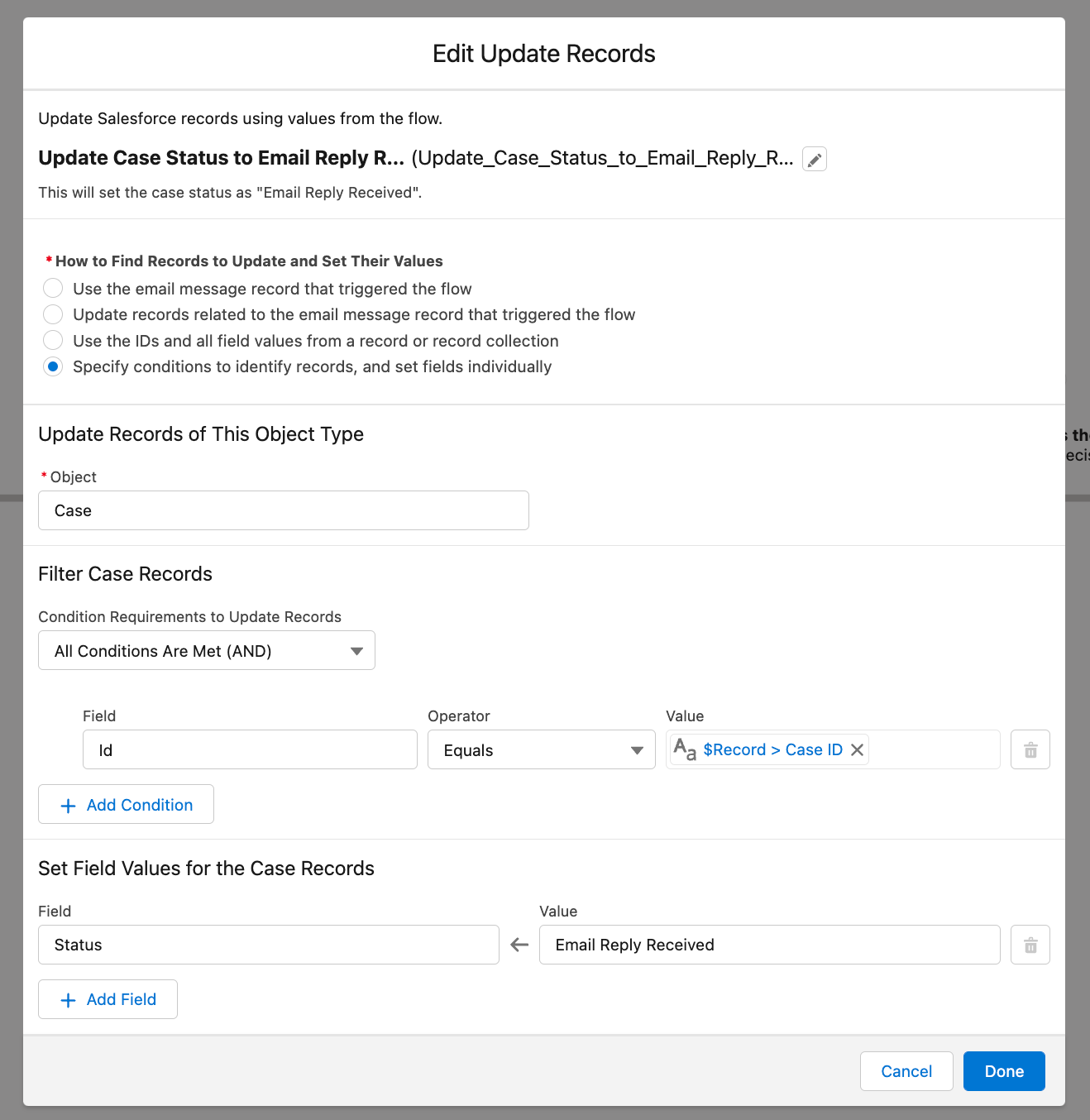
Update cases with other statuses to Email Reply Received
Create an update records to update the case with the Id that matches the flow variable {!$Record.ParentId} with Email Reply Received.
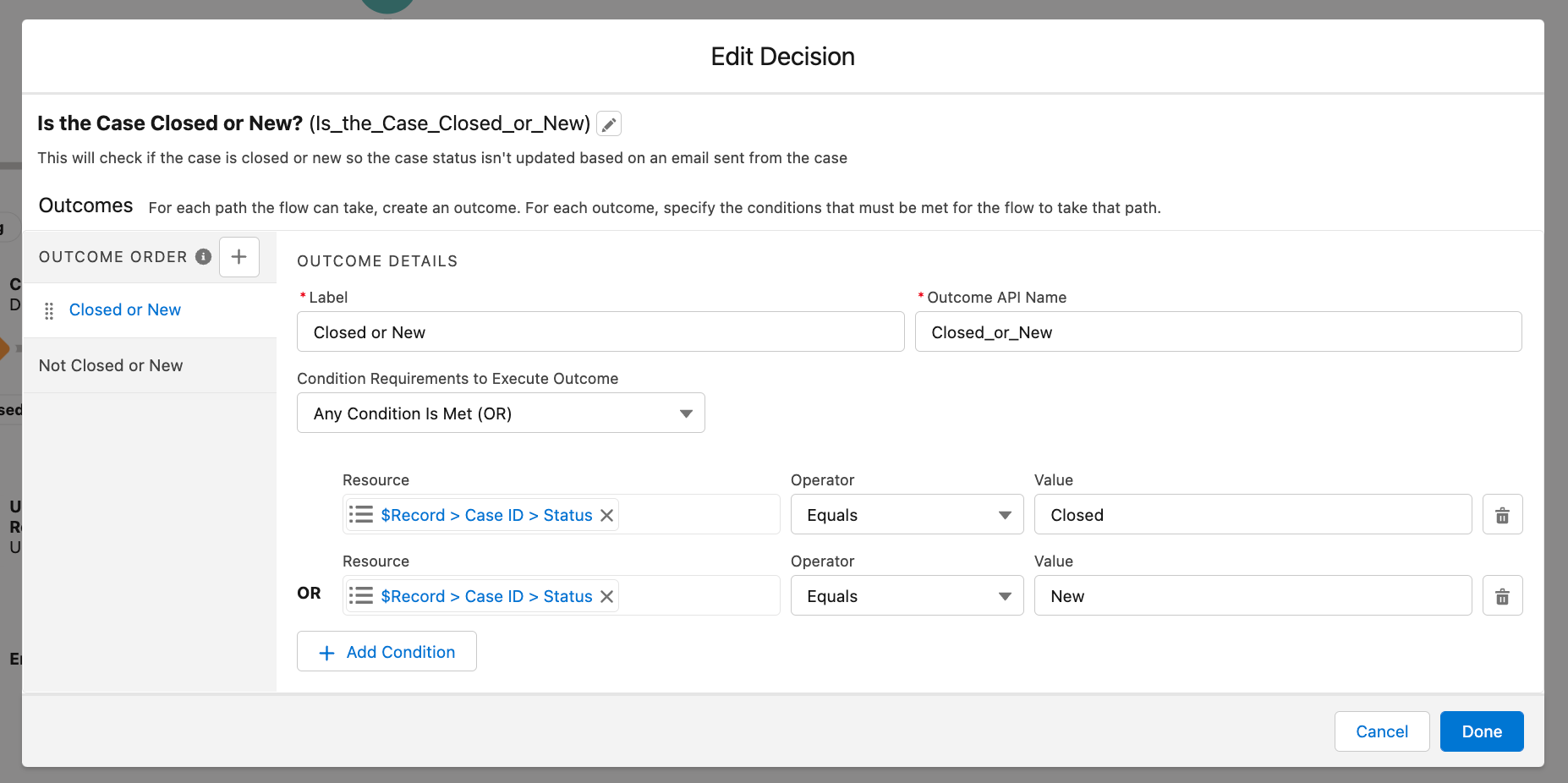
Create a decision element on the outgoing side called is the Case Closed or New?
Create an outcome called Closed or New and rename the default outcome to Not Closed or New. The 1st outcome should be set to execute the outcome when Any Condition Is Met (OR).
Closed or New
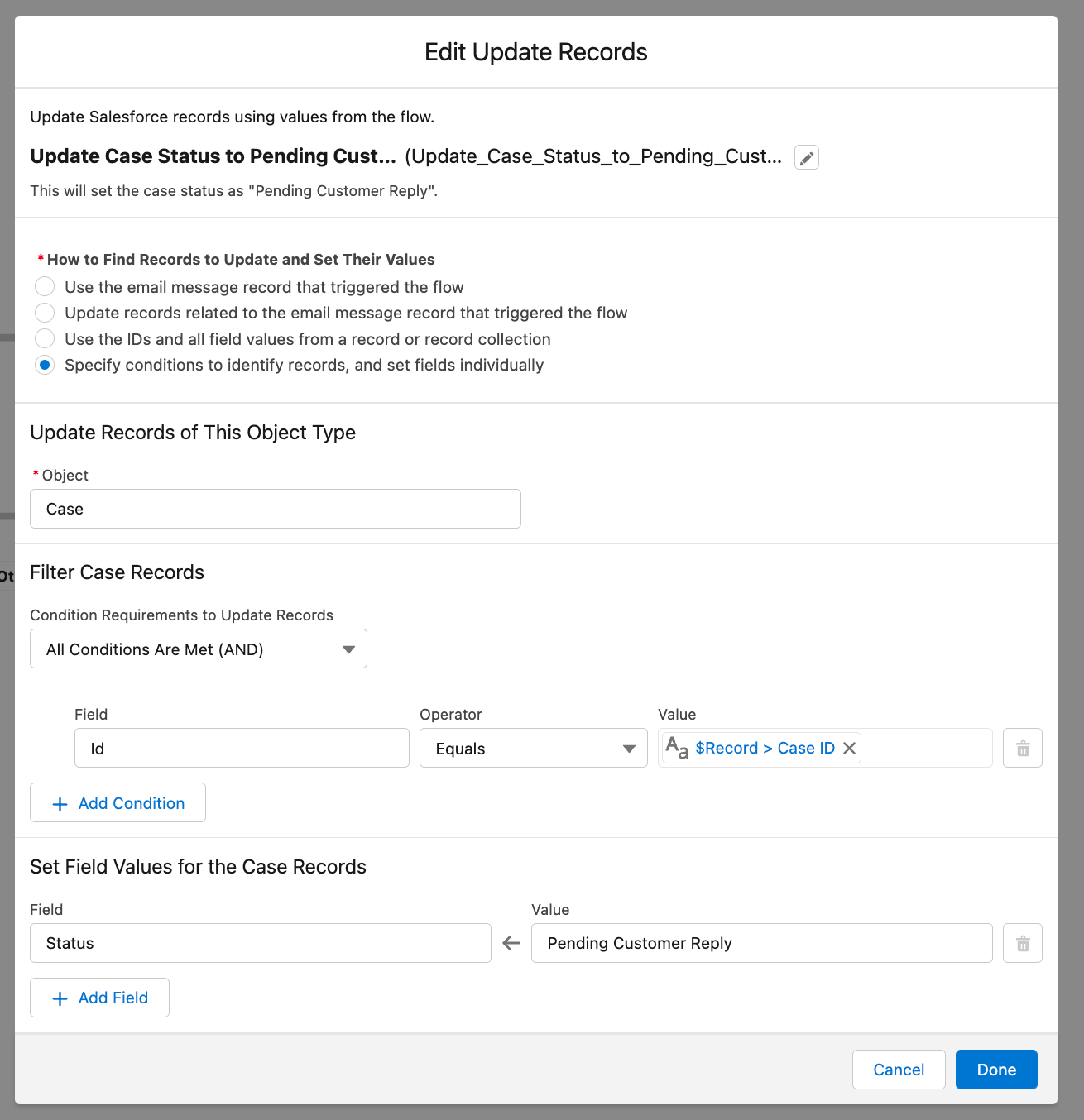
Update cases that are not Closed or New to Pending Customer Reply

Create an update records to update the case with the Id that matches the flow variable {!$Record.ParentId} with Pending Customer Reply.
Note: As with flow, there are many correct ways to accomplish things that all get to the same outcome. This was written following best practices using the functionality available in flow at the time of writing, as more features come out in flow there may be UI changes causing the images to not match exactly.
Note: At the time of writing, debugging the flow for email messages does not work. More info is available here.
_____________________________________
Written By: Andrew Russo | Salesforce Answers Leader
Andrew Russo is an Archa-Admin-Eloper-Analyst at BACA Systems. He has been in the Salesforce ecosystem since 2017 and has immense platform knowledge. He empowers Trailblazers to become more proficient in their use of Salesforce.
Submissions reflect only the opinions of the user who made available the Submission and not the opinions of Salesforce, regardless of whether the user is affiliated with Salesforce, and may contain or constitute products, services, information, data, content and other materials made available by or on behalf of third parties ("Third Party Materials). Salesforce neither controls nor endorses, nor is Salesforce responsible for, any Third Party Materials, including their accuracy, validity, timeliness, completeness, reliability, integrity, quality, legality, usefulness or safety, or any applicable intellectual property rights. Any Submissions made available through any message board or forum in response to posted questions, or that otherwise purports to answer any questions, including any questions about Salesforce or Programs, are made available for your general knowledge only and should never be relied upon as answers to your specific questions (even if an answer is marked as a “best” answer or with any similar qualifications). You should always contact Salesforce support for answers to your specific questions. Salesforce has no control over Submissions, and is not responsible for any use or misuse (including any distribution) by any third party of Submissions.
If you have questions, tap into the wisdom of our entire Trailblazer Community here: https://trailhead.salesforce.com/trailblazer-community/feed
Дополнительные ресурсы
Номер статьи базы знаний
000393845
Эта статья решила вашу проблему?
Оставьте свой отзыв, чтобы мы могли стать лучше!
