Select An Org
Salesforce Field Service (SFS) Drag and Drop Scheduling of Service Appointment is Not Working on Dispatcher Console Gantt Chart
Publish Date: May 11, 2026
Description
When a dispatcher attempts to drag and drop a Service Appointment on the Gantt chart in the Salesforce Field Service (SFS) Dispatcher Console, the appointment moves back to its original position and the following error is displayed:
"Action Could Not Be Performed"
"Upsert failed. First exception on row 0 with id xxxxxxxx; first error: INSUFFICIENT_ACCESS_OR_READONLY, insufficient access rights on object id: [xxxxxxxxxxx]"
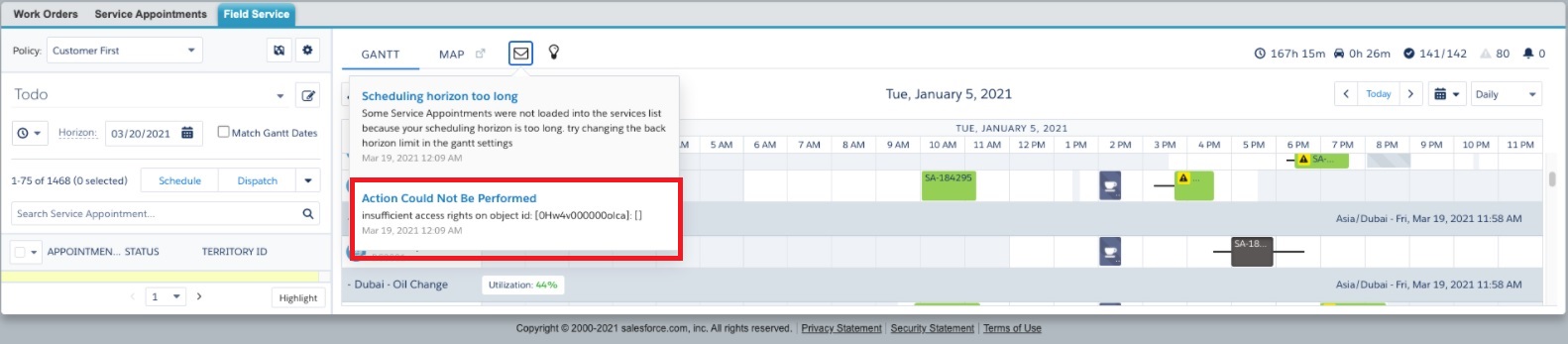
Here is the error in the browser HTTP Archive (HAR) logs:
- [{"statusCode":400,"type":"exception","tid":416,"ref":false,"action":"FSL.ctrl001_Gantt","method":"saveChangesToServiceAppointment","message":"Upsert failed. First exception on row 0 with id xxxxxxxxxxxx; first error: INSUFFICIENT_ACCESS_OR_READONLY, insufficient access rights on object id: [xxxxxxxxxxxxx]: []"
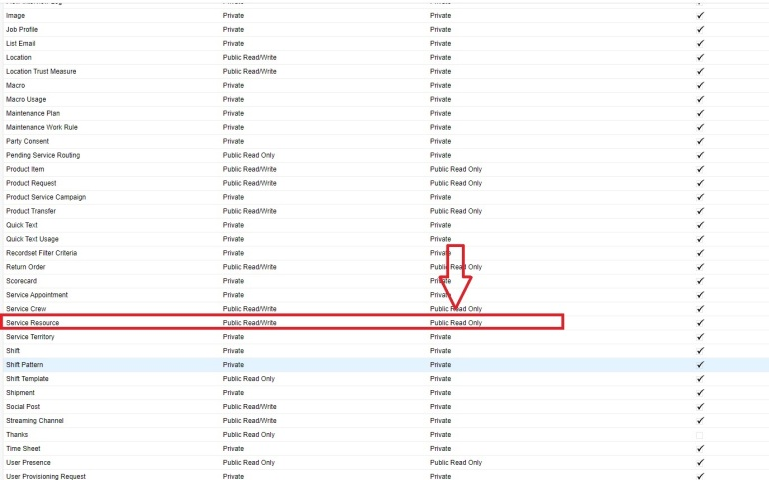
This error occurs because the Service Resource object has incorrect sharing settings — specifically, the Default External Access is set to "Public Read Only" instead of "Public Read/Write."
Resolution
The drag-and-drop failure on the Dispatcher Console Gantt is caused by insufficient sharing access on the Service Resource object.
The Resource Absence object has a Child-to-Parent relationship with the Service Resource object. When a dispatcher drags and drops a Service Appointment, Salesforce attempts to write to a Resource Absence record. This write operation requires "Public Read/Write" access on the parent Service Resource object.
If Service Resource is set to "Public Read Only" under Default External Access in the Organization-Wide Defaults, the write operation fails with the INSUFFICIENT_ACCESS_OR_READONLY error.
Please check the below screenshot for further references:
Steps to Fix
- In Salesforce, navigate to Setup.
- Search for and open Sharing Settings.
- Under Organization-Wide Defaults, locate Service Resource.
- Check the Default External Access column.
- If it shows "Public Read Only," change it to Public Read/Write.
- Save the changes.
Alternative: Use Sharing Rules
If the fix should apply to only specific service resources rather than all resources org-wide, you can use Sharing Rules instead of changing the Organization-Wide Default:
- In Sharing Settings, scroll to the Service Resource Sharing Rules section.
- Create a new Sharing Rule that grants Read/Write access to the specific resources or user groups that need to perform drag-and-drop scheduling.
Additional Resources
Knowledge Article Number
000394105
Did this article solve your issue?
Let us know so we can improve!
