Valitse organisaatio
How to Use the 'Not In' Operator in Salesforce Flow
Julkaisupäivä: Apr 2, 2026
Kuvaus
Within Salesforce, user access can be extended by assigning Permission Sets to users that provide additional features or functionality.
Special types of Permission Sets exist that are owned by a Profile (IsOwnedByProfile). These permission sets cannot be removed without changing the profile.
Within this knowledge article, we will guide you through the process of using a Flow to delete Permission Set assignments while ensuring those owned by a Profile remain intact.
This example uses the Flow operator Not In that was introduced in the Winter ‘23 Release.
Ratkaisu
Object Model
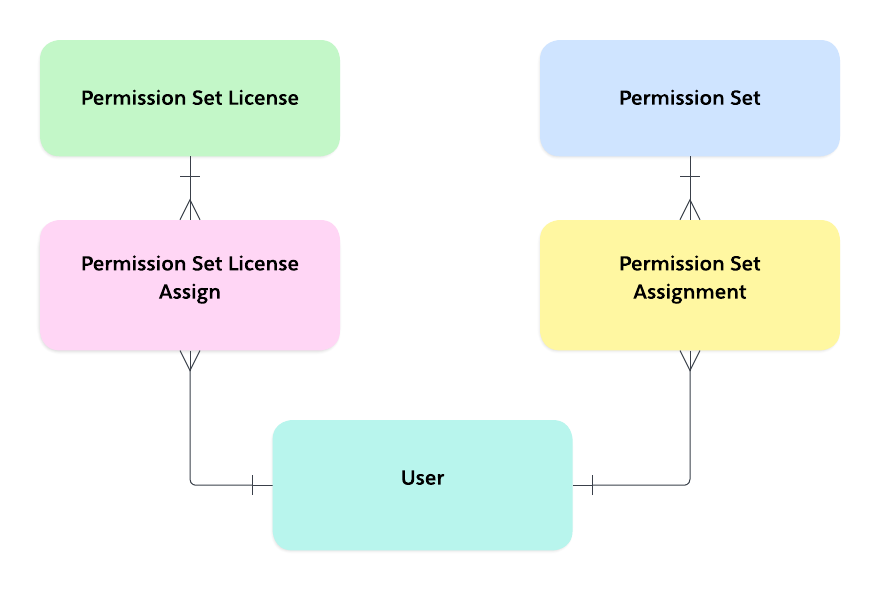
Before we dive into the how-to part of this article, let’s visit the object model to understand how Permission Set assignments are handled.
Within Salesforce, a Permission Set License represents a license that can be assigned to a user without changing their profile. A Permission Set License Assign represents the relationship between a user and a Permission Set License. A Permission Sets represents a group of permissions that are assigned to a user via a Permission Set Assignment.
Due to the relationship model between these objects, specifically Permission Sets, Permission Set Assignments, and users within our Flow, we need to delete Permission Sets that are not owned by a profile with a Permission Set Assignment related to the current user.
Go with the Flow
In this case, we are going to delete all permission set assignments when a user is made inactive, apart from the permission sets where IsOwnedByProfile = TRUE.
In this solution, the API names, Flow types, and other settings will be pre-defined. Feel free to adjust this for your use case and extend it to Permission Set License Assignments. The attribute "IsOwnedByProfile" does not exist on Permission Set License Assignments.
In this solution, the API names, Flow types, and other settings will be pre-defined. Feel free to adjust this for your use case and extend it to Permission Set License Assignments. The attribute "IsOwnedByProfile" does not exist on Permission Set License Assignments.
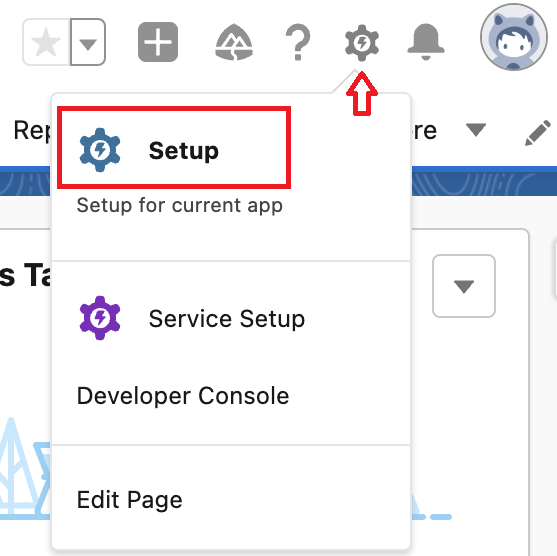
Step 1. Navigate to Salesforce Setup (via the Settings Cog > Setup)
Step 2. Use Quick Find to search for Flows.
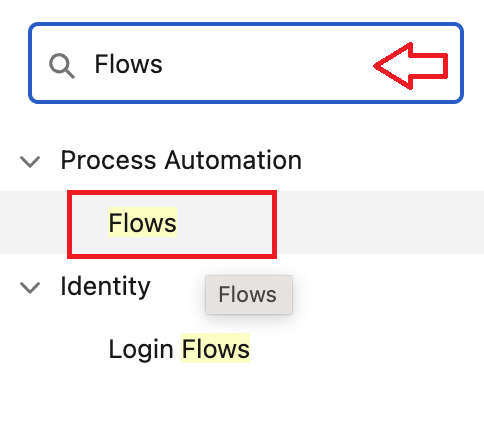
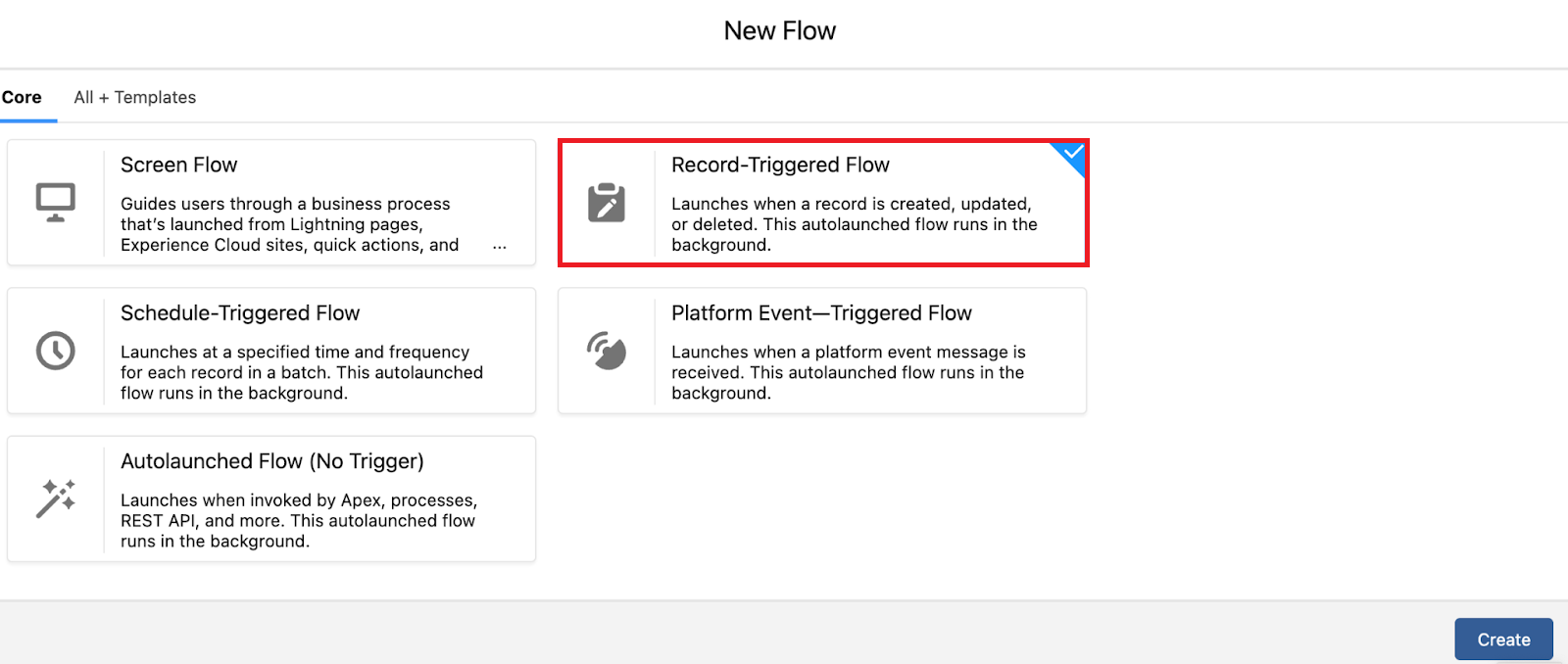
Step 3. Press on Flows, then New Flow

Step 4. Set the Flow Type as Record-Triggered, then Create
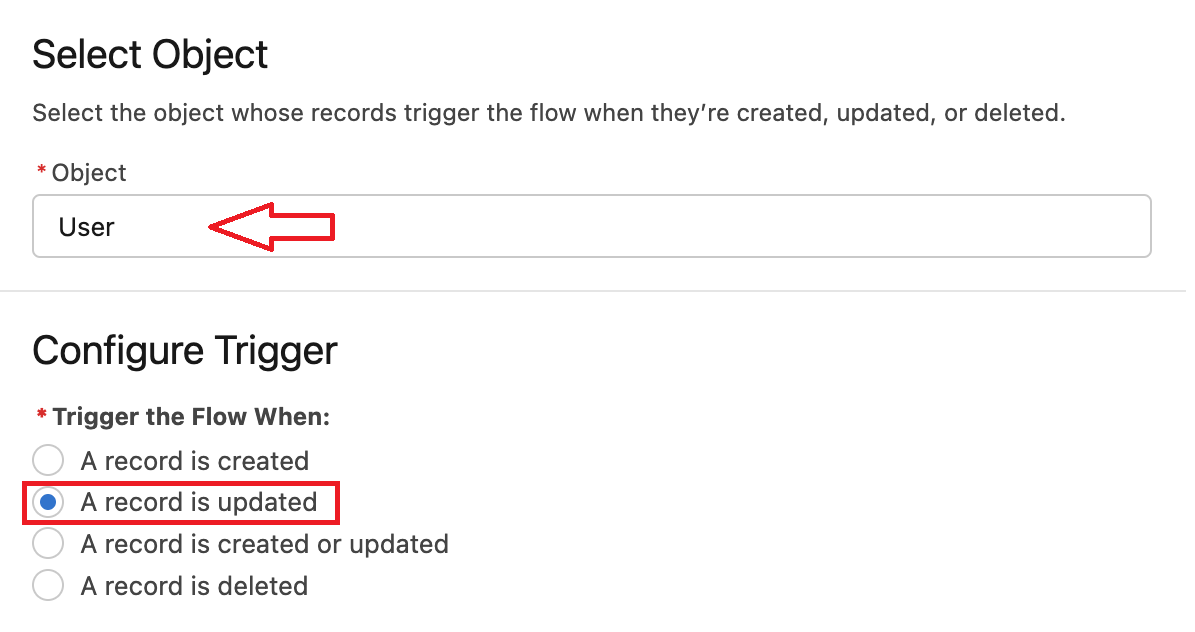
Step 5. Select User as the object and the condition as A record is updated
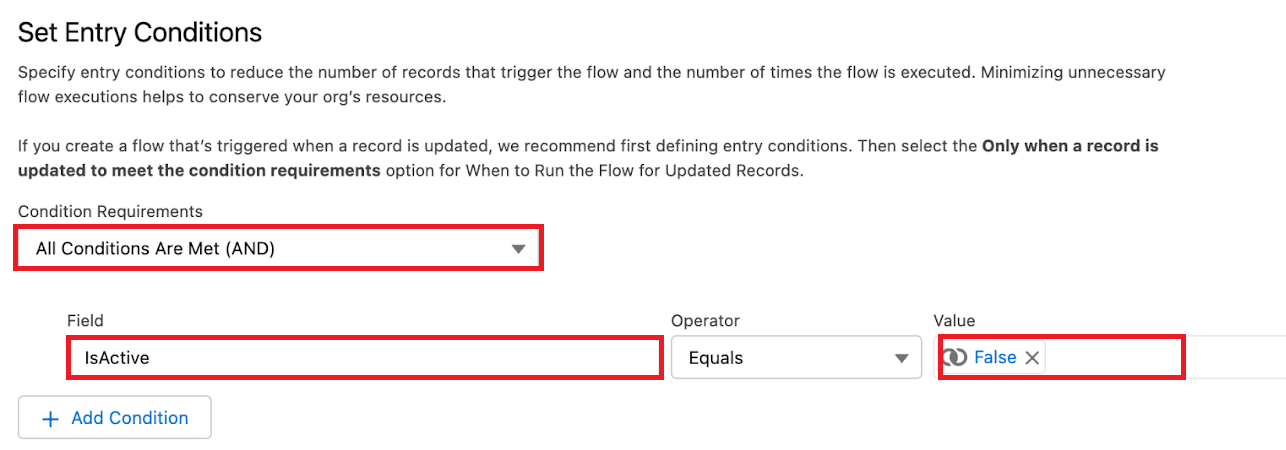
Step 6. Set the Flow to run when All Conditions Are Met (AND) when IsActive Equals {!$GlobalConstant.False}
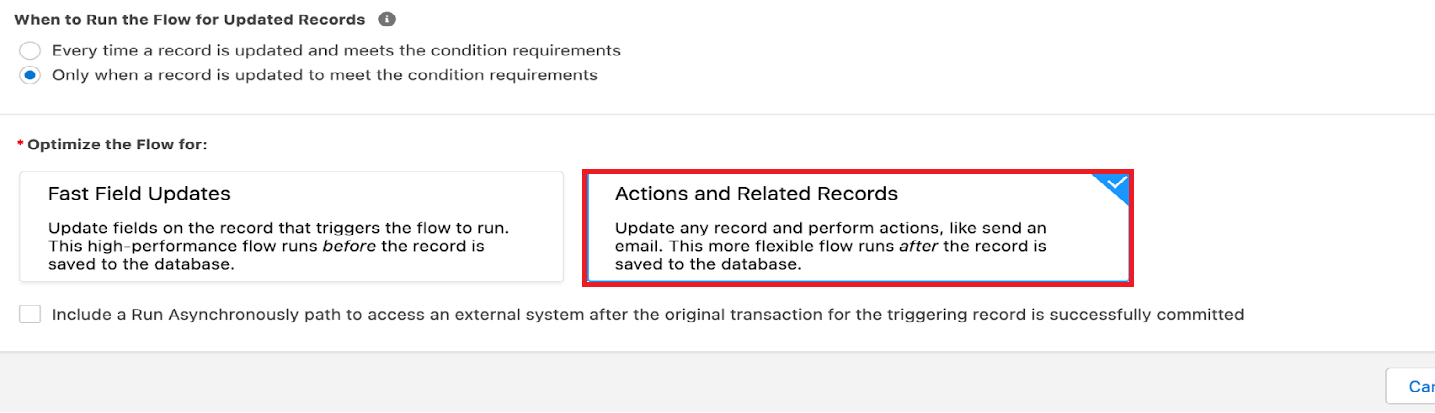
Step 7. Set the Flow to run Only when a record is updated to meet the condition requirements and Optimize the Flow for: Actions and Related Records. Press Done
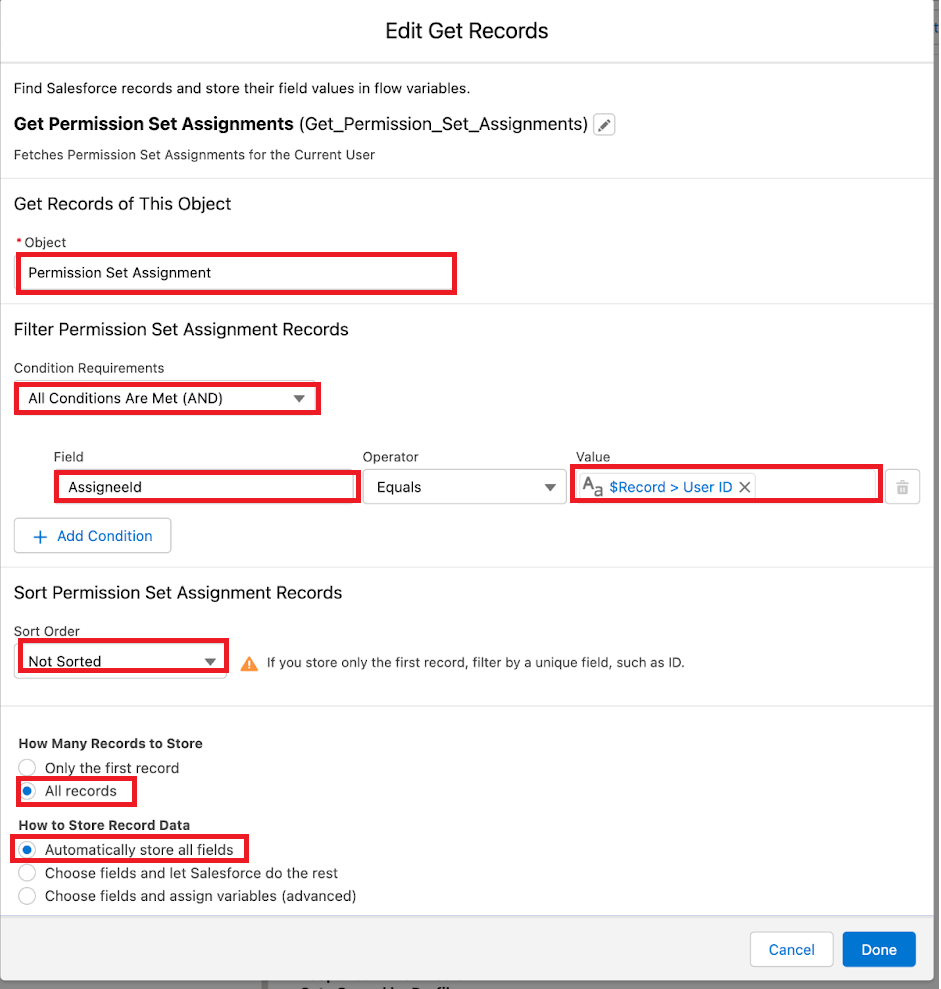
Step 8. Using the + add a Get Record component to Get Permission Set Assignments for the current user:
a. Label: Get Permission Set Assignments
b. API Name: Get_Permission_Set_Assignments
c. Description: Fetches Permission Set Assignments for the Current User
d. Object Name: Permission Set Assignment
e. Condition Requirements: All Conditions Are Met (AND)
f. AssigneeId equals {!$Record.Id}
g. Sort Order: Not Sorted
h. How Many Records to Store: All Records
i. How to Store Record Data: Automatically store all fields
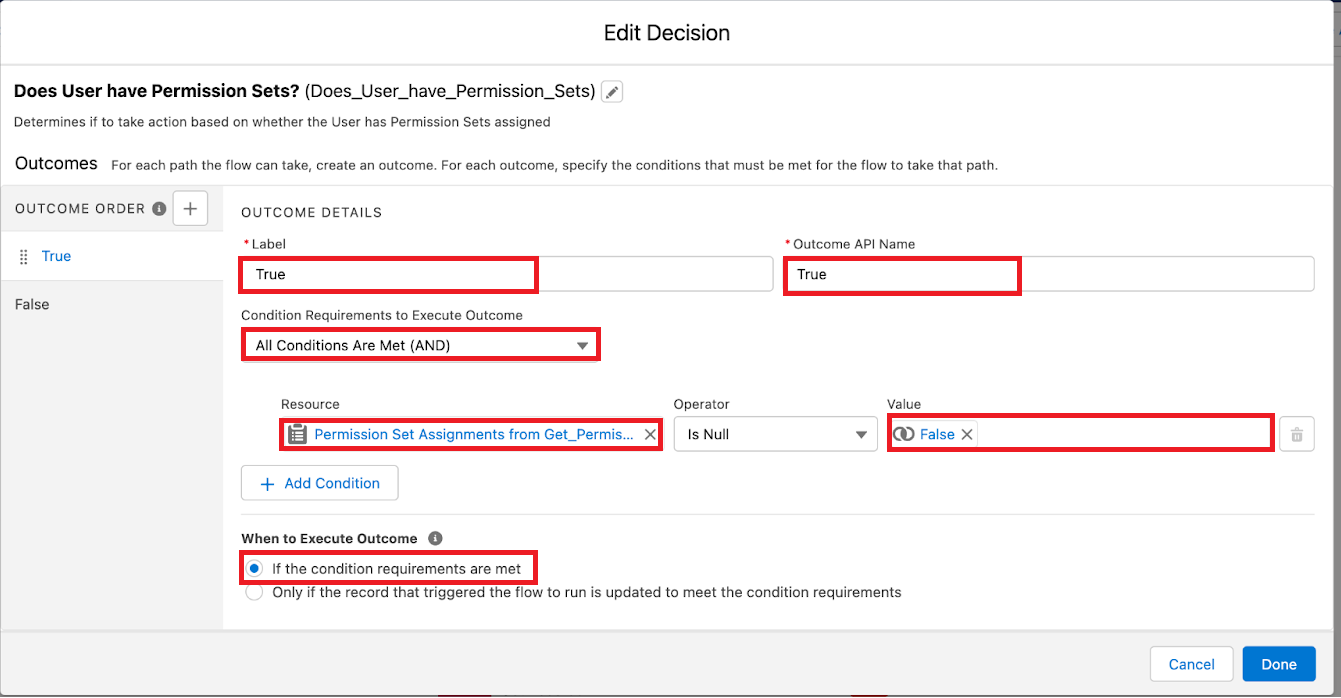
Step 9. Use + to add a Decision element to only run the next set of actions when Permission Set Assignments are found:
a. Label: Does User have Permission Sets?
b. API Name: Does_User_have_Permission_Sets
c. Description: Determines if to take action based on whether the User has Permission Sets assigned
d. Outcome Details
i. Label: True
ii. API Name: True
iii. Condition Requirements to Execute Outcome: All Conditions Are Met (AND)
iv. Resource: {!Get_Permission_Set_Assignments} Is Null {!$GlobalConstant.False}
v. When to Execute Outcome: If the condition requirements are met
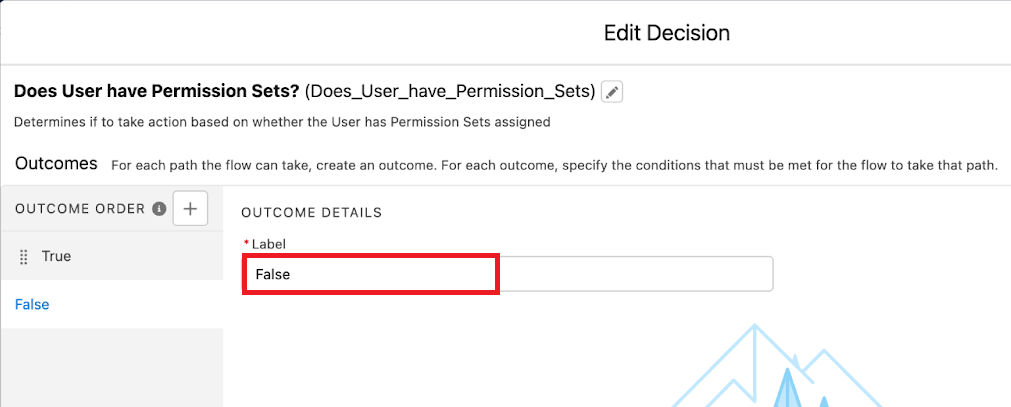
e. Outcome Details
i. Label: False
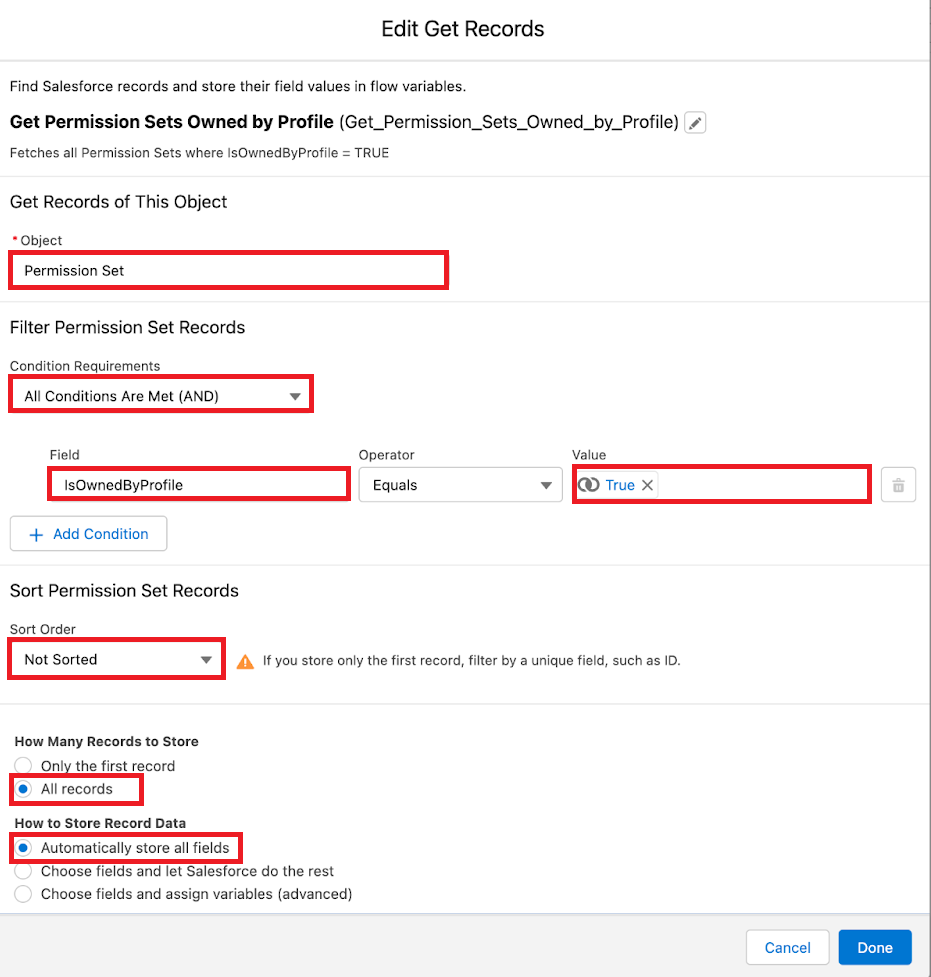
Step 10. Under the TRUE Path (Outcome) + a Get Records so we can get the Permission Sets where IsOwnedByProfile = TRUE:
a. Label: Get Permission Sets Owned by Profile
b. API Name: Get_Permission_Sets_Owned_by_Profile
c. Description: Fetches all Permission Sets where IsOwnedByProfile = TRUE
d. Object Name: Permission Set
e. Condition Requirements: All Conditions Are Met (AND)
f. IsOwnedByProfile Equals {!$GlobalConstant.True}
g. Sort Order: Not Sorted
h. How Many Records to Store: All Records
i. How to Store Record Data: Automatically store all fields
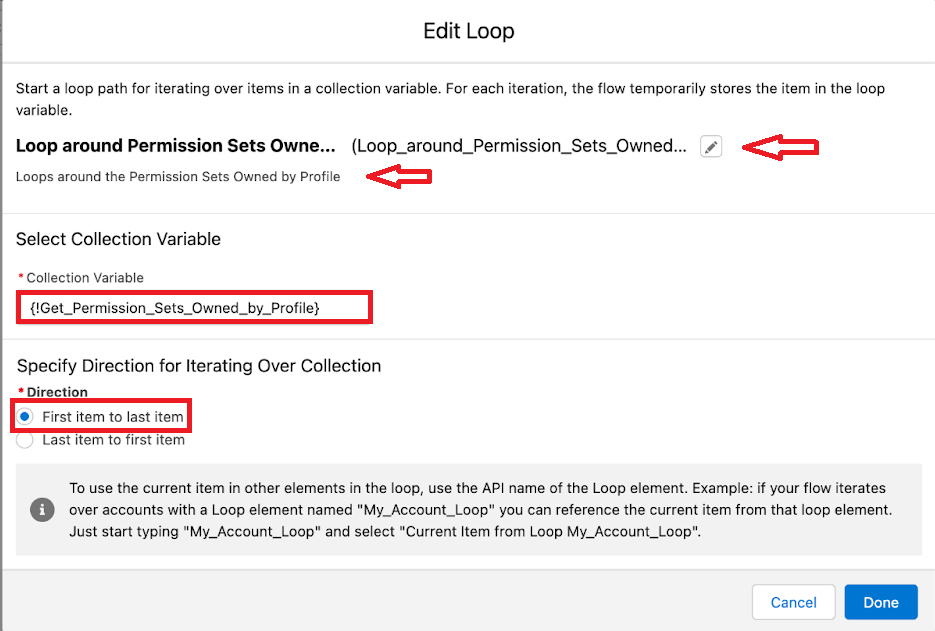
Step 11. Now use + to loop around the Permission Sets Owned by Profile
a. Label: Loop around Permission Sets Owned by Profile
b. API Name: Loop_around_Permission_Sets_Owned_by_Profile
c. Description: Loops around Permission Sets Owned by Profile
d. Collection Variable: {!Get_Permission_Sets_Owned_by_Profile}
e. Direction: First item to last item
b. API Name: Loop_around_Permission_Sets_Owned_by_Profile
c. Description: Loops around Permission Sets Owned by Profile
d. Collection Variable: {!Get_Permission_Sets_Owned_by_Profile}
e. Direction: First item to last item
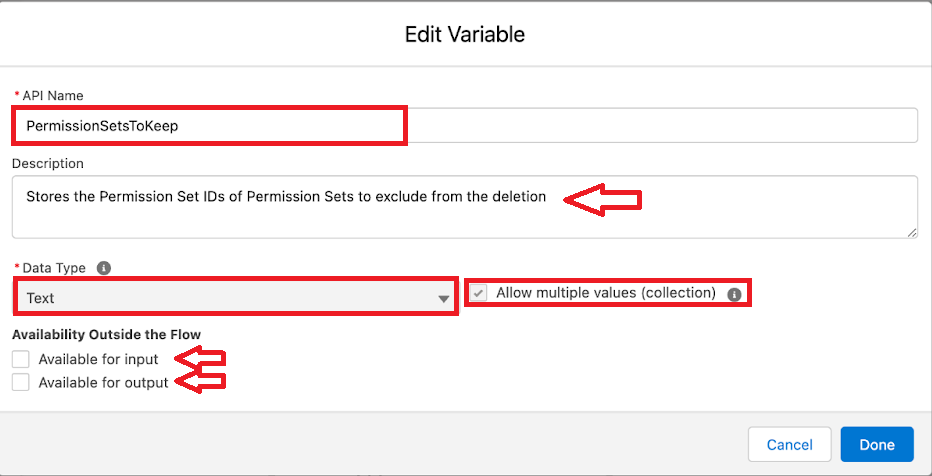
Step 12. Create a Resource to use within the loop to store the Permission Set IDs where Permission Set Is Owned by Profile. Press on the Toolbox icon then New Resource

Step 13. Configure the Flow Resource as below:
a. Resource Type: Variable
b. API Name: PermissionSetsToKeep
c. Description: Stores the Permission Set IDs of Permission Sets to exclude from the deletion
d. Data Type: Text
e. Allow multiple values (collection): Checked
f. Available for input: Unchecked
g. Available for output: Unchecked
b. API Name: PermissionSetsToKeep
c. Description: Stores the Permission Set IDs of Permission Sets to exclude from the deletion
d. Data Type: Text
e. Allow multiple values (collection): Checked
f. Available for input: Unchecked
g. Available for output: Unchecked
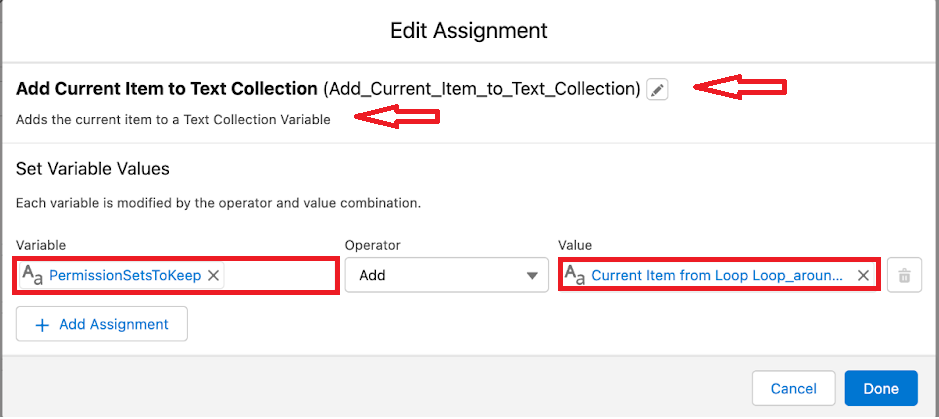
Step 14. Use + within the loop to add a Assignment Element:
a. Label: Add Current Item to Text Collection
b. API Name: Add_Current_Item_to_Text_Collection
c. Description: Adds the current item to a Text Collection Variable
d. {!PermissionSetsToRemove} Add {!Loop_around_Permission_Sets_Owned_by_Profile.Id}
b. API Name: Add_Current_Item_to_Text_Collection
c. Description: Adds the current item to a Text Collection Variable
d. {!PermissionSetsToRemove} Add {!Loop_around_Permission_Sets_Owned_by_Profile.Id}
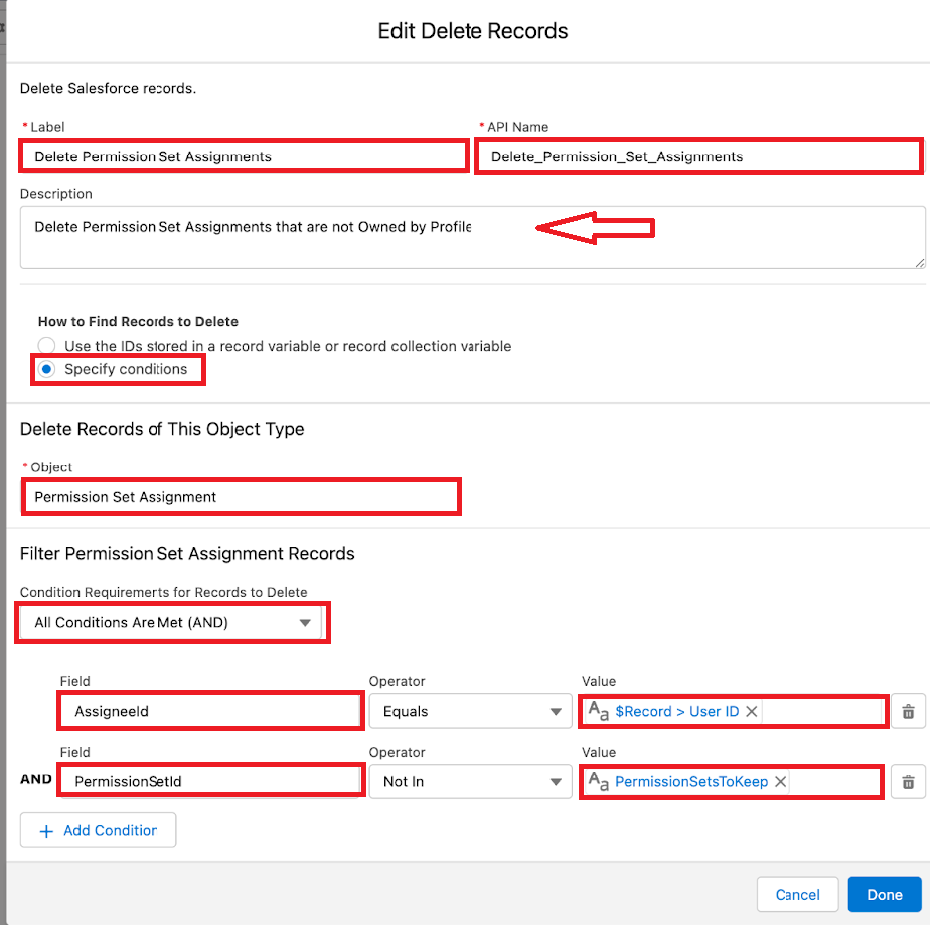
Step 15. Outside of the Loop use + to add a Delete Records component:
a. Label: Delete Permission Set Assignments
b. API Name: Delete_Permission_Set_Assignments
c. Description: Delete Permission Set Assignments that are not Owned by Profile
d. How to Find Records to Delete: Specify conditions
e. Object: Permission Set Assignment
f. Condition Requirements for Records to Delete: All Conditions Are Met (AND)
i. AssigneeId Equals {!$Record.Id}
ii. PermissionSetId Not In {!PermissionSetsToKeep}
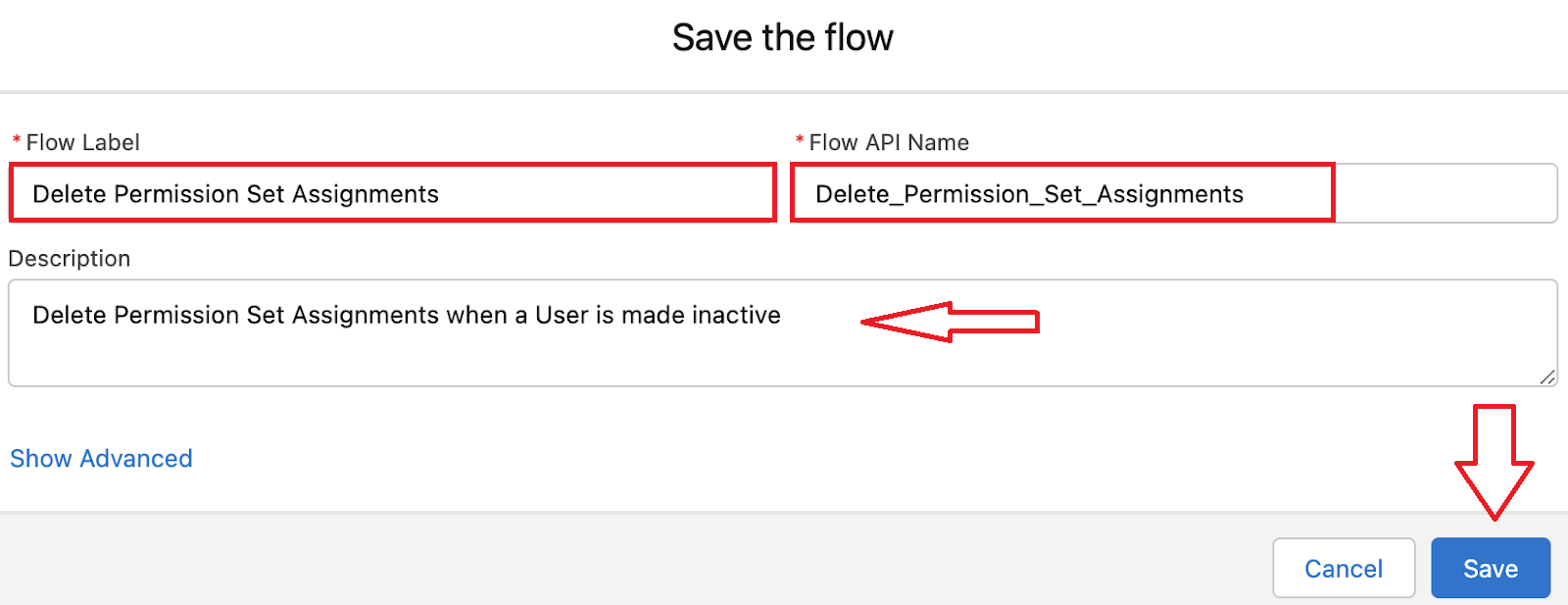
Step 16. Press on Save
a. Flow Label: Delete Permission Set Assignments
b. Flow API Name: Delete_Permission_Set_Assignments
c. Description: Delete Permission Set Assignments when a User is made inactive
b. Flow API Name: Delete_Permission_Set_Assignments
c. Description: Delete Permission Set Assignments when a User is made inactive
Step 17. Press on Activate

The final flow should look like this once completed.

Tom Bassett is a Solution Architect at Trigg Digital and has more than five years of experience with the Salesforce platform. He aspires for customers to get the most out of the CRM and spreads the Ohana culture by supporting the wider Trailblazer Community with new feature ideas and providing answers to questions posted. He co-leads the London Architect Community group and also contributes to Salesforce Ben as an expert author.
Submissions reflect only the opinions of the user who made available the Submission and not the opinions of Salesforce, regardless of whether the user is affiliated with Salesforce, and may contain or constitute products, services, information, data, content and other materials made available by or on behalf of third parties ("Third Party Materials). Salesforce neither controls nor endorses, nor is Salesforce responsible for, any Third Party Materials, including their accuracy, validity, timeliness, completeness, reliability, integrity, quality, legality, usefulness or safety, or any applicable intellectual property rights. Any Submissions made available through any message board or forum in response to posted questions, or that otherwise purports to answer any questions, including any questions about Salesforce or Programs, are made available for your general knowledge only and should never be relied upon as answers to your specific questions (even if an answer is marked as a “best” answer or with any similar qualifications). You should always contact Salesforce support for answers to your specific questions. Salesforce has no control over Submissions, and is not responsible for any use or misuse (including any distribution) by any third party of Submissions.
If you have questions, tap into the wisdom of our entire Trailblazer Community here: https://trailhead.salesforce.com/trailblazer-community/feed
Submissions reflect only the opinions of the user who made available the Submission and not the opinions of Salesforce, regardless of whether the user is affiliated with Salesforce, and may contain or constitute products, services, information, data, content and other materials made available by or on behalf of third parties ("Third Party Materials). Salesforce neither controls nor endorses, nor is Salesforce responsible for, any Third Party Materials, including their accuracy, validity, timeliness, completeness, reliability, integrity, quality, legality, usefulness or safety, or any applicable intellectual property rights. Any Submissions made available through any message board or forum in response to posted questions, or that otherwise purports to answer any questions, including any questions about Salesforce or Programs, are made available for your general knowledge only and should never be relied upon as answers to your specific questions (even if an answer is marked as a “best” answer or with any similar qualifications). You should always contact Salesforce support for answers to your specific questions. Salesforce has no control over Submissions, and is not responsible for any use or misuse (including any distribution) by any third party of Submissions.
If you have questions, tap into the wisdom of our entire Trailblazer Community here: https://trailhead.salesforce.com/trailblazer-community/feed
Knowledge-artikkelin numero
000394118
Ratkaisiko tämä artikkeli ongelmasi?
Anna palautetta, jotta voimme kehittyä!
