조직 선택
How to Roll out the Dynamic Activity Composer
게시 일자: Jul 8, 2026
상세 설명

솔루션
Use In-App Guidance to inform users of the change
Below are instructions for how to setup In-App Guidance for showing users a notification about the change when using Salesforce. You can modify the text and relevant settings to fit your business needs.
If you would prefer to install the In-App guidance rather than configuring manually, you can install here and skip to the step where you set the start date and end date.
- From Lightning Experience Setup, in the Quick Find box, enter In-App Guidance, and then select In-App Guidance
- Click the blue Add button to create a new In-App Guidance
- Navigate to an page with the new activity publisher on it, or a page with the legacy one on it
- Click the blue Add at the top right of the page
- Select Single Prompt then click Next
- Change the Prompt Location to Any Page, Any App
- Select Docked Prompt then click Next
- Click here, then right-click on the gif and save the file to your computer
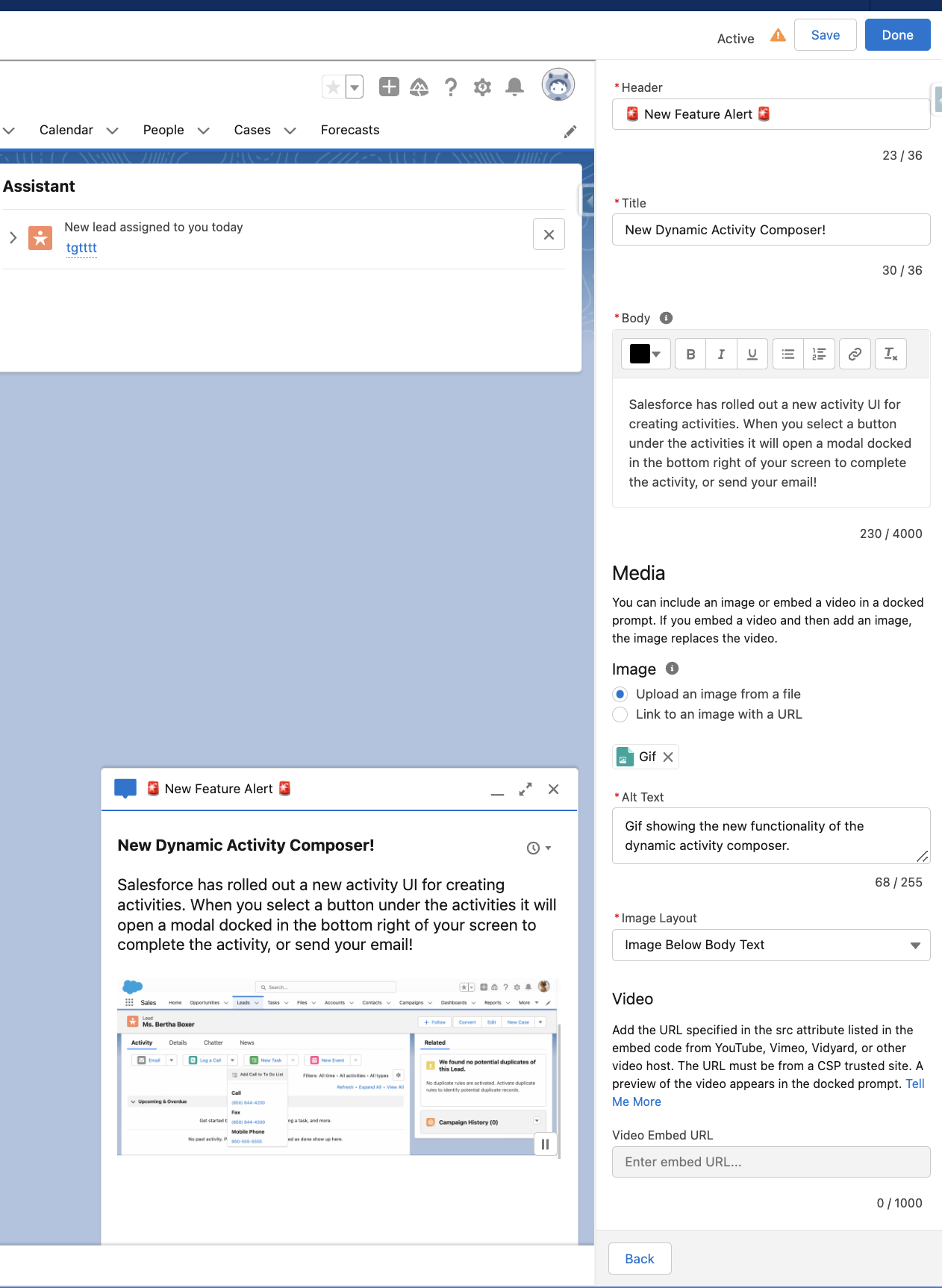
- Use the below info for the prompt
Header: 🚨 New Feature Alert 🚨
Title: New Dynamic Activity Composer!
Body: Salesforce has rolled out a new activity UI for creating activities. When you select a button under the activities it will open a modal docked in the bottom right of your screen to complete the activity, or send your email!
Image: Upload an image from a file (Upload the Gif you downloaded)
Alt Text: Gif showing the new functionality of the dynamic activity composer.
Image Layout: Image Below Body Text
- Click Save in the top right
- On the Action screen you can leave this blank and click Next
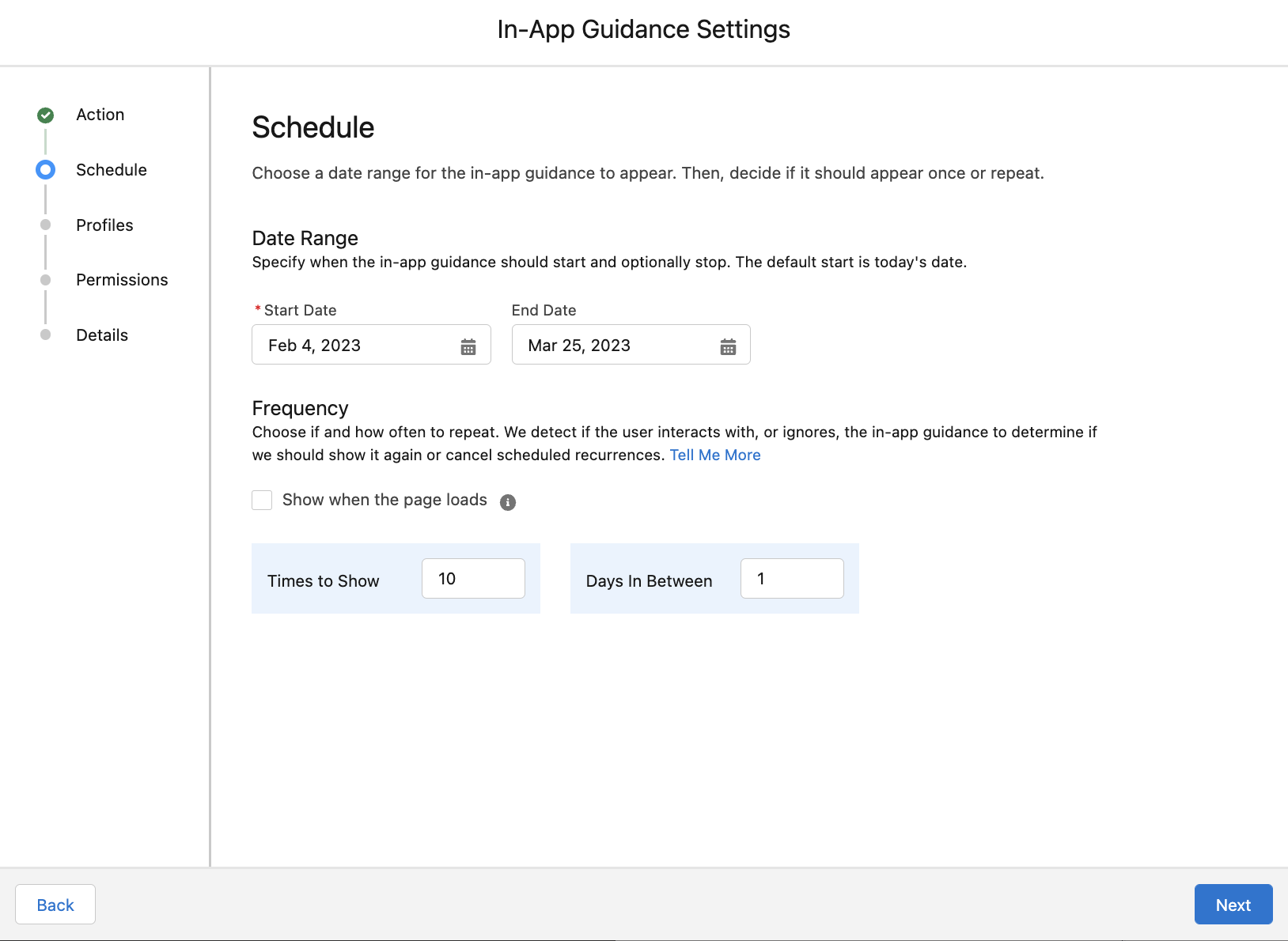
- On the schedule screen set the start date to the day your org is going to be updated to Spring 23’ and set the frequency to show 10 times with 1 day in between, then click Next
Pro Tip: Go on trust.salesforce.com and see when your org is going to be updated to Spring 23’
- Leave the profiles set to No profile restriction and click Next
- Leave the permissions set to No permission restrictions and click Next
- Fill-out the required info to save then click Done
Name: In-App Guidance User Training
API Name: InAppGuidanceUserTraining
Description: This is the change management to notify users of the new change for Spring 23' Dynamic Activity Composer rollout.
추가 자원
- Switch Between the Tabbed and Dynamic Activity Composer
- Take Action More Quickly in the Dynamic Activity Composer
- Salesforce Help: Lightning App Builder
- Get Started with In-App Guidance in Lightning Experience
- Define Prompts in Lightning Experience
- Monitor In-App Guidance in Lightning Experience
- Knowledge Article: In-App Guidance Prompts FAQ
Knowledge 기사 번호
000394309
이 기사를 통해 문제를 해결했습니까?
개선을 위한 의견을 보내주세요.
