Välj en organisation
Using Flows to update Campaign Member Status based on Lead Status
Publiceringsdatum: Aug 25, 2025
Beskrivning
For example, If the Lead status is equal to Working – Contacted or MQL and the Campaign Member status is equal to Filled out form, we then need to update the campaign member status to Qualified.
Lösning
one on the campaign member and the other on the lead. Let's take a look at each of those flows one by one.
Campaign Member Flow
We need to create a Record-Triggered before saving flow (On Update) on the Campaign Member object which would check the triggering Campaign Member status and verify whether the related lead record meets the conditions. If all the conditions are satisfied, we would update the triggering record status to Qualified.
Step 1. Create a Record-Triggered before saving flow on the Campaign Member object
a. From Setup, in the Quick Find box, enter Flows, and then select Flows
b. Click on New Flow, select Record-Triggered flow and hit on Create button
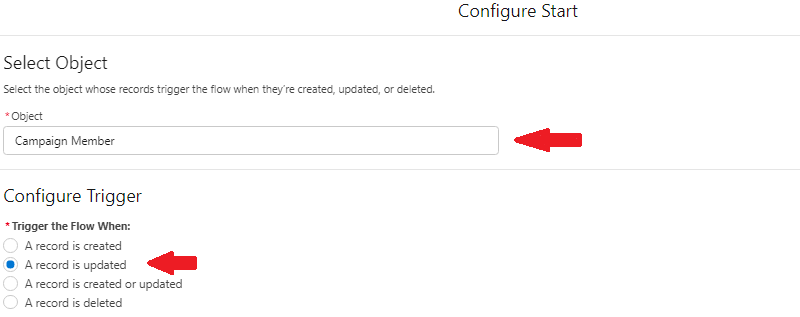
c. In Object field, enter and select Campaign Member
d. For Trigger the Flow When, choose A record is updated
b. Click on New Flow, select Record-Triggered flow and hit on Create button
c. In Object field, enter and select Campaign Member
d. For Trigger the Flow When, choose A record is updated
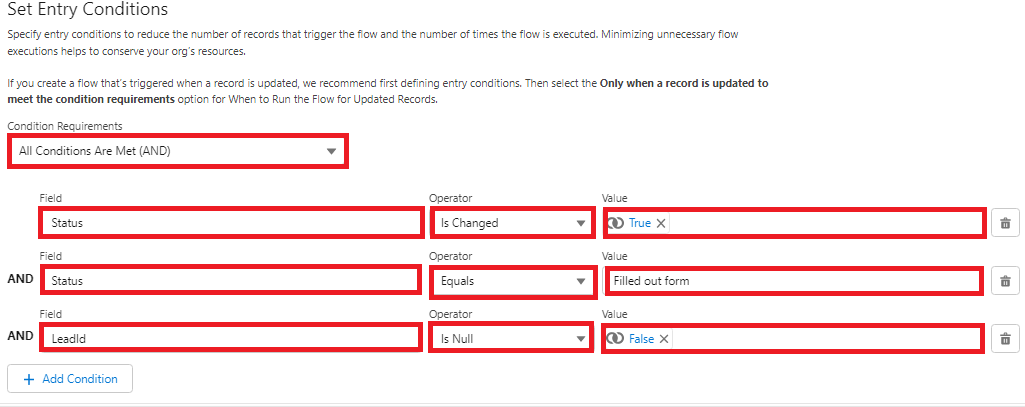
e. In Condition Requirements, choose All Conditions Are Met (AND)
f. Add the following details as your entry conditions
i. Field Status, operator Is Changed, value TRUE
ii. Field Status, operator Equals, value Filled out form
iii. Field LeadId, operator Is Null, value FALSE
ii. Field Status, operator Equals, value Filled out form
iii. Field LeadId, operator Is Null, value FALSE
g. In When to Run the Flow for Updated Records, choose Every time a record is updated and meets the condition requirements
h. In Optimize the Flow for, choose Fast Field Updates
Step 2. Add a Get Records element on the Lead object.
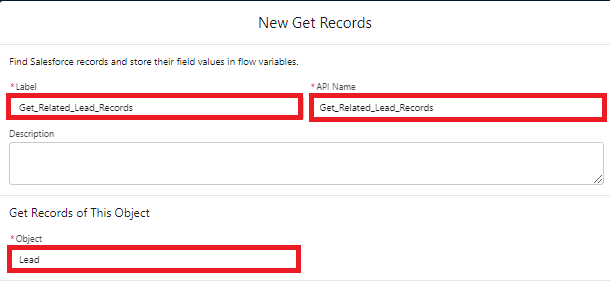
a. Drag Get Records element on canvas. Give it a Name, and API Name will be filled in automatically.
b. In Get Records of This Object choose Lead
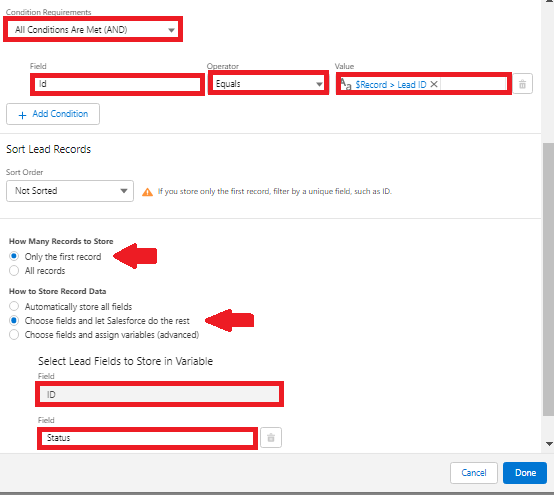
c. In Conditions Requirements select All Conditions Are Met (AND). Add a filter condition as ID, operator is Equals and value is $Record.LeadID
d. In How Many Records to Store, choose Only the first record
e. In How to Store Records Data, select choose fields and let Salesforce do the rest.
f. In Select Lead Fields to Store in Variable, enter and select Lead ID, choose Status for the second field
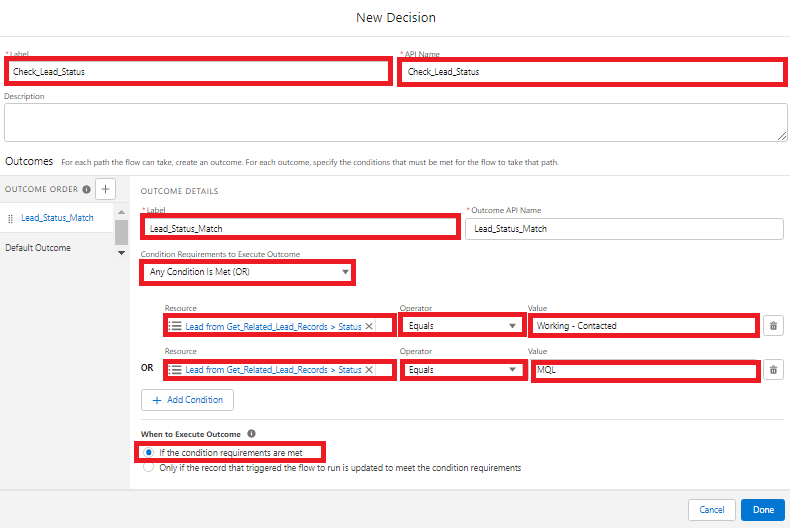
Step 3: Next add a Decision element and create a decision to check whether the Lead record matches the status or not
a. Drag Decision element on canvas. Give it a Name, and API Name will be filled in automatically.
b. In Outcomes section, add two outcomes as Lead_Status_Matched and Lead_Status_Do_ Not_Matched
c. For Lead_Status_Matched
i. Type the Label (Lead_Status_Matched). API name will be auto generated
ii. In Condition Requirements to Execute Outcome select Any Conditions is Meet (OR)
iii. Click on Resource and enter and select {Lead from Get_Related_Lead_Records > Status}, operator Equals, and value Working - Contacted
iv. Click on Add Condition
v. Select Resource as {Lead from Get_Related_Lead_Records > Status}, operator Equals, and value MQL
d. Under Outcome Order. Click on Default Outcome. Change the label to Lead_Status_Not_Matched
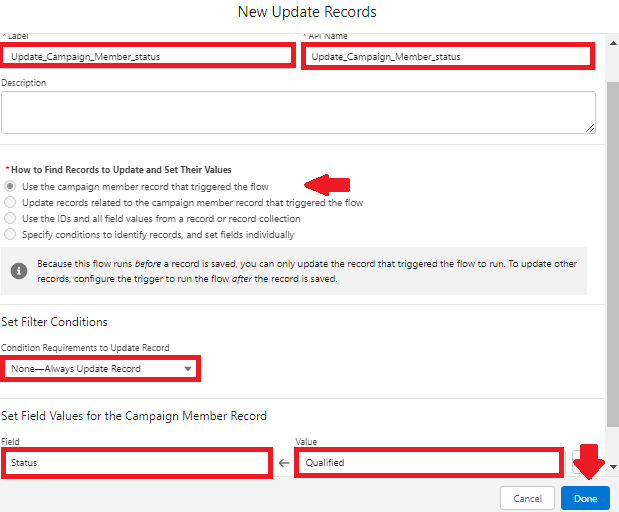
Step 4: Add Update Records element and connect it with the Decision element (Lead Status Matched)
a. Drag Update Records element on canvas. Give it a Name, and API Name will be filled in automatically.
b. In How to Find Records to Update and Set Their Values, choose Use the campaign member record that triggered the flow
c. In Set Filter Condition, select None - Always Update Record
d. In Set Field Values for the Campaign Member Record, enter and select Status, and your value is Qualified. Click Done button
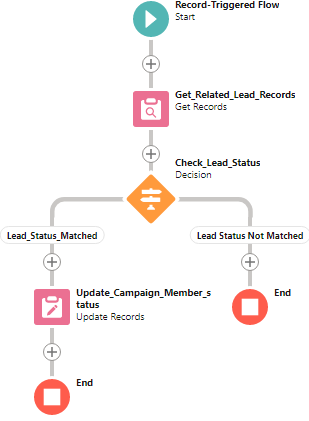
Here is how the first flow will look like
Lead Flow
We need to create an after-save flow (On Update) on the Lead object, which would first check the conditions on the triggering lead record and, if satisfied, update all the related campaign member records (where Status is filled out Form)
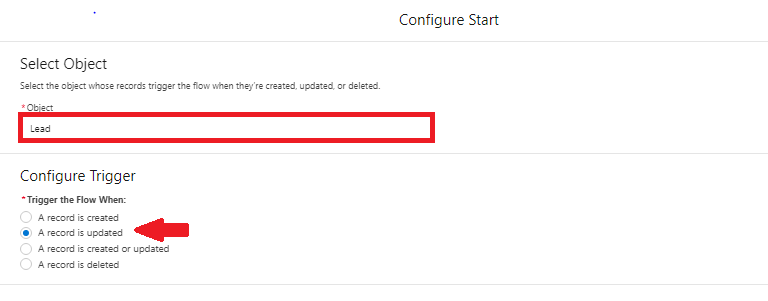
Step 1. Create a Record-Triggered flow on Lead object and choose to run when A Record is Updated
a. From Setup, in the Quick Find box, enter Flows, and then select Flows
b. Click on New Flow, select Record-Triggered flow and hit on Create button
c. In Object field, enter and select Lead
d. For Trigger the Flow When, choose A record is updated
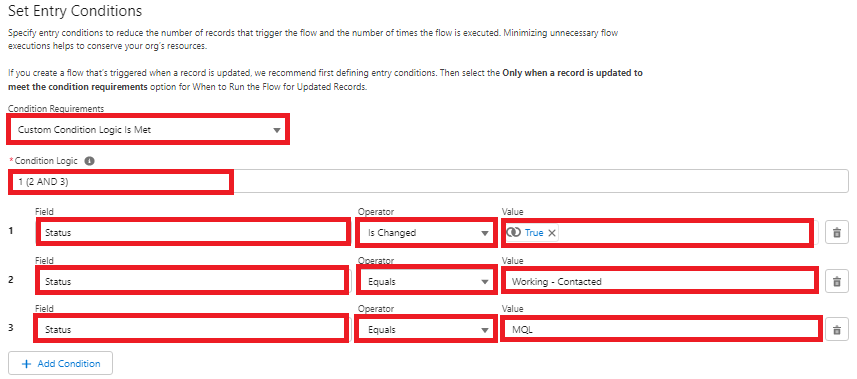
e. In Condition Requirements, choose Custom Condition Logic Is Met
f. In Condition Logic, enter 1 (2 AND 3)
g. Add the following conditions
i. Status, Operator is Is Changed, value TRUE
ii. Status, Operator is Equals, value Working – Contacted,
iii. Status, Operator is Equals, value MQL
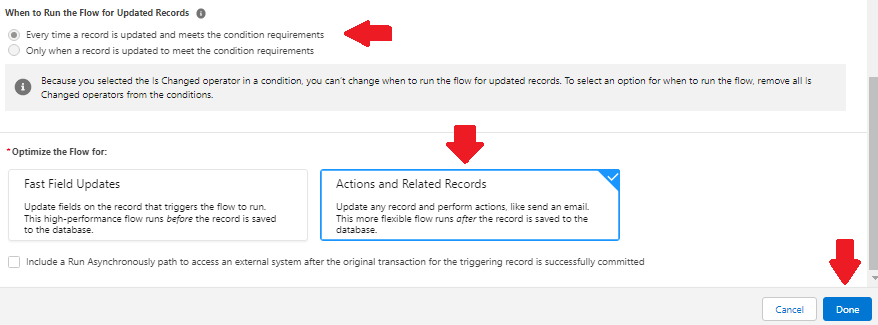
h. In When to Run the Flow for Update Records, choose Every time a record is updated and meets the condition requirements
i. In Optimize the flow for, select Actions and Relation Record. Click on Done button
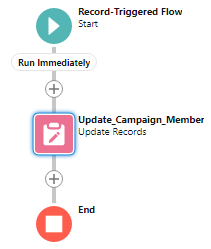
Step 2. Add an Update Records Element and choose the option to update records related to the lead record that triggered the flow
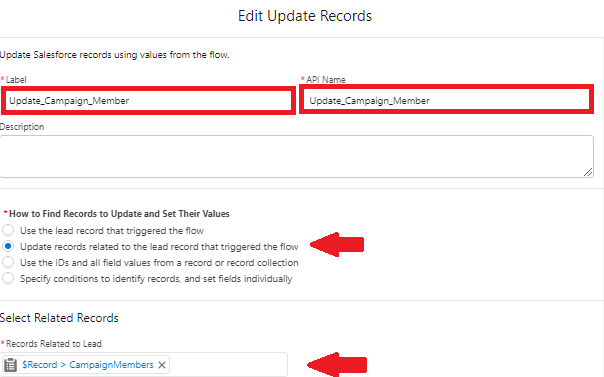
a. Drag Update Records element on canvas. Give it a Name, and API Name will be filled in automatically
b. In How to Find Records to Update and Set Their Values, choose Update records related to the lead record that triggered the flow
c. Under Records Related to Lead, set the value to {!$Record.CampaignMembers}
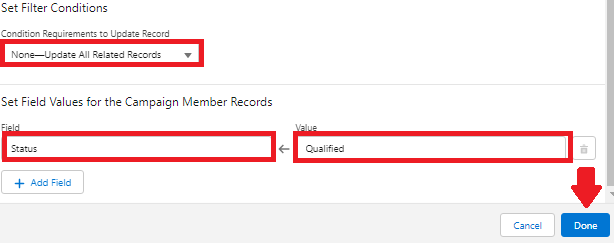
d. In Condition Requirements to Update Record, choose None-Update All Related Records
e. Under Set Field Values for the Campaign Member Records, choose Status and value is Qualified. Click on Done button
Here is how the second flow looks like
___________________________________________
Written by: Sumeet Negi | Salesforce Answers Leader
Sumeet Negi is a Salesforce Developer at Eptura and one of the top Answers Leader in the Trailblazer Community. He is 4x Salesforce certified and has more than 3.5 years of experience on the Salesforce platform. He is passionate about helping trailblazers get the most out of Trailblazer Community.
Submissions reflect only the opinions of the user who made available the Submission and not the opinions of Salesforce, regardless of whether the user is affiliated with Salesforce, and may contain or constitute products, services, information, data, content and other materials made available by or on behalf of third parties ("Third Party Materials). Salesforce neither controls nor endorses, nor is Salesforce responsible for, any Third Party Materials, including their accuracy, validity, timeliness, completeness, reliability, integrity, quality, legality, usefulness or safety, or any applicable intellectual property rights. Any Submissions made available through any message board or forum in response to posted questions, or that otherwise purports to answer any questions, including any questions about Salesforce or Programs, are made available for your general knowledge only and should never be relied upon as answers to your specific questions (even if an answer is marked as a “best” answer or with any similar qualifications). You should always contact Salesforce support for answers to your specific questions. Salesforce has no control over Submissions, and is not responsible for any use or misuse (including any distribution) by any third party of Submissions.
If you have questions, tap into the wisdom of our entire Trailblazer Community here: https://trailhead.salesforce.com/trailblazer-community/feed
Knowledge-artikelnummer
000394583
Löste denna artikel ditt problem?
Berätta för oss vad vi kan förbättra!
