Välj en organisation
[SFS] Remove the Inventory Tab from the Salesforce Field Service Mobile App
Publiceringsdatum: May 12, 2026
Beskrivning
In Salesforce Field Service (SFS), the Inventory tab in the Field Service Lightning (FSL) Mobile App provides mobile workers with access to Product Transfer and inventory location data. This tab appears by default in the app navigation.
If your organization does not use inventory management features, you can remove the Inventory tab to simplify the mobile interface for field technicians and service resources.
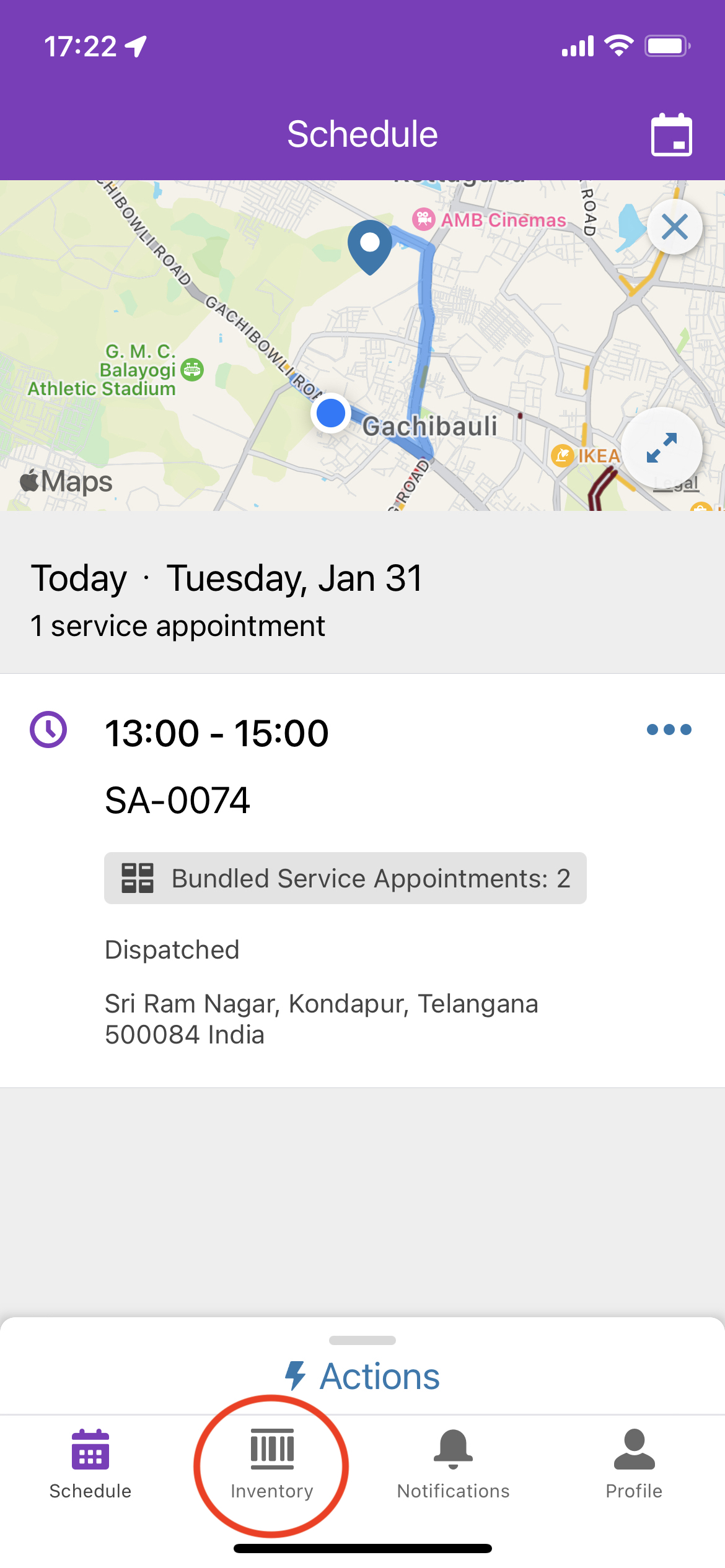
This article provides steps to remove the Inventory tab from the Field Service Mobile App.
Lösning
To remove the Inventory tab from the FSL Mobile App, follow the desktop configuration steps first, then refresh the app on the mobile device.
Desktop Configuration
Step 1 — Remove Location Field from Service Resource Page Layout
- Log in to the Salesforce org as a System Administrator
- Go to Setup > Object Manager
- Search for Service Resource
- Access the page layout assigned to the service resource or technician user profile
- Remove the Location field from the page layout
- Click Save
Step 2 — Verify Service Resource Locations
Confirm that the service resource does not have any active Location records associated with their record. Active location records can cause the Inventory tab to remain visible even after the page layout change.
Step 3 — Remove Object Access via Permission Set
- Go to Setup > Permission Sets
- Access the Field Service Mobile Licence permission set
- Go to Object Settings
- Remove Read and Create access from Product Transfer and Product Requests
Step 4 — Remove Object Access via Profile
- Go to Setup > Profiles
- Access the Service Resource profile (or the profile assigned to your technician users)
- Go to Object Settings
- Remove access from Product Transfer and Product Requests
Alternative Method
The Inventory tab can also be removed using the Field Service Mobile App Builder. This method allows direct tab management without modifying page layouts or permission sets.
- Navigate to Setup > Field Service Mobile Settings > Field Service Mobile App Builder
- Locate the Inventory tab and remove or hide it from the navigation
Refer to the Field Service Mobile App Builder documentation for detailed instructions.
Mobile: Refresh Metadata
After completing the desktop steps, apply one of the following on the mobile device:
- Option 1: Clear Cached Metadata — go to Profile > Settings > Advanced Settings > Clear Cached Metadata
- Option 2: Log out and log back in to the Field Service Mobile App
Ytterligare resurser
Knowledge-artikelnummer
000394661
Löste denna artikel ditt problem?
Berätta för oss vad vi kan förbättra!
