Select An Org
Effectively utilizing Multi-Select Picklists in Field Service Mobile
Publish Date: Sep 27, 2025
Description
Resolution
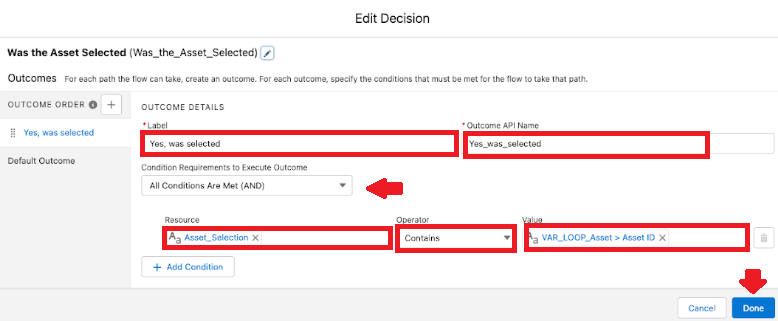
A simple way to resolve this issue is by using a Decision Element with a Contains Operator in order to determine if a specific record is included in the ";" separated list of values chosen from the Multi-Select Picklist Screen Component.
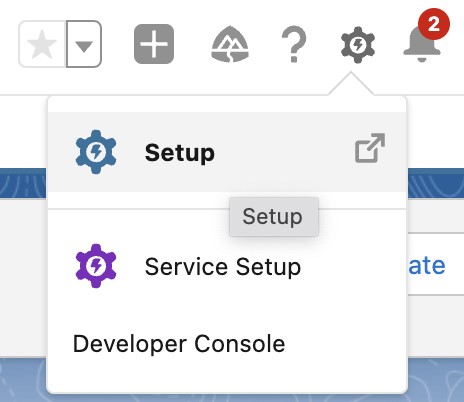
Step 1. Navigate to Setup
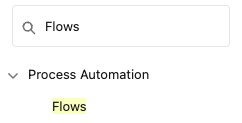
Step 2. In Quick Find Box, enter and select Flows
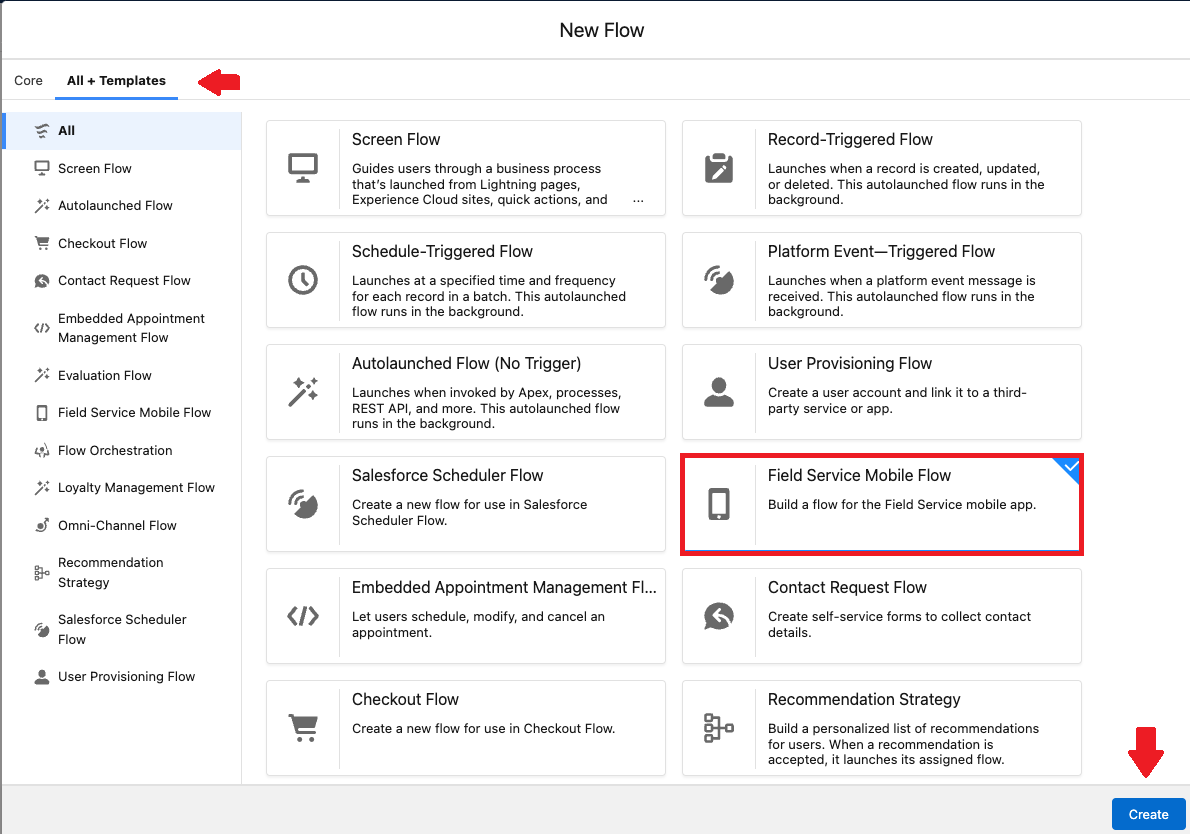
Step 3. Click on New Flow. Then press on All + Templates and select Field Service Mobile Flow
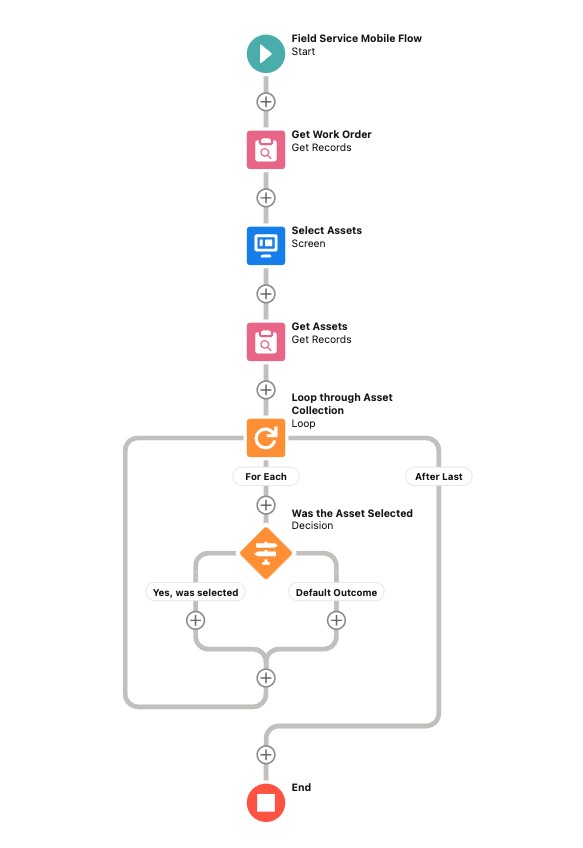
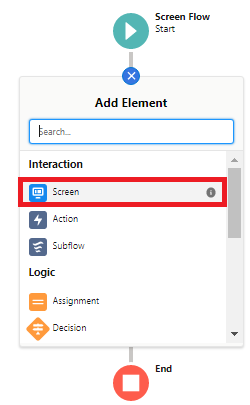
Step 4. Using + add Screen Element into the flow canvas
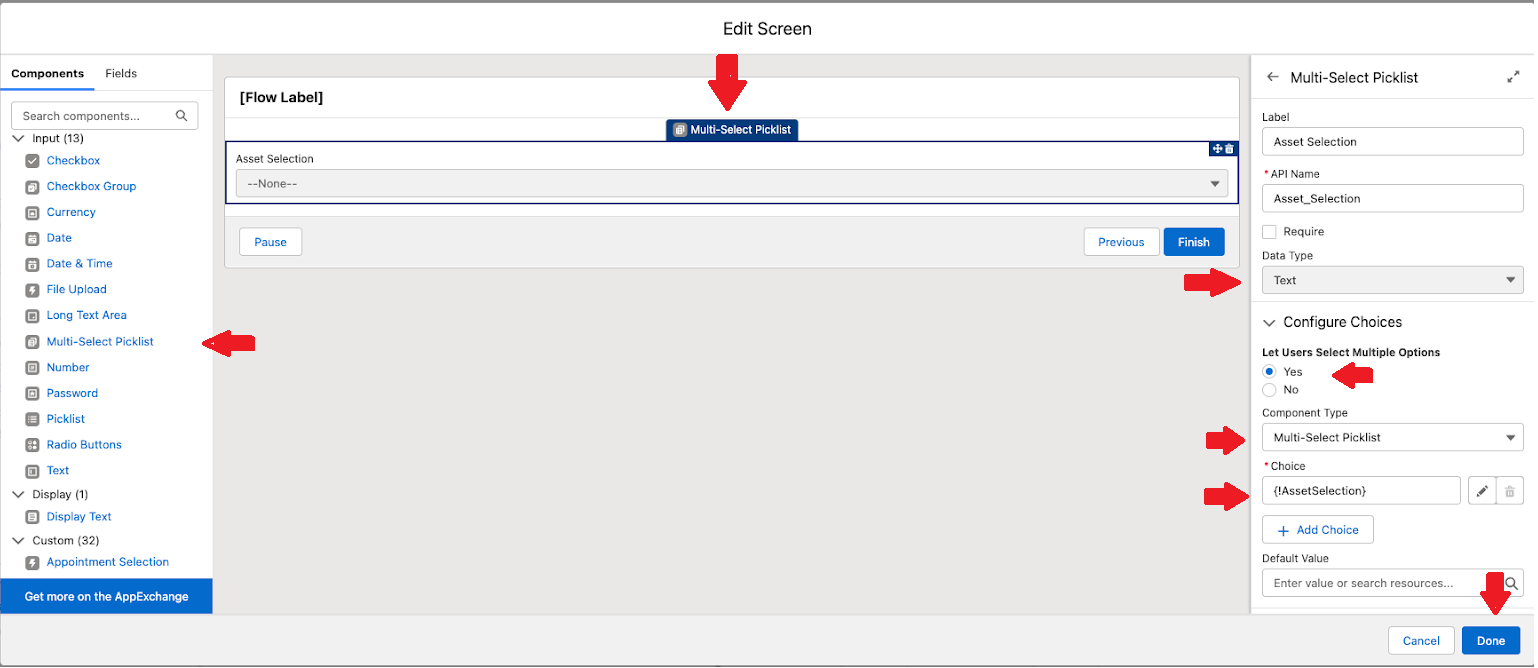
Step 5. Add a Multi-Select Picklist Component to a Screen Element that references a Record Choice Set (like a set of assets, for example).
*Note: When configuring your record choice set, make sure that the Data Type is shown as Text and that the Choice Value is the Record Id. Within that screen element, allow the user to select multiple options from the Picklist.
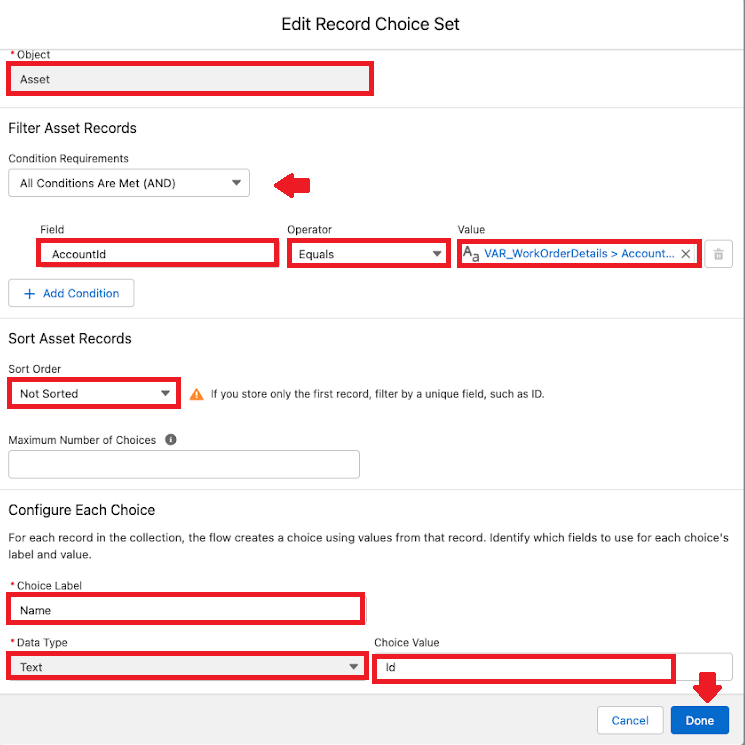
Step 6. Immediately following the Screen Element, utilize a Get Records element to query for the same set of records as was defined within the Record Choice Set (using the same criteria within your query), and identify a Collection Variable to store those values in
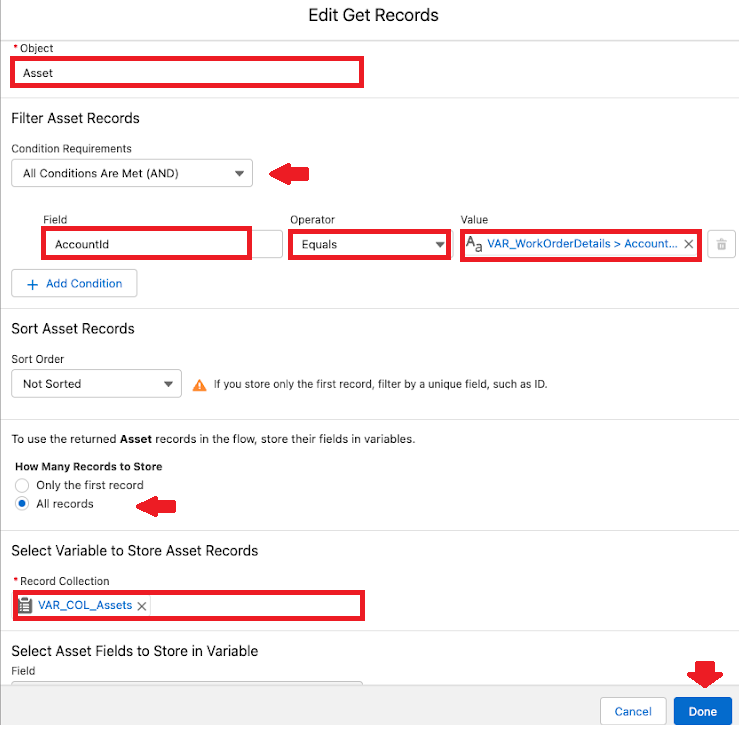
Step 7. Loop through the collection of records from the Get Record element query
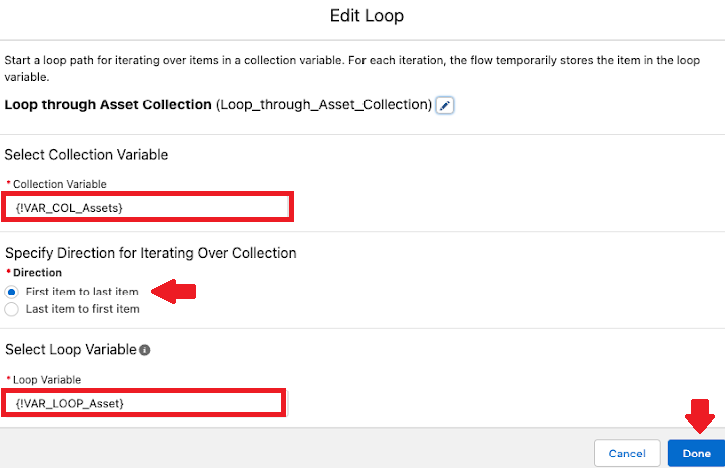
Step 8. Immediately following the Loop element add a Decision element. The Decision element should compare the Multi-Select Picklist Screen Component to the Id of the current Loop Record using a Contains operator. Include a Path for when the current Loop Record is found within the Multi-Select Picklist Screen Component and a Path for when it is not found.
_________________________________________________________
Written by: Stephen Hupp | Salesforce Answers Leader
Stephen Hupp is a Field Service Subject Matter Expert with over 6 years of experience dedicated to the Field Service Product. He is an active member of both Field Service Communities, including Customer and Partner, and participates in the Field Service Partner Advisory Board. He is a former Salesforce Solutions Engineer and Customer Success Architect who currently leads the Field Service Practice at Thunder Consulting, Inc.
Submissions reflect only the opinions of the user who made available the Submission and not the opinions of Salesforce, regardless of whether the user is affiliated with Salesforce, and may contain or constitute products, services, information, data, content and other materials made available by or on behalf of third parties ("Third Party Materials). Salesforce neither controls nor endorses, nor is Salesforce responsible for, any Third Party Materials, including their accuracy, validity, timeliness, completeness, reliability, integrity, quality, legality, usefulness or safety, or any applicable intellectual property rights. Any Submissions made available through any message board or forum in response to posted questions, or that otherwise purports to answer any questions, including any questions about Salesforce or Programs, are made available for your general knowledge only and should never be relied upon as answers to your specific questions (even if an answer is marked as a “best” answer or with any similar qualifications). You should always contact Salesforce support for answers to your specific questions. Salesforce has no control over Submissions, and is not responsible for any use or misuse (including any distribution) by any third party of Submissions.
If you have questions, tap into the wisdom of our entire Trailblazer Community here: https://trailhead.salesforce.com/trailblazer-community/feed
Knowledge Article Number
000394678
Did this article solve your issue?
Let us know so we can improve!
