조직 선택
Formula to create a Text String from selections made on a group of checkboxes
게시 일자: Jul 17, 2026
상세 설명
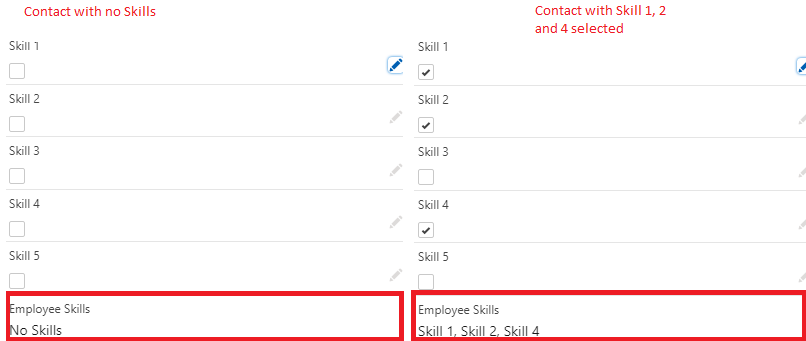
Sometimes, it is desired to have a field that needs to display the responses from the selections made from a group of checkboxes on the record detail page.
For instance:
In Salesforce, an organization that tracks employee skills (Skill 1, Skill 2, Skill 3, Skill 4, and Skill 5) as checkboxes on contact records, and they need to see all the responses of an employee as a formatted string on the record page. If no skills are available on the contact record, "No Skills" text should be displayed.
솔루션
In order to fulfill this requirement, we need to create a Formula field on the Contact record as below:
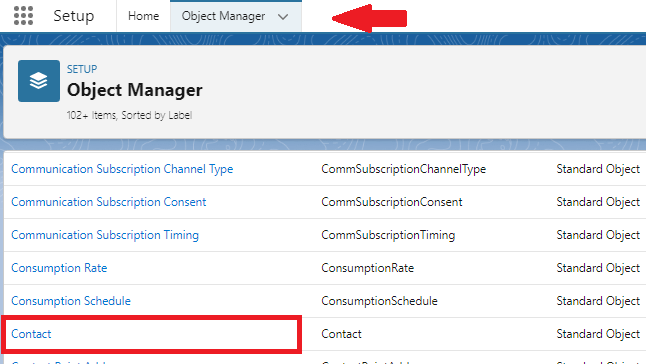
Step 1 — Navigate to Object Manager: In Salesforce Setup, click the gear icon and select Object Manager. Click on the Contact object.
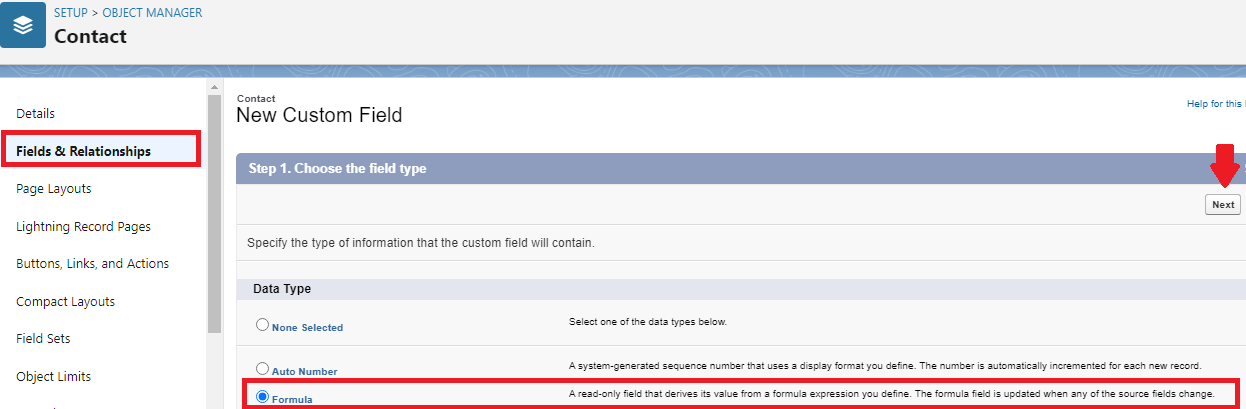
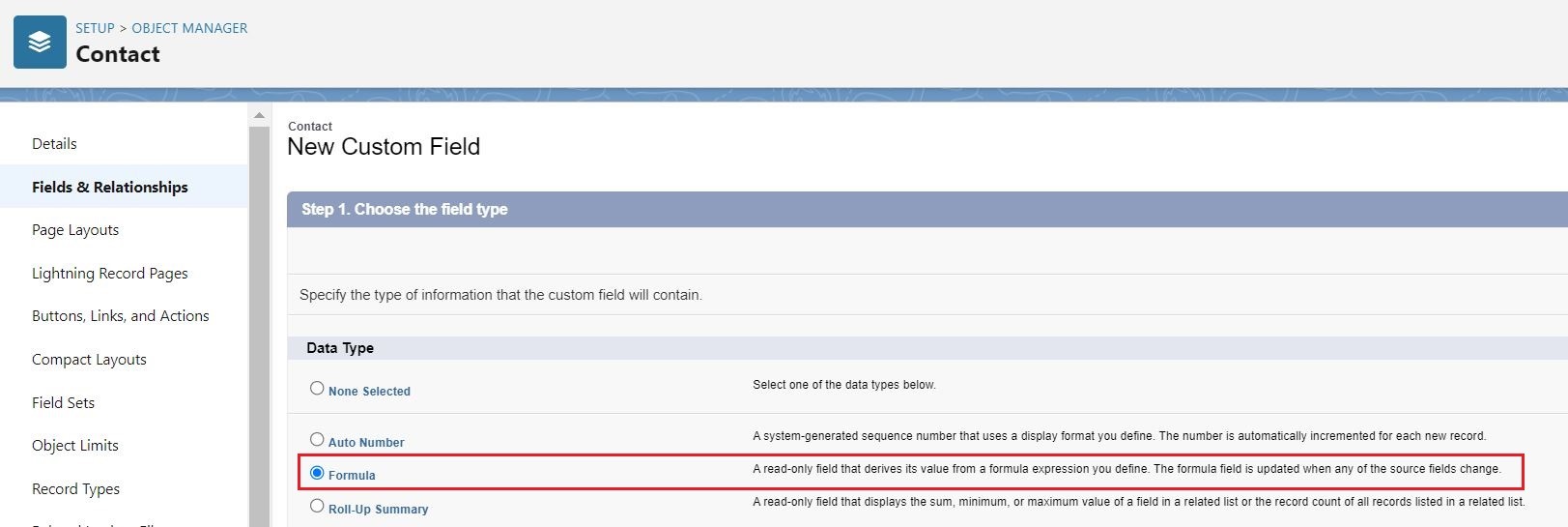
Step 2. Click on the New button under Fields & Relationships and select Formula as the Data Type and click n Next
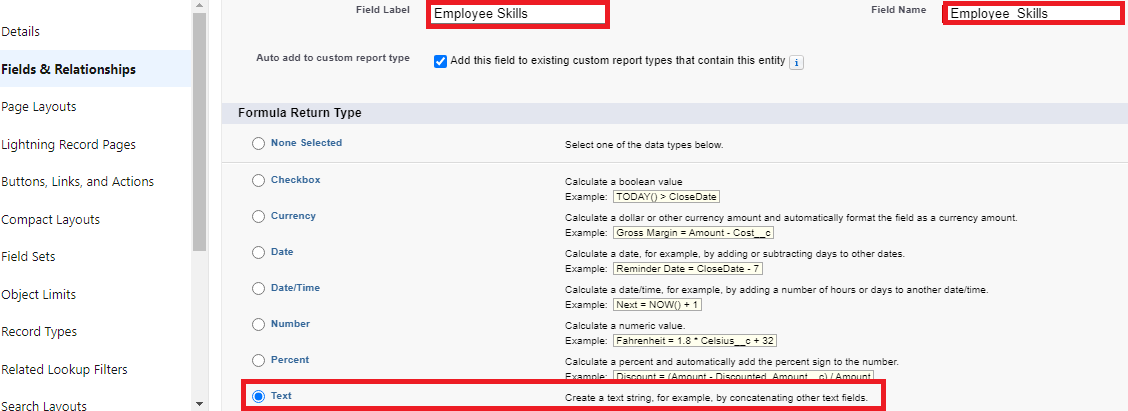
Step 3. Provide a Field Label as Employee Skills to the formula field and select Text as the Formula Return Type and click Next button
Step 4. Under the Formula Editor page, select Advanced Formula and enter the formula as:
The formula uses IF statements to check each checkbox field (Skill_1__c through Skill_5__c). If a checkbox is TRUE, the corresponding skill name is appended to the output string. The SUBSTITUTE function removes the trailing ', No Skills' text if at least one skill is selected. If no checkboxes are checked, the field displays 'No Skills'." All 8 steps need a one-sentence plain text description.
SUBSTITUTE(
IF(Skill_1__c = TRUE, "Skill 1, ", NULL) +
IF(Skill_2__c = TRUE, "Skill 2, ", NULL) +
IF(Skill_3__c = TRUE, "Skill 3, ", NULL) +
IF(Skill_4__c = TRUE, "Skill 4, ", NULL) +
IF(Skill_5__c = TRUE, "Skill 5, ", NULL) +
"No Skills", ", No Skills", NULL)
where, Skill_1__c, Skill_2__c, Skill_3__c, Skill_4__c and Skill_5__c are API names of the checkboxes
Step 5. Click on the Check Syntax button available at the bottom left of the editor to validate the entered formula
Step 6. Scroll down to the Blank Field Handling section available at the bottom of the page and make sure to select Treat blank fields as blanks as the option and click Next
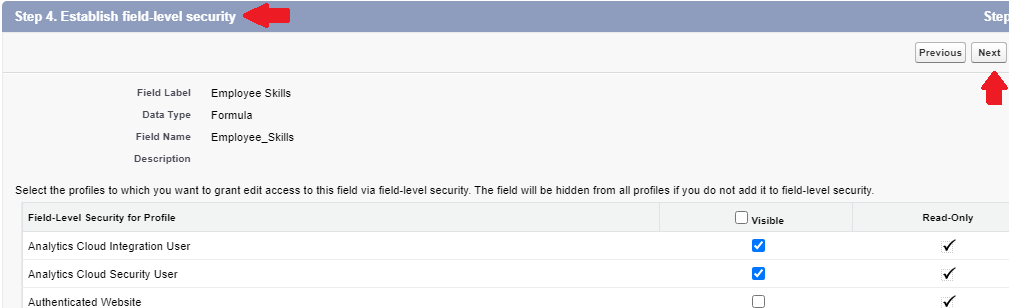
Step 7. Select the appropriate Profiles for the Field Level Security and click on Next button
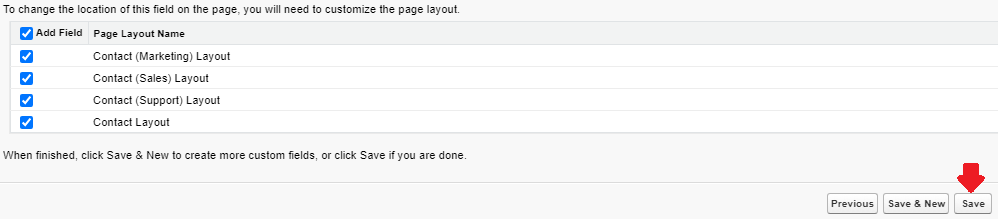
Step 8. Select the appropriate Page Layouts and click on the Save button
___________________________________________________________
If you have questions, tap into the wisdom of our entire Trailblazer Community here: https://trailhead.salesforce.com/trailblazer-community/feed


추가 자원
Salesforce Help:
Formula to create a Text String from selections made on a group of checkboxes
Knowledge 기사 번호
000394769
이 기사를 통해 문제를 해결했습니까?
개선을 위한 의견을 보내주세요.
