Välj en organisation
User is unable to see the records while running a Report in Salesforce
Publiceringsdatum: Apr 2, 2026
Beskrivning
Lösning
The following steps cover the most common reasons why records may not appear in a Salesforce report and how to resolve each one.
There are several reasons why the records are not showing up in a report:
1) Data Quality
No records exist in the Salesforce org for the object which the user is trying to report on
Possible Solutions:
a. Make sure the data exists in the system for that object. If there are no records, then there is no way the user can gather that on a report, and the report will always appear blank, irrespective of the report filters.
2) Report Type
The selection of Report Type is not appropriate
Possible Solutions:
a. Check the Report Type properly before creating the Report. Often, the Report Type selection is not appropriate, so make sure it is accurate before moving further. For Standard Report Types, all the objects used in the Report Type are visible under the Details tab when the Report Type is selected, while for custom Report Types, the diagram of object relationships is visible under the Details tab while selecting the custom Report Type.
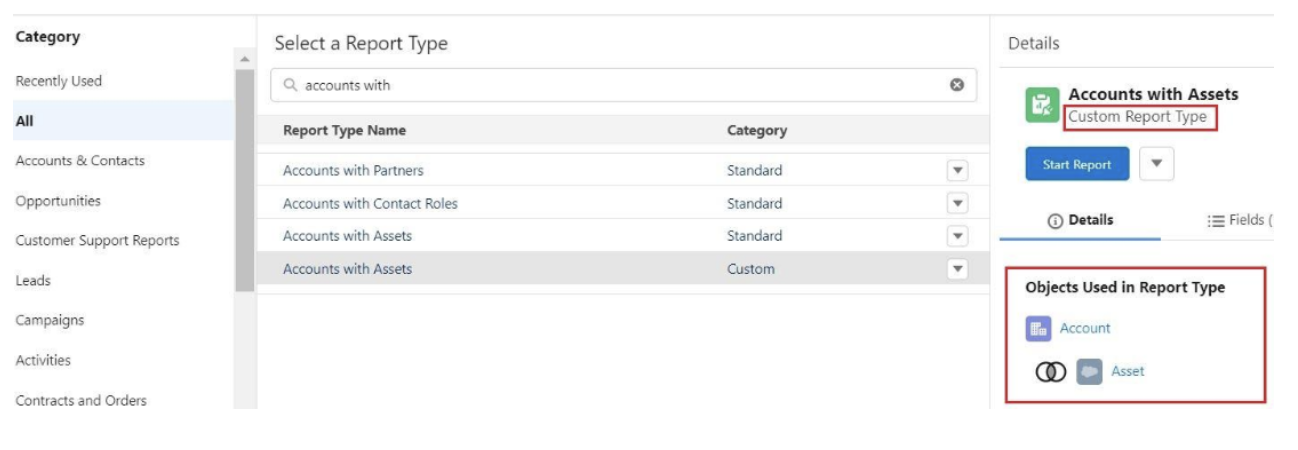
b. If the user is creating a new custom Report Type for reporting or trying to use an existing custom Report Type created by somebody else in the organization, do check the relationship setup between the objects for that Report Type. If the Report Type is not setup as per the user's need, create a new Report Type and define the proper object relationships.
3) Report Filter
The Report does not meet the scope or Filter criteria
Possible Solutions:
a. Go to the Report and check the Filter criteria (including Cross Filters if used) to see if they are correct as per the business requirement. If not, update the report with the correct filters and click on the Save & Run button to save the report.
b. If you are using a Formula field(s) as the filter criteria, check whether the fields referenced in these formula field(s) on the object you are trying to report on is correct. If it's changed and doesn't appear correct, update the formula field in order for it to reflect the correct logic, so that correct data will be reflected in the report.
a. Go to the Report and check the Filter criteria (including Cross Filters if used) to see if they are correct as per the business requirement. If not, update the report with the correct filters and click on the Save & Run button to save the report.
b. If you are using a Formula field(s) as the filter criteria, check whether the fields referenced in these formula field(s) on the object you are trying to report on is correct. If it's changed and doesn't appear correct, update the formula field in order for it to reflect the correct logic, so that correct data will be reflected in the report.
4) Security Settings
The user running the Report does not have at least Read access to the object
Possible Solutions:
a. Search for the Profile assigned to the user and check whether the Read permission for that object is given to that Profile. If not, provide at least the Read permission to that object.
b. If permission is not enabled at the Profile level, check if there is any Permission Set assigned to the user and if there is one, update the permission set to provide at least Read permission for that object. (Salesforce retired permissions on profiles in Spring '26; use Permission Sets to manage object-level permissions. ).
5) Sharing Settings
The Organization-Wide default or Organization-Wide sharing settings (OWD) of the object is set to Private
Possible Solutions:
a. Check whether the OWD for the object in Sharing Settings is set to Private. There might be a possibility that the user running the report does not have ownership of any records for that object and is placed at the bottom of the Role Hierarchy (so does not have any subordinates to view their records). Create sharing rules if the user needs to report on the records based on ownership or criteria. For more complex sharing, apex-based sharing can be used to provide the necessary permissions to the user for record visibility.
b. Check if the user is the owner of the records or has been granted access via sharing rules or manual sharing. If not, verify if the user has access to the records via role hierarchy or sharing rules.
If none of these steps resolve the issue, then it may be necessary to escalate the issue to the Salesforce administrator or support team for further investigation.
Ytterligare resurser
- How to create a Report in Salesforce: https://help.salesforce.com/s/articleView?id=sf.rd_reports_overview.htm&type=5
- Filtering a Report in Salesforce: https://help.salesforce.com/s/articleView?id=sf.basics_filter_report.htm&type=5
- Controlling Standard Report Visibility: https://help.salesforce.com/s/articleView?id=sf.security_sharing_owd_external_user_srt.htm&type=5
Knowledge-artikelnummer
000394787
Löste denna artikel ditt problem?
Berätta för oss vad vi kan förbättra!
