Velg en organisasjon
Salesforce Platform Flow: Update Child Objects from Parent Record Changes
Publiseringsdato: Sep 5, 2026
Beskrivelse
I need to update all the child records of a specific object automatically when an update happens on the parent record in Salesforce. For example, if an Opportunity is set to Closed Lost, I want all its Tasks to be set to Completed.
Løsning
A Record-Triggered flow on the parent object will handle this, using a simple Update Records element for the child record(s). This article walks through building one from an Opportunity record — when its stage changes to Closed Lost, all its related Tasks update to Completed. You can apply the same logic to any parent or child object.
Steps to Build the Flow
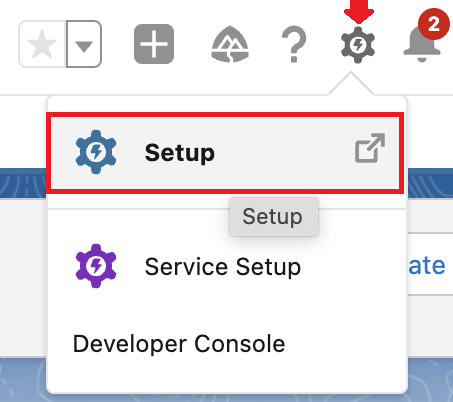
Step 1: Navigate to Setup
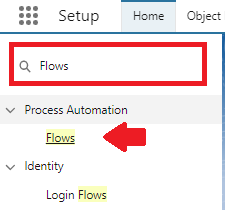
Step 2: Open Flows from Quick Find
In the Quick Find box, enter and click on Flows.
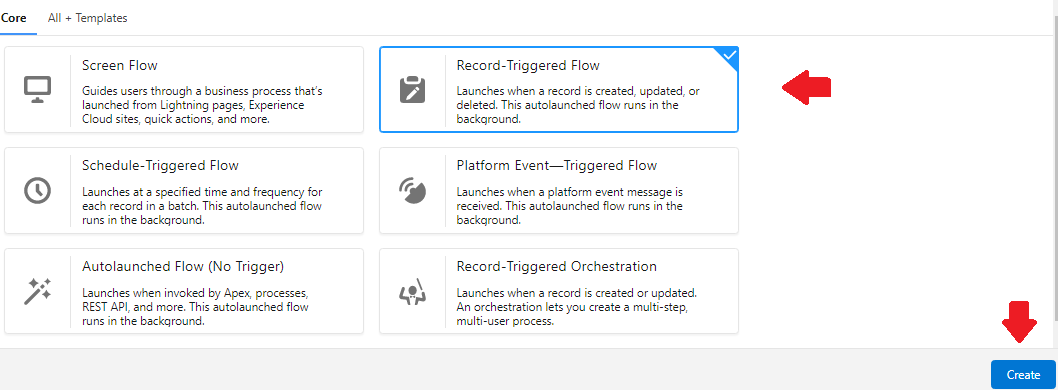
Step 3: Create a Record-Triggered Flow
Click on the New Flow button and select Record-Triggered Flow, then Create.
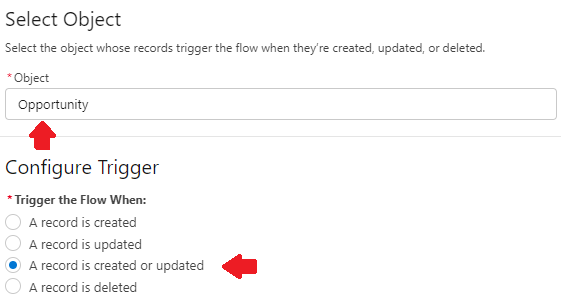
a. Select Opportunity as the object and set Trigger the Flow When to A record is created or updated.
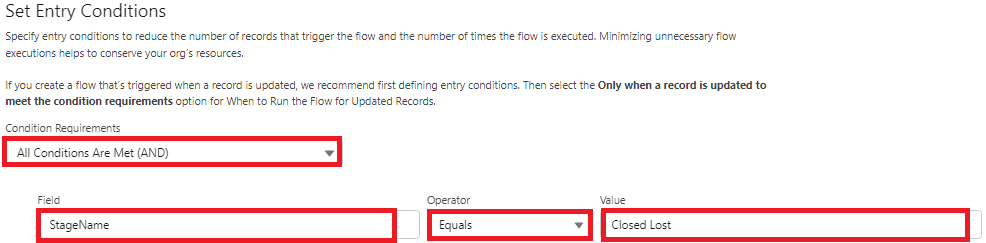
b. In the Set Entry Conditions section, select All Conditions Are Met (AND) for Condition Requirements and enter:
- Field: StageName
- Operator: Equals
- Value: Closed Lost
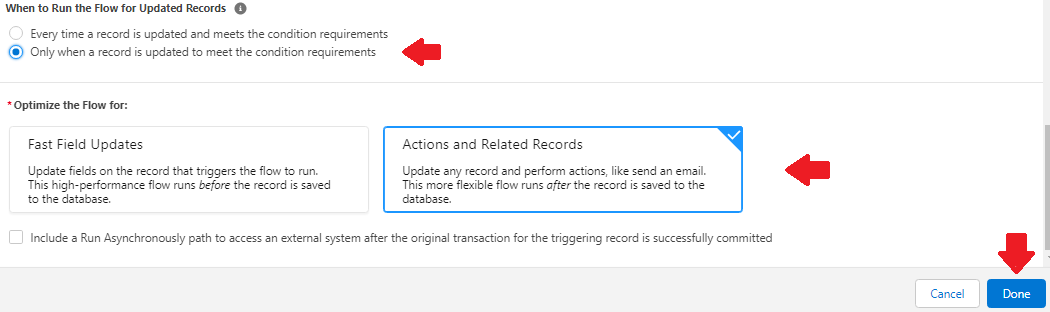
c. Select Only when a record is updated to meet the condition requirements in the When to Run the Flow for Updated Records section, and optimize the flow for Actions and Related Records. Click Done.
Step 4: Add an Update Records Element
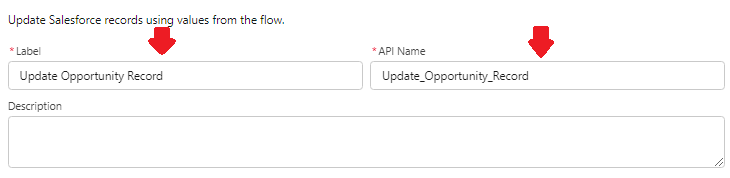
a. Give the element a Name (Label). The API Name will auto-populate.
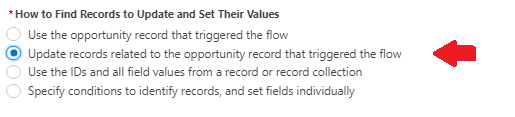
b. In the How to Find Records to Update and Set Their Values section, select Update records related to the opportunity record that triggered the flow.
c. In Records Related to Opportunity, select $Record>Tasks.

d. In the Set Filter Conditions section, select All Conditions Are Met (AND) for Condition Requirements to Update Record, and set:
- Field: Status
- Operator: Does Not Equal
- Value: Completed
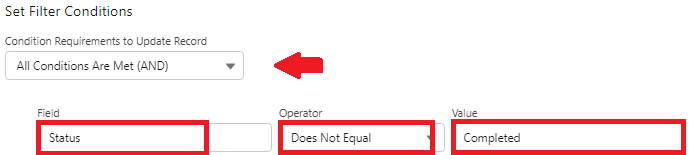
e. In Set Field Values for the Task Records, enter the following and click Done:
- Field: Status
- Value: Completed
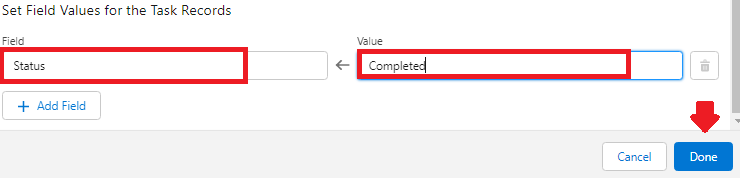
Step 5: Save the Flow
Click the Save button and give your Flow a Name.
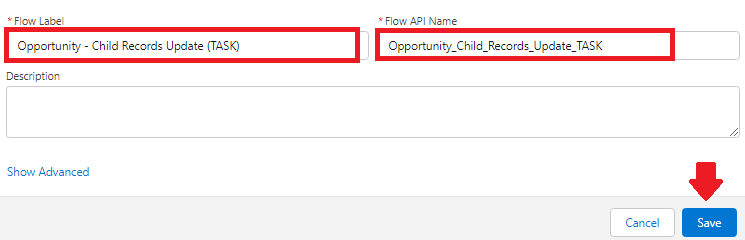
Step 6: Activate the Flow

Important Notes
This flow will only work for newly created or updated Opportunity records. For existing ones, you'll need to manually update the Task status fields (for example, with the data loader) or create a scheduled flow that runs once on the Opportunity object with the same elements as the record-triggered flow above.
If you choose the scheduled flow option, keep in mind that the combination of all scheduled flow filters in your organization can't result in more than a total of 250,000 records within 24 hours at the time of writing.
If you have too many Opportunities to update in one go, consider adding filters to the start element and running scheduled flows over a few days to go through all your existing Opportunity records.
Written by: Eric Praud | Salesforce MVP
Eric is a Senior Consultant at Epam PolSource and has been working in the Salesforce ecosystem for the past 12 years. He started his Salesforce career as a Salesforce support agent. Like many others, he stumbled across the platform accidentally and hasn't looked back since. Eric is very active in the Answers community and has been a Salesforce MVP since March 2021.
Submission reflects only the opinion of the user who made available the Submission and not the opinions of Salesforce, regardless of whether the user is affiliated with Salesforce, and may contain of constitute products, services, information, data, content and other materials made available by or on behalf of third parties ("Third Party Materials"). Salesforce neither controls nor endorses, nor is Salesforce responsible for, any Third Party Materials, including their accuracy, validity, timeliness, completeness, reliability, integrity, quality, legality, usefulness or safety, or any applicable intellectual property rights. Any Submission made available through any message board or forum in response to posted questions, or that otherwise purports to answer any questions, including any questions about Salesforce or Programs, is made available for your general knowledge only and should never be relied upon as an answer to your specific questions (even if an answer is marked as a "best answer" or with any similar qualification). You should always contact Salesforce Support for answers to your specific questions. Salesforce has no control over Submissions, and is not responsible for any use or misuse (including any distribution) by any third party of Submissions.
If you have questions, tap into the wisdom of our entire Trailblazer Community here: https://trailhead.salesforce.com/trailblazer-community/feed
Flere ressurser
- Fetch Related Records Between Objects Connected by a Junction Object Using Lightning Flows (No Code)
- Retrieving Account Records for the Current Month with a Salesforce Scheduled-Triggered Flow
- Global Variables Not Working in Salesforce Flow Transform Element
- Screen Flow File Upload Component Returns Null contentDocIds/contentVersionIds When Two File Upload Components Share the Same Screen
Knowledge-artikkelnummer
000394815
Hjalp denne artikkelen med å løse problemet ditt?
La oss få vite det slik at vi kan forbedre!
