Valitse organisaatio
Task Reminder Based on Due Date using Salesforce Flow
Julkaisupäivä: Feb 12, 2026
Kuvaus
Configure a flow to send an email reminder to the user based on the task due date.
Ratkaisu
A reminder email should be sent to the user one day before the task's due date if it is not completed. This automation can be built with a Record-Triggered Flow based on the Task object. Follow these steps to accomplish it:
-
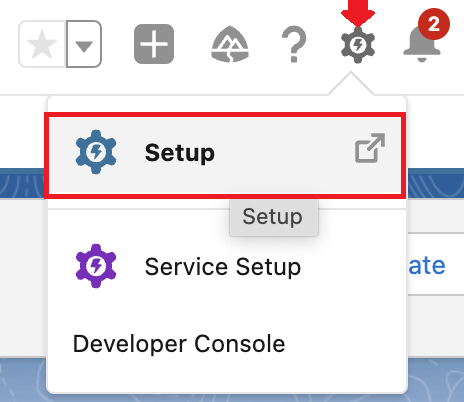
Navigate to Setup
-
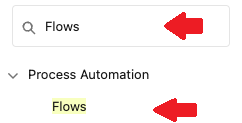
In the Quick Find box, enter Flows, and then select Flows
-
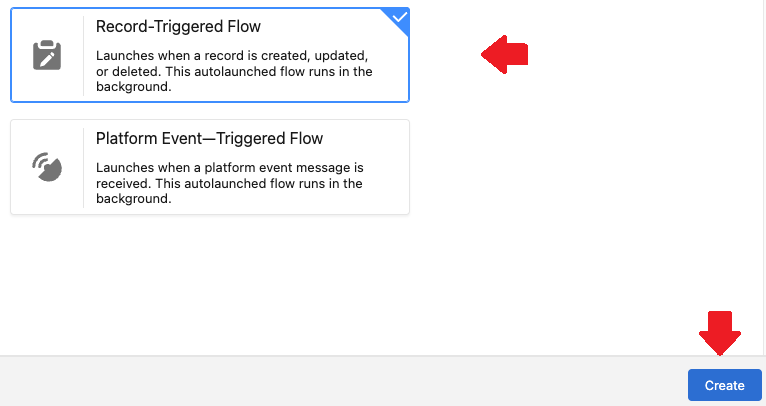
Click on the New Flow button, select Record-Triggered Flow, and press Create
-
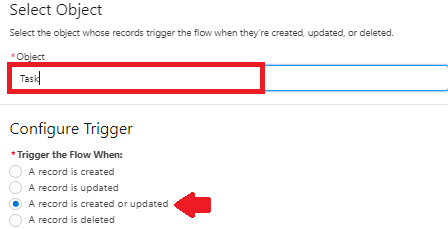
Under the Select Object section, set the object as Task, and in the Configure Trigger, choose A record is created or updated
-
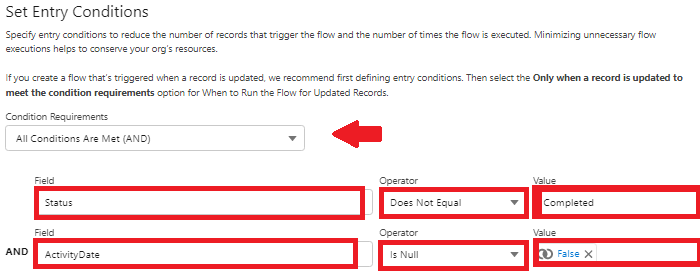
In Condition Requirements, choose All Conditions Are Met (AND). Add the following details as your Entry conditions:
First entry condition:- Field: Status
- Operator: Does Not Equal
- Value: Completed
Second entry condition:- Field: Activity Date
- Operator: Is Null
- Value: False
-
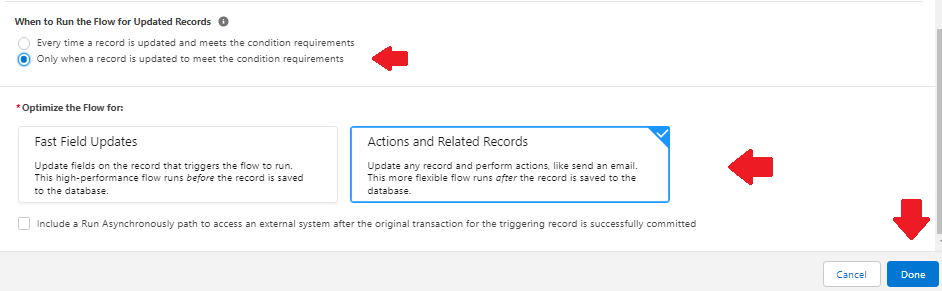
In the When to Run the Flow for Updated Records section, choose Only when a record is updated to meet the condition requirements, select Actions and Related Records, and click on Done
-
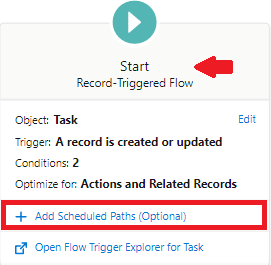
Click on + Add Scheduled Paths (Optional) action
-
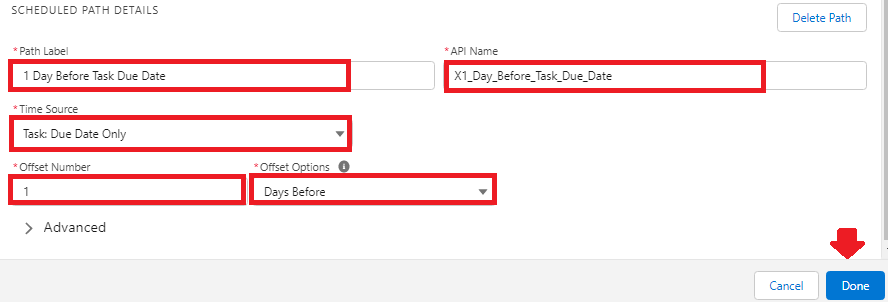
Set the Schedule Path with the following details and click on Done:
- Path Label: 1 Day Before Task Due Date
- Time Source: Task: Due Date Only
- Offset Number: 1
- Offset Options: Days Before
-
Note that the record with a past date will also enter the path. To avoid this, add a Decision Element to not run the path if it is past the date.
-
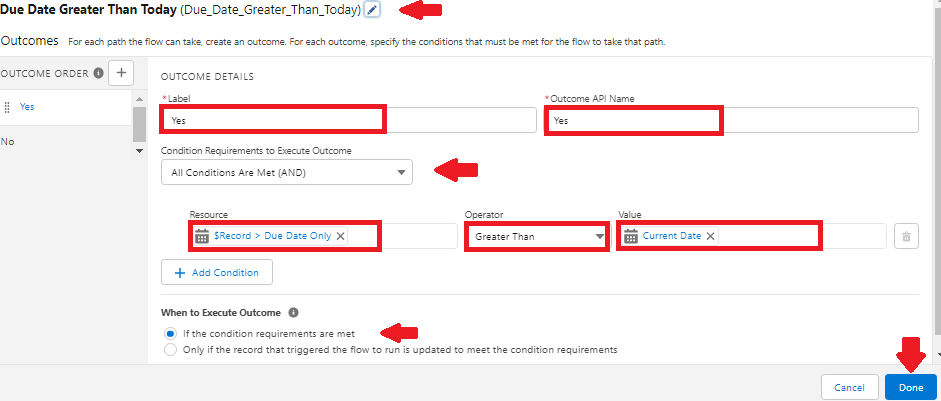
Add a Decision Element using the details below. In the When to Execute Outcome section, select If the condition requirements are met and click on Done:
- Label: Due Date Greater Than Today
Outcome details:- Label: Yes
- Field: {!$Record.ActivityDate}
- Operator: Greater Than
- Value: {!$Flow.CurrentDate}
-
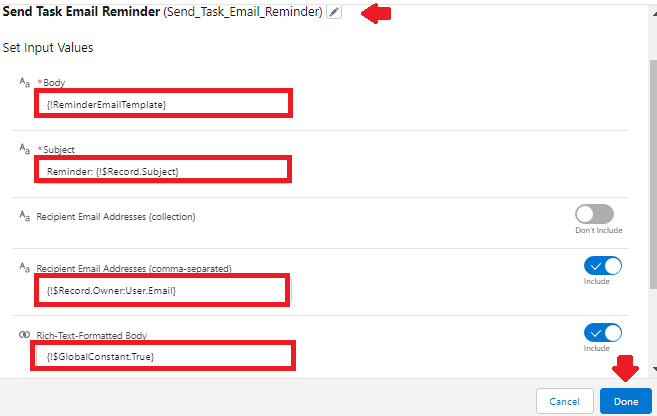
Under the Yes route, add an Action and select the Send Email core action to send an email to the task owner. An email template can also be used instead of the Email Core action.
-
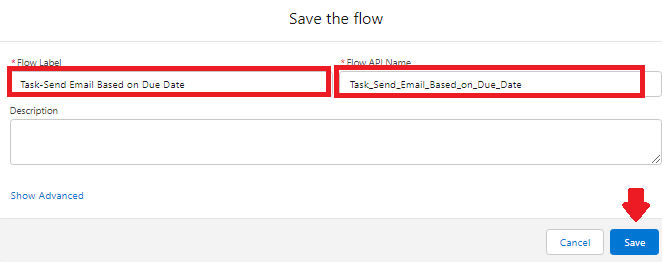
Save your Flow and give it a Name. The Flow API Name will auto-generate.
-
Click on Activate to start reminding task owners via email.

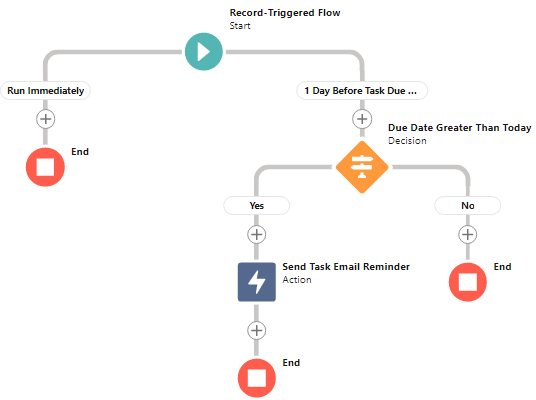
All done. Here is what the complete Flow looks like:
Lisäresurssit
Written by: Iqrar Ahmed | Salesforce Answers Leader
Iqrar Ahmed is a Senior Salesforce Consultant with over 8 years of experience. He is currently working at Aware Services.
Iqrar Ahmed is a Senior Salesforce Consultant with over 8 years of experience. He is currently working at Aware Services.
Submissions reflect only the opinions of the user who made the Submission available and not the opinions of Salesforce. For questions, tap into the wisdom of our Trailblazer Community here.
Knowledge-artikkelin numero
000394827
Ratkaisiko tämä artikkeli ongelmasi?
Anna palautetta, jotta voimme kehittyä!
