Sélectionner une organisation
Quip Document Component: Use Different Templates for Different Records
Date de publication: Oct 1, 2024
Description
Salesforce Use different templates for different records
Primary setup
I have taken the Opportunity object as an example. Create the following three custom fields from the fields and relationships section of Opportunity object from Object manager in setup page.
-
- A URL field in which template URLs can be located (Named it Quip Template URL).
- A URL field in which the URLs of newly created quip documents can be stored (Named it Quip Document URL).
- Create picklist field of your choice (Named it Sales Program Type)
- Include all three fields on the Opportunity page layout and make Sales Program Type as a Required field.
- In Lightning App Builder > Search for the “Quip Document” component > drag the Quip Document component from the Components panel onto the page. Select the 4th option Use different templates for different records.
- Choose the Quip template URL as the field to store the template URL and Quip Document URL as the field to store the Quip document URL.
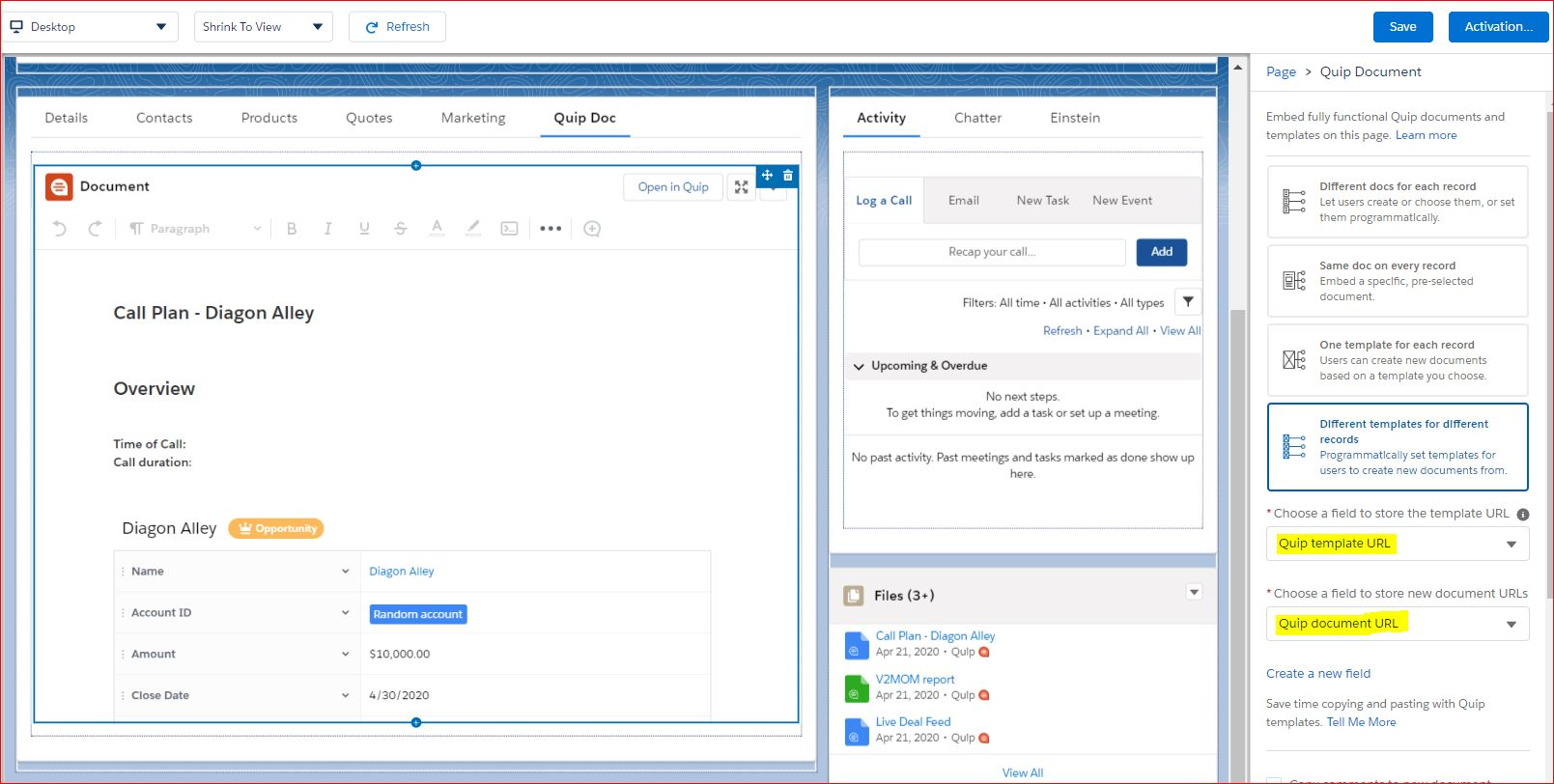
- Opportunity detail page will now contain the Sales program type, Quip template URL and Quip Document URL fields in them.
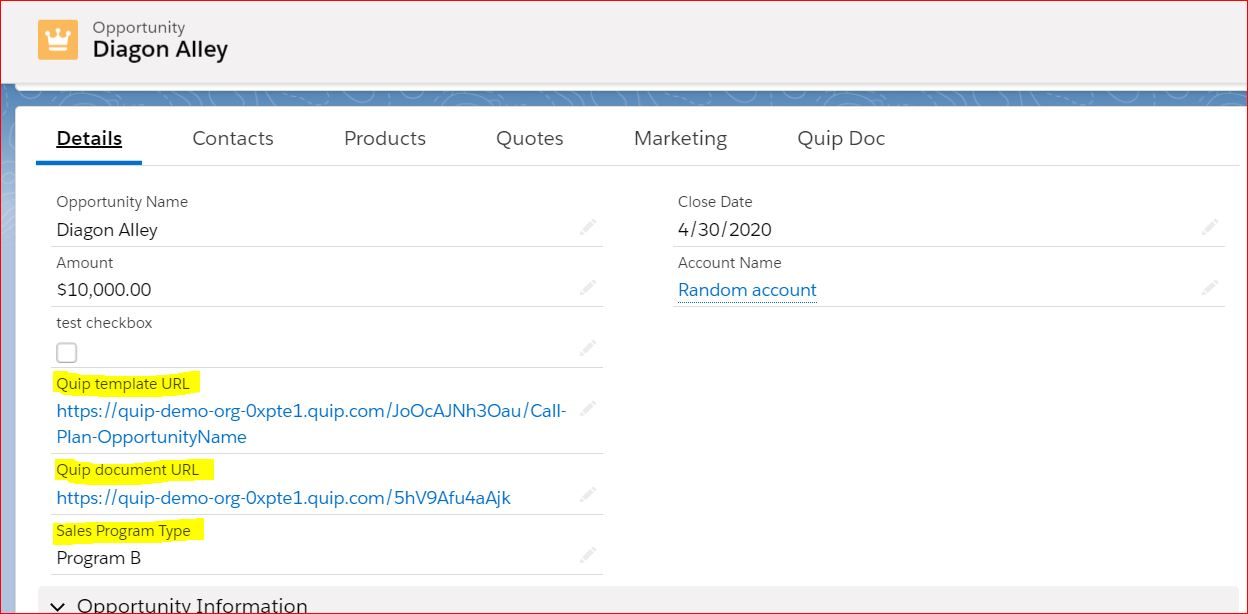
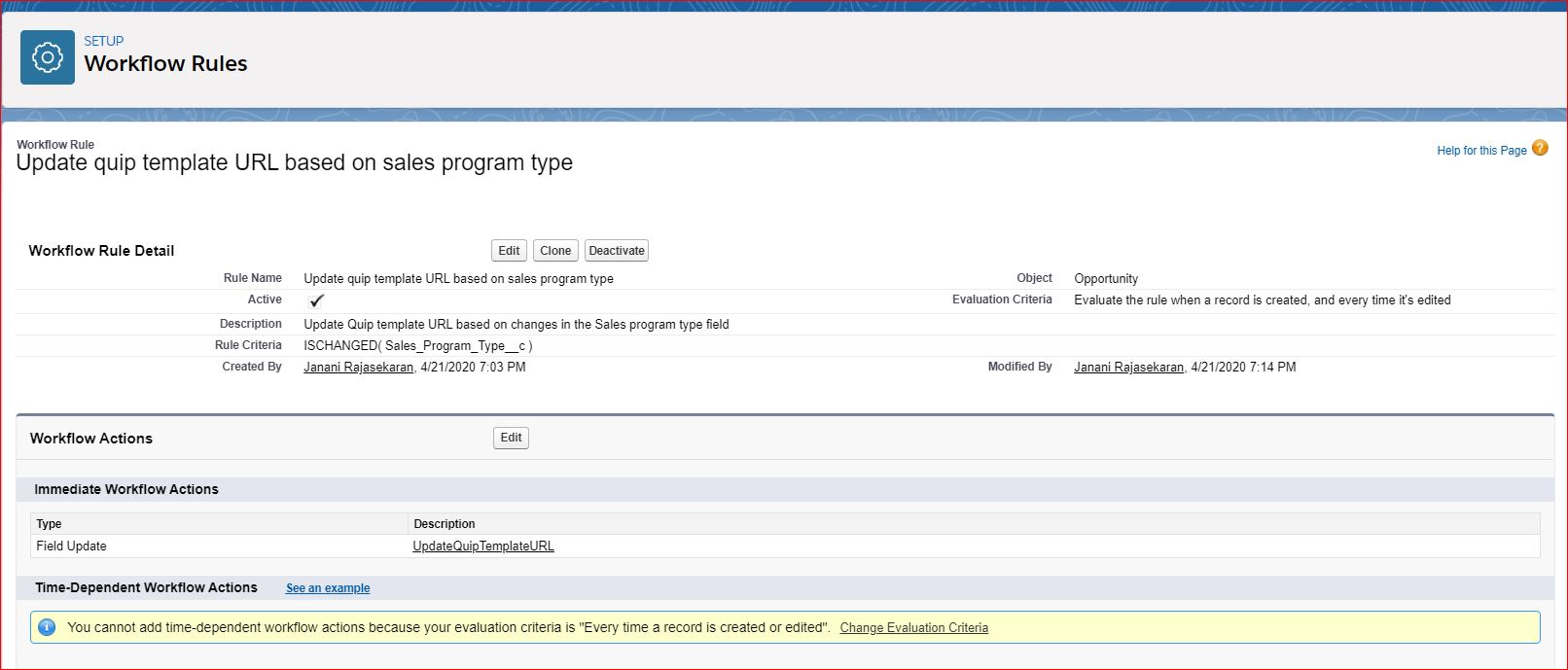
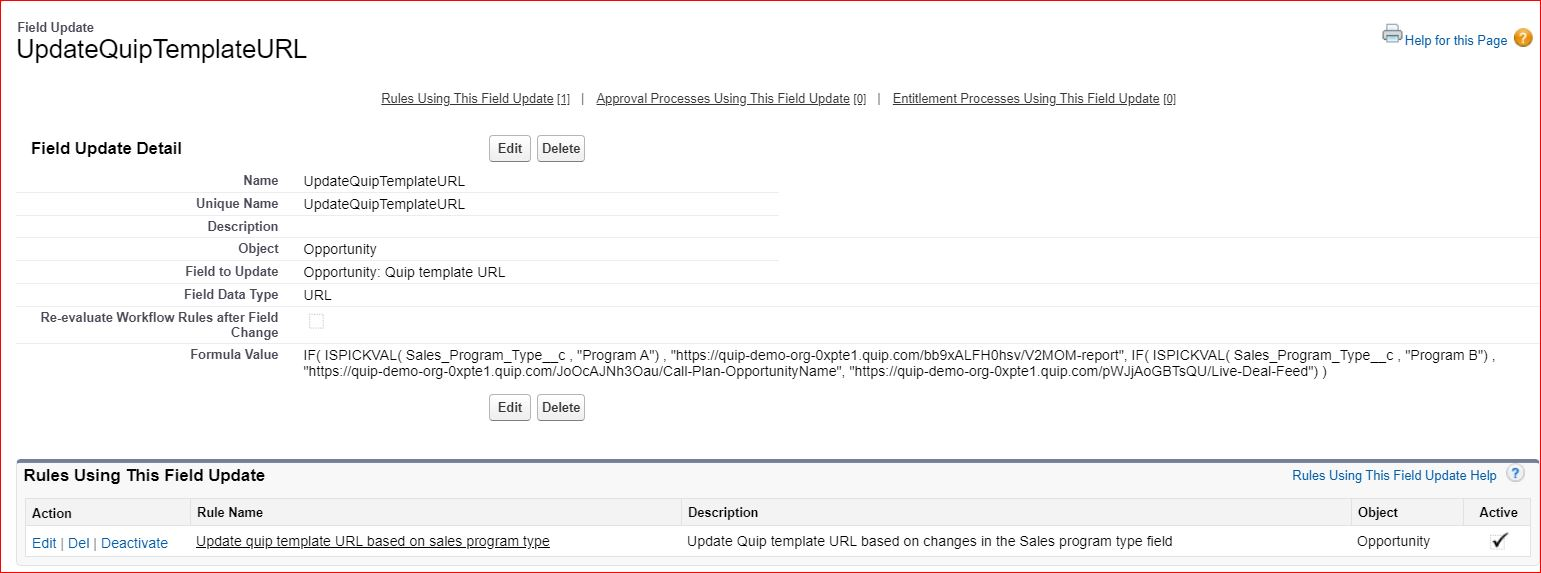
- Create a workflow field update to automatically populate the template URL field based on the program type chosen from the Sales program Type field. Activate the Workflow field update after creating it.
- In my example I have 3 picklist values - Program a, Program B and Program C and I am updating different template URL fields based on the corresponding program value chosen.
- I would also suggest having a validation rule in place here to check that the template URL is never null since the Quip doc generation depends on the value in this field.
ISCHANGED( Sales_Program_Type__c )
Rules using this field update:
IF( ISPICKVAL( Sales_Program_Type__c , "Program A") , "https://quip-demo-org-0xpte1.quip.com/bb9xALFH0hsv/V2MOM-report", IF( ISPICKVAL( Sales_Program_Type__c , "Program B") , "https://quip-demo-org-0xpte1.quip.com/JoOcAJNh3Oau/Call-Plan-OpportunityName", "/pWJjAoGBTsQU") )
- Next create an autolaunched flow (Named it Quip Option 4 use case Flow) that automatically creates a quip document from the embedded template URL and updates the Quip document URL field with the value of the newly created doc URL.
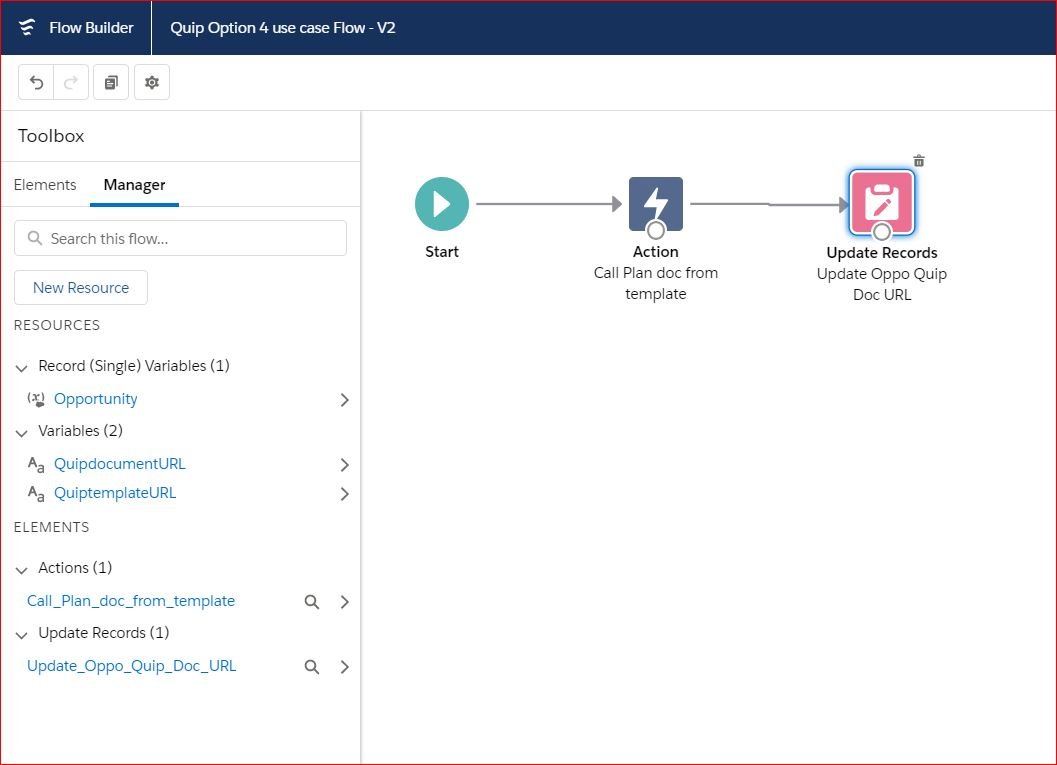
- To begin, create three flow variables as follows
- Opportunity - This is a Record variable that holds a pointer to the Opportunity record that triggered the flow
- QuipTemplateURL - This is a text input variable that contains the value of the template URL on the Opportunity record detail page
- QuipDocument URL - This is a text output variable that holds the value for the document URL of the newly created Quip doc.
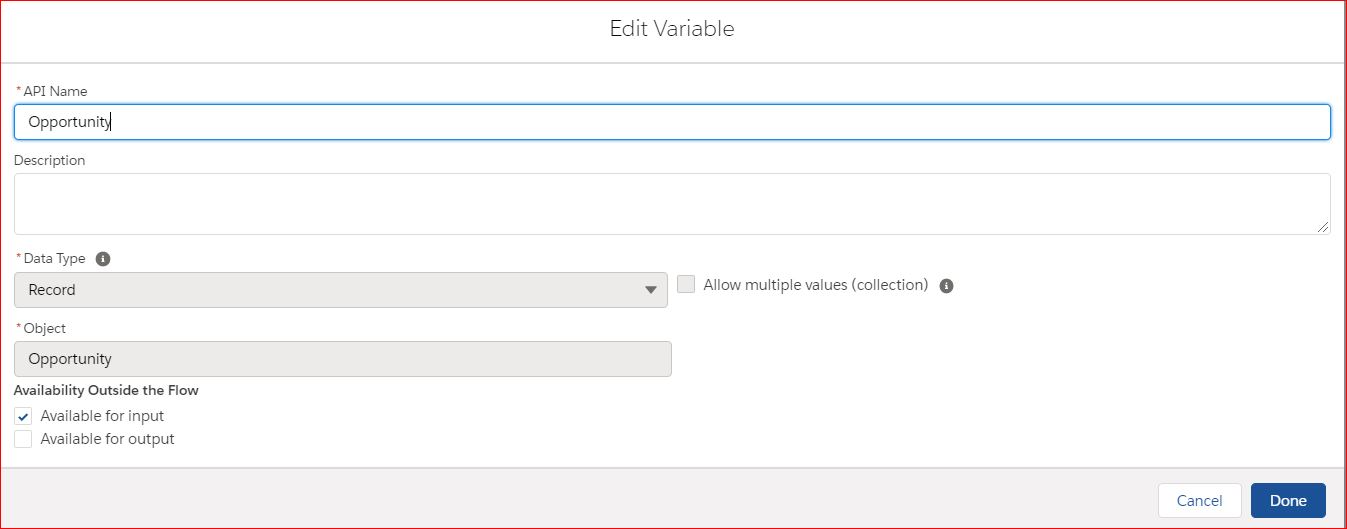
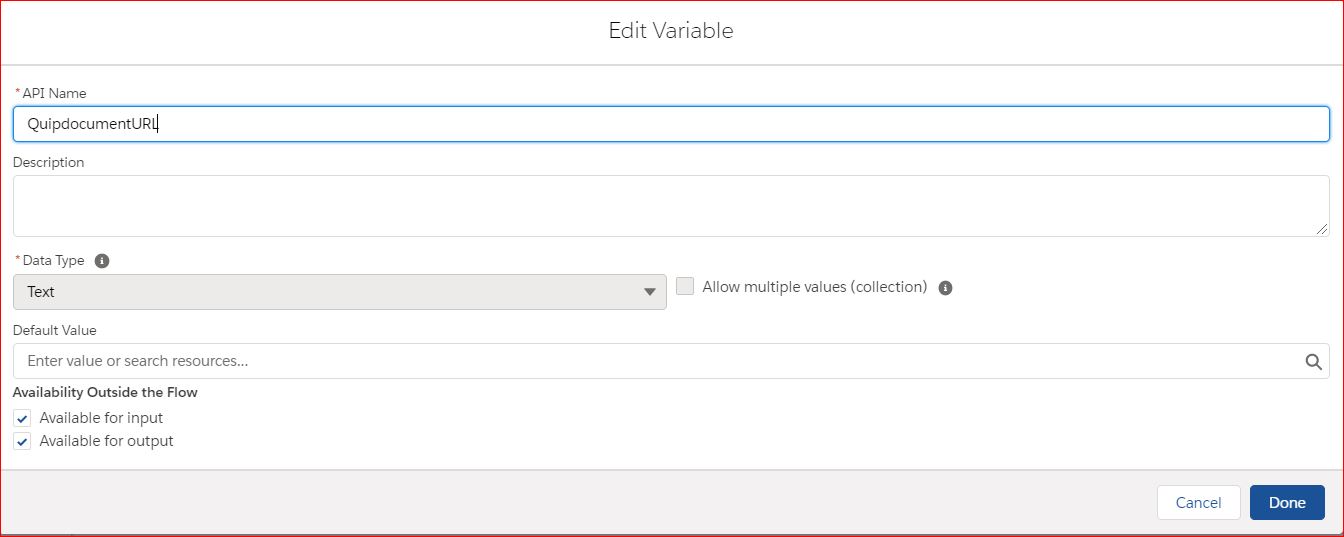
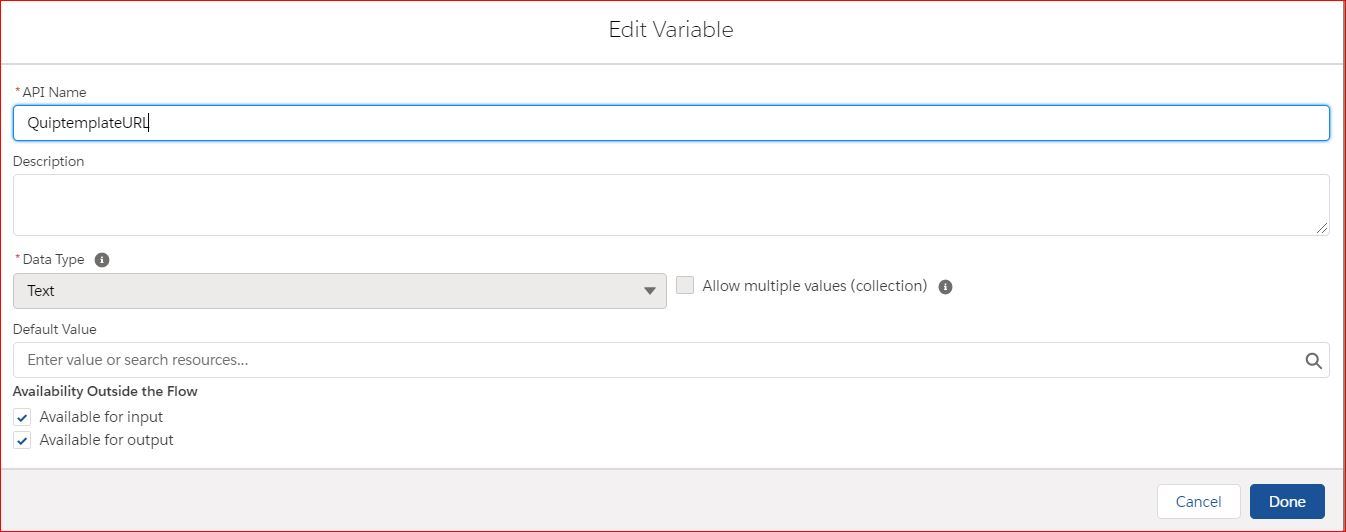 Next create a flow Action (Named it Call Plan Doc from template) that auto creates a Quip document from the template URL stored in the flow variable QuipTemplateURL. This is a Quip ‘Copy Document’ action component.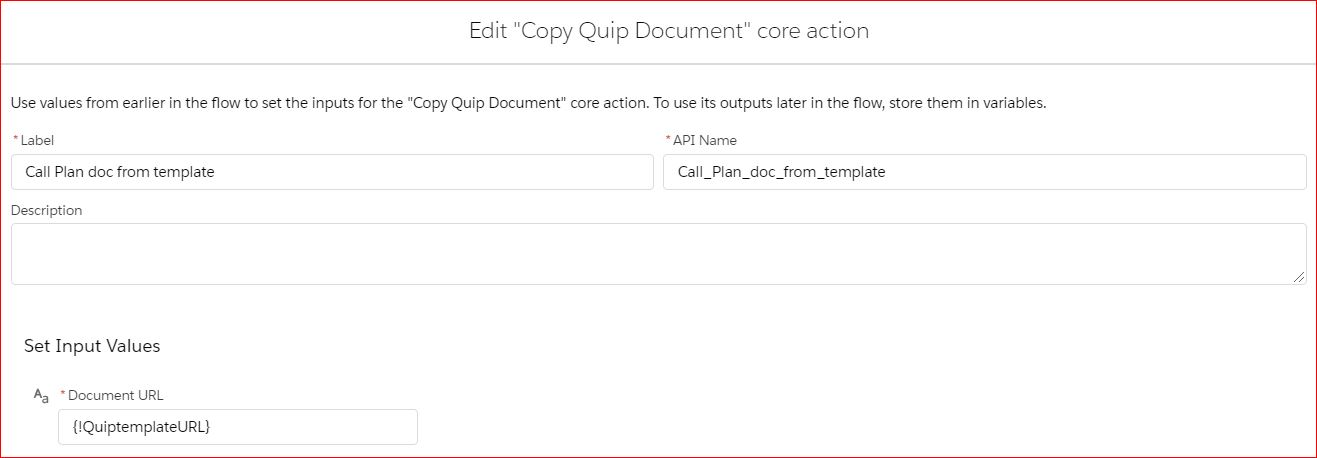
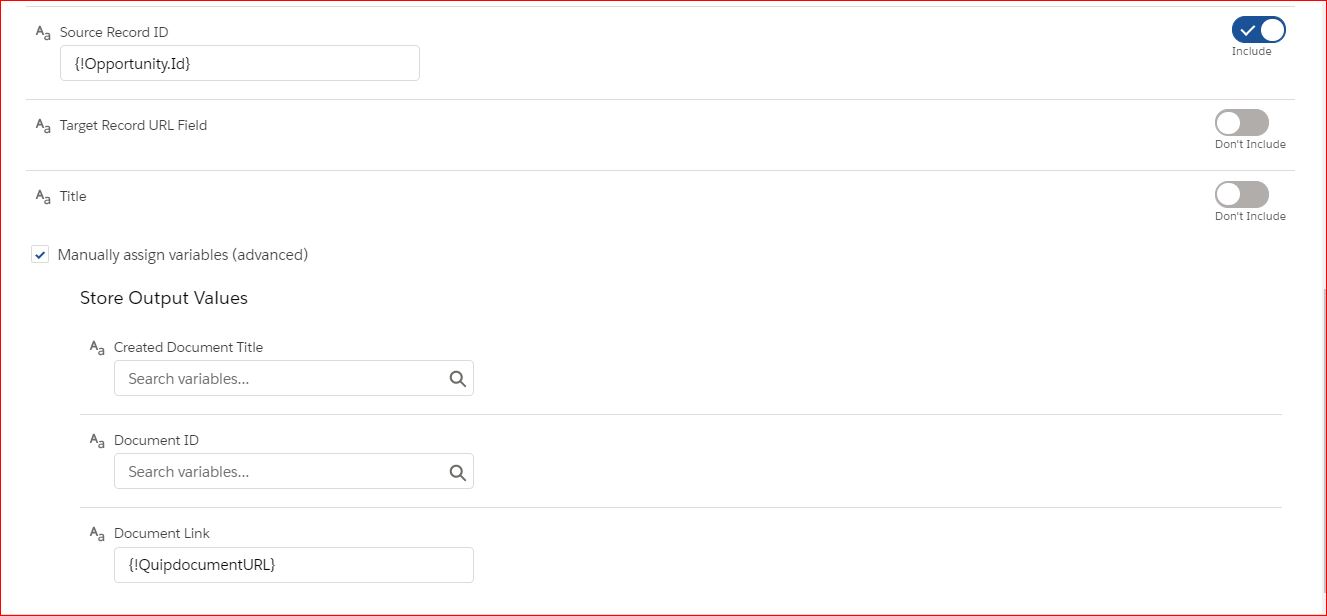
- Set the source Record Id to be Opportunity.Id and assign the Document Link to the QuipdocumentURL flow variable temporarily.
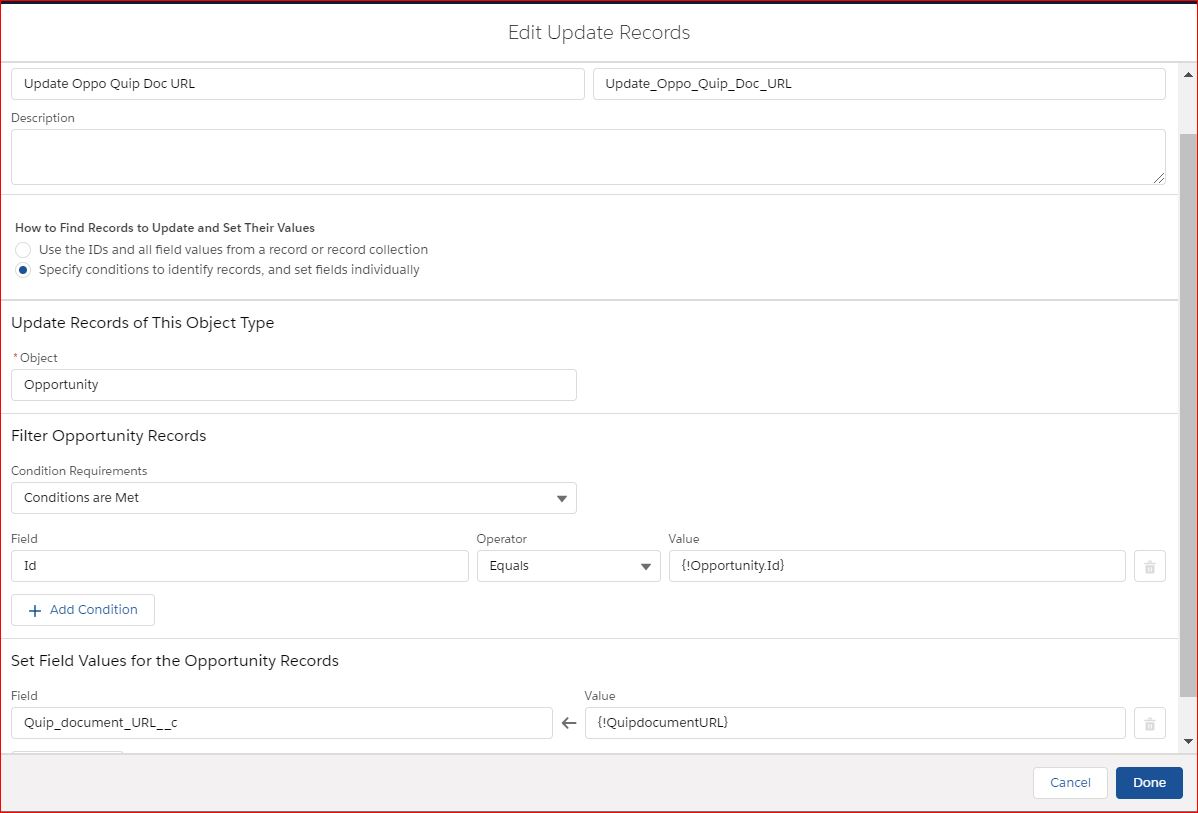
- Next drag and drop an update record component to update the Quip_document_URL custom field that we created initially with the value that we temporarily stored in the flow variable QuipdocumentURL.
- Finally activate the autolaunched flow.
- Next we need to create the process builder that calls the above autolaunched flow. Create the process builder on Opportunity record and set it to when a record is created or edited.
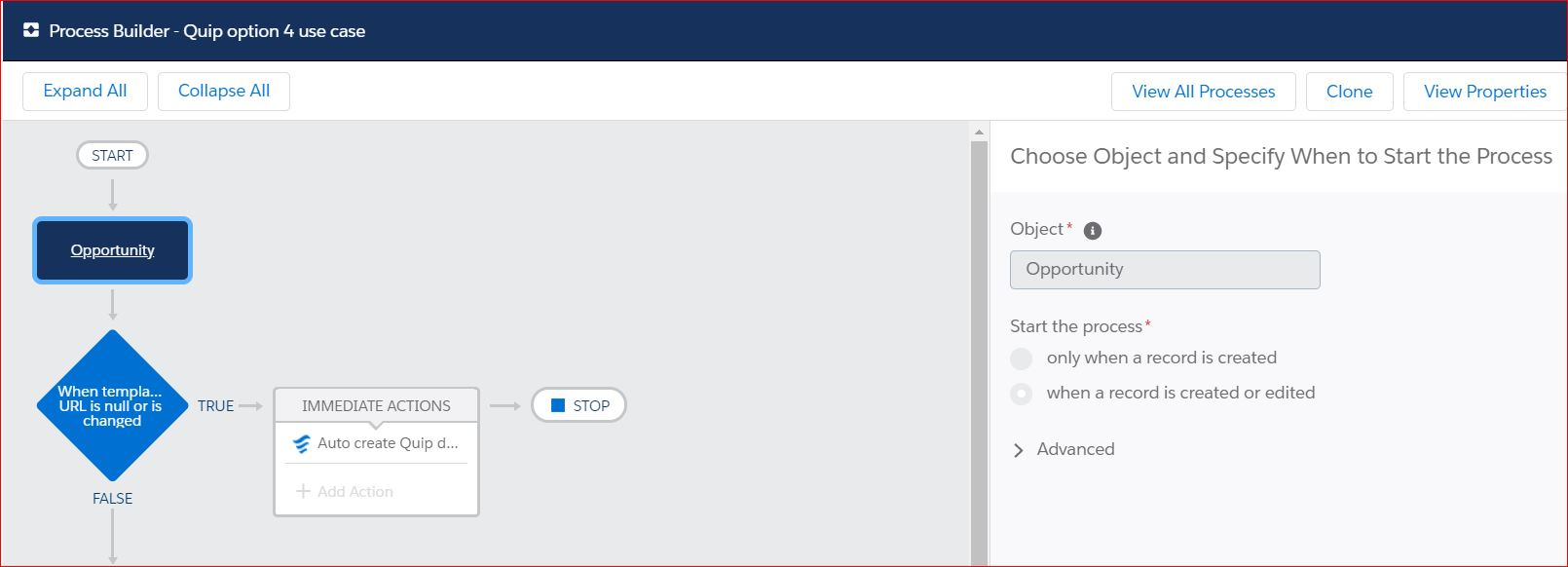
- Next set the condition to the following: Opportunity.Quip_template_URL is not null OR Opportunity.Quip_template_URL ischanged.
- We check for [Opportunity].Quip_template_URL ischanged boolean true so we keep regenerating new Quip docs every time the sales program type which will inturn change the template URL.
- We check for [Opportunity].Quip_template_URL is null boolean false since the document generation depends on the value in the template URL field and this should never be null.
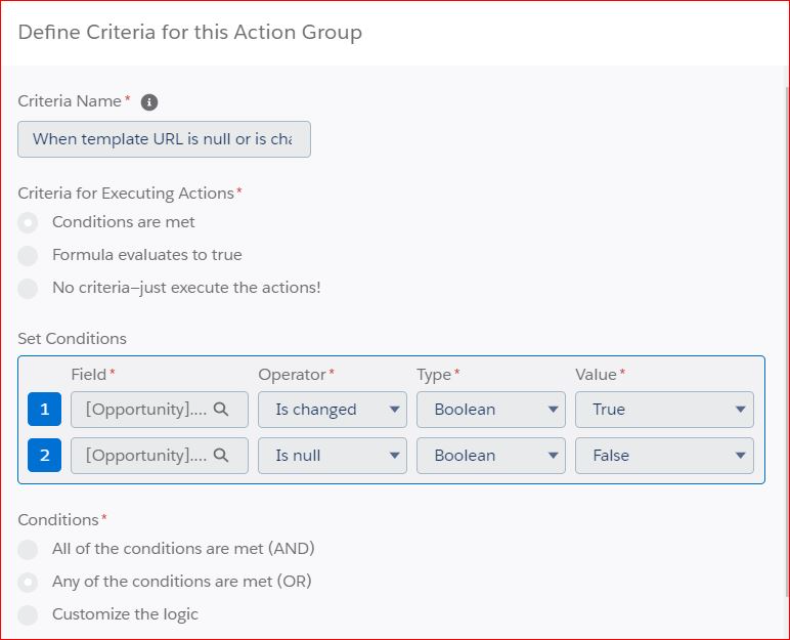
- When the subsequent conditions are met, the immediate action will call the autolaunched flow which would set the two flow variable values to be passed on to the flow from the process builder.
- QuiptemplateURL flow text variable is a field reference to the [Opportunity].Quip_template_URL custom field.
- Opportunity flow record variable is a field reference to the [Opportunity] record in itself.
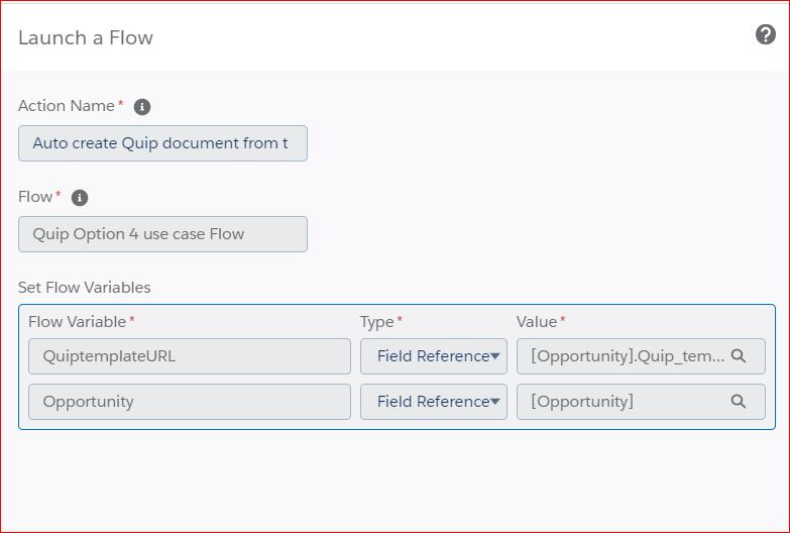
- Activate the process builder finally.
- End user either creates a new opportunity record or edits an existing record.
- First the workflow field update gets triggered and based on the value entered in the Sales program type it populates the corresponding template URL value that you have mentioned.
- After this update the process builder gets called and checks for the conditions in the decisions box to see if the opportunity records meets the logical OR.
- Once that check is complete the template URL and opportunity records values get assigned to the corresponding flow variables.
- The autolaunched flow gets called finally. This auto creates the Quip doc from the corresponding template URL field value and updates the opportunity document URL field as well with the value of the newly created document.
- You can double check within the Salesforce record details page in the Quip custom tab, the corresponding associated quip documents and components section (if you have that added to your app builder page as well) and also within your private folder in your Quip site and you will notice the newly created quip document.
Ressources supplémentaires
Numéro d’article de la base de connaissances
000394840
Cet article a-t-il résolu votre problème ?
Dites-nous ce que nous pouvons améliorer !
