Välj en organisation
Sales & Service: How to Disconnect a User's Multi-Factor Authentication (MFA)
Publiceringsdatum: Oct 22, 2025
Beskrivning
When a user accidentally deletes their Multi-Factor Authentication (MFA) authenticator app or changes their smartphone, their MFA registration must be disconnected in Salesforce. This article explains the procedure for a System Administrator to disconnect a user's MFA for Agentforce Sales and Agentforce Service (formerly Sales Cloud and Service Cloud).
Examples of situations that require disconnecting an MFA verification method include:
-
The user accidentally deleted their MFA authenticator application.
-
The user removed their Salesforce account from the MFA authenticator application.
-
The user wants to change their Multi-Factor Authentication (MFA) verification method.
-
The user changed their mobile device without enabling the backup feature in Salesforce Authenticator.
-
The user wants to switch to a new mobile device for the authenticator app (e.g., the device was lost or broken).
-
The user sees the "Verify Your Identity" screen but has forgotten which authenticator application was connected to the account.
Note: Users who are not System Administrators can disconnect MFA for other users if they are assigned the "Manage MFA in User Interface" permission for their Salesforce license. This permission also allows them to generate temporary verification codes, making it a useful backup plan when a System Administrator is unavailable.
(Caution) Be careful not to confuse this with the "Multi-Factor Authentication for User Interface Logins" permission.
Lösning
This article explains how a System Administrator (or a user with the "Manage MFA in User Interface" permission) disconnects a user's Multi-Factor Authentication (MFA) registration in Salesforce.
For Lightning Experience
- Log in to Salesforce, click the gear icon in the upper right, and select [Setup].
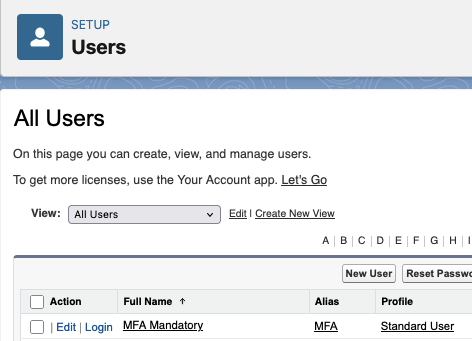
- Navigate to [Administration] | [Users] | [Users], and click the name of the user whose MFA you want to disconnect.
For Salesforce Classic
- Log in to Salesforce and click [Setup].
- Navigate to [Manage Users] | [Users], and click the name of the user whose MFA you want to disconnect.
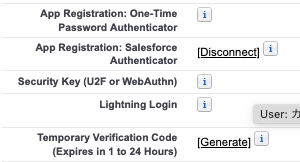
- The user's MFA connection status is displayed on the left side of the user detail page. For example, if Salesforce Authenticator is connected, click [Disconnect] to remove the MFA registration.
- If other MFA verification methods are registered, click [Disconnect] or [Remove] as needed.
If the user is using a Built-in Authenticator, the registration status is shown in the "Built-in Authenticator" section at the bottom of the user's detail record. Click [Remove] to disconnect it.

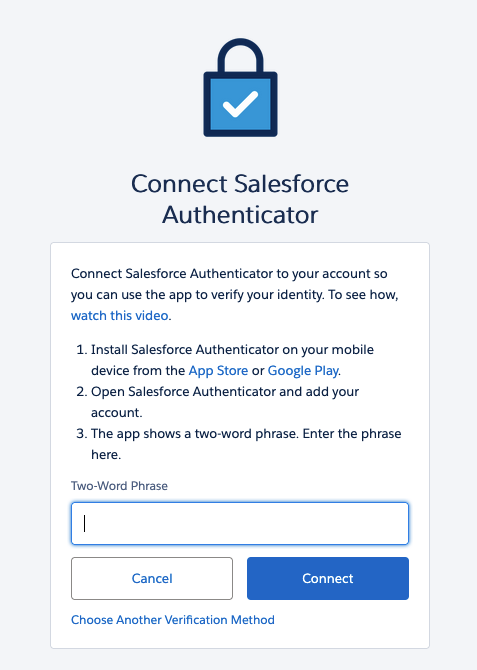
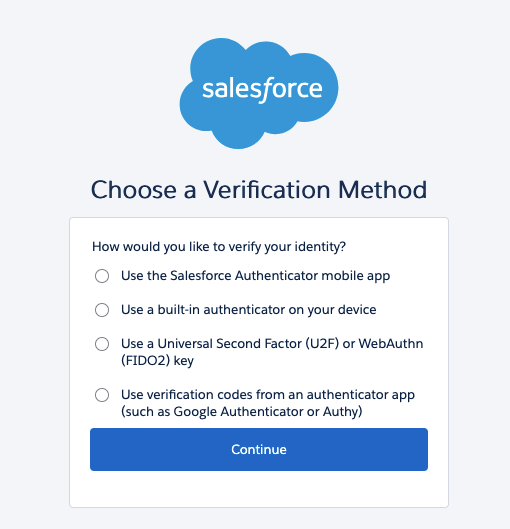
- The next time the user logs in to Salesforce, they will be prompted to register a new MFA method. The specific registration screen that appears depends on your organization's settings.
Ytterligare resurser
Recover Access if Your Verification Method Is Replaced, Gets Lost, or Stops Working (Salesforce Orgs)
Delegate MFA Management Tasks for Salesforce Orgs
Generate a Temporary Verification Code for MFA Logins to Salesforce Orgs
Common multi-factor authentication (MFA) troubleshooting
Knowledge-artikelnummer
000395007
Löste denna artikel ditt problem?
Berätta för oss vad vi kan förbättra!
