Valitse organisaatio
Salesforce Help Org Selection (Org Picker)
Julkaisupäivä: Jun 23, 2026
Kuvaus
For Help.Salesforce.com customers who have multiple orgs to support, org selection is useful when getting support and viewing cases. For this reason, we have eliminated the site-wide Org Picker and located Org Picker on the Contact Us and View Salesforce Cases pages.
Ratkaisu
The new Org Picker experience can be accessed from the Global Navigation by visiting the My Cases tab on the My Cases dropdown.
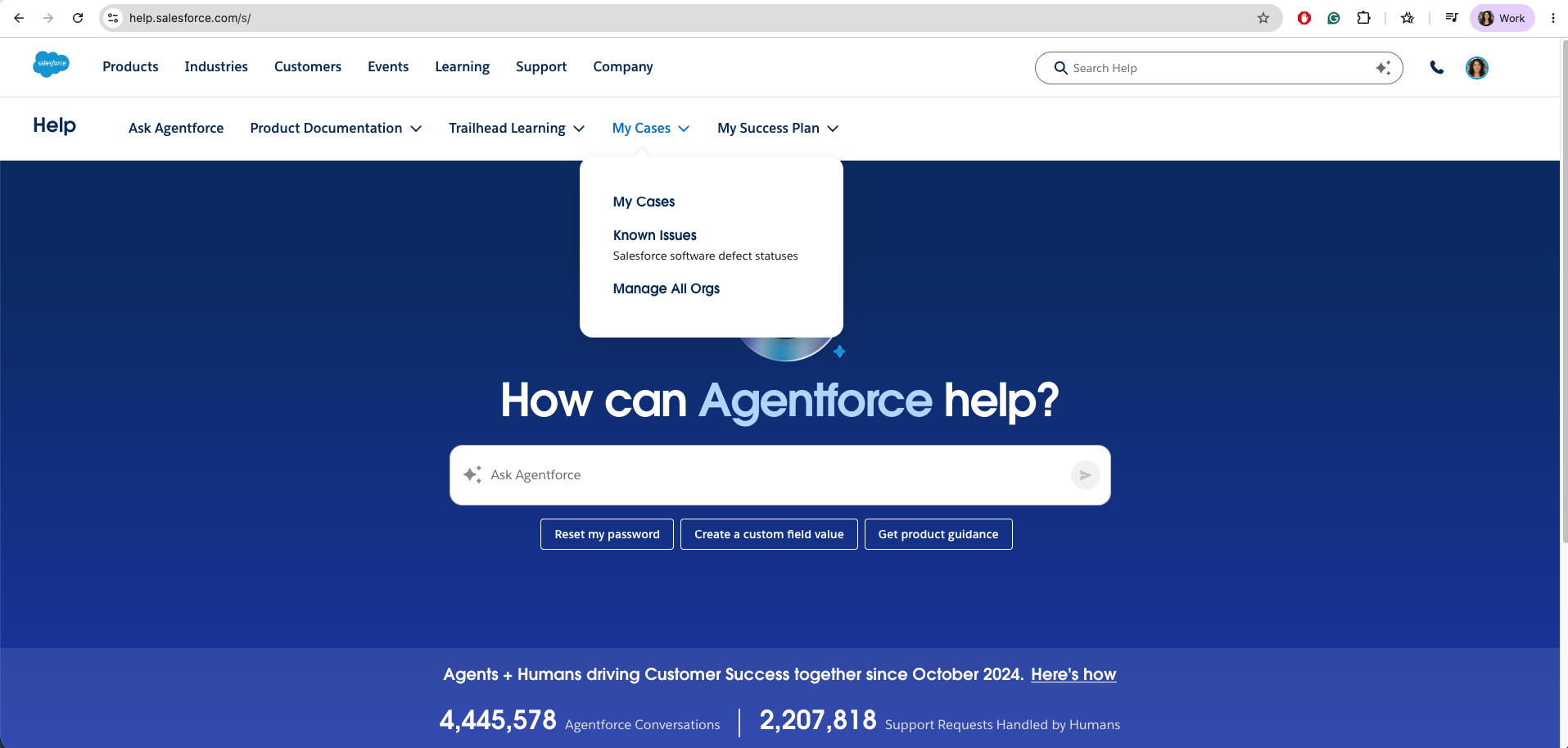
On the My Cases page, you see a button to Select An Org. This button triggers the Org Selection experience.

Org Picker User Experience
On clicking the Select an Org button, you are presented with the Org Picker, which lists the last five active orgs by order of last accessed. You can select the org you need support for, then click the Select Org button in the Org Picker to change your org. When you select your org, the page is refreshed to show data for the newly selected org.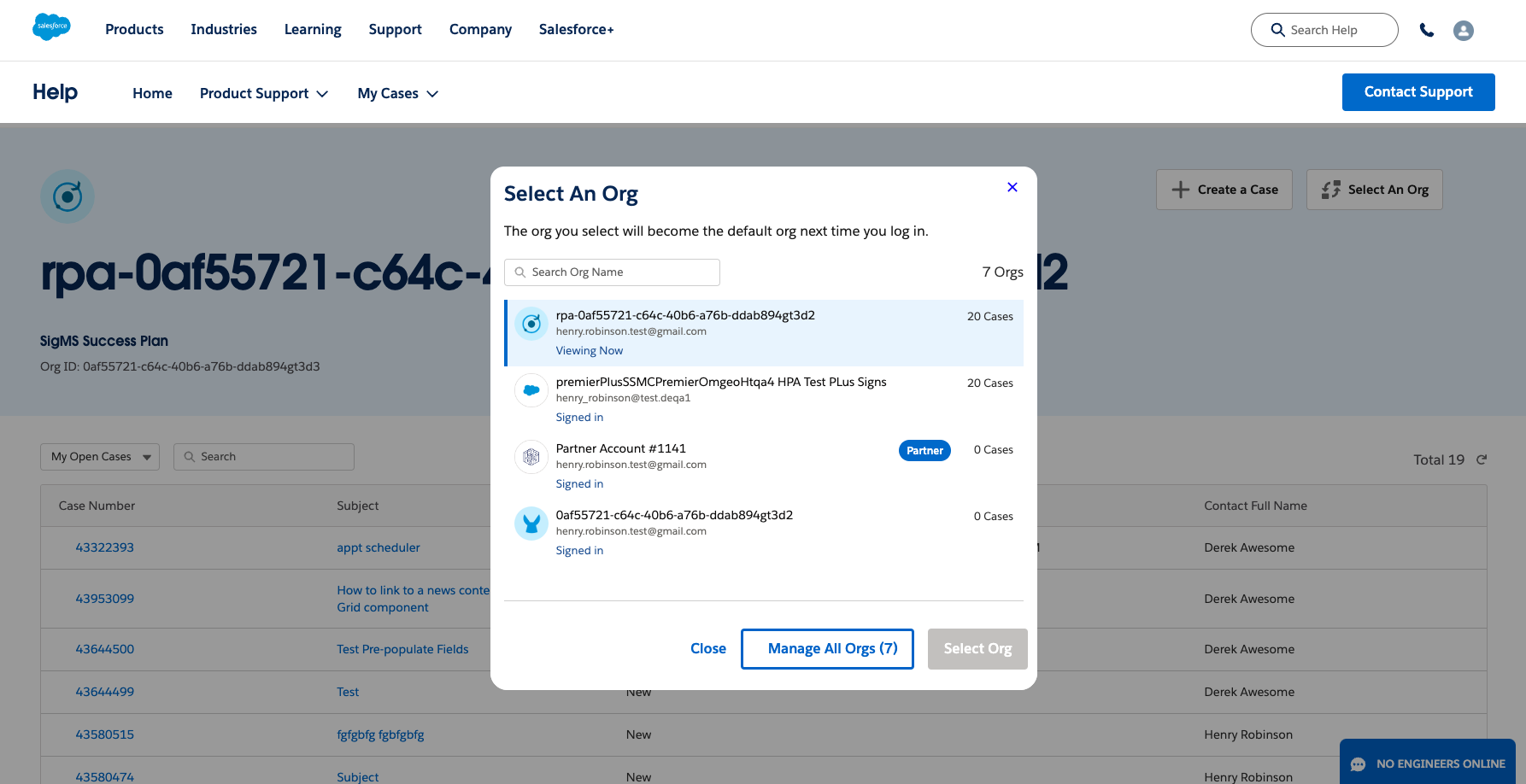
As Org Selection is a prerequisite for support, your last accessed org is preselected on login. If you are logging in for the first time, you are directed to select an org. If your org is not listed in the Org Picker, click the "Manage All Orgs" button to view all your orgs.
After you have selected your org for the first time, that org will be the last accessed org until you select another. If your org is not listed in the Org Picker, click the "Manage All Orgs" button to view all your orgs.
Your currently selected org is listed with the status Viewing Now. Orgs that share the email address that was used for login that can be accessed are listed as Signed In. If you try to select an org unrelated to the email you used to log in, the org requires a step-up or secondary login. In such cases, you see the org in the Org Picker, but cannot click Select Org to change to this org. Any org requiring a step-up or secondary login is listed with the status Login. To log in to any org that is not associated with the email you used for login, please click Manage All Orgs.
Lisäresurssit
For more information on finding or changing your Designated Contacts, please review Create and Manage Designated Contacts on Salesforce Help.
For Tableau customers, if you do not see the organization you are expecting, please review the article How to Troubleshoot if you Don't See Your Tableau Tenant Within the Salesforce Help Portal.
Knowledge-artikkelin numero
000395067
Ratkaisiko tämä artikkeli ongelmasi?
Anna palautetta, jotta voimme kehittyä!
