Seleziona un'organizzazione
Channel Order App (COA) Service Order Creation via Dataloader and API Submission - Customer Record Creation
Data pubblicazione: Apr 11, 2023
Descrizione
Risoluzione
How to Data Load a Customer Record for an Initial Order
- Use Excel or Google Sheets and create a tab labeled “Customer__c”
- On this tab you will need to create a header with a list Field Names related to the Customer Record
- This Google Sheet is an example of how it should look with both the field headers and information filled out: “Customer__c”
- Next you will need to fill in the information below your headers on the Customer__c tab.
- CHANNEL_ORDERS__Customer_Company_Name__c this should be the name of your Customer.
- CHANNEL_ORDERS__Customer_Org_ID__c this should be the Org ID of your Customer
- This should be provided by your Customer
- CHANNEL_ORDERS__Customer_City__c this should be the city where your Customer is located.
- CHANNEL_ORDERS__Customer_Country__c this should be the country where your Customer is located.
- CHANNEL_ORDERS__Customer_State__c this should be the state or province your Customer is located.
- CHANNEL_ORDERS__Customer_Street__c this should be street address of your Customer.
- CHANNEL_ORDERS__Customer_ZIP_Postal_Code__c this should be the zip or pin code of your Customer.
- Next you will need to insert your Customer Records into your COA.
- To do this you first need to have Salesforce Data Loader
-
- Information on how to download Salesforce Data Loader can be found here: https://developer.salesforce.com/tools/data-loader
-
- Step 1: Login
- To login into Data Loader click “Insert”
- We use “Insert” because we are creating new data in your COA
- After you are logged into Data Loader click “Next”
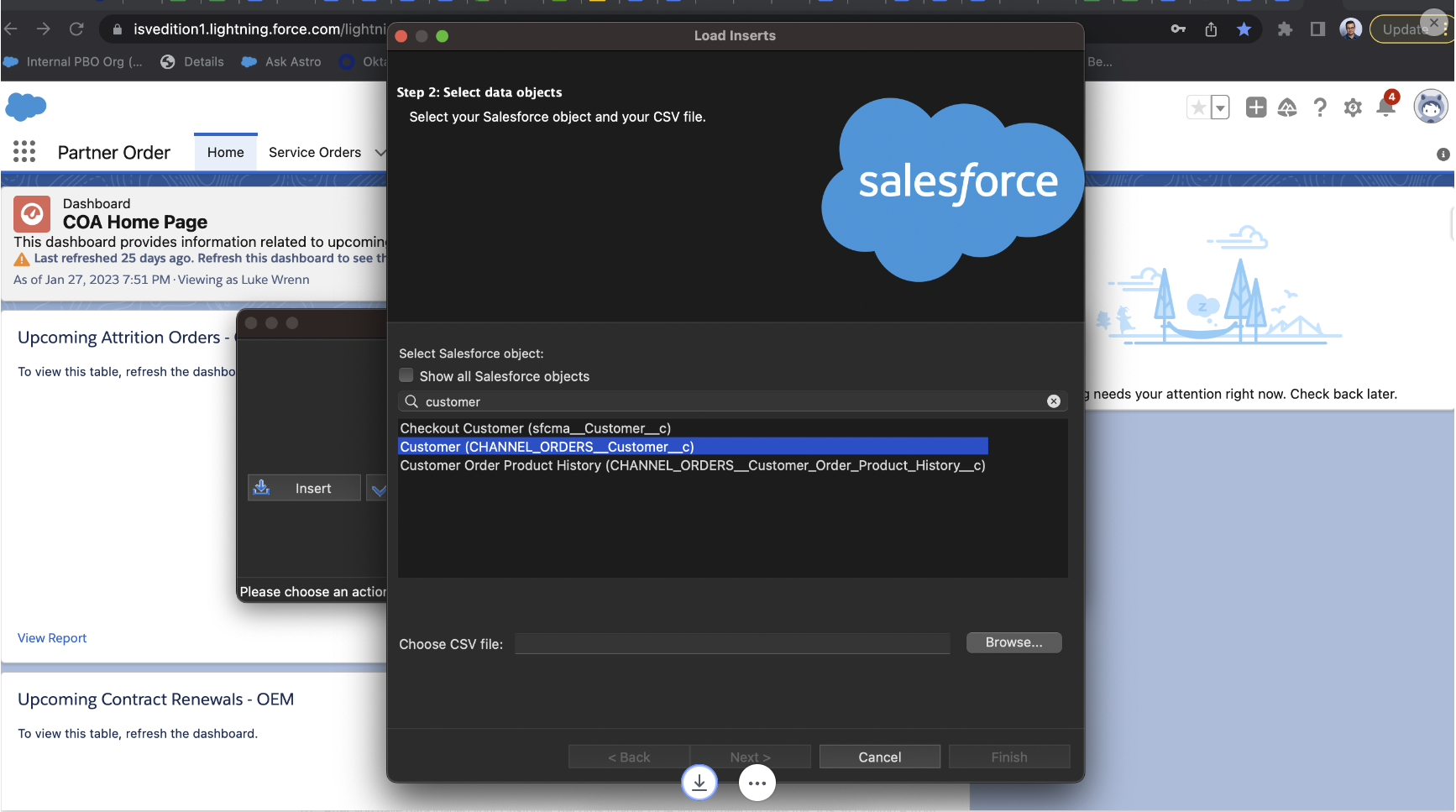
- Step 2: Select data objects
- Search “Customer” in the text box
- Select “Customer (CHANNEL_ORDERS__CUSTOMER___c)”
- You then have to choose your CSV file of your Customer Records.
- You then click “Next”
- You will be prompted with a “success pop up”. Click “OK”
- Step 3 Mapping
- You will need to map your CSV fields to Salesforce Objects
- Click “Create or Edit a Map”
- Click “Auto-Match Fields to Columns”
- Click “OK”
- Click “Next”
- Click “Finish”
- You will be prompted with “You have chosen to insert new records. Click Yes to begin. Do you want to proceed?”
- Click “Yes”
- You will then be prompted with a “Successful” page
- You can login to your PBO and check the new Customer Record by searching the Customer Name in “Customers”
- After you have data loaded your Customer Records to your COA you will need to take the “IDs” in Column A from your Success File and paste them into the column C CHANNEL_ORDERS__Customer__c in your Service Orders tab.
Please continue to the remaining steps of this process.
Step 2. CSV File Creation
Step 3. Dataloader Process
Step 4. API Order Submission
Step 2. CSV File Creation
Step 3. Dataloader Process
Step 4. API Order Submission
Numero articolo Knowledge
000395090
Questo articolo ha risolto il problema?
Facci sapere, così possiamo migliorare!
