Seleccionar una organización
Salesforce Authenticator: Automated verification from a trusted location is not working
Fecha de publicación: Apr 30, 2026
Descripción
This article explains why Salesforce Authenticator's automated verification (auto-approval) from a trusted location may not work. This feature is not available for logins using Lightning Login or the Salesforce mobile app.
Solución
Automated verification (auto-approval) is not available when you use Lightning Login. Please use the standard login method by entering your username and password.
If auto-approval does not work when you log in with your username and password, please refer to the Salesforce Authenticator Automation article.
Additionally, auto-approval may not work when you log in from the Salesforce mobile application. In this case, please approve the request manually.
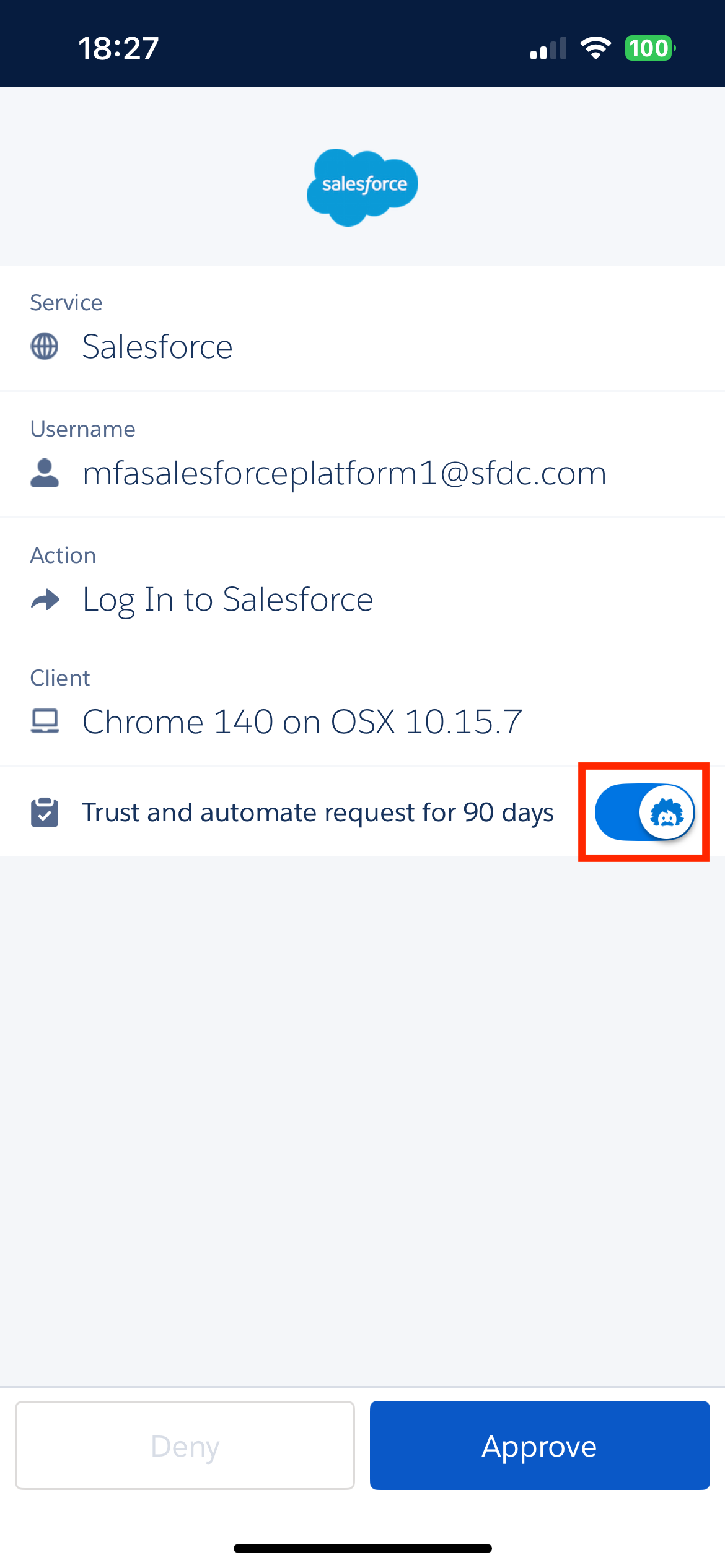
Reference: In Salesforce Authenticator version 4.7.0 and later, when you receive an approval notification, a blue Einstein icon is displayed if the "Trust and automate request for 90 days" switch is enabled, and a gray icon is displayed if it is disabled.
The screenshot shows the Salesforce Authenticator approval screen with the Trust and automate request for 90 days toggle. A blue Einstein icon indicates automation is enabled, while a gray icon shows it is disabled.
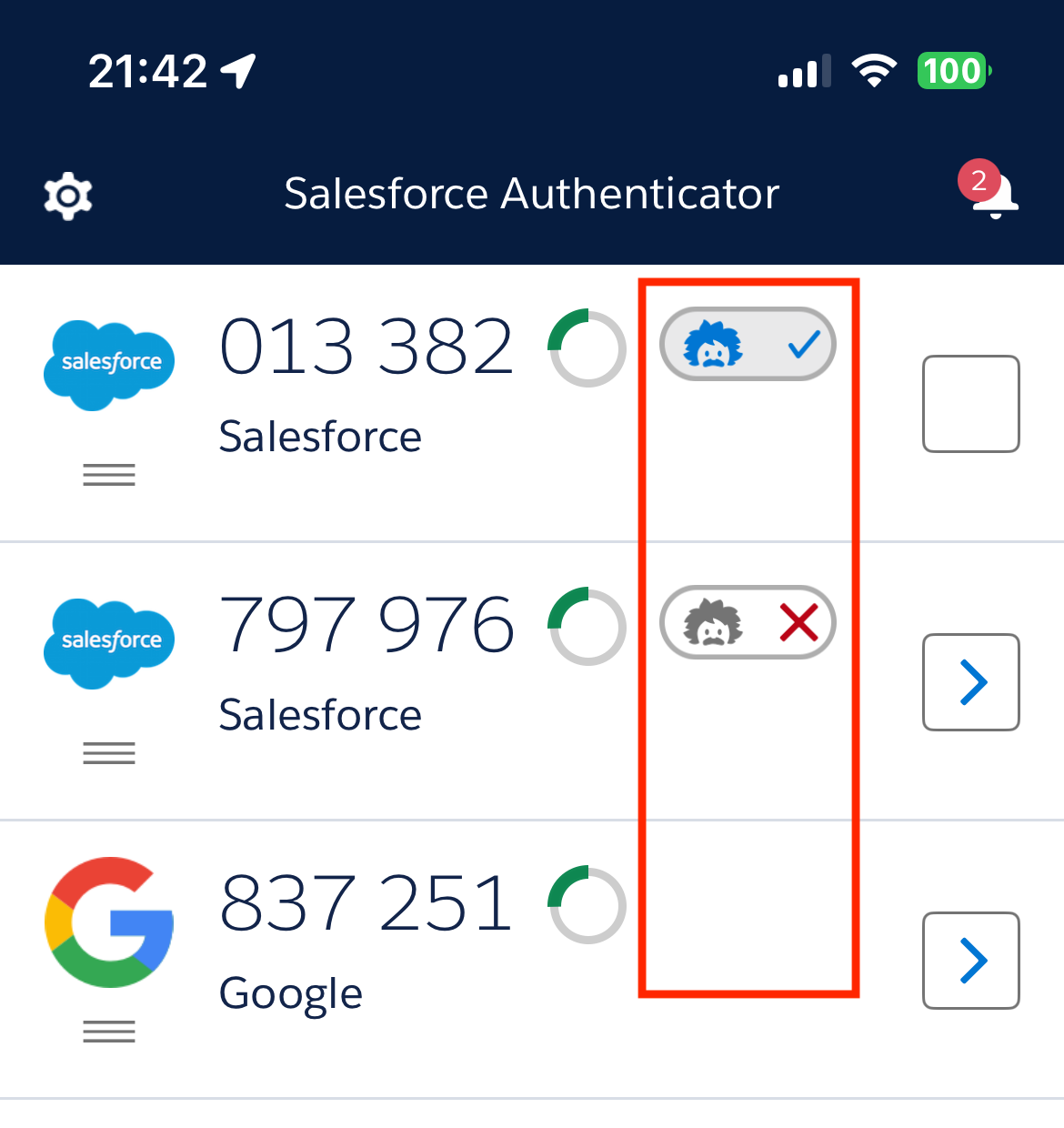
For each account in the list, a blue Einstein icon with a checkmark is displayed if auto-approval is enabled.
A gray icon with an "X" is displayed if it is disabled. If no icon is visible, auto-approval is not available for that account.
Recursos adicionales
Lightning Login for Password-Free Logins
Salesforce Authenticator Automation
Common multi-factor authentication (MFA) troubleshooting
Optimize and Troubleshoot Automation in Salesforce Authenticator
Automate Multi-Factor Authentication with Salesforce Authenticatorurl
Número del artículo de conocimiento
000395163
¿Resolvió este artículo su problema?
¡Háganos saber cómo podemos mejorar!
