Valitse organisaatio
Salesforce Authenticator: Automated Verification from a Trusted Location Is Not Working
Julkaisupäivä: Apr 30, 2026
Kuvaus
This article explains why Salesforce Authenticator's automated verification (auto-approval) from a trusted location may not work. This feature is not available for logins using Lightning Login or the Salesforce mobile app.
Ratkaisu
This article answers the question: why isn't automated verification (auto-approval) from a trusted location working in Salesforce Authenticator?
Lightning Login and Mobile App Limitations
Automated verification (auto-approval) is not available when you use Lightning Login. Use the standard login method by entering your username and password instead.
If auto-approval does not work when you log in with your username and password, refer to the Salesforce Authenticator Automation article.
Auto-approval may also not work when you log in from the Salesforce mobile application. In this case, approve the request manually.
How to Read the Auto-Approval Icons
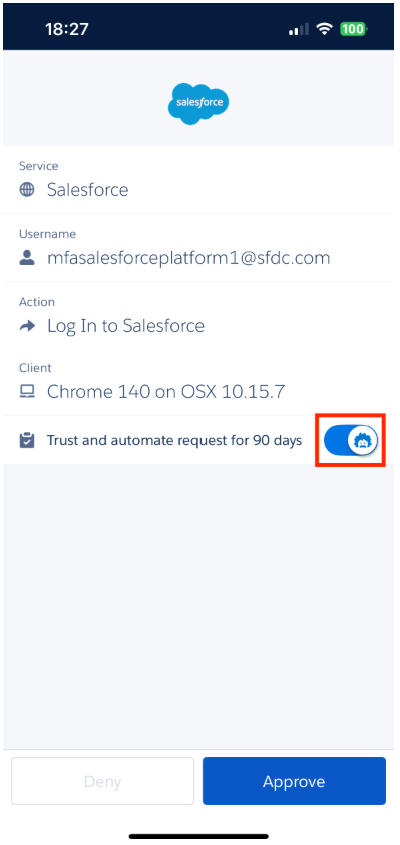
In Salesforce Authenticator version 4.7.0 and later, when you receive an approval notification, a blue Einstein icon is displayed if the "Trust and automate request for 90 days" switch is enabled, and a gray icon is displayed if it is disabled.
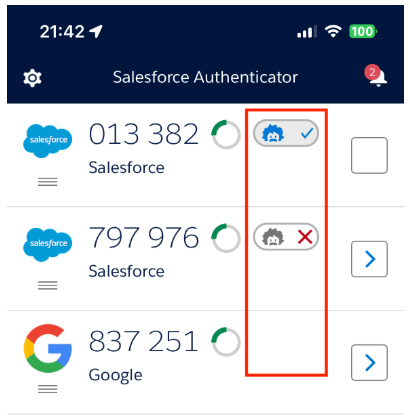
For each account in the list, a blue Einstein icon with a checkmark is displayed if auto-approval is enabled. A gray icon with an "X" is displayed if it is disabled. If no icon is visible, auto-approval is not available for that account.
Lisäresurssit
Knowledge-artikkelin numero
000395163
Ratkaisiko tämä artikkeli ongelmasi?
Anna palautetta, jotta voimme kehittyä!
