Organisation auswählen
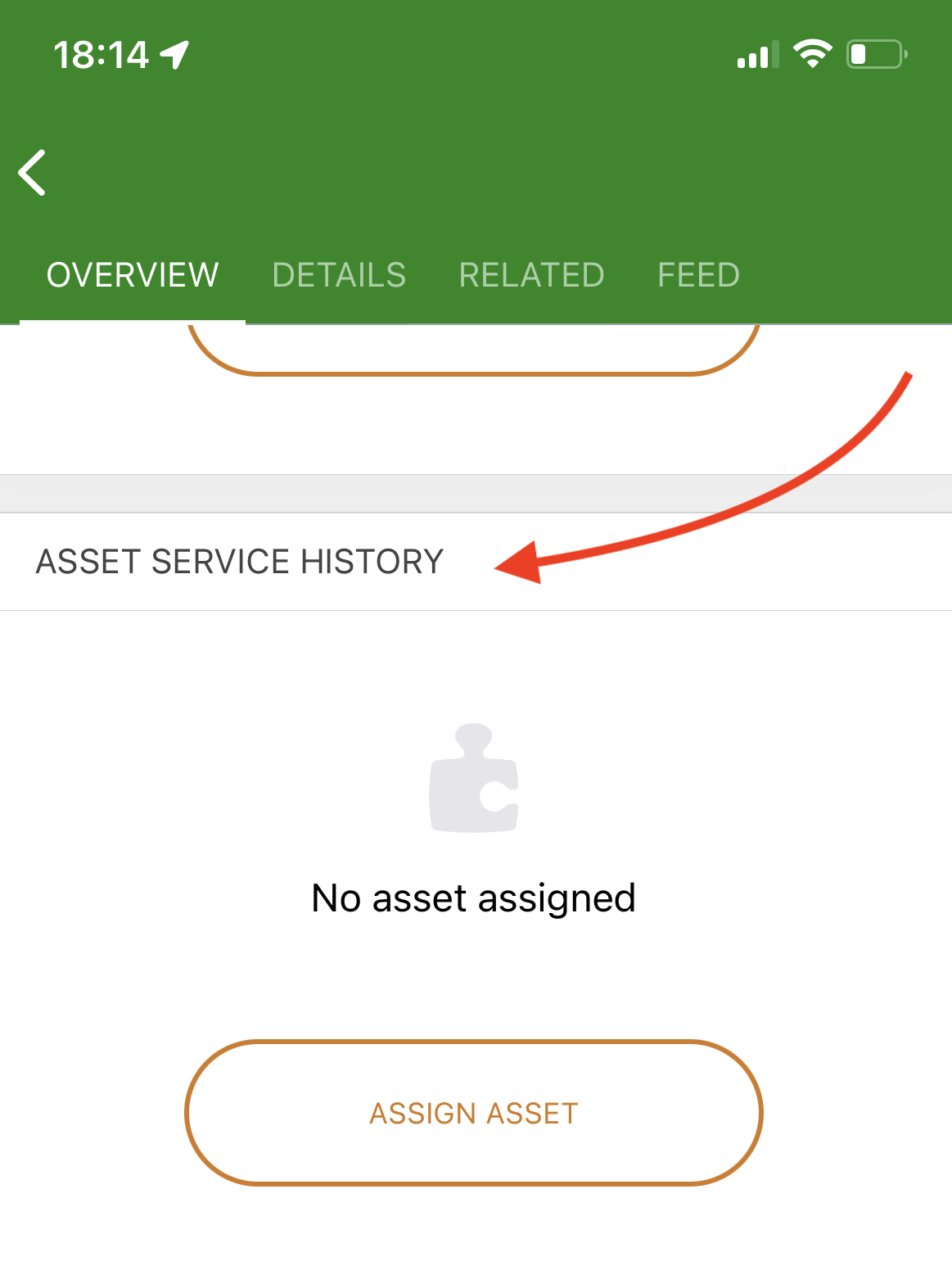
Remove the "Asset Service History" from Salesforce Field Service (SFS) Mobile App
Veröffentlichungsdatum: Feb 27, 2026
Beschreibung
How to remove the "Asset Service History" card from the Field Service mobile app.
Lösung
To remove the "Asset Service History" card from the Field Service mobile app, follow the instructions below:
Desktop:
Step - 1:
- Login to the Salesforce Org as a System Admin
- Go to Setup.
- Go to Object Manager.
- Search for "Work Order"
- Access the page layout assigned to the service resource/technician user profile.
- Remove the “Asset” lookup field from the Work Order page layout
- Click Save
Step - 2:
- Go to Setup.
- In the Quick Find box, search for "Permission Sets".
- Access the "Field Service Mobile License" permission set.
- Go to "Object Settings" and remove access on "Asset".
Step - 3:
- Go to Setup.
- In the Quick Find box, search for "Profiles".
- Access the profile assigned to the service resource/technician user.
- Go to "Object Settings" and remove access on "Asset".
Mobile:
- From the field service mobile app,
Clear Cached Metadata (Profile > Settings > Advanced Settings > Clear Cached Metadata)
(OR)
Log out and Log in to reflect the metadata changes in the field service mobile app.
Nummer des Knowledge-Artikels
000395309
Konnten Sie Ihr Problem mithilfe dieses Artikels lösen?
Geben Sie uns Feedback, damit wir uns verbessern können.
