Select An Org
How to Remove the "Work Order Line Items" Related List from the Salesforce Field Service Lightning Mobile App
Publish Date: May 12, 2026
Description
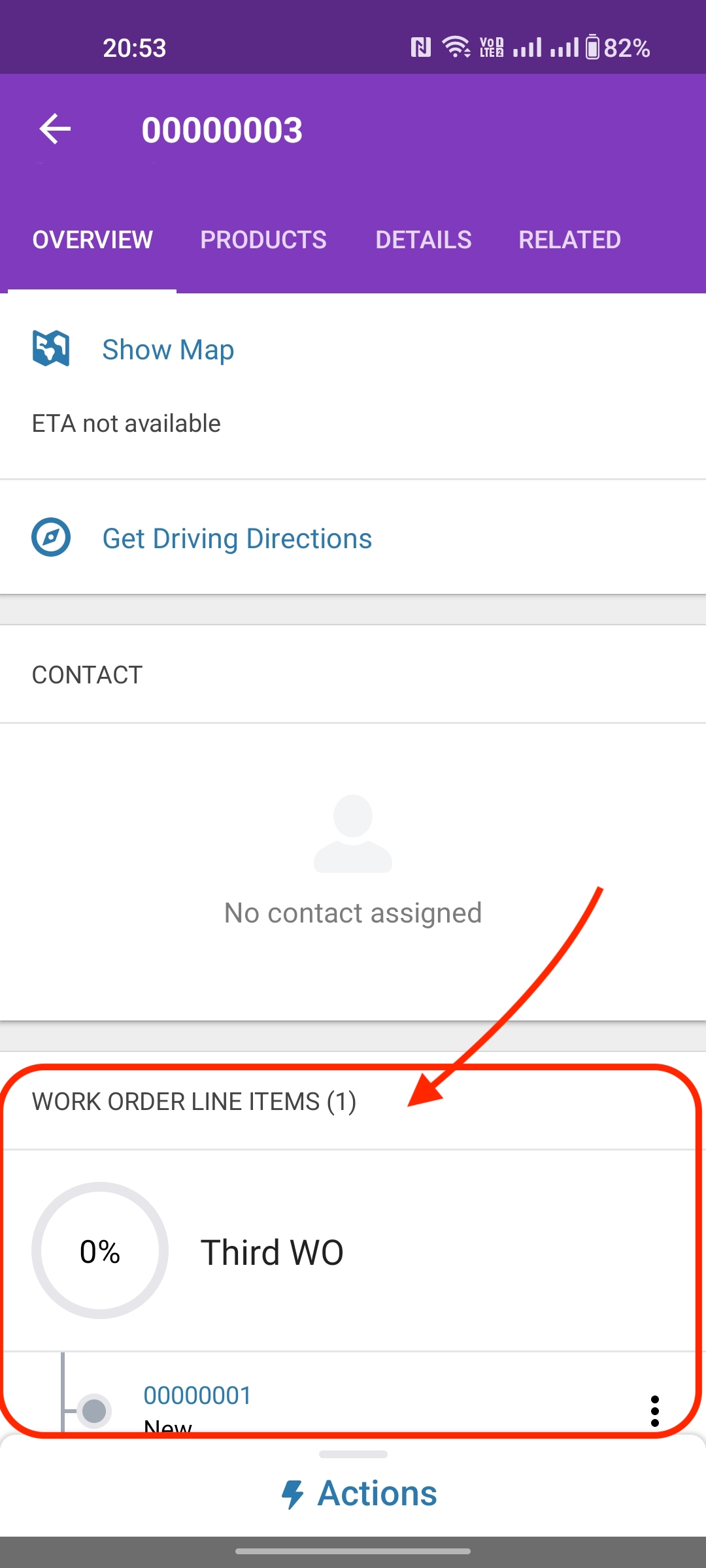
In Salesforce Field Service Lightning, administrators may need to remove the "Work Order Line Items" related list from the Work Order page layout to simplify the technician view in the Field Service Mobile App. When this related list is visible on the Work Order layout, it appears in the mobile app for technicians, which may not be desired for certain workflows.
This article provides steps to remove the Work Order Line Items related list from both the desktop page layout configuration and how to refresh the Field Service Mobile App to reflect the change.
Resolution
Desktop — Remove from Page Layout
To remove the Work Order Line Items related list, a Salesforce System Administrator must update the relevant Work Order page layout:
- Log in to Salesforce as a System Administrator
- Go to Setup using the gear icon
- In the Quick Find box, search for and open Object Manager
- Search for and select Work Order
- Click Page Layouts and open the page layout assigned to the service resource or technician user profile
- In the page layout editor, scroll to the Related Lists section
- Locate Work Order Line Items and remove it from the layout
- Click Save
Mobile App — Refresh to Reflect the Change
After saving the page layout change, the Field Service Mobile App must be refreshed to load the updated metadata. Use one of the following methods:
- Option 1 — Clear Cached Metadata: Open the Field Service Mobile App > Profile > Settings > Advanced Settings > Clear Cached Metadata
- Option 2 — Log Out and Log Back In: Log out of the Field Service Mobile App and log back in to force a full metadata refresh
Additional Resources
Knowledge Article Number
000395311
Did this article solve your issue?
Let us know so we can improve!
