Välj en organisation
Search Multiple Report Fields for One Text Value Using a Row-Level Formula
Publiceringsdatum: Aug 18, 2026
Beskrivning
Lösning
This article explains how to search multiple report fields for a single keyword in Salesforce Reports by combining those fields into one Row-Level Formula column, then filtering on that column.
Options for Filtering Multiple Fields
There are several options for filtering multiple fields in a report based on a specific keyword, such as adding filter criteria for each field to search and then using OR in your filter logic, or creating a formula field on your object if you'll always want to search the same fields.
But one efficient approach that supports flexible changes to your keyword criteria is to combine all the fields to search into one field using a Row-Level report formula.
Steps to Create the Report
Here's how to create a report to fulfill this requirement:
Step 1. Log in to your Salesforce account.
Step 2. In the navigation bar at the top, click on the App Launcher 
Step 3. From the Reports tab, click New Report.
Step 4. Select Account as the report type, and click on Start Report.
Step 5. Save the report with a name of your choosing.
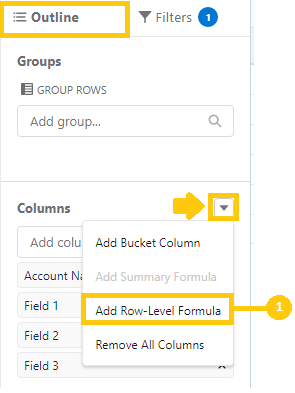
Step 6. From the Columns section of the Outline pane, click the menu icon, then choose Add Row-Level Formula.
Sample Formula
Step 7. From the Edit Row-Level Formula Column window, enter a Column Name, choose a Formula Output Type of Text, and use the formula below. To test your formula for errors, click Validate. If necessary, resolve any errors, then click Apply.
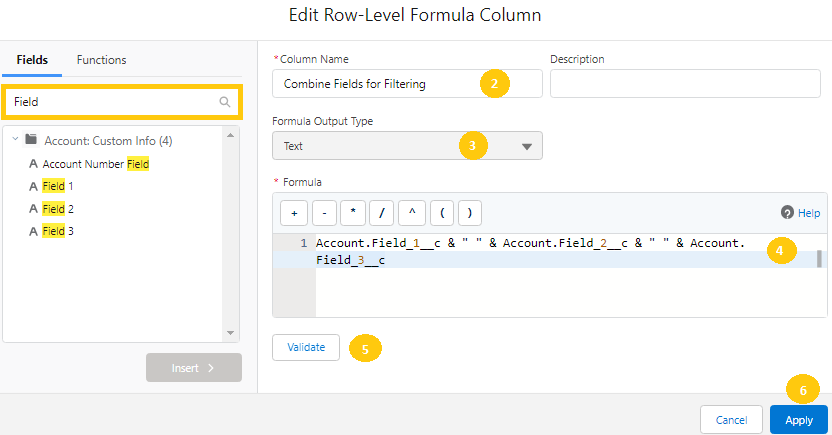
Account.Field_1__c & " " & Account.Field_2__c & " " & Account.Field_3__c
This formula concatenates the values of three fields into a single text string, so one report filter can search across all of them at once.
Applying the Formula as a Filter
Here's how the report appears before adding the Row-Level Formula field as an additional filter:
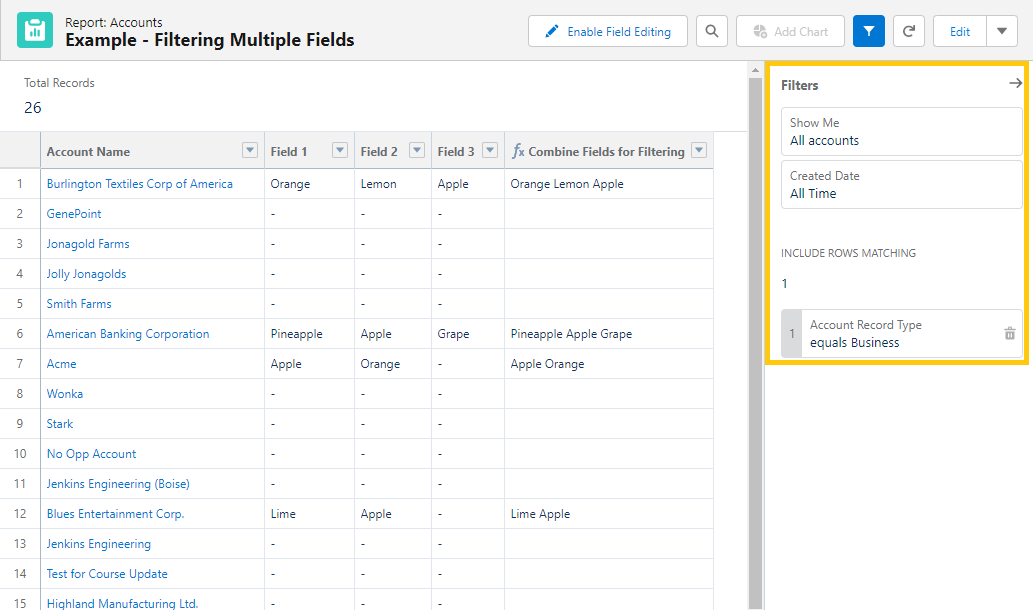
Step 8. Add the Formula field you just created as your report filter.
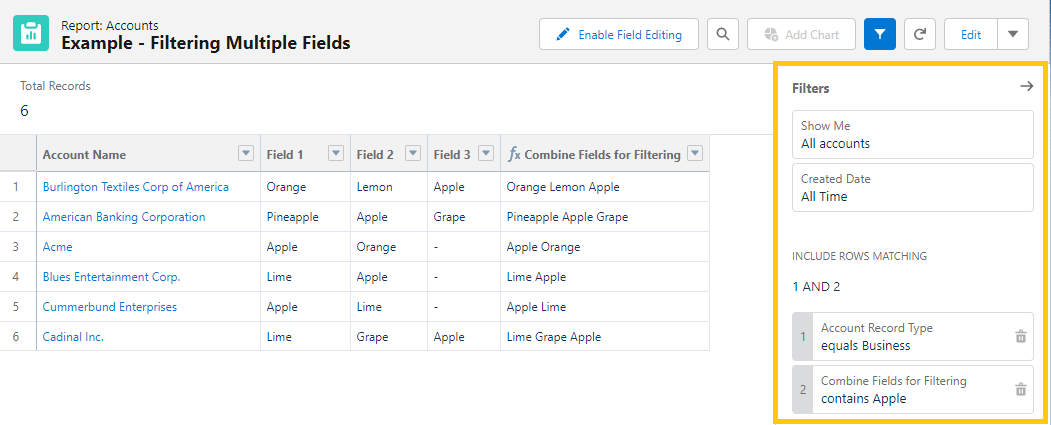
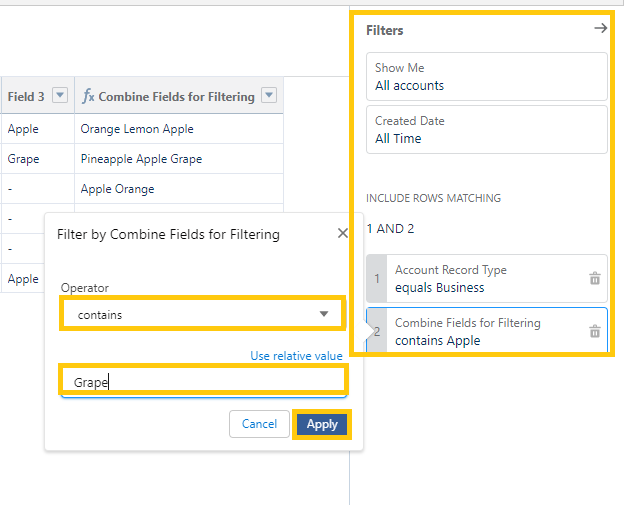
Once the new Row-Level report formula is added, you can specify that you want to see any records that have 'apple' in any of these three fields.
Updating the Search Keyword
If you later decide you want to see any matches with the word Grape instead, click on that filter from the report run or edit page and type the new text to search for.
Save and Run
Step 9. To save and run the report, click Save & Run.
You're done!
Ytterligare resurser
Knowledge-artikelnummer
000395537
Löste denna artikel ditt problem?
Berätta för oss vad vi kan förbättra!
