Выбрать организацию
Converting LastModifiedDate to display Seconds in a Salesforce Report
Дата публикации: Apr 2, 2026
Описание
Решение
Using a Row-Level Formula within the report itself is the recommended approach because it avoids creating unnecessary fields on the Opportunity object, keeping your data model clean and maintainable.
To meet this requirement, you can create a Formula field on the object and then utilize that field in the Salesforce Report. However, considering that the user only wants to use this field in a report and taking into account best practices, we recommend creating a Row-Level Formula field within the report instead. This approach eliminates the need to create additional fields on the object.
For this specific use case, we will focus on the LastModifiedDate field within the Opportunity object
Note: The Time will be displayed in Greenwich Mean Time (GMT) zone.
Let's get started. Here's how to create a report to fulfill this requirement:
Step 1. Login to your Salesforce account
Step 2. In the navigation bar at the top, click on the App Launcher 
Step 3. From the Reports tab, click New Report
Step 4. Select Opportunities as the report type, and click on Start Report
Step 5. Save the report with a name of your choosing
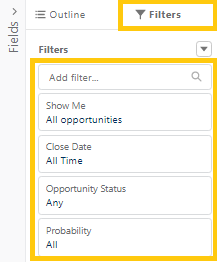
Step 6. Modify or add Filters to identify the specific Opportunities that need to be displayed, specifying the desired range of Close Dates and other relevant criteria based on individual requirements
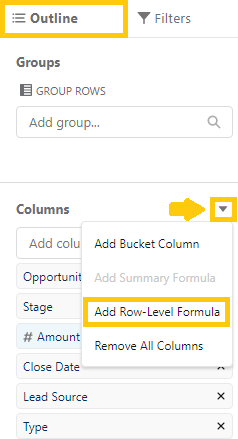
Step 7. From the Columns section of the Outline pane, click 
Step 8. From the Edit Row-Level Formula Column window, enter a Column Name (1), choose a Formula Output Type of Text (2), and use the Formula below (See Sample Formula) (3). To test your formula for errors, click Validate (4). If necessary, resolve any errors. Then, click Apply (5)
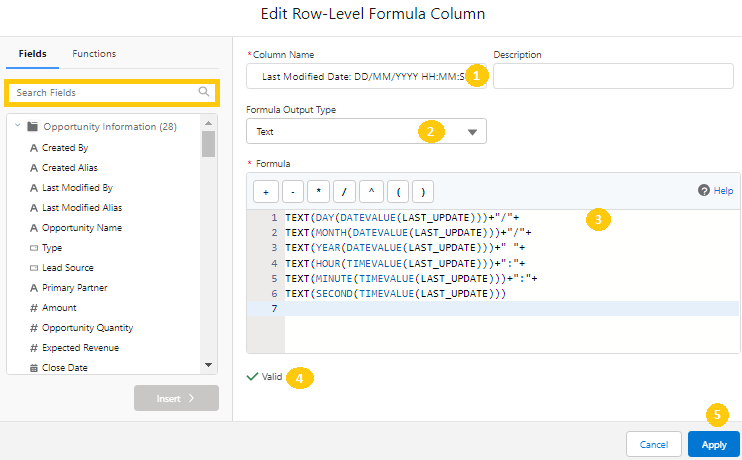
Sample Formula
TEXT(DAY(DATEVALUE(LAST_UPDATE)))+"/"+
TEXT(MONTH(DATEVALUE(LAST_UPDATE)))+"/"+
TEXT(YEAR(DATEVALUE(LAST_UPDATE)))+" "+
TEXT(HOUR(TIMEVALUE(LAST_UPDATE)))+":"+
TEXT(MINUTE(TIMEVALUE(LAST_UPDATE)))+":"+
TEXT(SECOND(TIMEVALUE(LAST_UPDATE)))
Note: Please note that the LAST_UPDATE is the Last Modified Date. The new Row-Level Formula field automatically appears as a column in the report.
Step 9. To save and run the report, click Save & Run

Дополнительные ресурсы
https://help.salesforce.com/s/articleView?id=analytics.reports_formulas_row_level_add.htm&type=5
https://help.salesforce.com/s/articleView?id=analytics.analytics_overview.htm&type=5
Номер статьи базы знаний
000395568
Эта статья решила вашу проблему?
Оставьте свой отзыв, чтобы мы могли стать лучше!
