Seleccionar una organización
Salesforce Visual Remote Assistant (VRA) Send Invite Button is Disabled (Greyed Out)
Fecha de publicación: Jan 7, 2026
Descripción
The "Send Invite" button is disabled for users on the Salesforce Visual Remote Assistant (VRA) invite component, as shown in this screenshot.
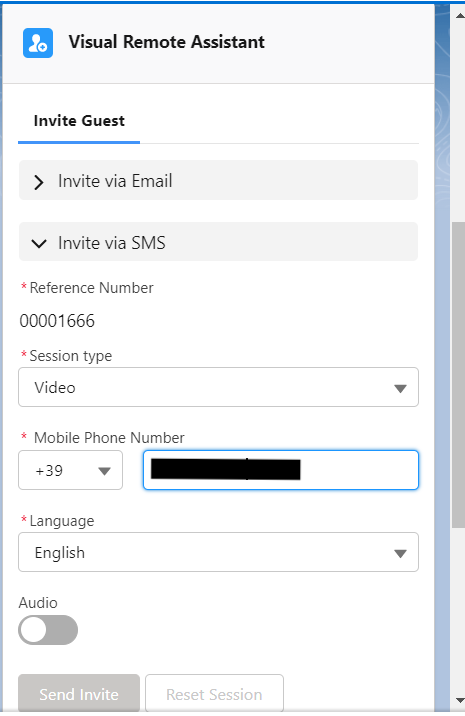
Solución
Please review the following approaches to resolve the "Send Invite" button not being available for selection in the Salesforce Visual Remote Assistant (VRA):
- Ensure that the user who is accessing the VRA invite component is assigned with the "Remote Expert" permission set and the Visual Remote Assistant license.
- Do not use the “Login as“ mechanism. It's currently impossible to send invitations while in this mode. A valid test can be carried out using the user's own credentials.
- Try to reproduce the issue from different browsers, to make sure it is not a browser-related issue. Please do not use Incognito/Private mode. Guest (in Chrome) mode is the preferred method for testing.
- Verify that there are no browser-installed add-ons that may block or interfere with the session. Using Guest (in Chrome) mode ensures no add-ons and no cache.
- If you are connected to a VPN or you have a firewall, please try to turn them off for testing, if possible. It happens mainly on work computers.
- If you are initiating the session from your work computer, please try to initiate the session from your private computer (those tend to not have firewalls or VPNs). It is a very important testing isolation step in the investigation process.
- Enabling the Identity Provider(https://resources.docs.salesforce.com/rel1/doc/en-us/static/pdf/vra_admin_manual.pdf page 56) is a required step for the VRA. Certificate is needed for the authentication purposes to validate IDP which is a part of the VRA setup
- Ensure that Third-Party Cookies’ are set to “allowed”.
i: If using Chrome, navigate to chrome://flags/#third-party-storage-partitioning and set the dropdown for “Third-party Storage Partitioning” to Disabled. Relaunch the browser after updating.
ii: If using Edge, navigate to edge://flags/#third-party-storage-partitioning set the dropdown for “Third-party Storage Partitioning” to Disabled. Relaunch the browser after updating. - Test this behavior among users with different profiles that should have access to VRA. The test must be carried out only using the user's own credentials. If the undesired behavior is reproducible for specific users only, those users may be under profiles that are misconfigured to work with VRA. Follow the steps below to update the user for the Visual Remote Assistant:
- Go to Setup
- From the Quick Find box, search for Manage Connected Apps
- Click on Manage Connected Apps
- Select Visual Remote Assistant
- Scroll down to the Profiles section
- Click on Manage Profiles
- Select and enable required profiles
- Click Save
If this issue still persists then please raise a support case with Salesforce Support for further investigation.
Número del artículo de conocimiento
000395645
¿Resolvió este artículo su problema?
¡Háganos saber cómo podemos mejorar!
