Velg en organisasjon
Test Supported Client SSL/TLS ciphers
Publiseringsdato: Mar 7, 2025
Beskrivelse
The receiving server makes the deciding factor of which cipher suite to use for the TLS connection based on a list of supported ciphers sent by the client and its own list. The server will choose the first cipher from its list (by order of configuration) that is also on the client’s list. If no match is found between the two lists, then a TLS connection cannot be established.
Løsning
Create User Report to Determine Users Using Weak Cipher Suites
If your customer reports receiving an email from Salesforce indicating weak cipher suite use by the org, they can create a report to determine which users or integrations are using weak ciphers.
- Log in to the org and navigate to the Reports tab.
- Select New Report From the Category menu on the left, select Administrative Reports.
- Select the Users report type under the Report Type Name column and click Start Report.
- In the Outline columns, add columns for Browser and TLS Protocol. Add a Group Rows for TLS Cipher Suite.
- Select Filters and set the Last Login filter to the period you’d like to review. The default of All Time is an acceptable filter.
- You can leave the View filter set to Active Users or select one of the other options (Inactive Users, All Users).
- Add a filter for TLS Cipher Suite and select the cipher suite(s) that were identified in the response from Salesforce. Select Apply.
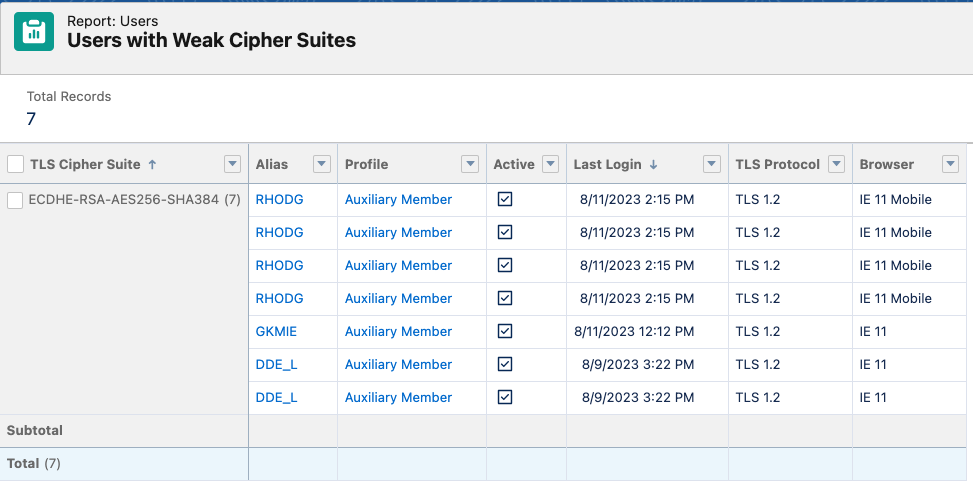
- Select Refresh to check results or Save and Run the report. Shown below is an example of the report for an org. In this example, the org’s Experience Cloud Site URL was accessed by 3 users via Internet Explorer, an unsupported browser. The cipher ECDHE-RSA-AES256-SHA384 cipher is identified in the report.
Browser Check
Modern browsers support all recommended, secure cipher suites and even some weak cipher suites for backward compatibility. Browser vendors will manage usable cipher suites via browser updates.
If a given browser shows that it's unable to use any supported cipher, contact the IT department that manages the device the browser resides on.
Browser Test
Third-party websites can be used to report what cipher suites a local browser will support based on the info exchanged when the connection is established.
Qualys SSL Labs Browser Test (look for “Cipher Suites” section).
Chrome
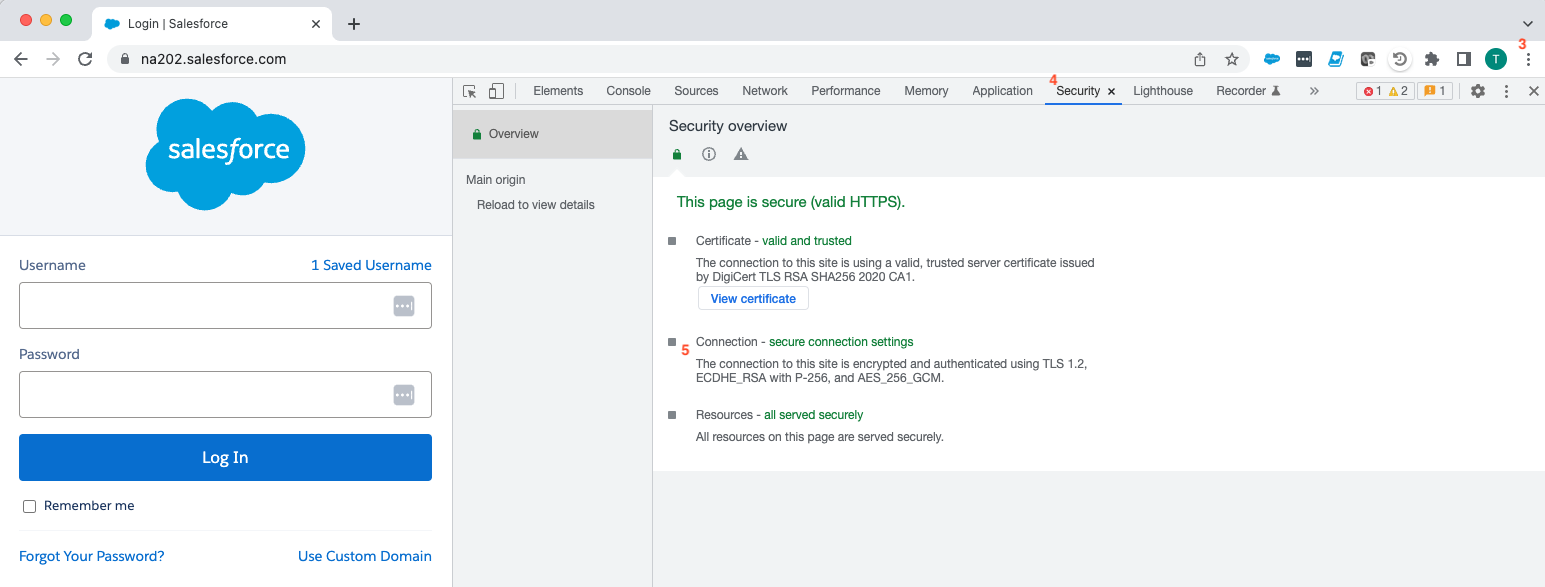
Use these steps to see which cipher is actually used for a connection with the Chrome browser.
- Launch Chrome
- Enter the URL for the site
- Select the ellipsis (three dots) located in top-right
- Select “More tools” > “Developer tools” > “Security” tab
- Review the “Connection” section
Firefox
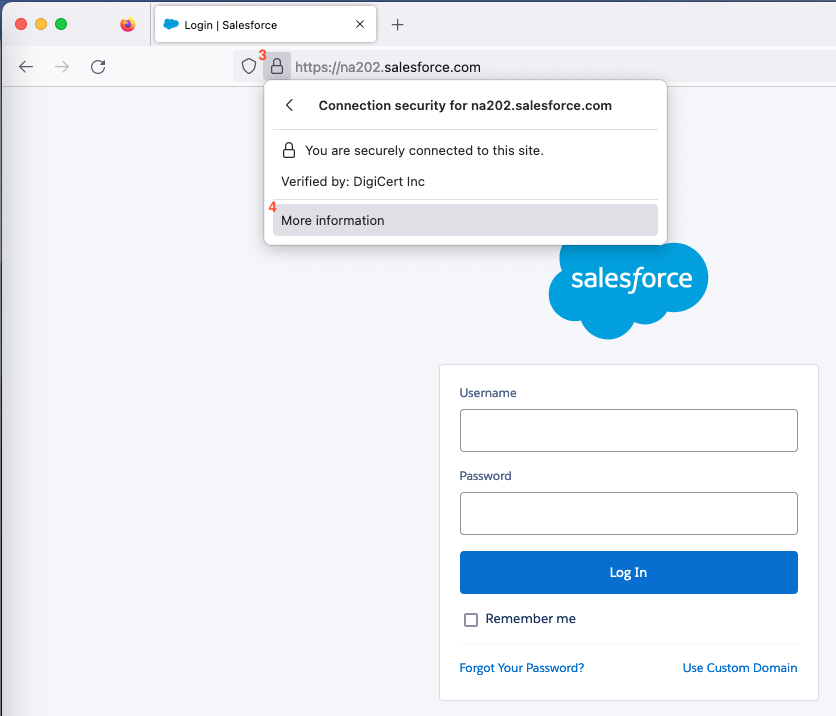
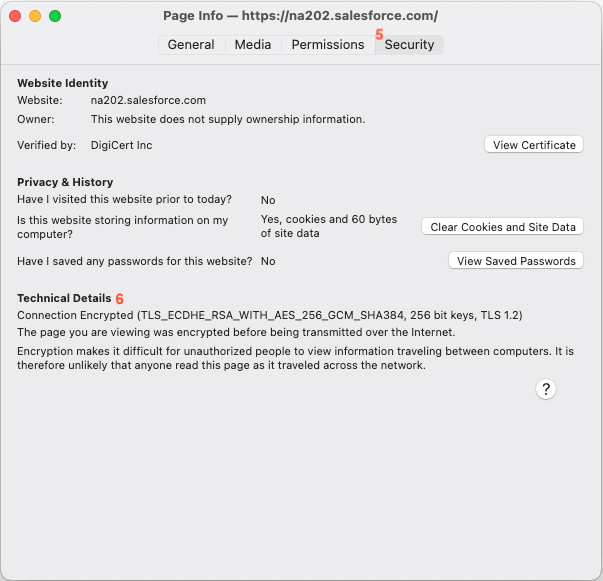
Use these steps to see which cipher is actually used for a connection with the Firefox browser.
- Launch Firefox
- Enter the URL for the site
- Select the “lock” icon to the left of the URL
- Select “More Information”
- Select the “Security” tab
- Review the Technical details section
API Calls
The ciphers used when making API calls depend on the tool used to make those calls (for example, cURL uses the OpenSSL toolkit). The following commands can be used to test if an API call can be made from a given host using a specific cipher.
Note: This will only test that the cipher specified in the command works. The API tool making the call will still need to be checked to ensure that it supports the cipher in question.
If your tests fail, contact the IT department that manages your device or the developer team that manages the code that is making the API callout to identify the issue.
OpenSSL
Successful Connection
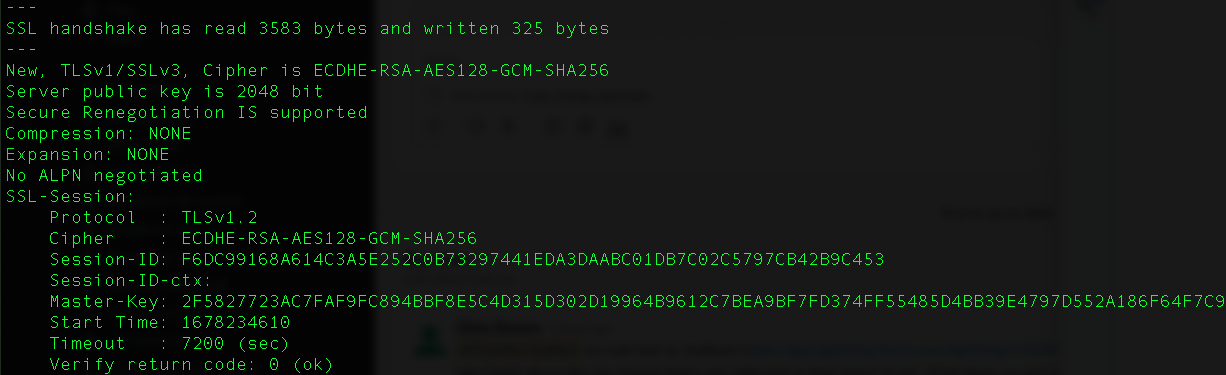
A successful connection will output several different details about the connection, including the TLS/SSL cipher.
openssl s_client -connect na202.salesforce.com:443 -cipher ECDHE-RSA-AES128-GCM-SHA256
Unsuccessful Connection
An unsuccessful connection will output an error such as “no cipher match” or “sslv3 alert handshake failure”.
openssl s_client -connect na202.salesforce.com:443 -cipher PSK-AES128-CBC-SHA
openssl s_client -connect na202.salesforce.com:443 -cipher ECDHE-ECDSA-AES128-GCM-SHA256
Preventing User Access with Weak Ciphers
If you are currently using Shield Event Monitoring, you may use Enhanced Transaction Security to block user logins with weak ciphers. Salesforce developers, please reference below:
See also:
A list of supported ciphers can be found here:
Salesforce Services and Marketing Cloud supported TLS 1.2 Cipher Suites
Supported Cipher and TLS versions for Government Cloud
Knowledge-artikkelnummer
000395699
Hjalp denne artikkelen med å løse problemet ditt?
La oss få vite det slik at vi kan forbedre!
