Выбрать организацию
Field Service Service Appointment Status Change Error: Actual Start Must Be Earlier Than Actual End
Дата публикации: May 28, 2026
Описание
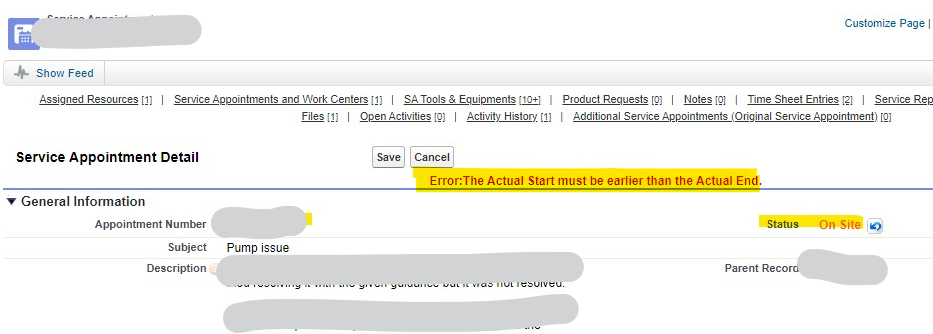
Sometimes users encounter a validation error in Salesforce Field Service when attempting to change a Service Appointment (SA) status from "In Progress" to "On Site." The error message reads:
"The Actual Start must be earlier than the Actual End."
Screenshot showing the validation error "The Actual Start must be earlier than the Actual End" when attempting to change a Service Appointment status from In Progress to On Site in Salesforce Field Service.
Решение
This error occurs in Salesforce Field Service when the Actual End field on a Service Appointment already contains an outdated (past) timestamp, and the system attempts to set the current time as the Actual Start — which is then later than the existing Actual End value, triggering the validation rule. The fix is to clear both Actual Start and Actual End from the record before changing the status to In Progress (On Site).
Root Cause
To understand how the Service Appointment (SA) date fields are populated, here is the sequence of events:
- The SA is created in the system with an Early Start and Due Date as per the business SLAs.
- After the SA is scheduled, the system populates the Scheduled Start and Scheduled Finish fields on the SA.
- When the mobile engineer changes the status to In Progress (On Site), the system sets the current datetime as the Actual Start.
- When the mobile engineer changes the status to Completed, the system sets the current datetime as the Actual End.
In this error scenario, the Actual End field already contains a past (outdated) timestamp from a prior attempt. When the engineer changes the status to In Progress (On Site), the system writes the current datetime into Actual Start in memory. Since the current datetime is now later than the stale Actual End value, the validation rule fires before the record is committed, and the error is thrown.
Steps to Resolve
- Open the Service Appointment record that is showing the error.
- Clear the value in the Actual Start field.
- Clear the value in the Actual End field.
- Save the record.
- Change the status to In Progress (On Site).
- Save the record again. The record saves successfully.
Дополнительные ресурсы
Номер статьи базы знаний
000395833
Эта статья решила вашу проблему?
Оставьте свой отзыв, чтобы мы могли стать лучше!
