Sélectionner une organisation
Salesforce Field Service Mobile App: Return Order Tab Not Available in Inventory Section — Two Workarounds Using Work Order Related List or Mobile Flow on Product Request
Date de publication: May 17, 2026
Description
In the Salesforce Field Service (SFS) mobile app, the Inventory section does not include a Return Order tab. This is a current product limitation — adding a custom tab to the Inventory section is also not supported due to technical boundaries of the Field Service mobile app.
Users cannot create a Return Order directly from the Inventory tab. As per the Salesforce product management team, documentation for the Return Order feature is planned for update in an upcoming release.
For reference on how Return Orders are designed to work in Salesforce Field Service:
Résolution
Although the Return Order tab is not directly accessible from the Inventory section of the Salesforce Field Service mobile app, the following two workarounds allow users to create Return Orders.
In both workarounds, the Return Order must have a parent record — either a Work Order (WO) or Service Appointment (SA) — to appear in the mobile app's related list. Without a parent, the Return Order does not display in the related list.
Workaround 1: Create the Return Order via Desktop on the Work Order Related List
Return Orders must have a parent record such as a Work Order to appear in the mobile app.
- On the desktop, navigate to the relevant Work Order record.
- Find the Product Request related list on the Work Order.
- Open the Product Request record.
- Navigate to the Return Order related list on the Product Request.
- Create the Return Order from here.
The Return Order then appears in the mobile app under: Work Order > Product Request Related List > Open > Return Order Related List.
Workaround 2: Create the Return Order via a Mobile Flow on the Product Request Object
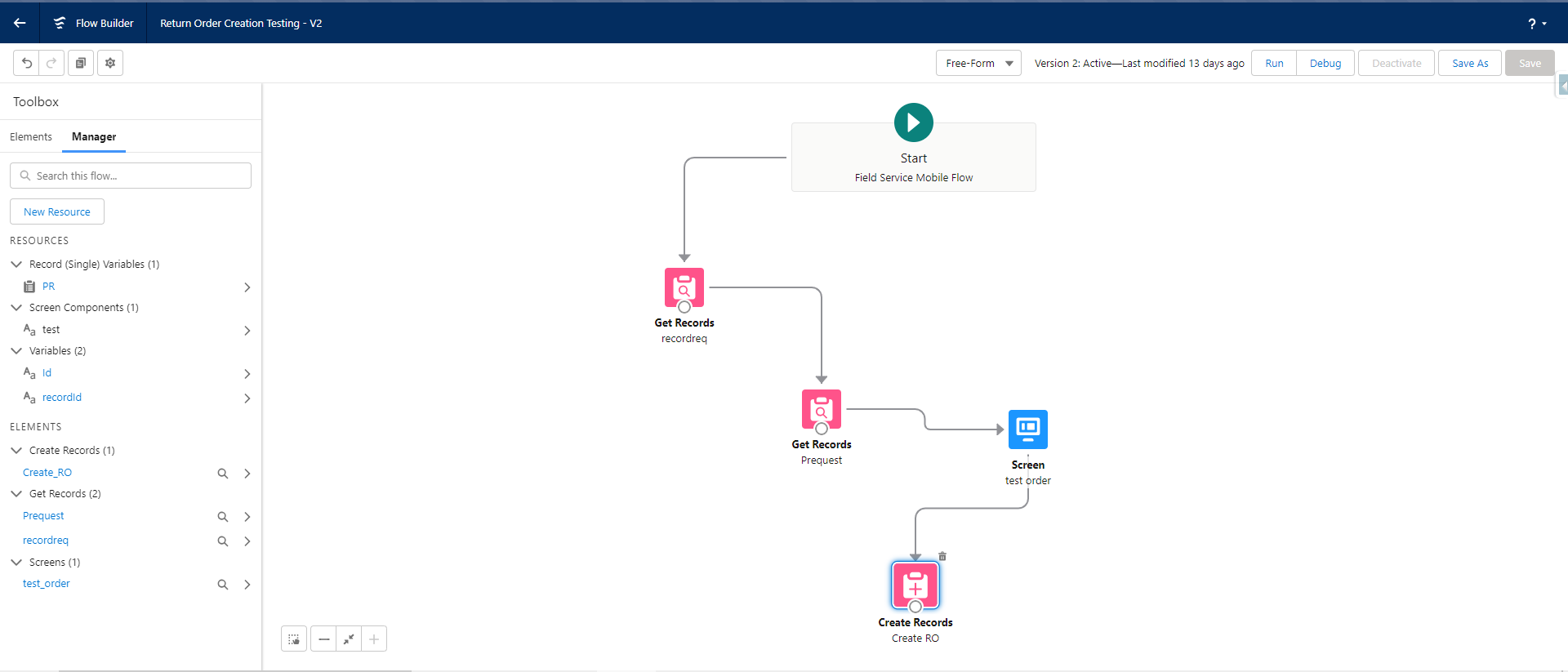
You can build a Salesforce Flow that creates a Return Order directly from the mobile app.
- In Setup, create a Mobile Flow on the Product Request object.
- Configure the flow to create a Return Order record when triggered.
- Add this flow as a mobile action on the Product Request related list.
- On the mobile app, open a Product Request record, tap the action, and the flow creates the Return Order.
Note:
The return order must have a parent associated (WO/SA, and so on) and it will be displayed in the related list (WO> Product Request Related > Open > Return Order related list).
So if you want to create a return order on a product request then that request should have parent linked to either WO or SA.
Ressources supplémentaires
Guidelines for Tracking Customer Returns in Field Service
Numéro d’article de la base de connaissances
000395993
Cet article a-t-il résolu votre problème ?
Dites-nous ce que nous pouvons améliorer !
