조직 선택
How to Extract Numbers from a Text Field in Salesforce Using a Record-Triggered Flow (Case Subject Example)
게시 일자: May 28, 2026
상세 설명
A text field sometimes contains numeric characters that need to be extracted and stored in a separate numeric or text field. For example, the Case Subject field may contain a mix of text and numbers, and you may need to isolate only the numeric characters for reporting or processing purposes.
This article explains how to extract numbers from a text field using a Salesforce Record-Triggered Flow. The example uses the Case Subject field, but the approach applies to any text field on any object.
솔루션
This solution requires two parts: (1) creating a field to hold the extracted numbers, and (2) building a Record-Triggered Flow to extract and populate that field automatically when a Case is created or updated.
Part 1: Create a Field to Hold the Extracted Numbers
First, create a Text or Number field on the Case object to store the numeric characters extracted from the Subject field.
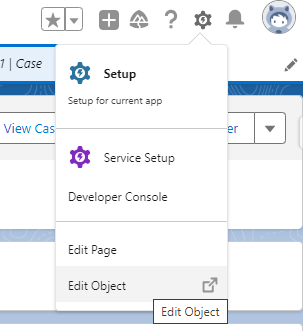
Step 1: Go to any Case record and click the gear icon in the top right of the screen, then click Edit Object.
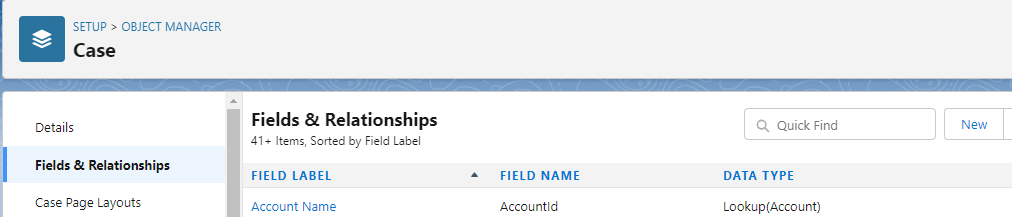
Step 2: Click Fields & Relationships in the left-hand panel, then click New.
Step 3: Select Text (or Number) as the field type, then click Next.
Step 4: Name the field (for this article, it is called Subject Numbers Only). Set the length as needed — up to 255 characters for a Text field, or up to 18 digits including decimals for a Number field. Click Next.
Step 5: Assign the field to the appropriate profiles or permission sets, then click Next.
Step 6: Select the Page Layouts to include this field on, then click Save.
_____________________________________________
Part 2: Create a Record-Triggered Flow to Extract the Numbers
A Record-Triggered Flow runs automatically when a record is created or updated. This flow iterates through each character in the Case Subject field, checks whether the character is a number, and appends matching characters to a text variable. After processing all characters, it updates the Case with the extracted numbers.
Step 1: Click the gear icon and navigate to Setup. In the Quick Find box, type Flow, then click New Flow.
Step 2: Select Record-Triggered Flow, then click Create.
Step 3: Set the Object to Case. Under Trigger the Flow When, select A record is created or updated.
Step 4: In the Set Entry Conditions section, set Condition Requirements to Formula Evaluates to True and enter the following formula. This condition ensures the flow only runs when the Case is new with a non-blank Subject, or when the Subject field has changed:
OR(
AND(ISNEW(),NOT(ISBLANK({!$Record.Subject}))),
ISCHANGED({!$Record.Subject}))
Step 5: Set When to Run the Flow for Updated Records to Every time a record is updated and meets the condition requirements. Select Fast Field Update, then click Done.
Step 6: Create a Formula resource named LenFormula with Data Type set to Number and Decimals set to 0. Set the formula to calculate the length of the Subject field — this tells the flow how many characters to iterate through:
LEN({!$Record.Subject})
Step 7: Create a Variable named Counter with Data Type Number, Decimals 0, Default Value 1, and the Available for input checkbox selected. This variable tracks the current character position in the Subject field as the flow iterates.
Step 8: Add a Decision element to the flow canvas. Set the outcome condition to: Counter less than or equal to LenFormula. This condition controls the loop — the flow continues processing characters as long as Counter does not exceed the total length of the Subject.
Step 9: From the Decision's true outcome, add an Assignment element. Inside the Assignment, create a new Variable named TextVar with Data Type Text, with both Available for input and Available for output checked. Set the Variable operator to Add.
Step 10: Create a new Formula resource named NumberTextFormula with return type Text. This formula checks each character of the Subject field at the current Counter position. If the character is a digit, or if it is a decimal point positioned between two digits, the character is returned. Otherwise, NULL is returned — so only numeric characters and properly positioned decimal points are appended to TextVar:
IF(OR(
/*Check for a digit*/
ISNUMBER(MID({!$Record.Subject},{!Counter},1)),
/*Check for a decimal point - needs to be in between numbers*/
AND(
MID({!$Record.Subject},{!Counter},1)=".",
ISNUMBER(MID({!$Record.Subject},{!Counter}-1,1)),
ISNUMBER(MID({!$Record.Subject},{!Counter}+1,1)))),
MID({!$Record.Subject},{!Counter},1),NULL)
Step 11: In the same Assignment element, add a second assignment line: Counter — Add — 1. This increments the Counter so the flow moves to the next character on the next iteration.
Step 12: Connect the Assignment element back to the Decision element to create a loop. The loop continues until Counter exceeds LenFormula (the total Subject length).
Step 13: In the Default path of the Decision (when Counter exceeds the Subject length), add an Update Records element named UpdateCase. Set it to update the triggering Case record. Set the Condition Requirements to None — Always Update Record. In Set Field Values for the Case Record, map the Subject_Numbers_Only__c field to the TextVar variable:Subject_Numbers_Only__c <-- {!TextVar}
Note: If you created a Number field instead of a Text field in Part 1, the value must be converted from text to number before assigning. Create an additional Formula resource named FinalNumberFormula with return type Number and the formulaVALUE({!TextVar}). Then mapSubject_Numbers_Only__c <-- {!FinalNumberFormula}in the Update Records element.
Step 14: Save and Activate the flow.
Important: This flow only processes Case records that are newly created or updated after the flow is activated. For existing Case records, manually update the Subject_Numbers_Only__c field (for example, using the Salesforce Data Loader), or create a separate scheduled flow that processes all existing Cases using the same logic.
This solution was contributed by Eric Praud, Salesforce MVP. Community contributions represent individual opinions and should be validated before implementation in production.
Knowledge 기사 번호
000396056
이 기사를 통해 문제를 해결했습니까?
개선을 위한 의견을 보내주세요.
