組織を選択
How to create a validation rule to fix Status change issue on Case record
公開日: Aug 25, 2025
説明
When the record type is either "Service Case" or "Service Case Read Only" and:
- Type equals 'Mechanical' AND Status equals 'Closed', then "Order Number 1" field is required
- Type not equals 'Mechanical' OR Status not equals 'Closed', then "Order Number 1" and "Order Number 2" should be empty
解決策
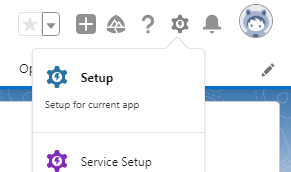
Step 1: Click on the Gear icon in the upper right corner and select Setup and navigate to the Object Manager tab
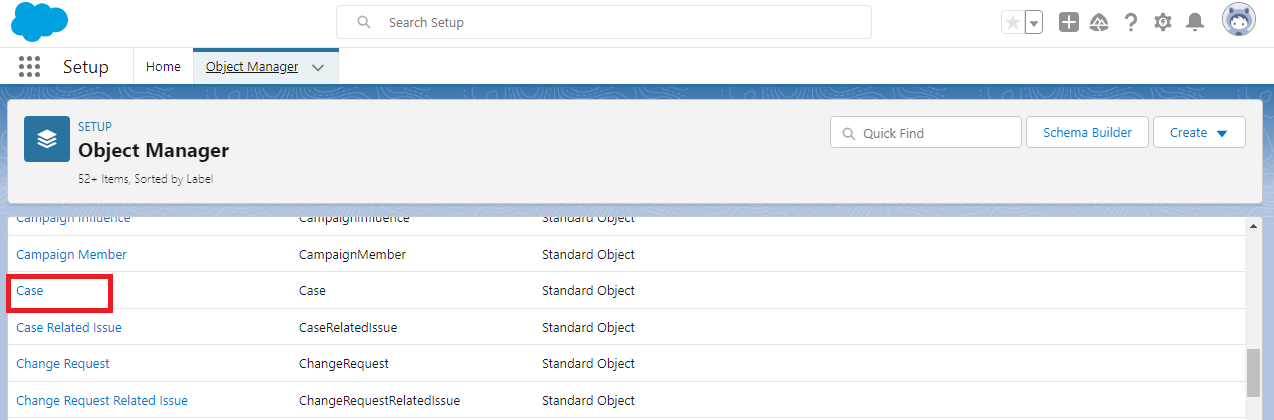
Step 2: Select the Case Object from the list of available objects
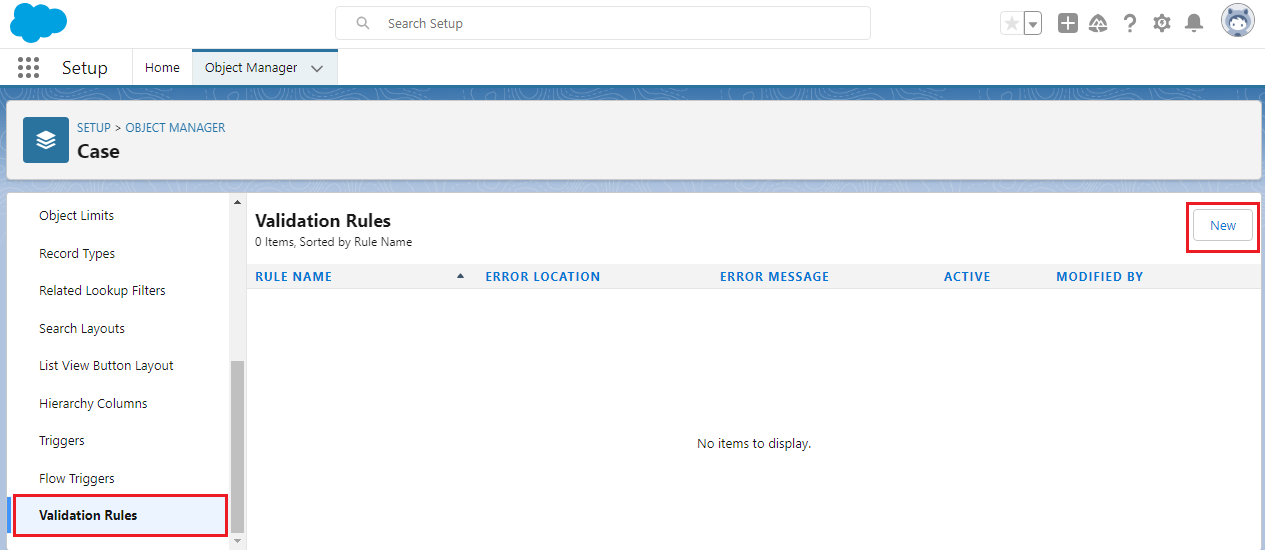
Step 3: From the left-hand panel, select Validation Rules and click on the New button
Step 4: From the Case Validation Rule page:
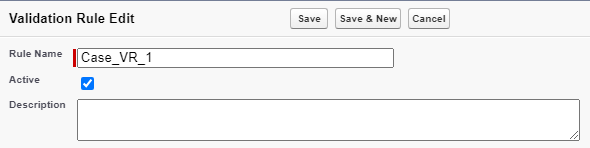
a. Provide a suitable Rule Name for the Validation Rule
b. Make sure the Active checkbox is checked for the Validation Rule to be active once created
c. Add a Description to the Validation Rule as a best practice
d. Use the sample formulas provided below for both the Validation Rules separately in the Error Condition Formula editor
e. Click on the Check Syntax button in order to validate the formula
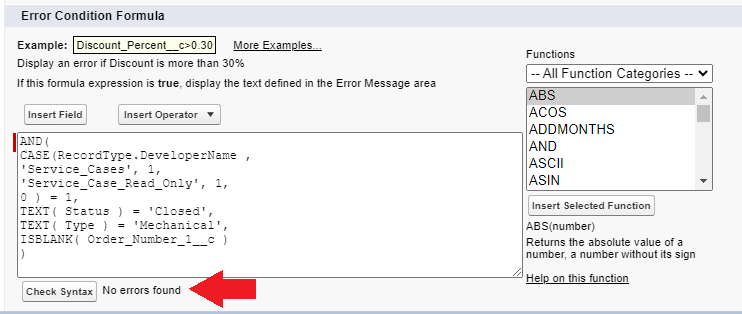
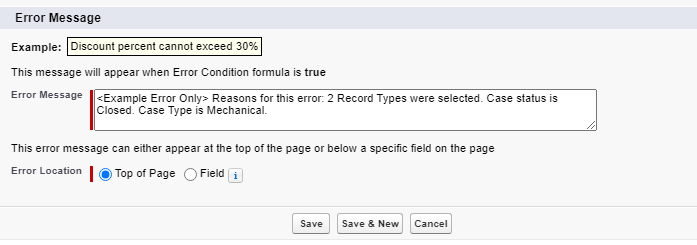
f. Provide an error message under the Error Message section. (This message will appear when the error happens)
g. Select the Error Location and click Save
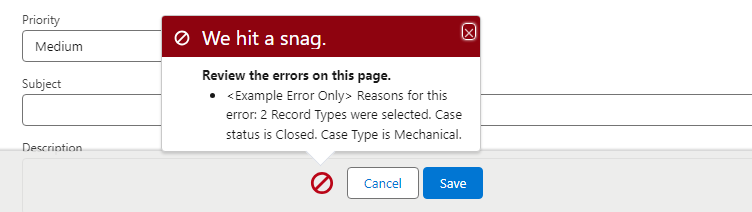
h. Here is an Error message that shows on the case record:
Sample Formula for First Validation Rule :
AND(
CASE(RecordType.DeveloperName ,
'Service_Cases', 1,
'Service_Case_Read_Only', 1,
0 ) = 1,
TEXT( Status ) = 'Closed',
TEXT( Type ) = 'Mechanical',
ISBLANK( Order_Number_1__c )
)
Sample Formula for Second Validation Rule:
AND(
CASE(RecordType.DeveloperName ,
'Service_Cases', 1,
'Service_Case_Read_Only', 1,
0 ) = 1,
OR(
TEXT( Status ) <> 'Closed',
TEXT( Type ) <> 'Mechanical'
),
OR(
NOT(ISBLANK( Order_Number_1__c )),
NOT(ISBLANK( Order_Number_2__c ))
)
)
Note:
Order_Number_1__c and Order_Number_2__c are custom fields of Number datatype
Here is the explanation of the Validation Rules:
First Validation Rule:
- We are doing an AND operation in order to check whether all conditions included as arguments are met.
- Initially, the 2 record types listed in the requirements ('Service Case' and 'Service Case Read Only') are verified within the Case function to check whether any of the 2 record types are selected by the user.
- Then the 'Status' and 'Type’ picklist values are checked for whether the case is Closed while the 'Type’ value is selected as Mechanical.
- Finally, the 'Order Number 1' field is checked whether the field is blank.
- If all the formula conditions are TRUE, then the validation rule will fire, and the provided error message will appear preventing the record from being saved by the user.
- We are doing an AND operation in order to check whether all conditions included as arguments are met.
- Initially, the 2 record types listed in the requirements ('Service Case' and 'Service Case Read Only') are verified within the Case function to check whether any of the 2 record types are selected by the user.
- Then, within the OR function, the 'Status' and 'Type’ picklist values are checked for whether, either the case is not Closed OR the 'Type’ field value is not selected as Mechanical.
- Finally, within the another OR function, the 'Order Number 1' and 'Order Number 2' fields are checked whether they have a value populated on the case record.
- If all the formula conditions are TRUE, then the validation rule will fire, and the provided error message will appear preventing the record from being saved by the user.
Written by: Ajaypreet Singh Saini | Salesforce Answers Leader
Ajaypreet Singh Saini is working as a Salesforce Implementation Specialist at Grantbook. Prior to Grantbook, Ajaypreet served as a Salesforce Administrator for 2 years working on Sales Cloud where he was responsible for configuring and administrating complex processes and maintaining security of Salesforce Instance.
Submissions reflect only the opinions of the user who made available the Submission and not the opinions of Salesforce, regardless of whether the user is affiliated with Salesforce, and may contain or constitute products, services, information, data, content and other materials made available by or on behalf of third parties ("Third Party Materials). Salesforce neither controls nor endorses, nor is Salesforce responsible for, any Third Party Materials, including their accuracy, validity, timeliness, completeness, reliability, integrity, quality, legality, usefulness or safety, or any applicable intellectual property rights. Any Submissions made available through any message board or forum in response to posted questions, or that otherwise purports to answer any questions, including any questions about Salesforce or Programs, are made available for your general knowledge only and should never be relied upon as answers to your specific questions (even if an answer is marked as a “best” answer or with any similar qualifications). You should always contact Salesforce support for answers to your specific questions. Salesforce has no control over Submissions, and is not responsible for any use or misuse (including any distribution) by any third party of Submissions.
If you have questions, tap into the wisdom of our entire Trailblazer Community here: https://trailhead.salesforce.com/trailblazer-community/feed
ナレッジ記事番号
000396082
この記事で問題は解決されましたか?
ご意見をお待ちしております。
