Organisation auswählen
How to Disconnect a Multi-Factor Authentication (MFA) Verification Method as an End User
Veröffentlichungsdatum: Jun 11, 2026
Beschreibung
You may need to disconnect your Multi-Factor Authentication (MFA) verification method from your Personal Settings screen, for example, when replacing a smartphone that has an MFA authenticator application installed. This knowledge article explains how users can disconnect the verification method themselves.
Examples Scenarios:
- Wanting to change the MFA verification method (when login is possible using an existing verification method).
- Wanting to move the authenticator application to a new device due to a phone upgrade (when login is possible using the old device).
Lösung
In Lightning Experience:
- Log in to Salesforce, click your profile icon in the upper right, and click [Settings].
- In the [Quick Find] box, enter "Advanced User Details", and select [Advanced User Details].
In Classic:
- Log in to Salesforce, click the [▼] next to your name in the upper right, and click [My Settings].
- In the [Quick Find] box, enter "Advanced User Details", and select [Advanced User Details].
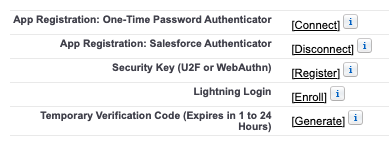
- Your MFA connection status is displayed on the left.
If Salesforce Authenticator is connected, click [Disconnect] to remove MFA.
*If other MFA factors are registered, click [Disconnect] or [Remove] as needed.
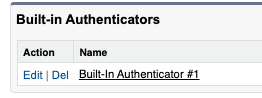
If you are using Built-in Authenticators, the registration status is listed in the "Built-in Authenticators" section at the bottom of the [Advanced User Details] page. Click [Del] to remove the MFA.
4.When the user logs in to Salesforce again, an MFA registration screen will be displayed. Please re-register your new method.
*The specific registration screen that appears may differ depending on your organization.
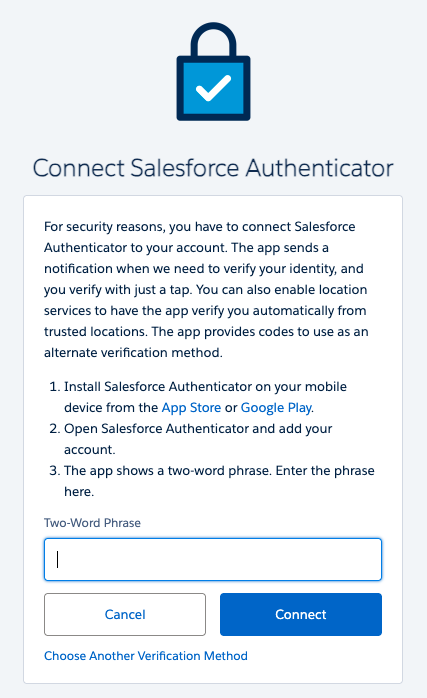
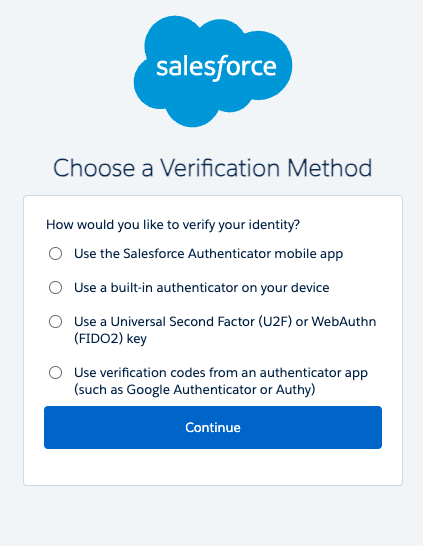
For details on how to set up verification methods, please refer to "How to Set Up Salesforce Authenticator (Version 4.4.0 or Later) for MFA" or "How to Set Up MFA Verification Methods in an Organization with MFA Enabled(Japanese)”.
Unable to Utilize Above Methods
If you cannot log in to Salesforce and cannot access the Personal Settings screen, please request that your organization's system administrator disconnect the verification method.
Zusätzliche Ressourcen
- Sales Service Cloud : How to Disconnect a User's Multi-Factor Authentication (MFA)
- Help Users Register MFA Verification Methods for Salesforce Orgs
- How to Set Up Salesforce Authenticator (Version 4.4.0 or Later) for MFA
- How to Set Up MFA Verification Methods in an Organization with MFA Enabled(Japanese)
Nummer des Knowledge-Artikels
000396207
Konnten Sie Ihr Problem mithilfe dieses Artikels lösen?
Geben Sie uns Feedback, damit wir uns verbessern können.
